Ian has his Easter party at school today.
So what do I volunteer to bring?
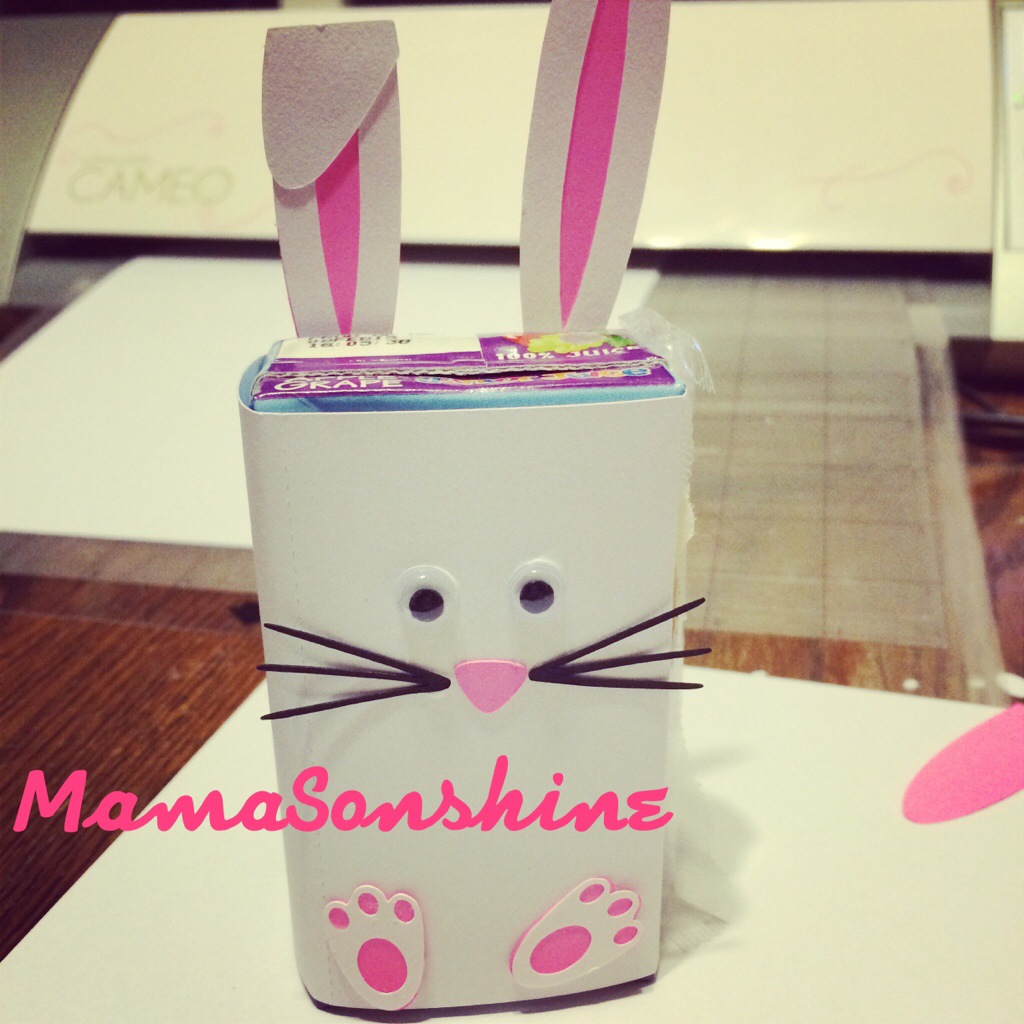
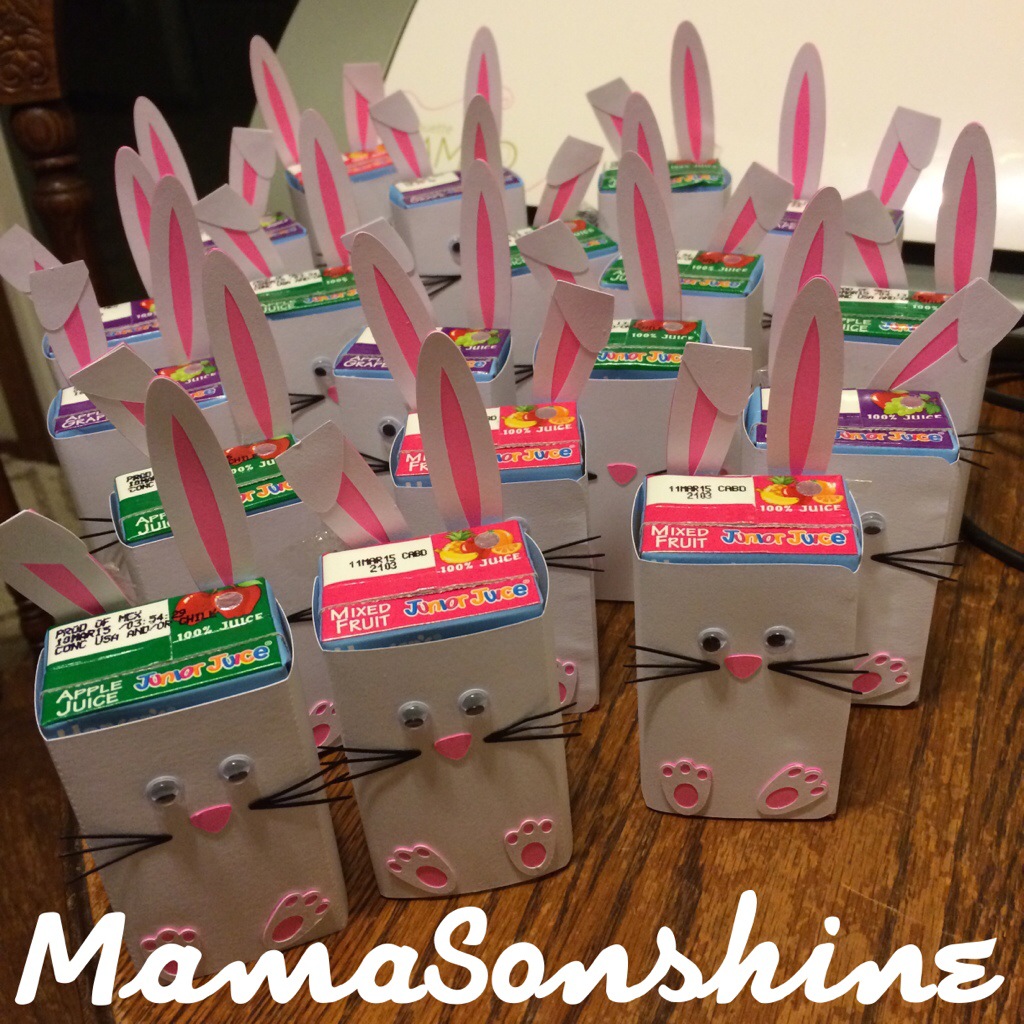
Juice boxes of course because I can make them look like super cute little bunnies.
I found these Hansen’s Junior Juice
boxes and thought the would be perfect because there are just 4.23 oz, a perfect size for little 4 & 5 year olds.
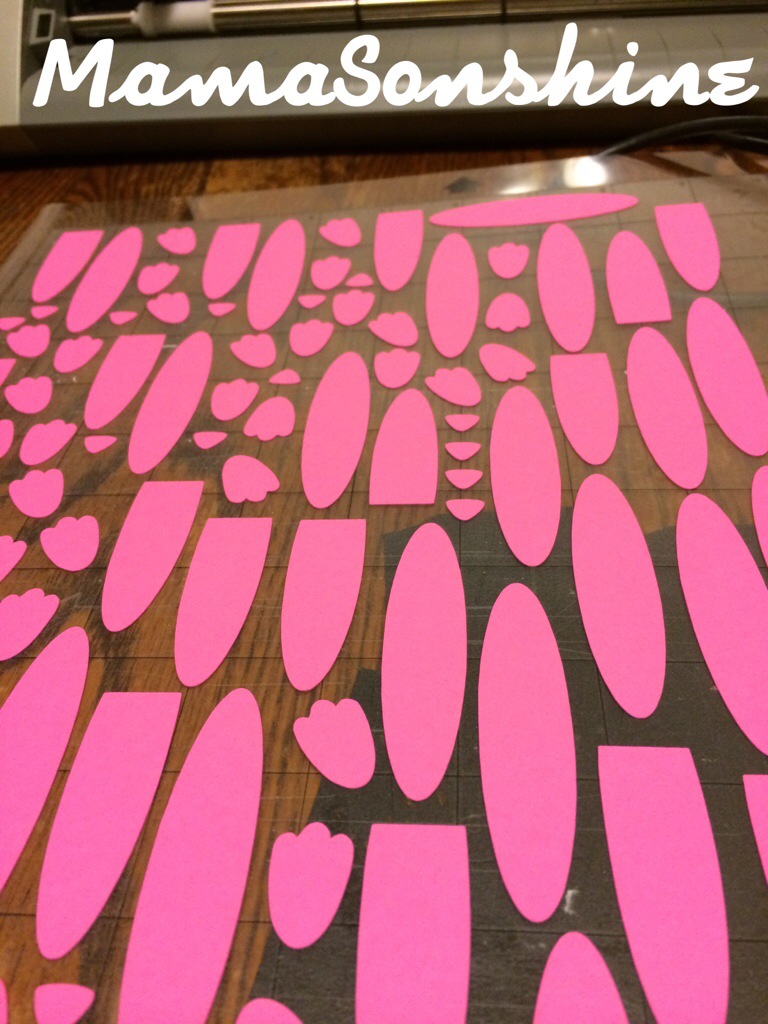
I used my Silhouette Cameo to cut out all the parts for the bunny.
I was grateful that I had two mats! I could load another one to cut, while I was taking all these little parts off.
I then just glued them all together and wrapped around the boxes.
I made 20 boxes and was able to use one 12×12″ sheet of pink card stock, scrap pieces of black and 7 sheets of 8.5×11″ white card stock. I also had the googly eyes, so I only had to buy the juice boxes, which I got 20 for less than $7.
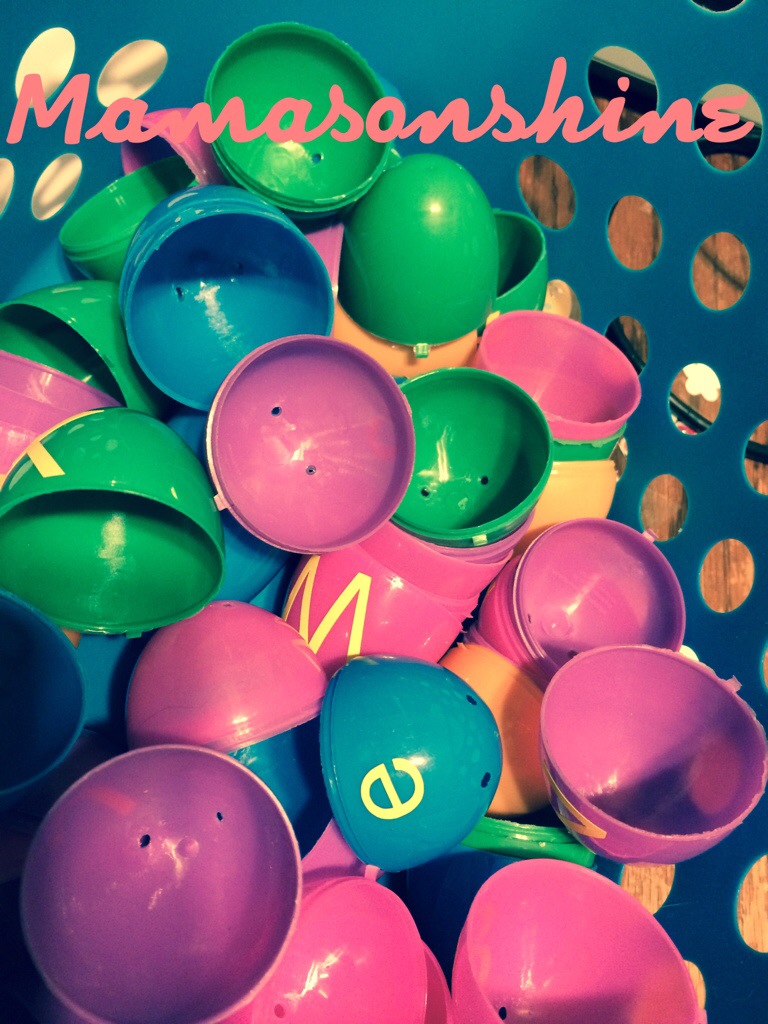
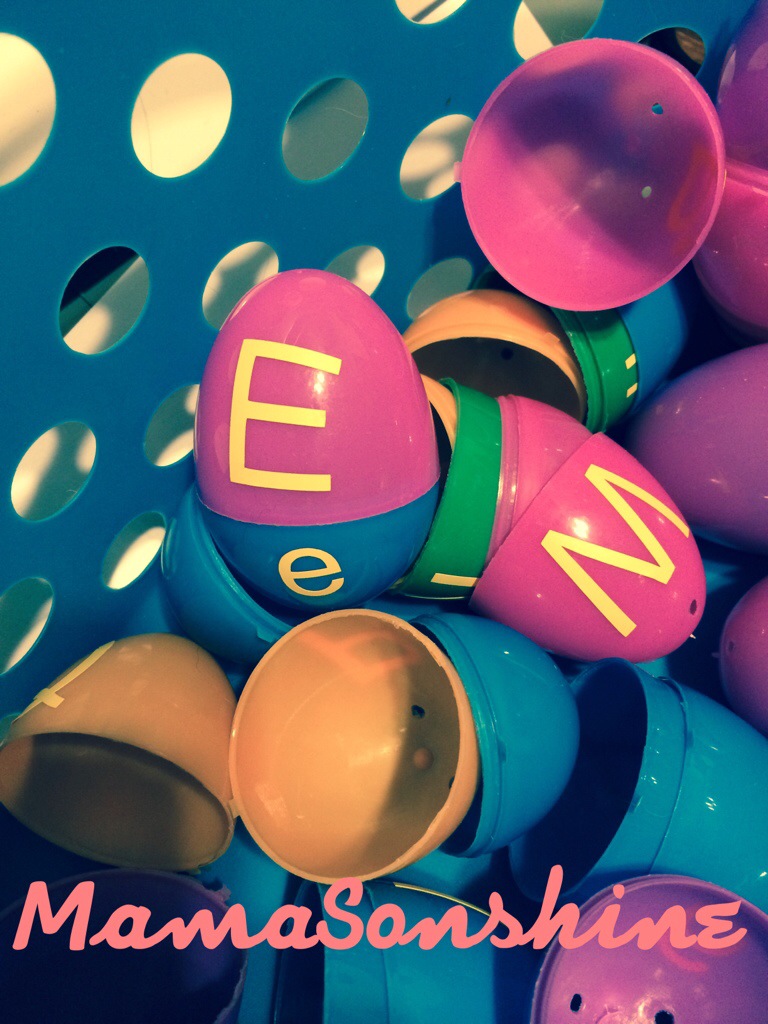
I also broke out my Cameo to make a letter matching egg game. I got the eggs 18/$1 and I already had the vinyl. I cut out an upper case and a lower case letter, and put them on different colored eggs.
I put the upper case on the top half and lower case on the bottom half. The kids then would match the two letter s together.
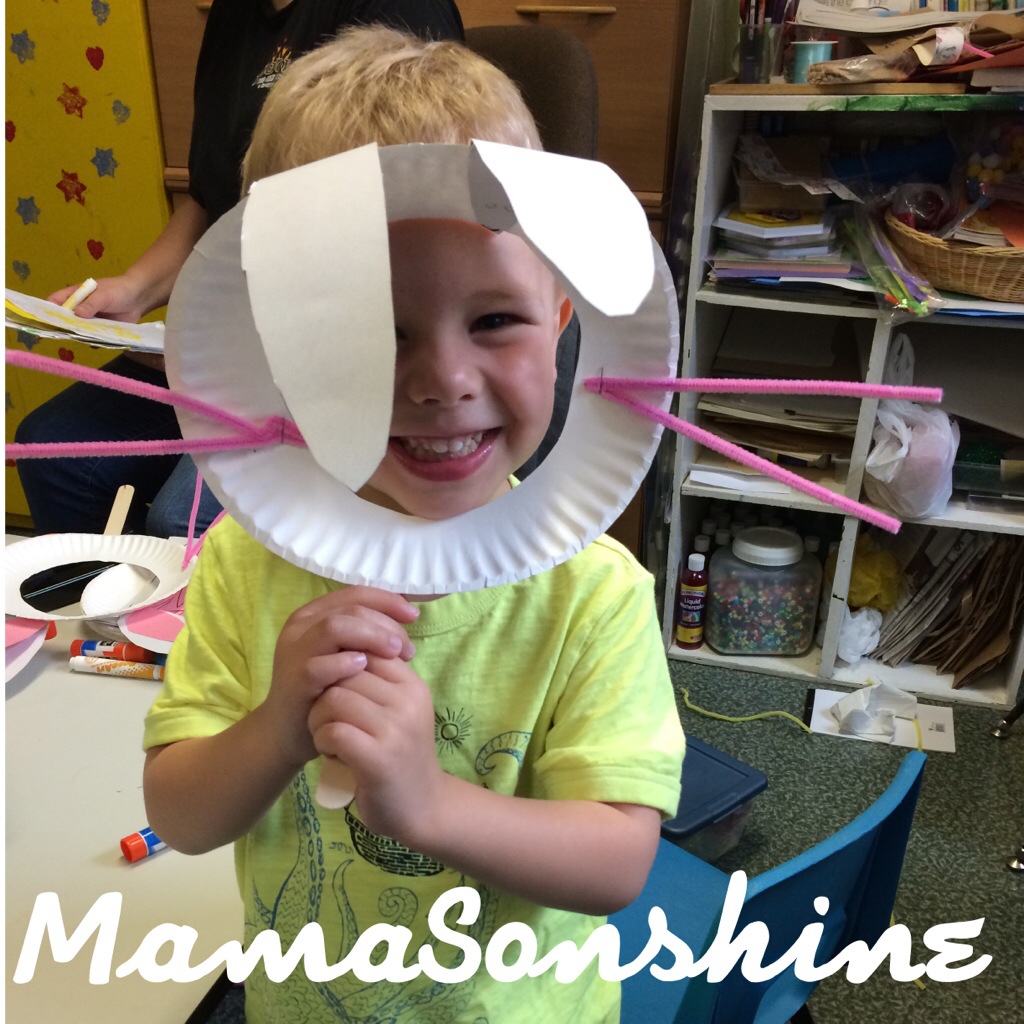
We also had the kids make rabbit masks to hold up for a group picture.
You need a paper plate, card stock for the ears (white and pink), pipe cleaners for the whiskers and craft sticks for a handle.
We cut out the center of the plate, made a template for the ears and let the kids cut the ears and glue them together.
They turned really cute and we were able to get a great group picture.
This month my cousin’s daughter turned four. And of course she loooovvvveees Frozen. She is a princess through and through, this child.
For her birthday I decided I wanted to make her a card with images from the movie. I also decided to make my first shaker card. I thought it would be great to have some ‘snow’ to shake around.
I used Silhouette’s print and cut feature to make the card.
I used foam pads to pop out the characters. I made two copies of the background and cut a square out of one.
However, I neglected to place a spacer between the levels, so the stuff inside doesn’t really ‘shake’.
But, it was my first shaker card, and I didn’t actually read any directions on how to make one…
The Birthday Girl loved the card, so it was a win in my book!
I also wanted to make something using the sketch feature.
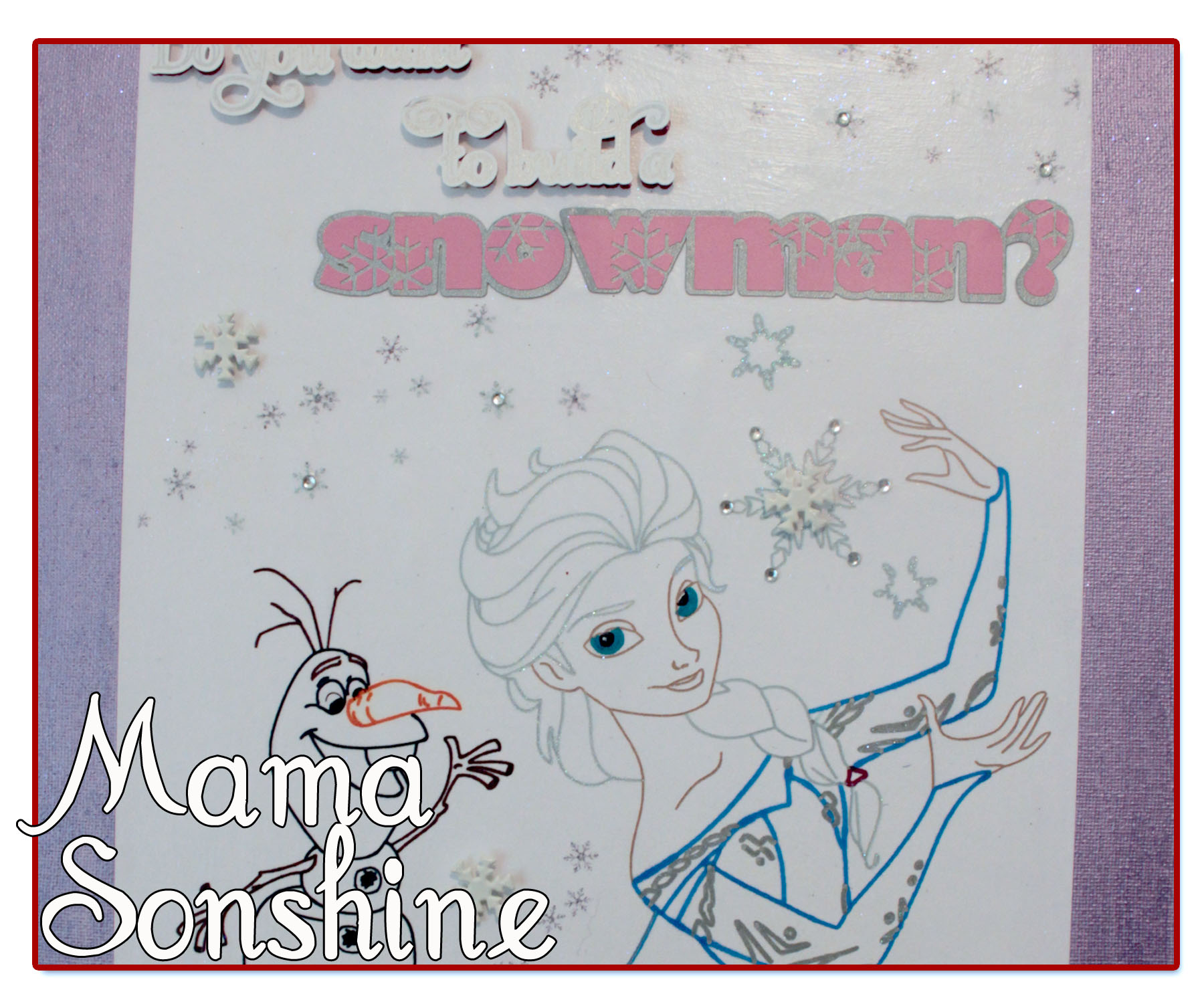
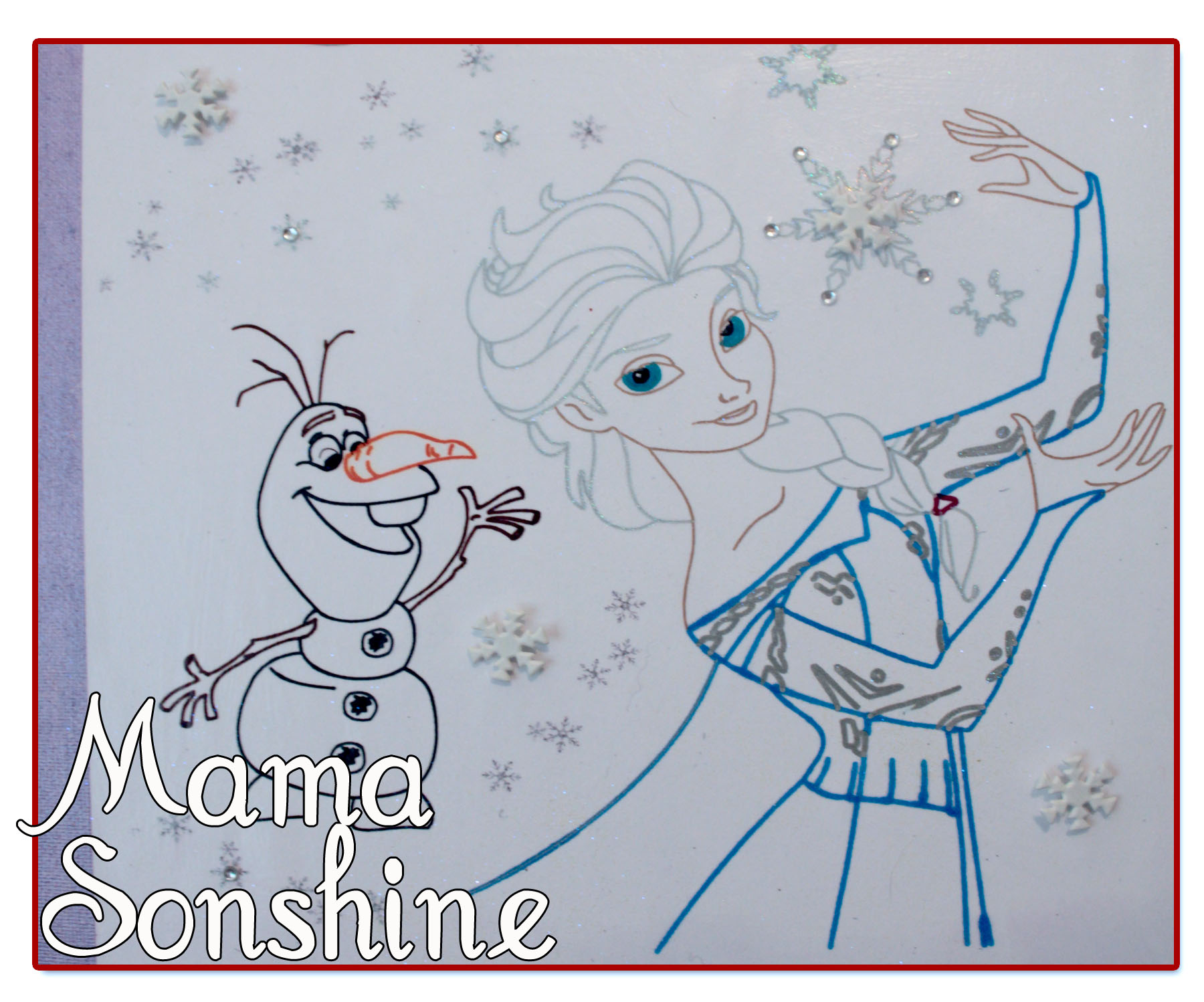
So I made her this picture and mounted it on canvas for her room.
I didn’t like the way the words at the top looked just sketched out, so I gave them more dimension and added some layers.
I added some snowflake brads and some adhesive jewels. I printed out the small snowflakes on the paper before beginning the sketching process.
I also used my embossing ink pen in the Silhouette and went over the sketch lines for the large snowflakes, her hair and the silver in her dress. I then used a transparent opal embossing powder, because glitter makes everything better.
I used a combination of pen types; Sharpies, Silhouette Sketch Pens, and Bic Mark-It ink pens.
It took a few passes to get everything right, and I had the hardest time figuring out how I wanted the eyes.
This project was really fun and I can’t wait to find something else to sketch!
If you want to learn how to turn a coloring book page into a sketch check out my tutorial here.
This past month I have been busy making Ian’s birthday party decorations. I wanted to share a few of the items I am making.
I don’t want to spoil the surprise, so this is just a sneak peek at what I can do now that I have my Silhouette Cameo to help me.
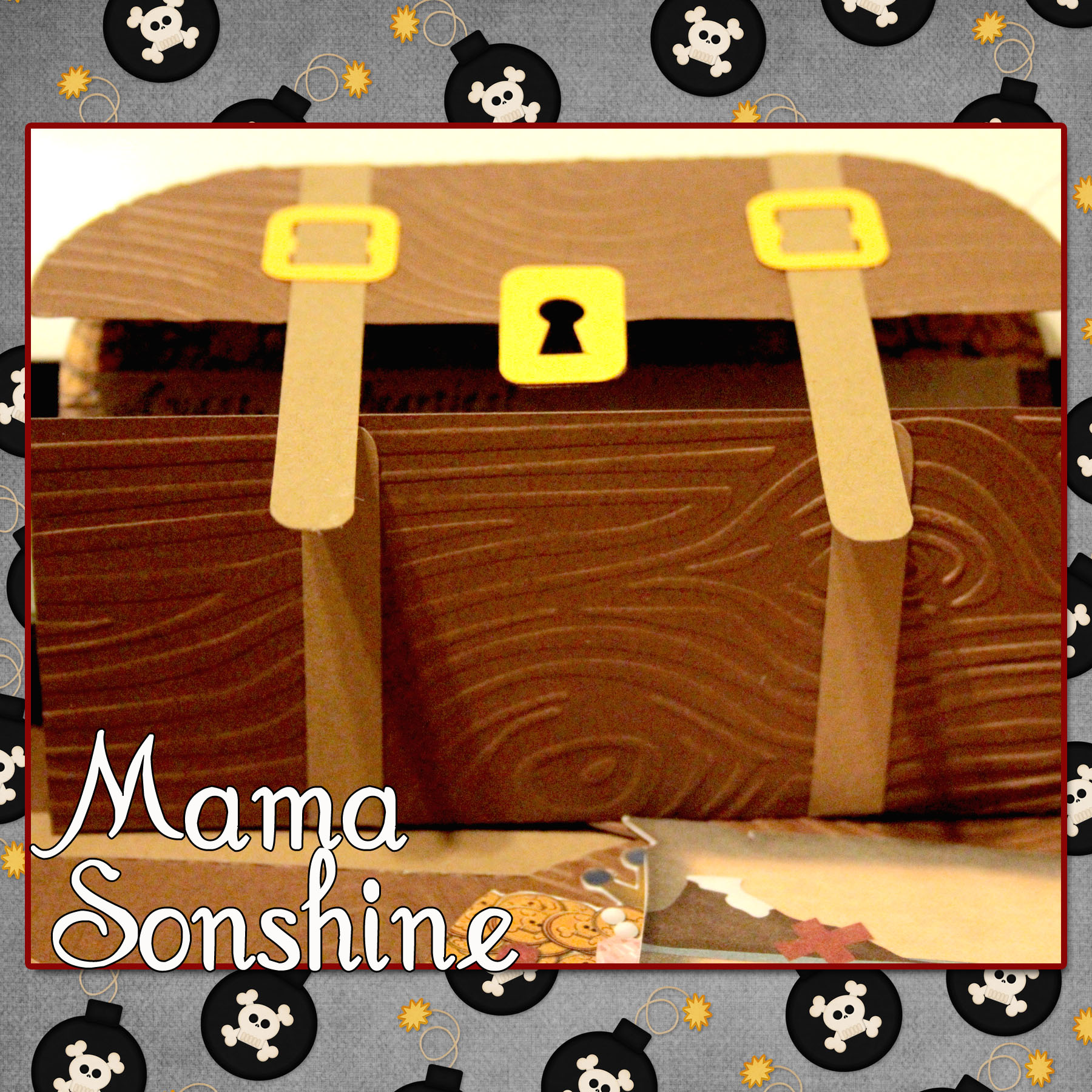
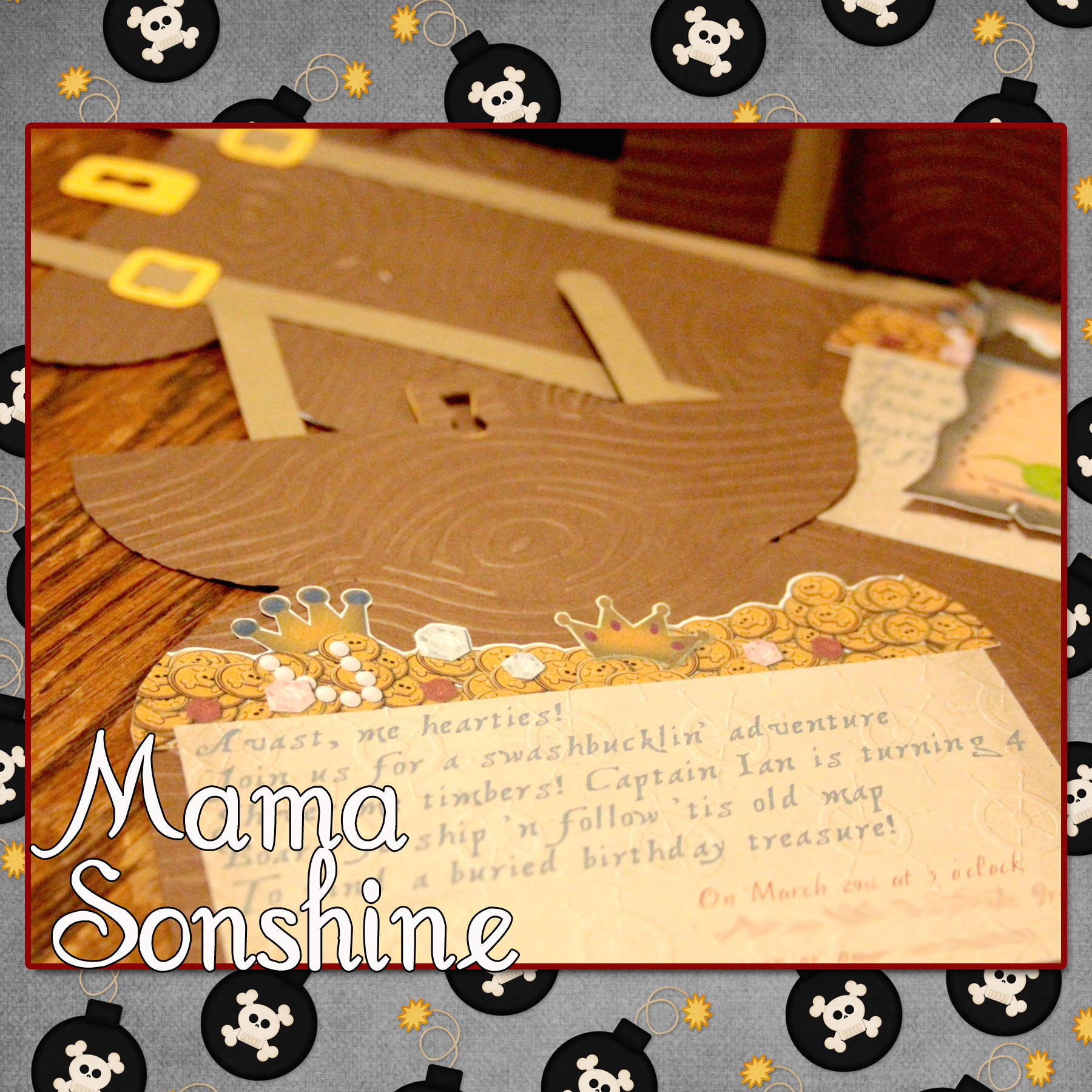
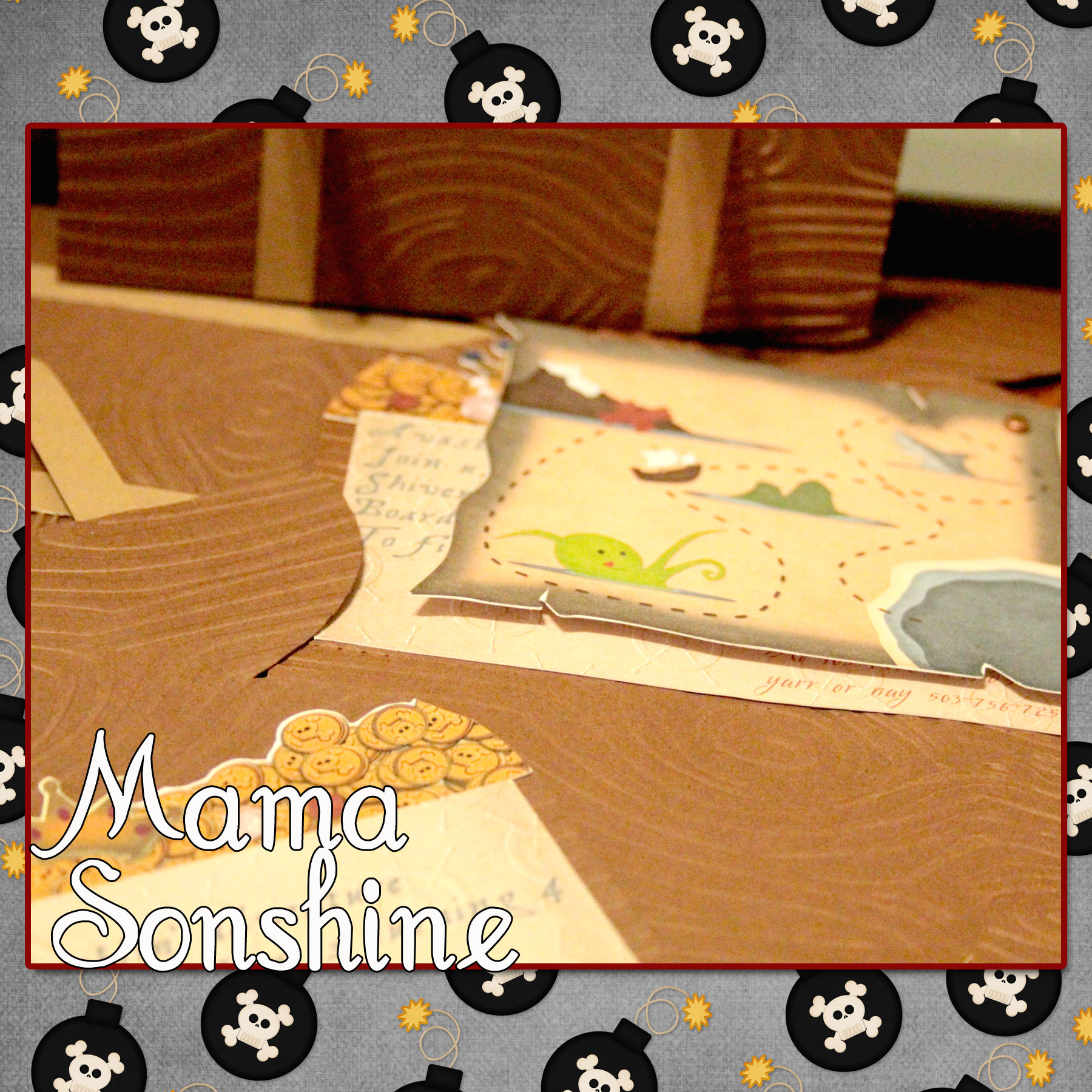
Ian had decided he wanted a pirate birthday party this year. I wanted his invitations to be pirate chests that open up to revel treasure, and a treasure map.
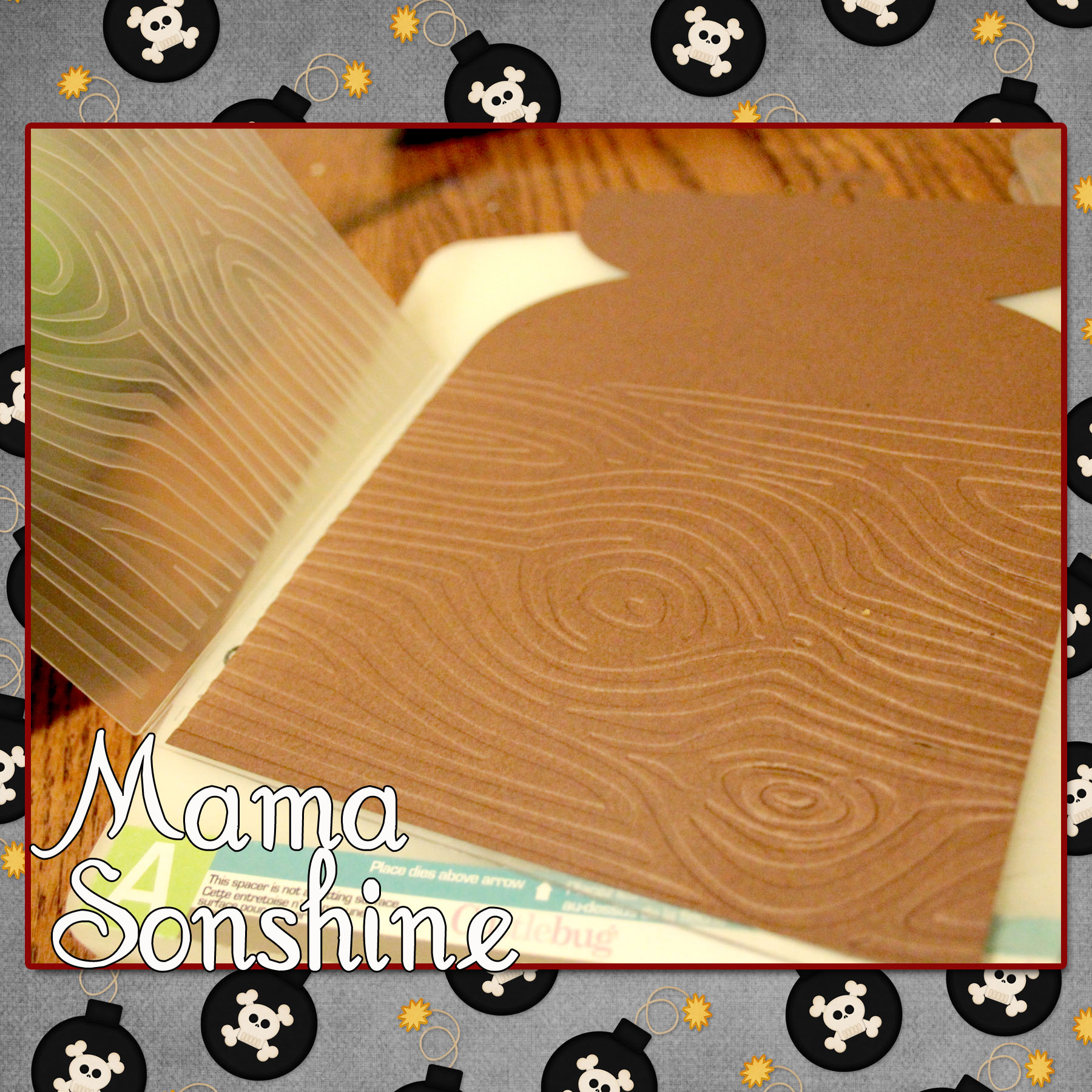
I quickly gave up trying to draw a treasure chest and just purchased a cut file from the Silhouette Studio Store. After which I ran it through my Cuttlebug to emboss the paper with a wood grain.
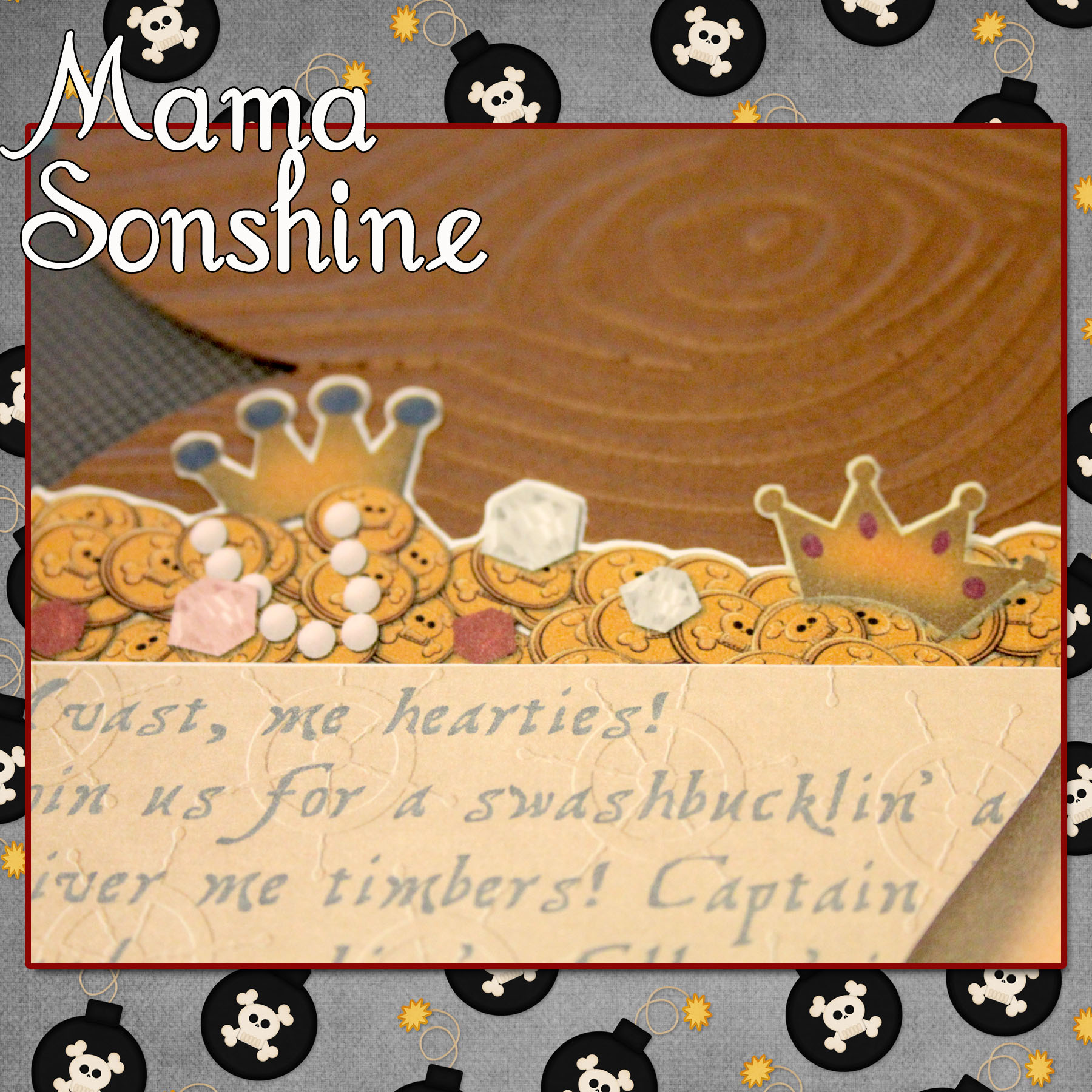
I went to Photoshop and created a picture of coins and jewels that matched the shape of the card. I imported that image into the Silhouette Studio software so that my machine would cut around all the little shapes for me.
I also created a cut out that would contain all the information on the card.
It says
“Avast, me hearties! Join us for a swashbucklin’ adventure Shiver me timbers! Captain Ian is turning 4 Board ye ship ‘n follow ’tis old map to find a buried birthday treasure!”
I used the digital graphics from Just So Scrappy‘sYoHo Pirate kit (as I will do for various other items I made for this party) to make cut out a treasure map.
The three elements inside the card were made with the Silhouette’s Print ‘n Cut feature, which I think is da bomb!
I cut the treasure chests out in a light brown and dark brown cardstock. I also cut the straps in the same two colors, I then used the light straps on the dark chest and vice versa. The buckles and locks were cut out using a gold-colored cardstock. I glued all the elements together, except the map, which I attached with a brad so it can be moved.
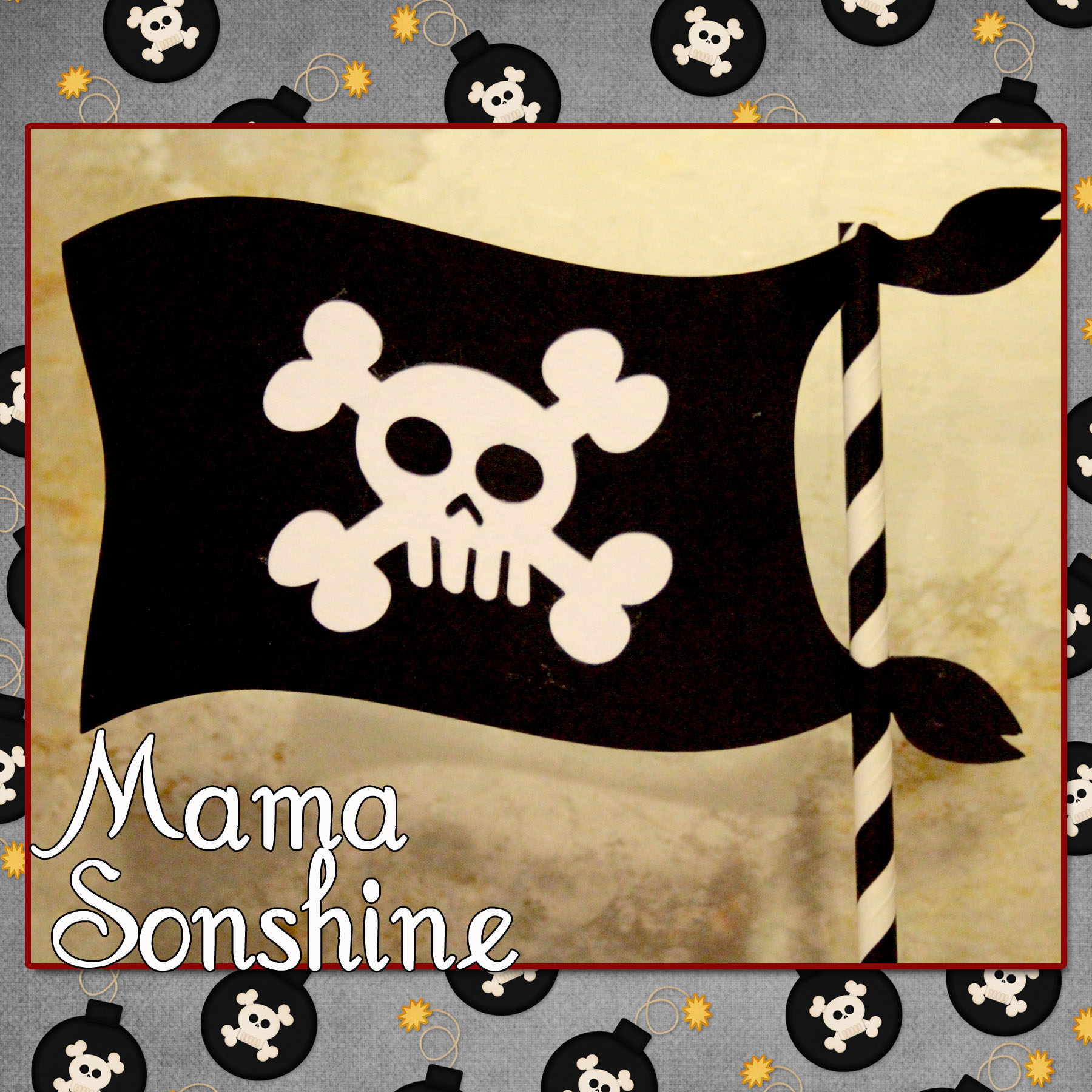
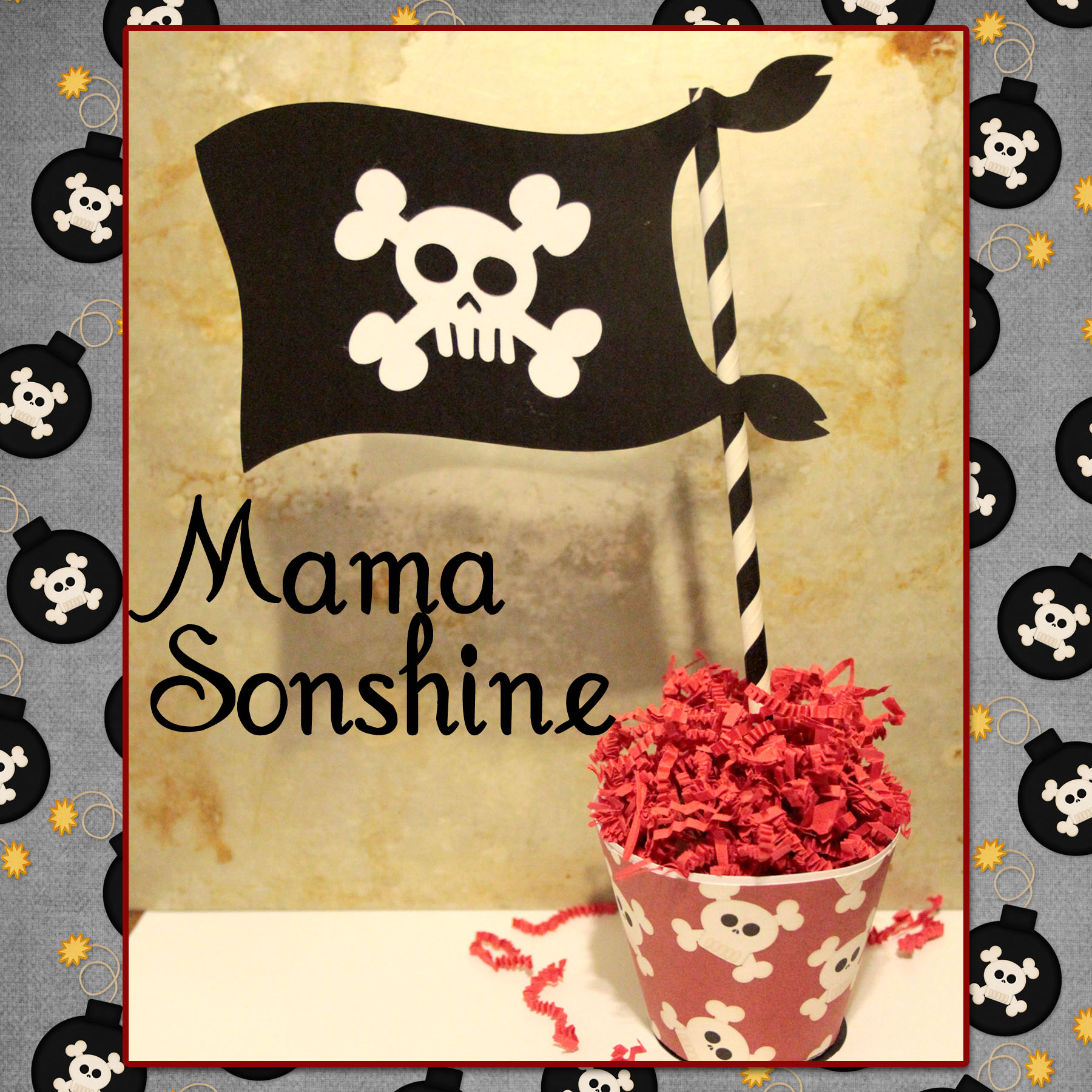
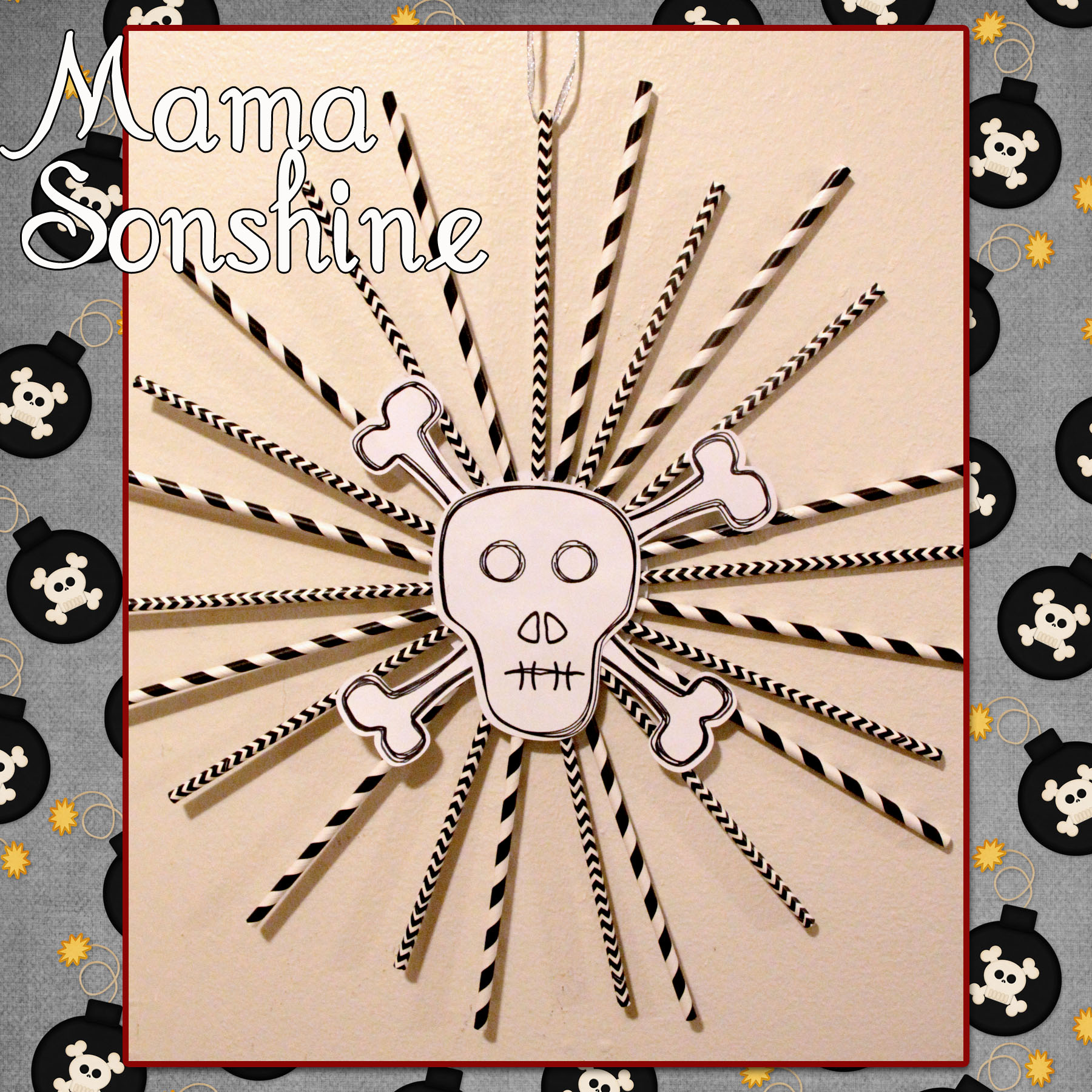
Using the same digital graphics I created a pirate flag topiary table decoration. I had to create my own cut file for the flag portion, cutting out the skull and crossbones.
I sandwiched a white piece of cardstock in between the two flag pieces, which I glued to a paper straw. The base is made using the print and cut feature, it is an adapted cupcake wrapper shape.
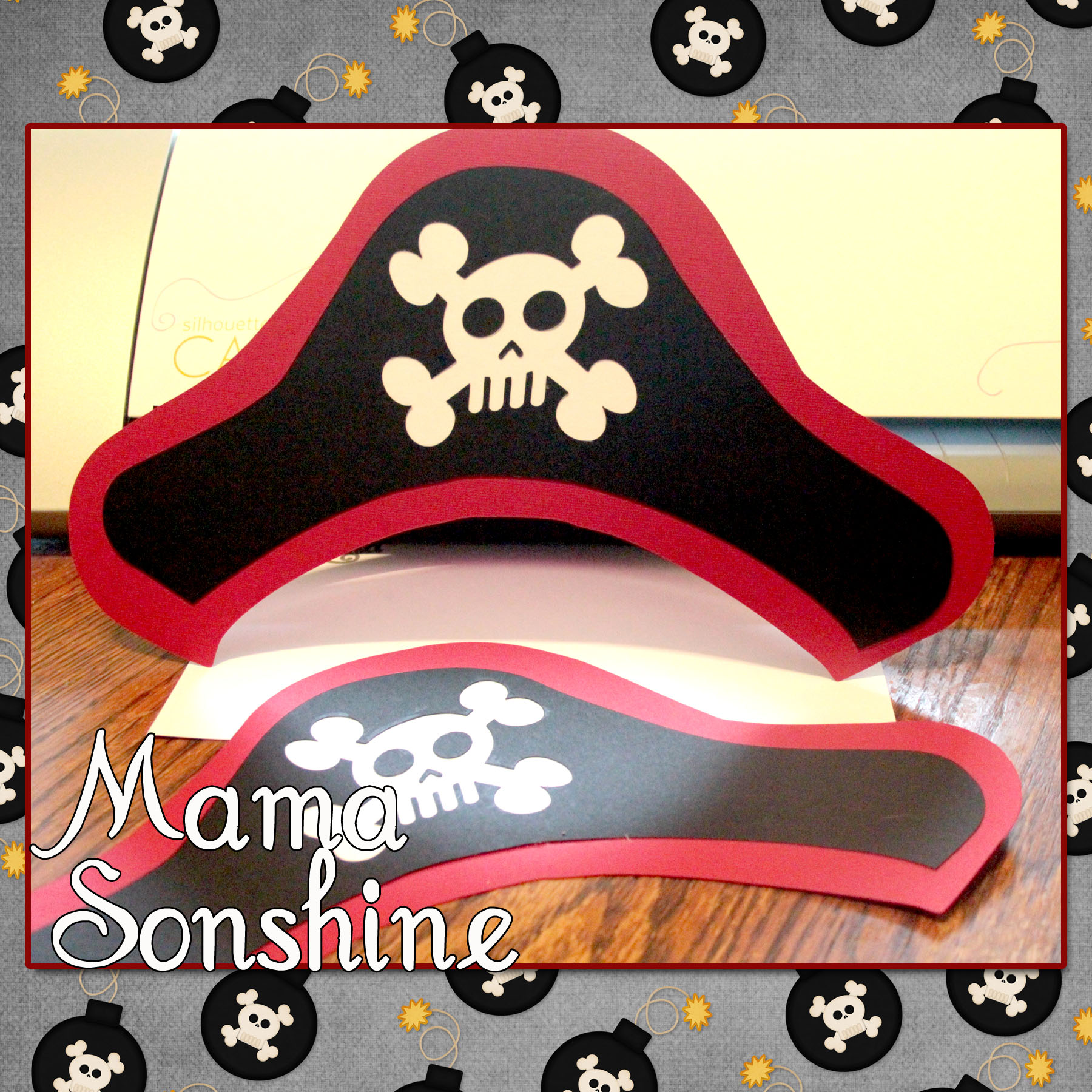
And what it just wouldn’t be a party with out party hats!
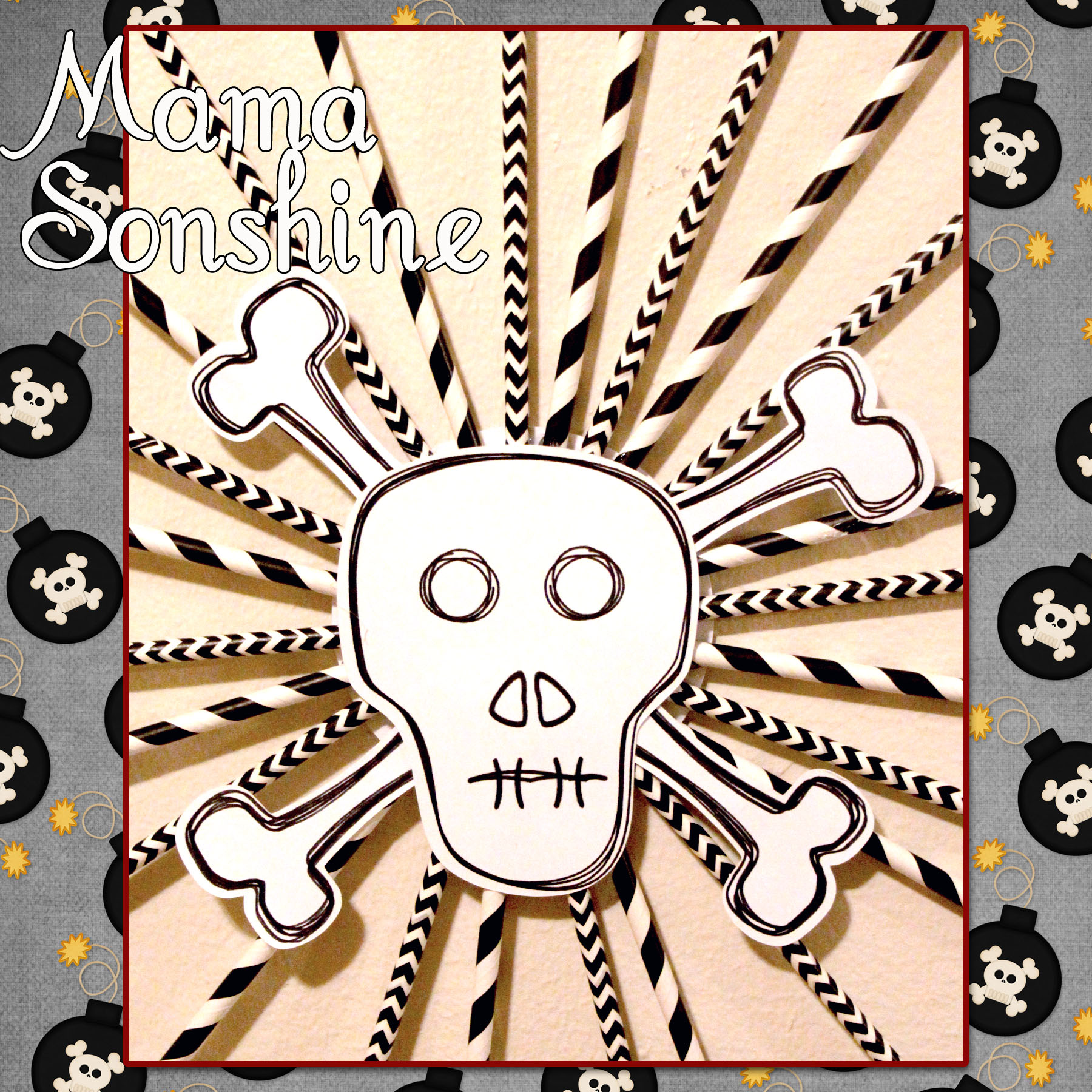
For the pin wheel I used the sketch feature that can only be found in the Silhouette Studio Designer Edition.
I ‘hand’ drew the skull and bones, and by hand I mean I used the draw polygon tool. I used the sketch tool to make the skull look more hand-drawn. I used a black Sharpie Marker to draw the lines with the Cameo and then made the cut around it.
This is only the tip of the iceberg when it comes to decorations that can be made using a personal cutting machine. I would never have been able to cut out all the pieces to make forty invitations, if I had to do it by hand.
I have much more planned and will revel more after the party.
Happy Crafting
Want to Check Out More Silhouette Projects?
My Silhouette Challenge buddies and I are all sharing projects on our blogs today, so peruse the projects below for a wealth of Silhouette inspiration!
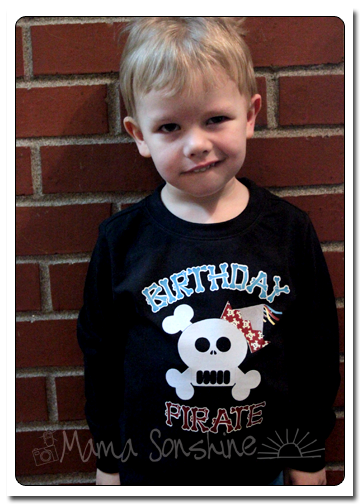
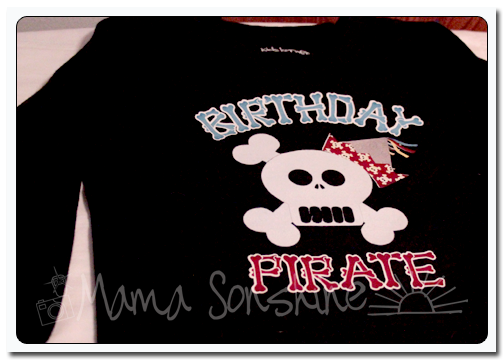
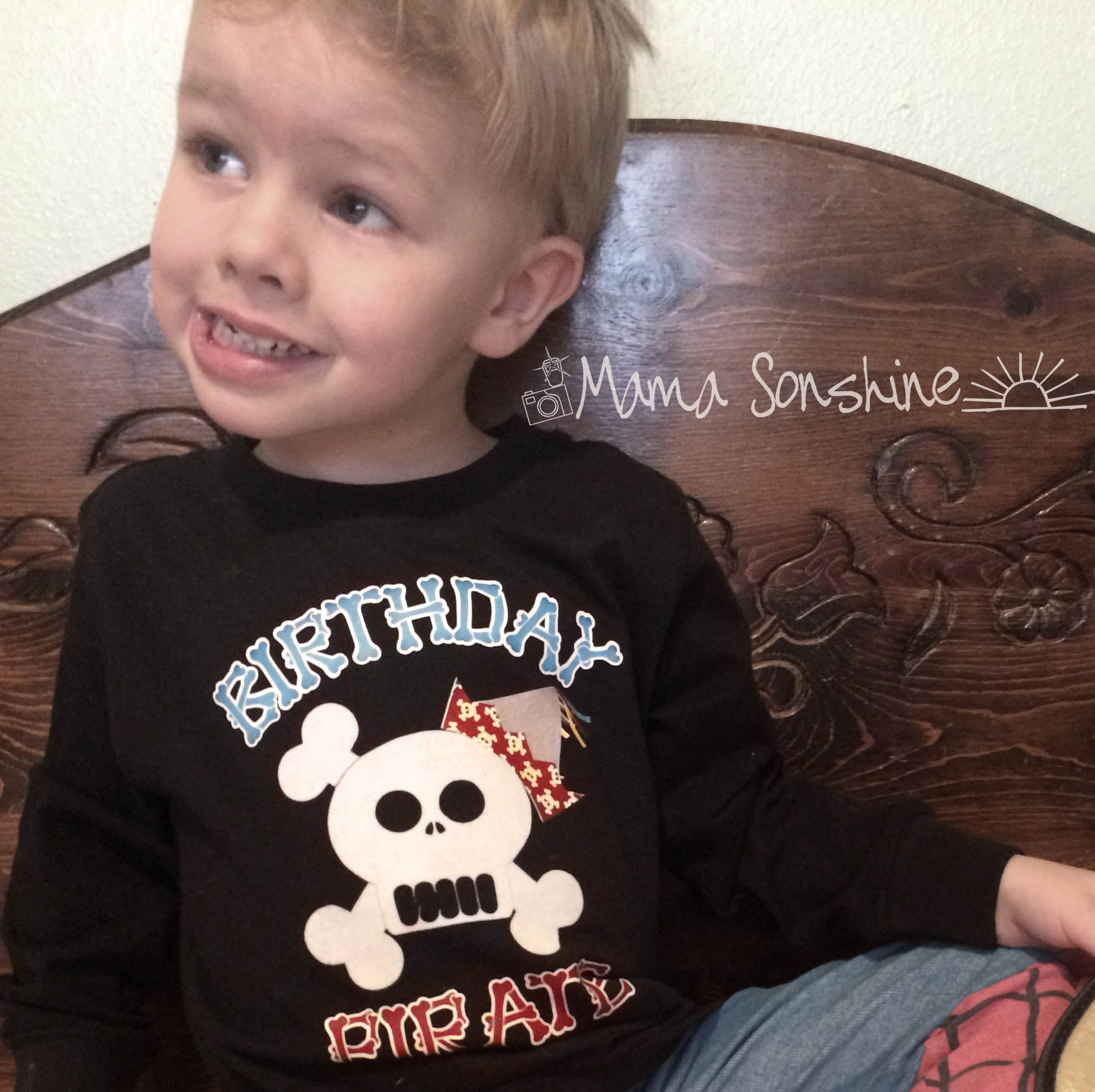
I wanted to share with you the steps I took to make my son’s birthday shirt. There was a few problems I had that I was able to work through. Hopefully this will help so others won’t get stuck like I did.
Part Three will be how to iron everything on and some tips.
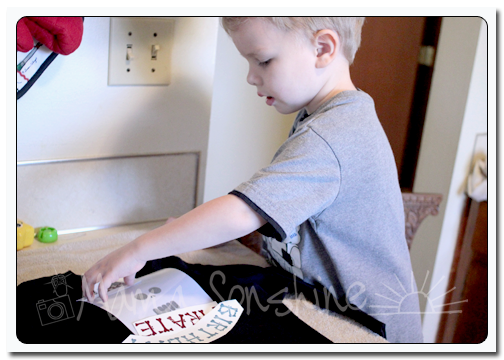
My first tip; if you want your words to be in the correct direction I would advise you not to let your three-year old place them on the shirt.
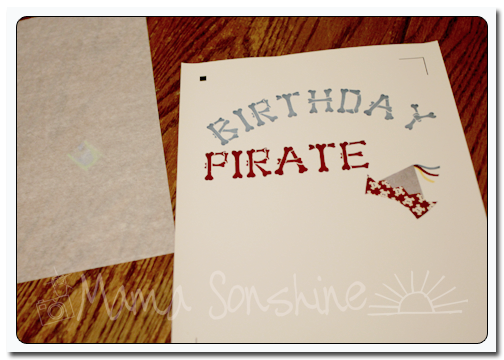
The flocked transfer material has a clear plastic film over the top. This is the side you face down when cutting, you want the Silhouette to cut through the transfer material but not this film. After weeding out the areas that you want the shirt to show through, lay your transfer material with the film facing up. I would advise ironing on one piece at a time, just to ensure proper placement.
Use a dry iron, on the highest setting (please read the directions that come with your material) and a piece of thin cotton fabric between the iron and your material. I used a pillowcase after determining a dish towel was too thick. You want to apply a lot of pressure for up to a minute, or more. Again, this is where you want to double-check the instructions that come with your material. The time can very depending on manufactures, but the main thing is if isn’t sticking, you need more time and pressure. Try not to move the iron around like you are ironing your clothes. Just hold for a minute, then move to another area and hold, with lots of pressure. Have I made it clear that pressure is important?
Some material is cool peel, meaning you need to wait until the ironed on design has cooled before removing the top film. If this is the case, wait! You will only ruin your design if you get impatient.
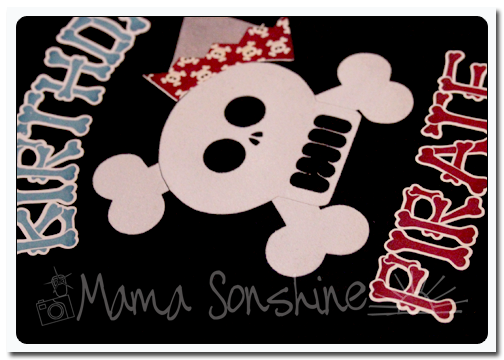
The intricate cut around the words was done as stated in the previous tutorial, but I wanted to separate the words from the page and lay them on the shirt without yet removing the backing, so I just cut them out with scissors. The Silhouette settings I used made a ‘kiss cut’ meaning it cut through the transfer material but not through the backing. When you are ready to iron on the material you peel it off like a sticker.
After placing the elements where you want them use the same iron settings but use the piece of parchment-like paper that comes with the printable transfers between the material and your iron. Again using lots of pressure. Also, make sure something is covering the areas that have already been ironed on. If you apply direct heat to this material you could melt it.
As I have stated above I used the printable material for dark fabric and ink jet printers. The dark fabric is like a sticker. What is face up is what will show, this is different from the material for light fabric. The dark fabric material also leaves a white area on the printed material where there is a white area on your screen. With the light fabric material, where there is white on your screen the shirt fabric will show through. This is something to consider before purchasing your transfer material. Also it is very important for you to know what kind of printer you will be using. The way an ink jet and laser printer adhere the ink to the paper is different and for this type of material it does make a difference.
The first time I printed this out I used a laser printer without thinking of the consequences.
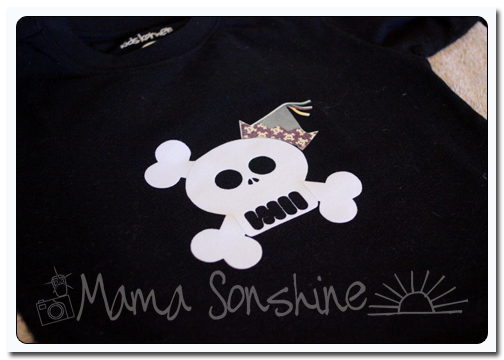
It looks fine, there wasn’t any difference between it and the one I ended up printing on my ink jet printer. At least not until I ironed it on.
See how the hat has faded? This is because of the toner in a laser printer. It can come off the printable heat transfer material when heat is applied. I had to go back and reprint everything on an ink jet printer. At this point I also had to make the hat a little bigger to cover up the faded one.
But the end result was still one happy birthday-boy-to-be.
If you want to see how I designed the skull check out Part one.
If you want to see how I designed the print and cut words and hat see Part Two.





 I Tri and Craft