I Tri and Craft

thoughts from a mother of boys, a marathoner, a triathlete, a crafter, a wife, and a scientist


1 Comment

How to Sketch from a Coloring Book Page with your Silhouette

One great feature of the Silhouette machines is the Sketch feature.

You replace the blade with a pen and it draws instead of cuts.  This gives the project a hand drawn feel instead of one that came off a printer.  This feature is also usefully for writing sentiments in cards or labels.  Actually the possibilities are endless.

I made this card for a friend’s daughter using the sketch feature.
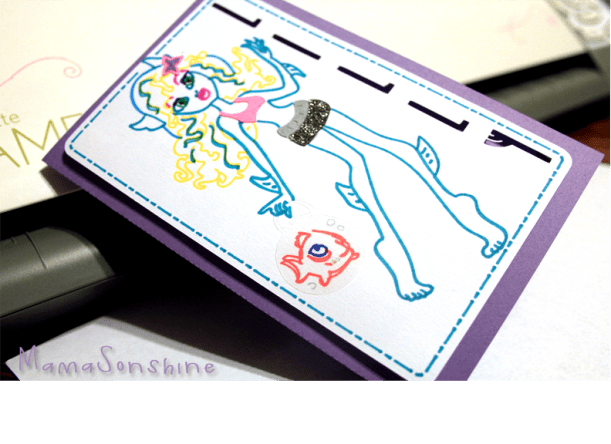
MSS_MH_LagoonaCard

First you need to go online and find a coloring book page that you want to sketch using your Silhouette.

Here is the one I will be using.


Lagoona Blue Coloring Page from cartoonjr.com

Click picture for source

Please remember that this is for personal use only.  I do not condone using or selling other people’s art/work without permission.

You want to find one that is at a fairly high-resolution that you can download.  The benefit of the coloring pages it that it is more easily traced than an image with coloring.

The down side of the Silhouette Studio software is that when you open the image and attempt to trace it you get this.
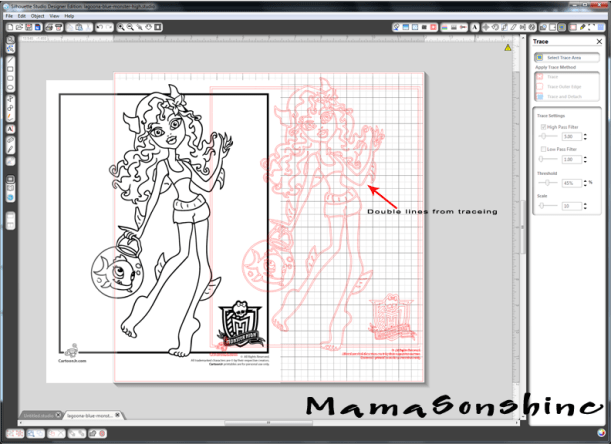
MSS_SilSketchTut_MH01

The software is tracing both sides of the black line.  You can work with this, by ungrouping, releasing compound paths, point editing, cutting and erasing.  All of which is really time-consuming.

There are other software programs that can do center line tracing.  I use Adobe Illustrator, but not everybody has that program.  Kristy at Please Excuse my Craftermath has three posts on center-line tracing using Illustrator, Wintopo and AutoTrace, the last two are free.  Wintopo is a freeware and AutoTrace is an online program.  I won’t go into details about how to do the trace, because Kristy does an excellent job.  What you end up with is a SVG file that you can open in Studio that has a single line.  If you do not have the Designer Edition you can save as the new files as DXF files, which should open in the regular edition.

This tutorial will be about what to do now that you have a single stroke path file.  The new SVG file will have thick lines, which make it easier to see, but when you go to sketch will need to be changed (I will explain later).
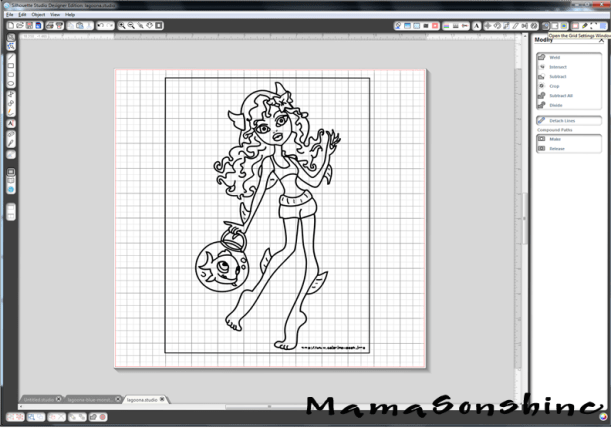
MSS_SilSketchTut_MH02

While the image looks like it is one line it is really made up of a bunch of little lines.  Which is also fine if you want to sketch in one color, but that was not look I wanted.

Fist you want to release the compound path, and ungroup until it is no longer an option.  This way you can remove the black border around your image.  You will be able to see the multiple bounding boxes around all the lines.
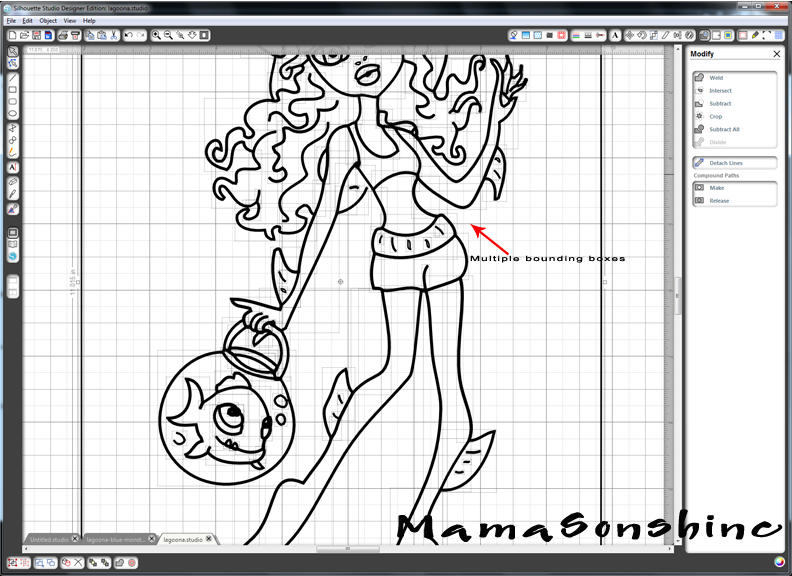
MSS_SilSketchTut_MH03

I found it was easier if I made each section a different color.  I want the outline of her extremities, face, torso, etc. one color.  Her hair a different color, her clothes different colors, and so on.

It doesn’t have to match the color I want in the end, because the final color will depend on what color pen I use.  This just helps distinguish each portion, and makes it easier when I go to select which area to sketch.

First choose one line and change the color.
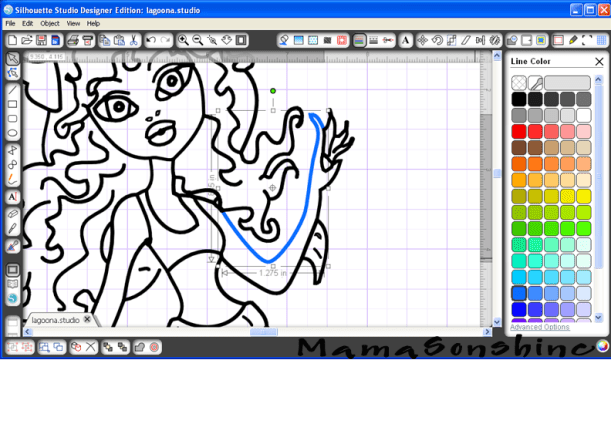
MSS_SilSketchTut_MH04

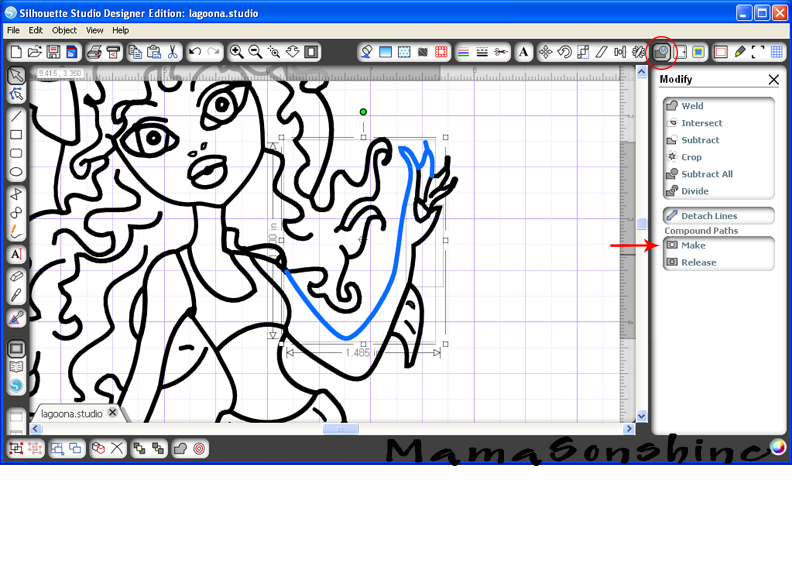
While fist line is still selected hold the shift key and select another line (or multiple lines)
MSS_SilSketchTut_MH05

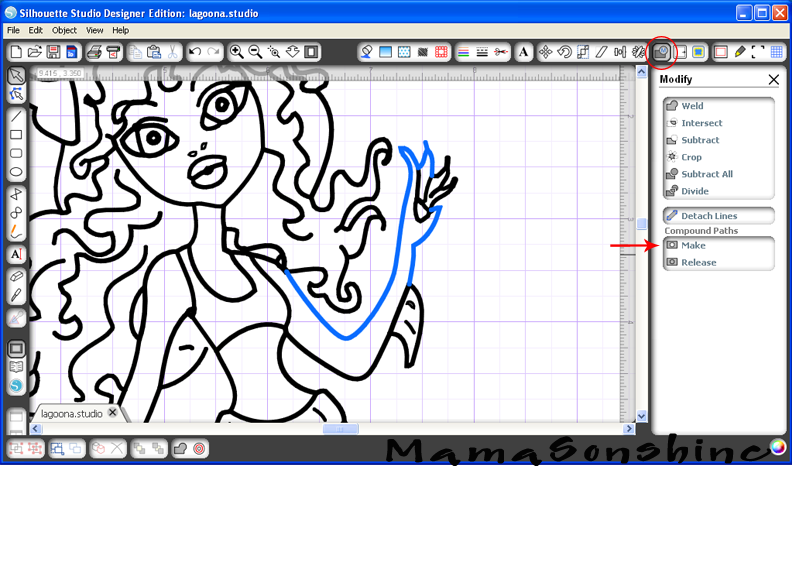
You want to make the selection a compound path, through the “modify window,” selecting object ->make compound path, or right clicking on your mouse (Sorry, I don’t have a Mac, so I don’t know the commands for it).  When it is a compound path, the new line colors will be changed to the color you selected for your first line.
MSS_SilSketchTut_MH06

Continue to do this until you have made everything you want in that color one compound path.

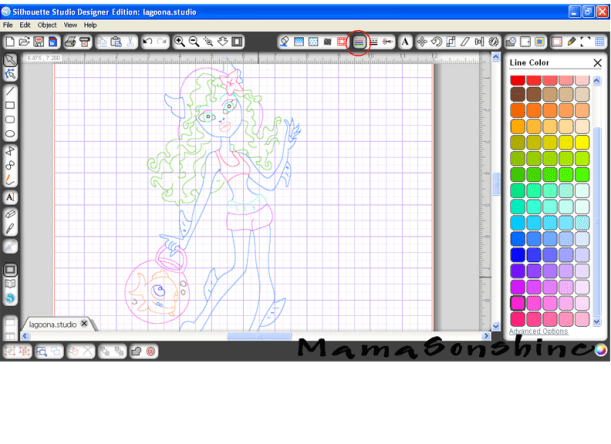
Repeat the steps on the next section and again until the picture is color coordinated.
MSS_SilSketchTut_MH07

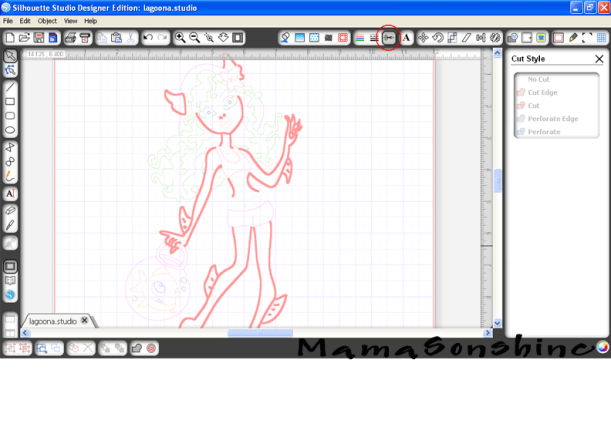
This makes it easier for me to select which portion to sketch.  I can just select the body to be sketched in one color, send to Silhouette, change the pen, got to cut style window, select a different part to be sketch, send to Silhouette and repeat.

The new compound path for the body is selected, so it will all be drawn at once, and I only have to select one line.
MSS_SilSketchTut_MH08

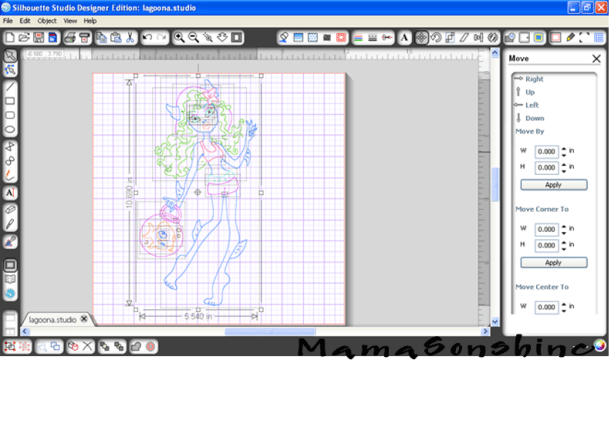
If you need to resize or move the image, you simply group the different elements together.  But you will have to ungroup them to sketch them at different times.
MSS_SilSketchTut_MH09

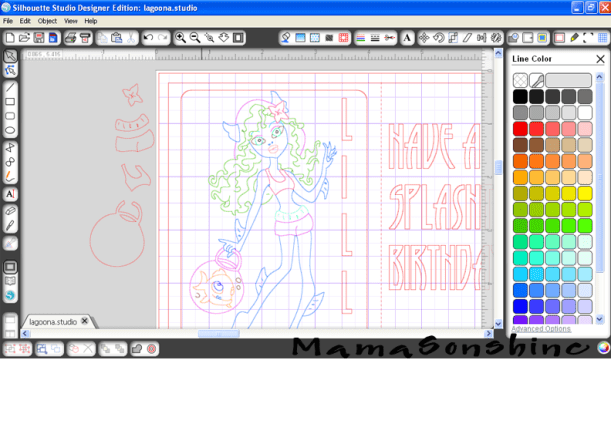
You will also need to change the line thickness to zero, if left as is, the Silhouette will do a ‘double cut’ or more accurately will draw two lines to get the set thickness.


Keep in mind, that while you have made the lines compound paths, they are still disconnected.  This means that they can not yet be filled with a color or pattern.

This slideshow requires JavaScript.


You will need to go back and connect the lines together using the point editing window.  Sometimes you may need to delete some points, break paths, or move things depending on how it looks.  This might also change the outcome if you try to cut, instead of draw.  I can’t attest to that, because I have not tried to cut while the lines were unconnected.

This slideshow requires JavaScript.

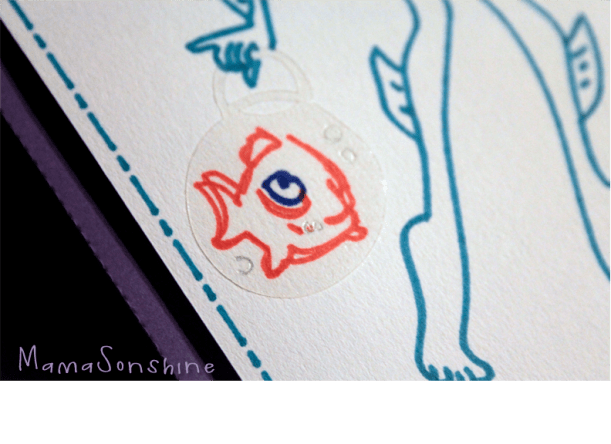
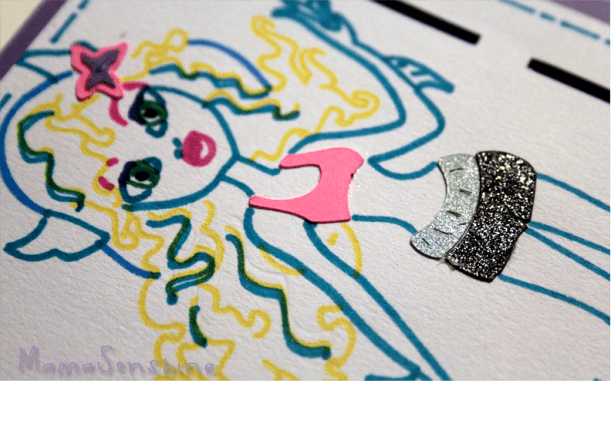
For this card I wanted to add dimension and I didn’t want her clothes to be just an outline.  So I duplicated the clothes, fishbowl and flower elements.  I connected the outside lines using the point editing tool and cut them out of colored cardstock, and clear sticker paper for the fishbowl.
MSS_SilSketchTut_MH15


MSS_MH_LagoonaCard03

MSS_MH_LagoonaCard02


I used the sketch pens to make the faux stitching around the border and write the sentiment inside the card.


This slideshow requires JavaScript.

I hope this has helped you take a black & white coloring page and turn it into a custom drawing.


Happy Crafting


signature-black
facebook instagram pinterest parties by mamasonshine etsy bloglovin google+ email twitter Image Map
Enhanced by Zemanta


3 Comments

Frozen Crafts on my Silhouette

This month my cousin’s daughter turned four.  And of course she loooovvvveees Frozen.  She is a princess through and through, this child.

For her birthday I decided I wanted to make her a card with images from the movie.  I also decided to make my first shaker card.  I thought it would be great to have some ‘snow’ to shake around.

MSS_FrozenCard01

I used Silhouette’s print and cut feature to make the card.

I used foam pads to pop out the characters.   I made two copies of the background and cut a square out of one.

MSS_FrozenCard03However, I neglected to place a spacer between the levels, so the stuff inside doesn’t really ‘shake’.

MSS_FrozenCard02But, it was my first shaker card, and I didn’t actually read any directions on how to make one…

MSS_FrozenCard01The Birthday Girl loved the card, so it was a win in my book!

I also wanted to make something using the sketch feature.

MSS_FrozenSketch05

So I made her this picture and mounted it on canvas for her room.

MSS_FrozenSketch01

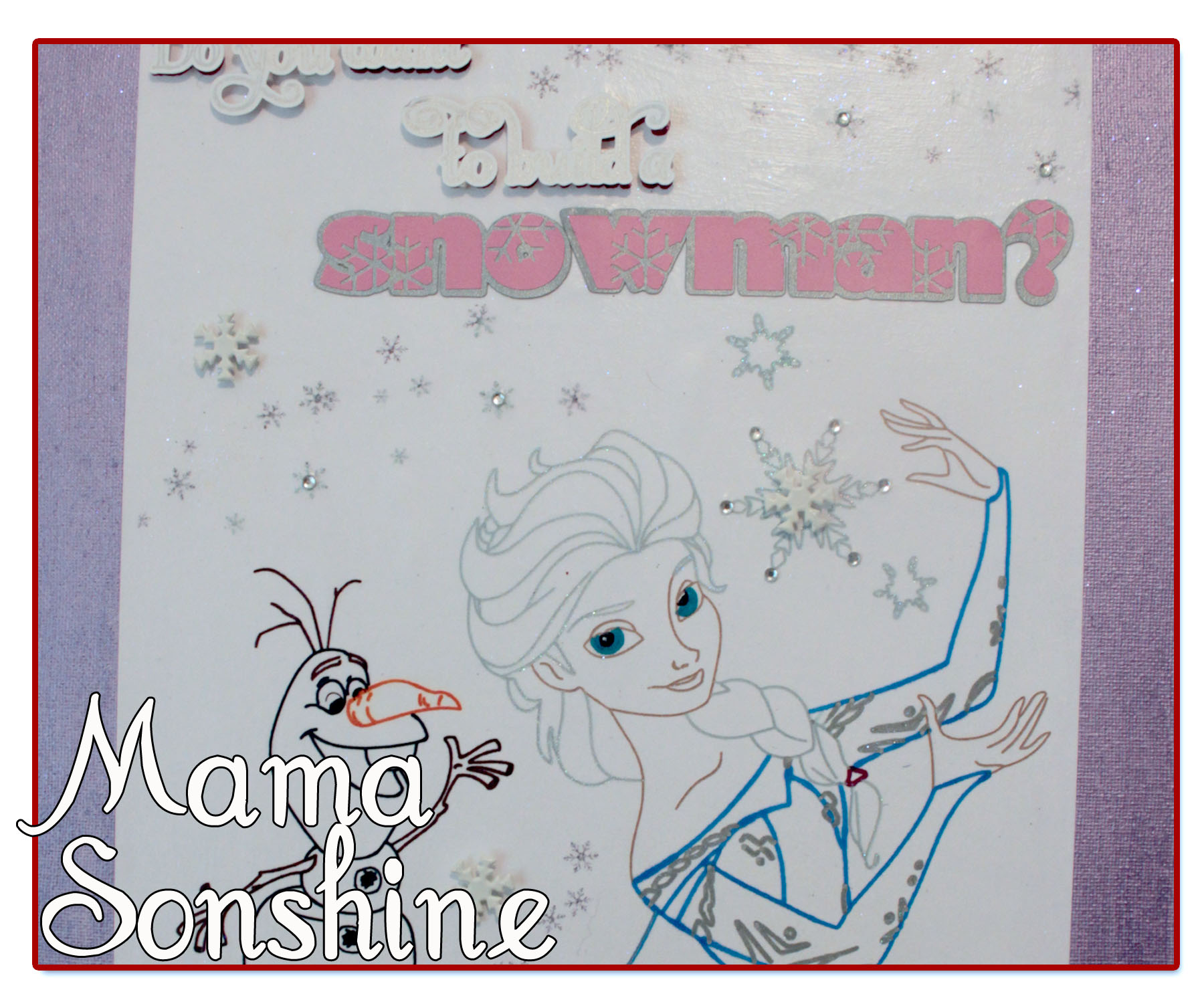
I didn’t like the way the words at the top looked just sketched out, so I gave them more dimension and added some layers.

MSS_FrozenSketch04

I added some snowflake brads and some adhesive jewels.  I printed out the small snowflakes on the paper before beginning the sketching process.

MSS_FrozenSketch03

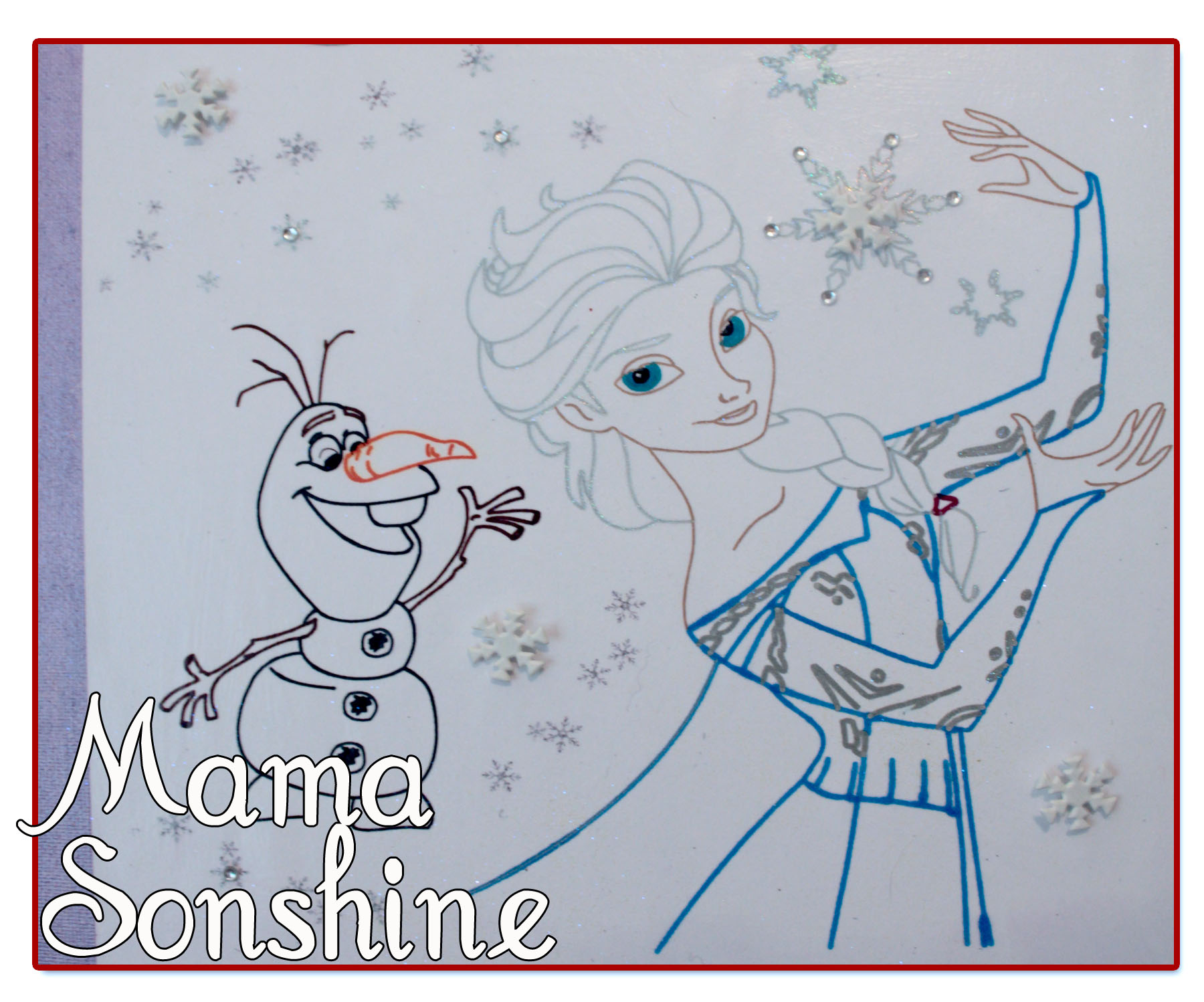
I also used my embossing ink pen in the Silhouette and went over the sketch lines for the large snowflakes, her hair and the silver in her dress.  I then used a transparent opal embossing powder, because glitter makes everything better.

MSS_FrozenSketch02

I used a combination of pen types; Sharpies, Silhouette Sketch Pens, and Bic Mark-It ink pens.

It took a few passes to get everything right, and I had the hardest time figuring out how I wanted the eyes.

This project was really fun and I can’t wait to find something else to sketch!


If you want to learn how to turn a coloring book page into a sketch check out my tutorial here.


Happy Crafting
signature-black
facebook instagram pinterest parties by mamasonshine etsy bloglovin google+ email twitter Image Map


I shared this project on the Silhouette Challenges Blog

Silhouette Challenges


21 Comments

Hand Made Decorations for a Pirate Party

This past month I have been busy making Ian’s birthday party decorations.  I wanted to share a few of the items I am making.

I don’t want to spoil the surprise, so this is just a sneak peek at what I can do now that I have my Silhouette Cameo to help me.

Ian had decided he wanted a pirate birthday party this year.  I wanted his invitations to be pirate chests that open up to revel treasure, and a treasure map.

MSS_MarchSilChallenge09_2014

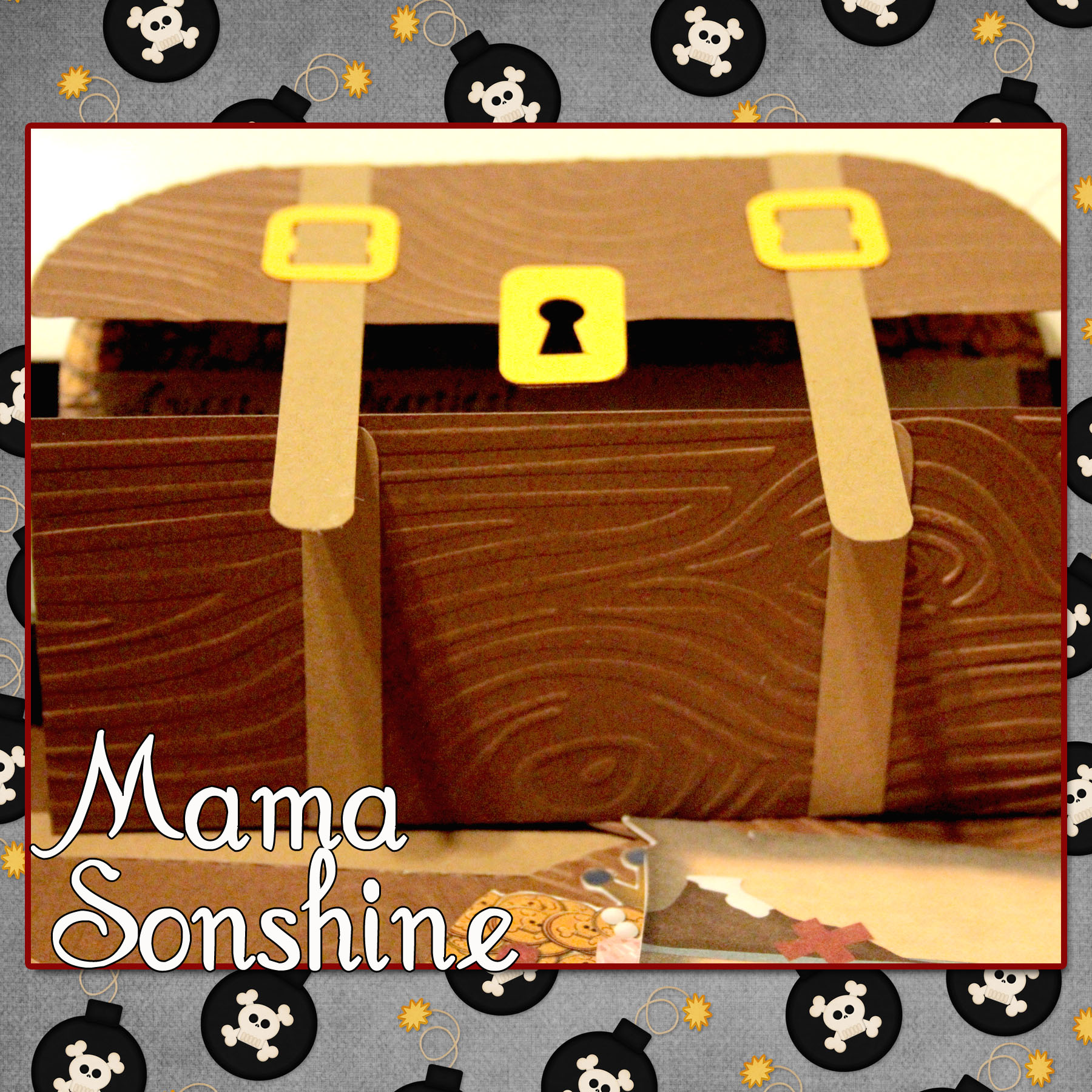
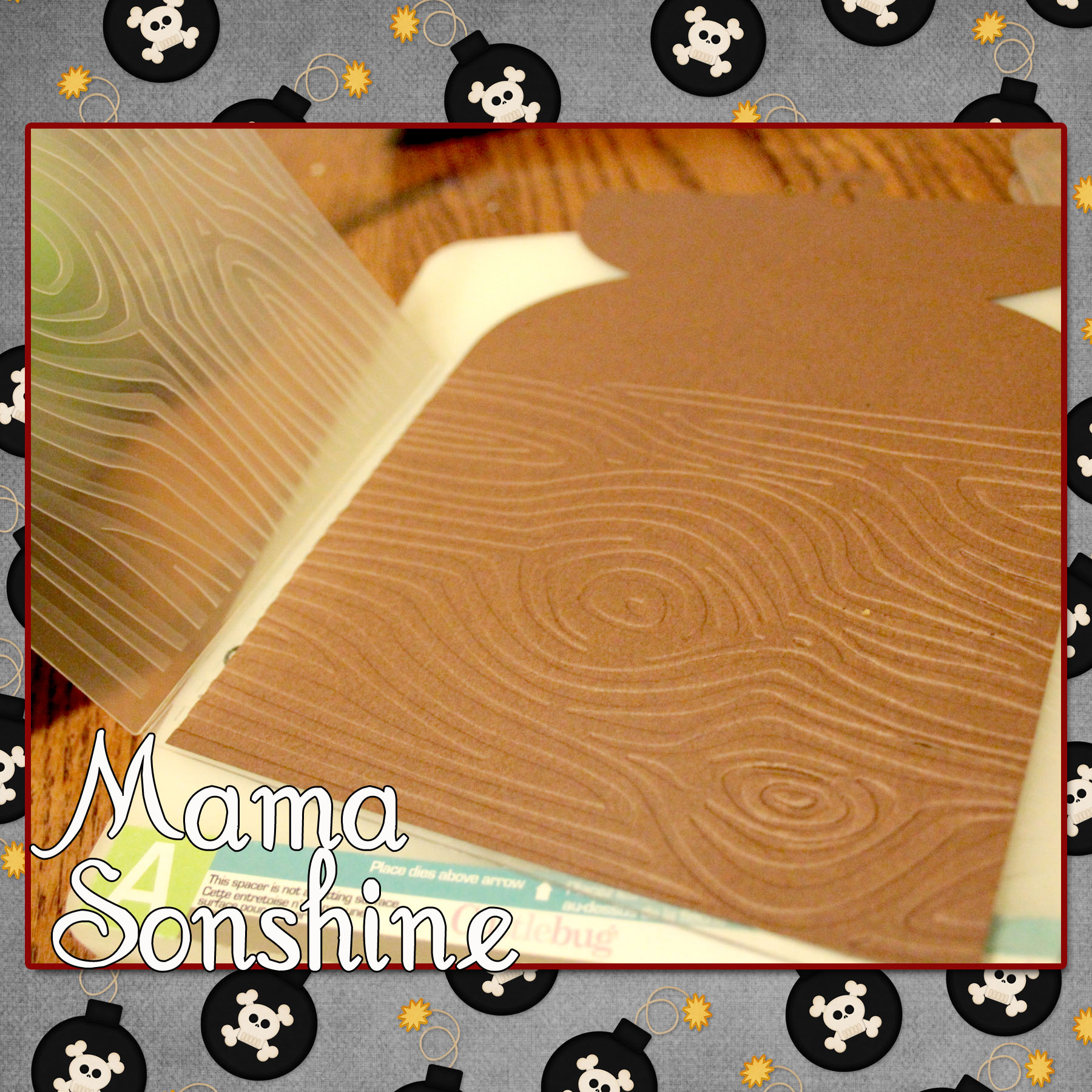
I quickly gave up trying to draw a treasure chest and just purchased a cut file from the Silhouette Studio Store.  After which I ran it through my Cuttlebug to emboss the paper with a wood grain.

MSS_MarchSilChallenge06_2014

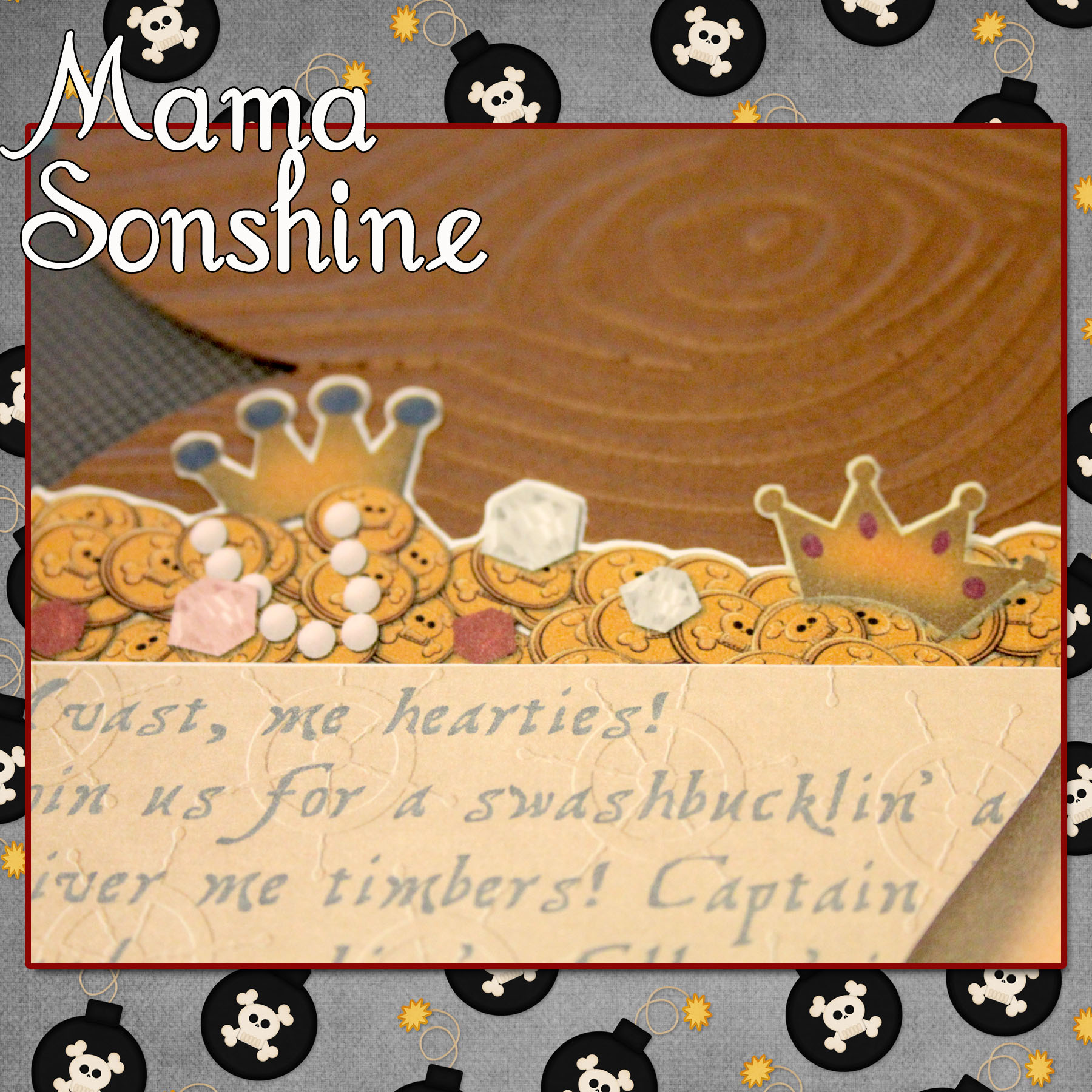
I went to Photoshop and created a picture of coins and jewels that matched the shape of the card.  I imported that image into the Silhouette Studio software so that my machine would cut around all the little shapes for me.

MSS_MarchSilChallenge04_2014

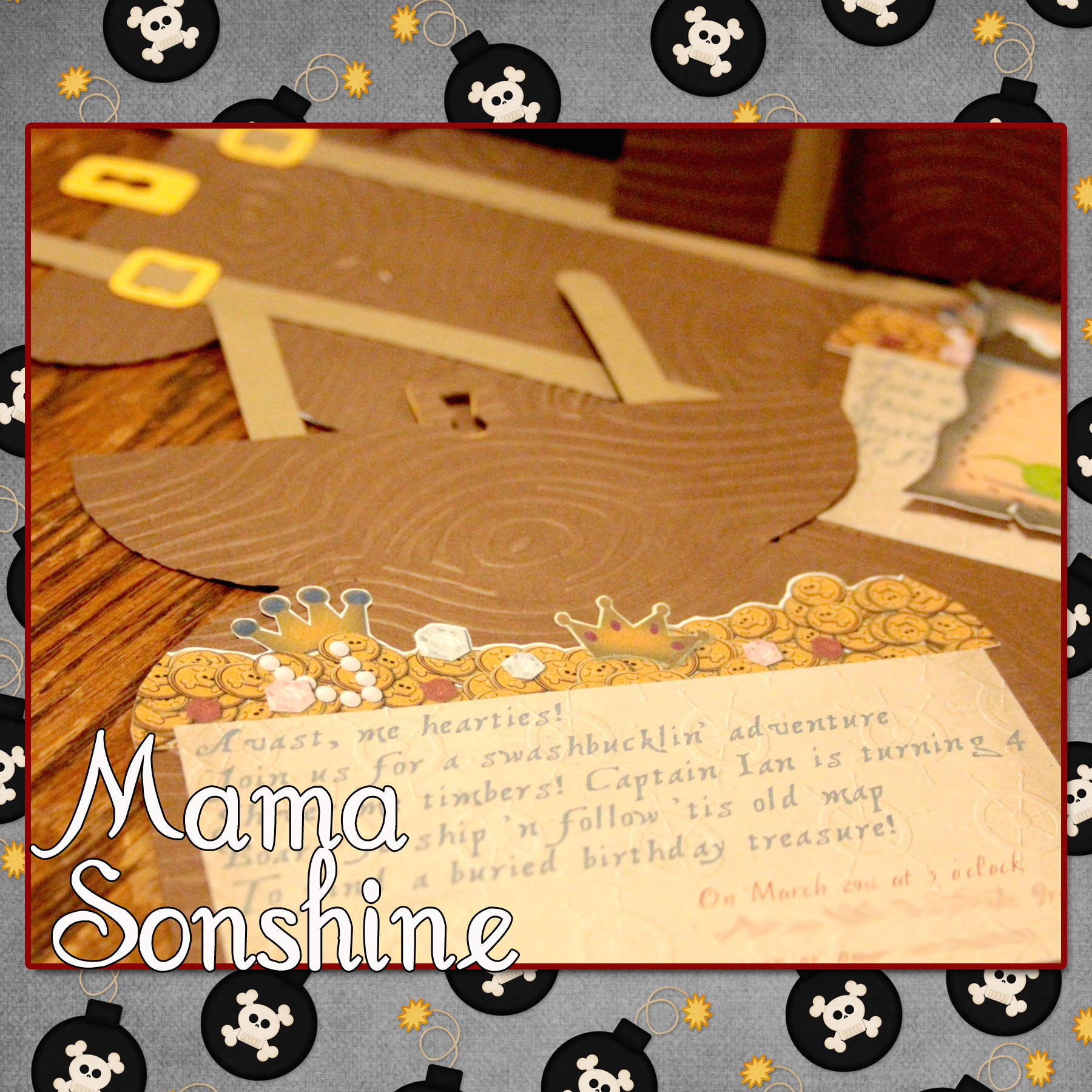
I also created a cut out that would contain all the information on the card.

It says

“Avast, me hearties!
Join us for a swashbucklin’ adventure
Shiver me timbers! Captain Ian is turning 4
Board ye ship ‘n follow ’tis old map
to find a buried birthday treasure!”

MSS_MarchSilChallenge07_2014

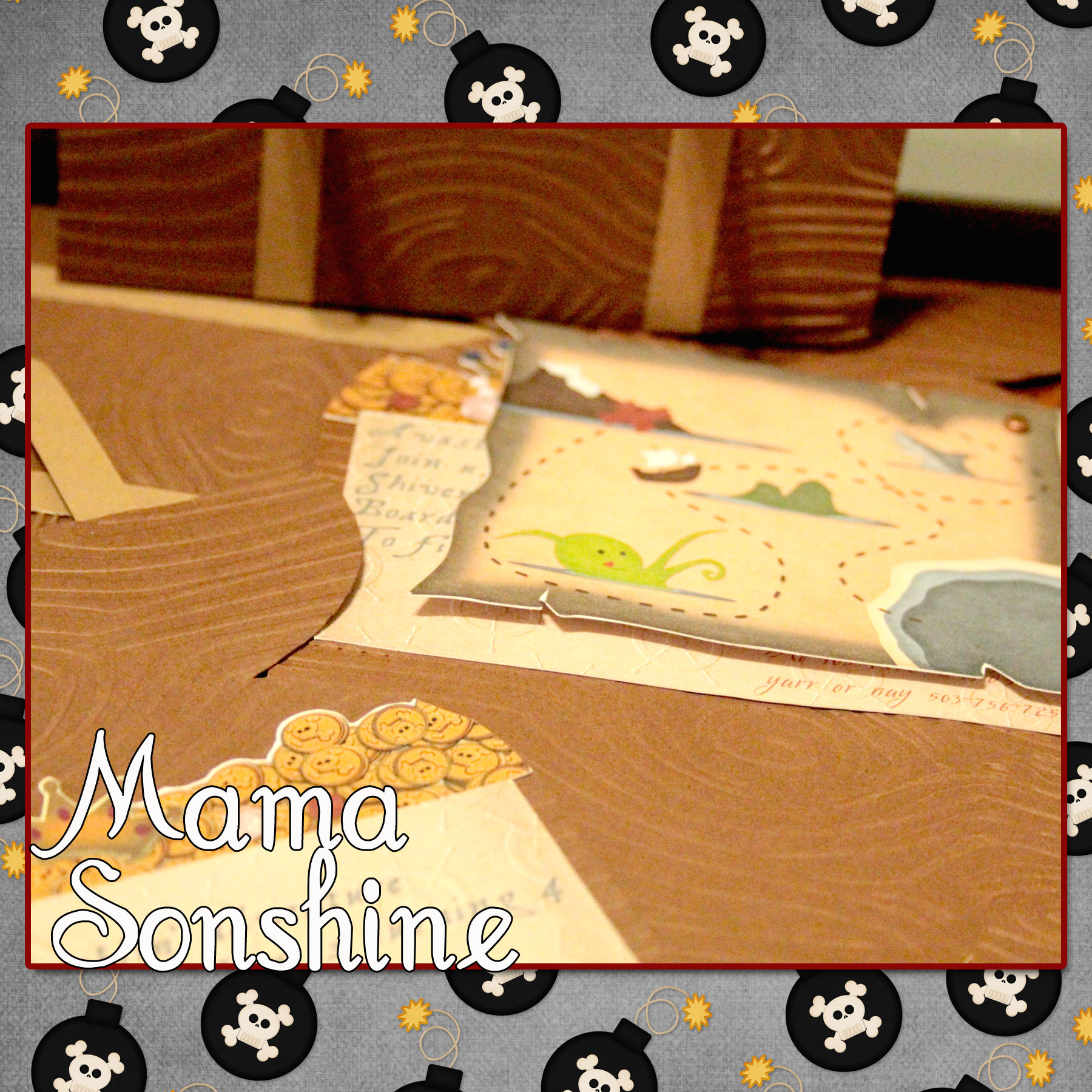
I used the digital graphics from Just So Scrappy‘s YoHo Pirate kit (as I will do for various other items I made for this party) to make cut out a treasure map.

MSS_MarchSilChallenge08_2014

The three elements inside the card were made with the Silhouette’s Print ‘n Cut feature, which I think is da bomb!

I cut the treasure chests out in a light brown and dark brown cardstock.  I also cut the straps in the same two colors, I then used the light straps on the dark chest and vice versa.  The buckles and locks were cut out using a gold-colored cardstock.  I glued all the elements together, except the map, which I attached with a brad so it can be moved.

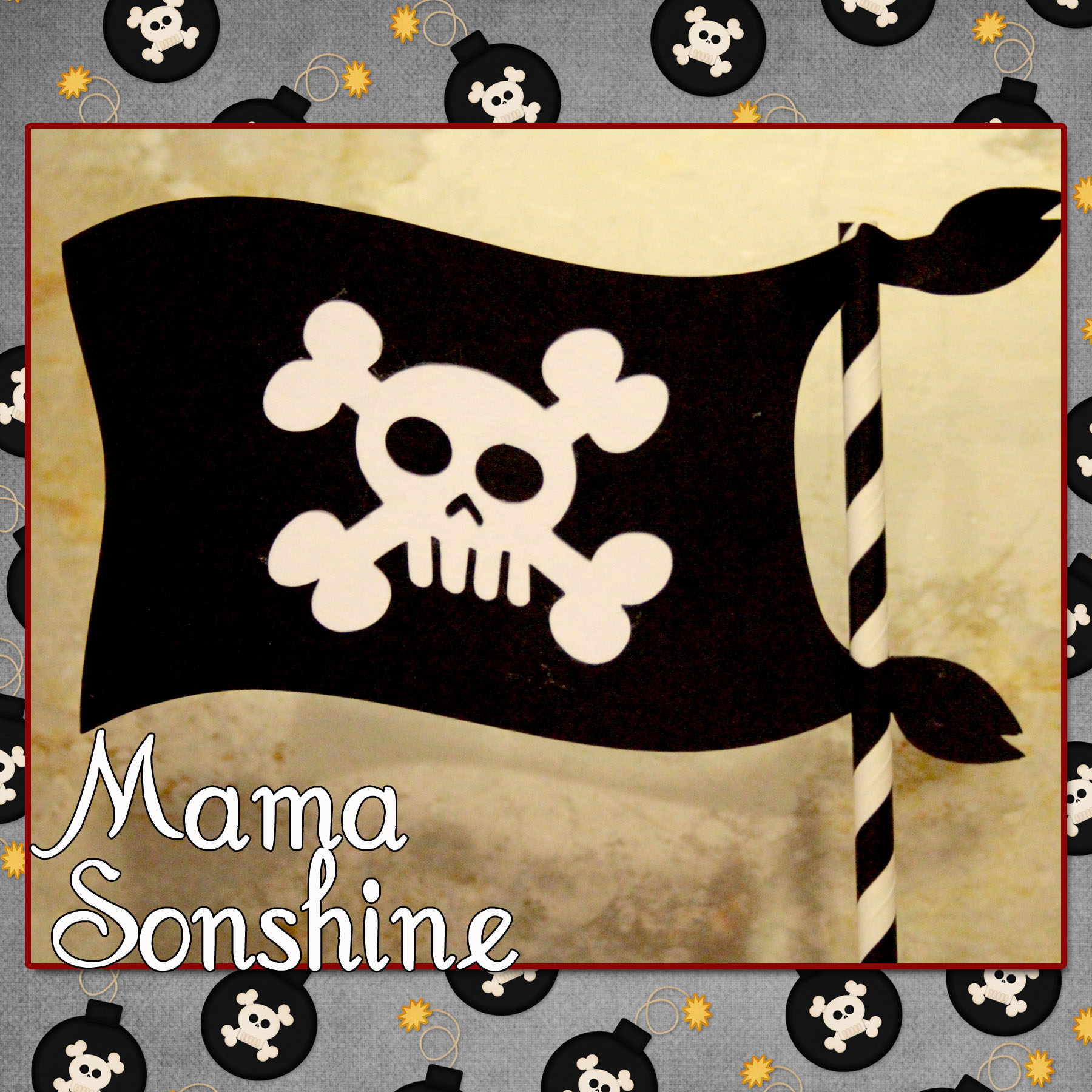
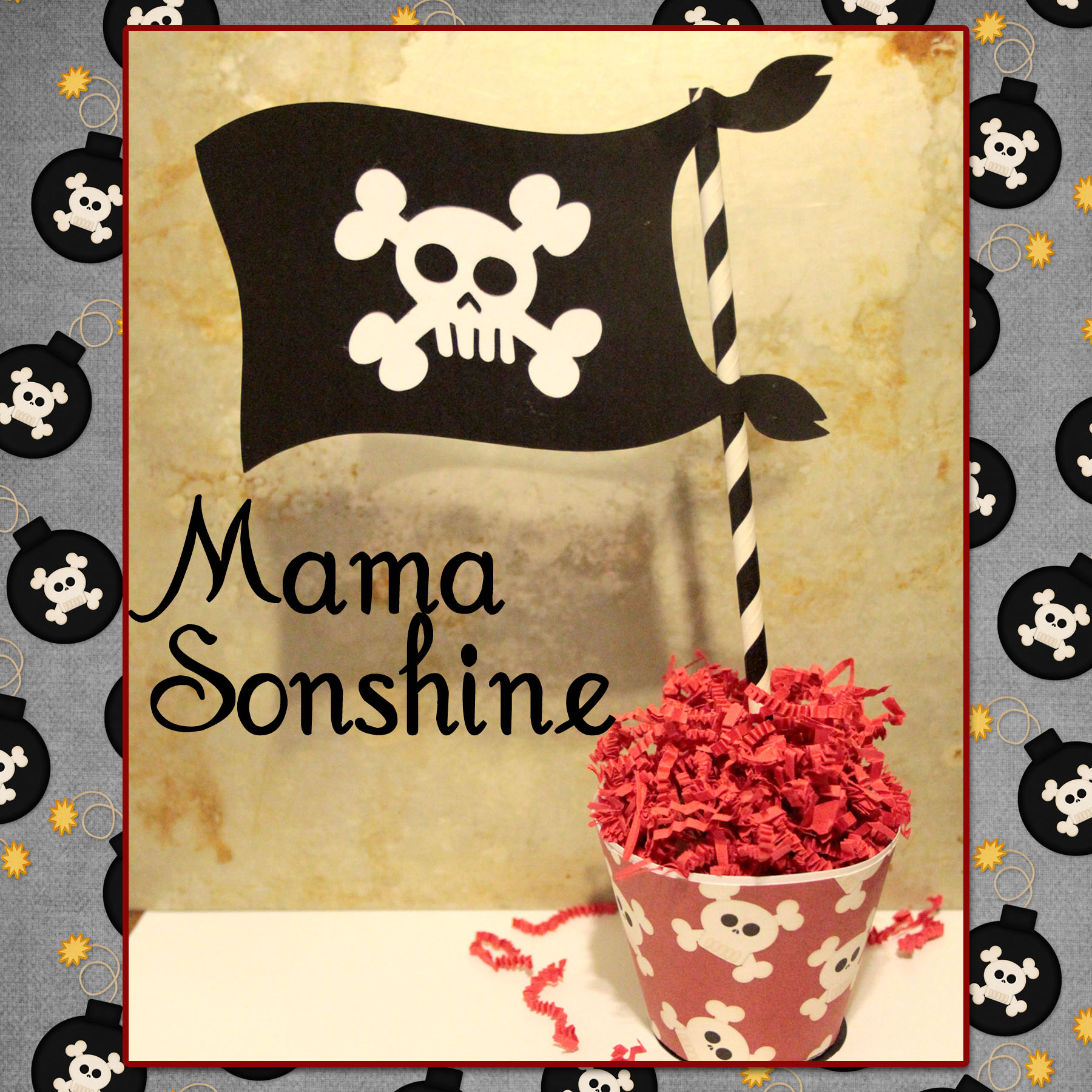
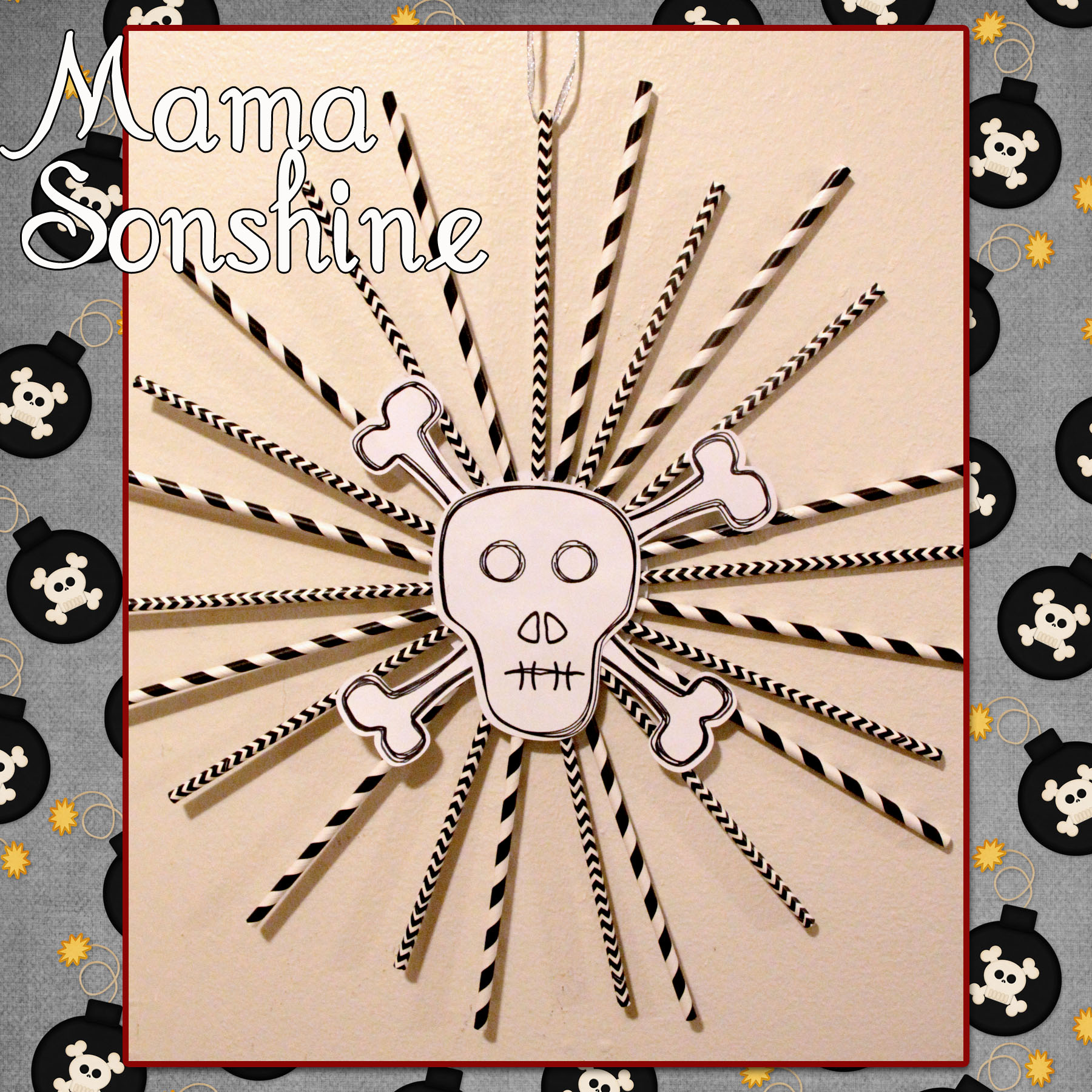
Using the same digital graphics I created a pirate flag topiary  table decoration.  I had to create my own cut file for the flag portion, cutting out the skull and crossbones.

MSS_MarchSilChallenge05_2014

I sandwiched a white piece of cardstock in between the two flag pieces, which I glued to a paper straw.  The base is made using the print and cut feature, it is an adapted cupcake wrapper shape.

MSS_MarchSilChallenge_2014 copy

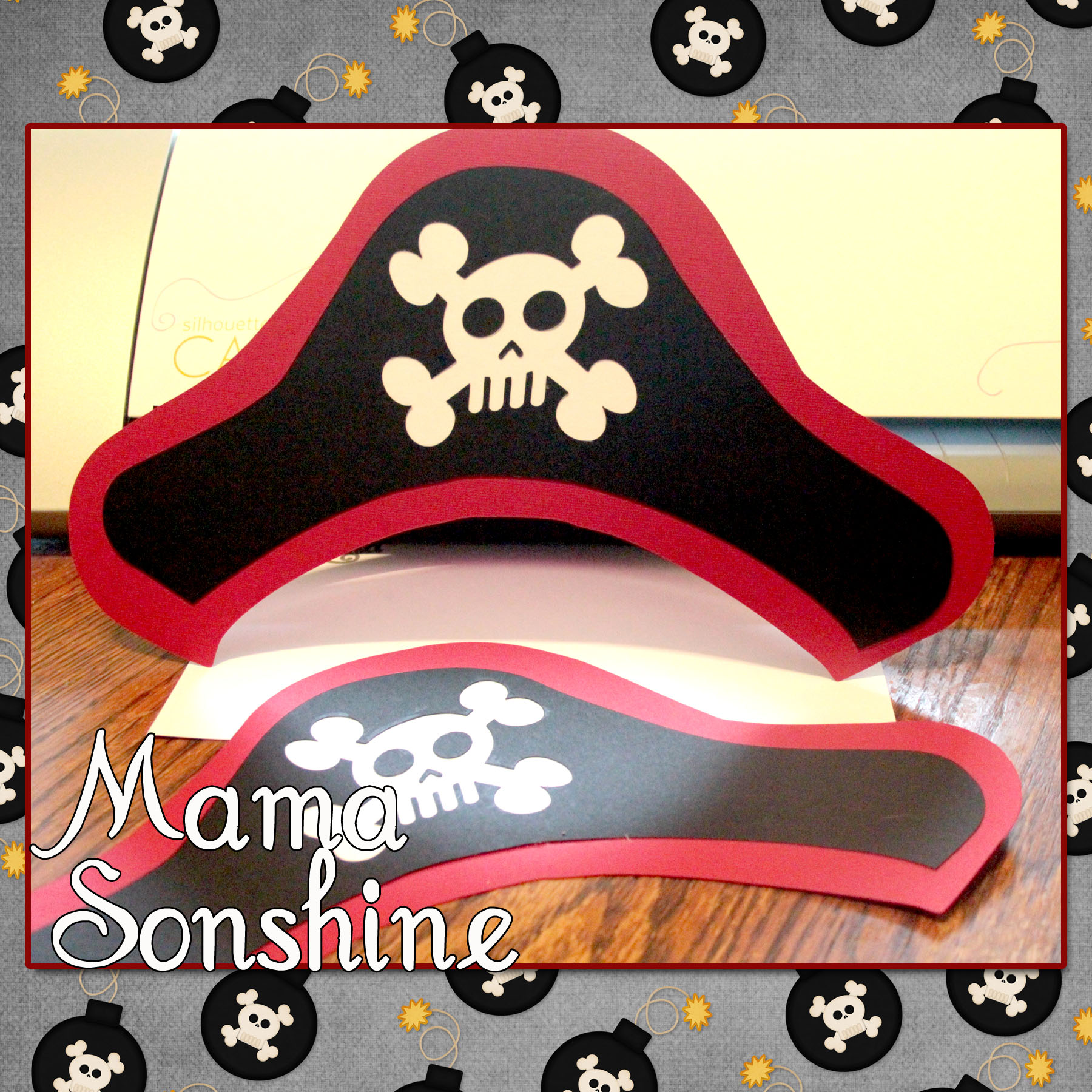
And what it just wouldn’t be a party with out party hats!

MSS_MarchSilChallenge10_2014

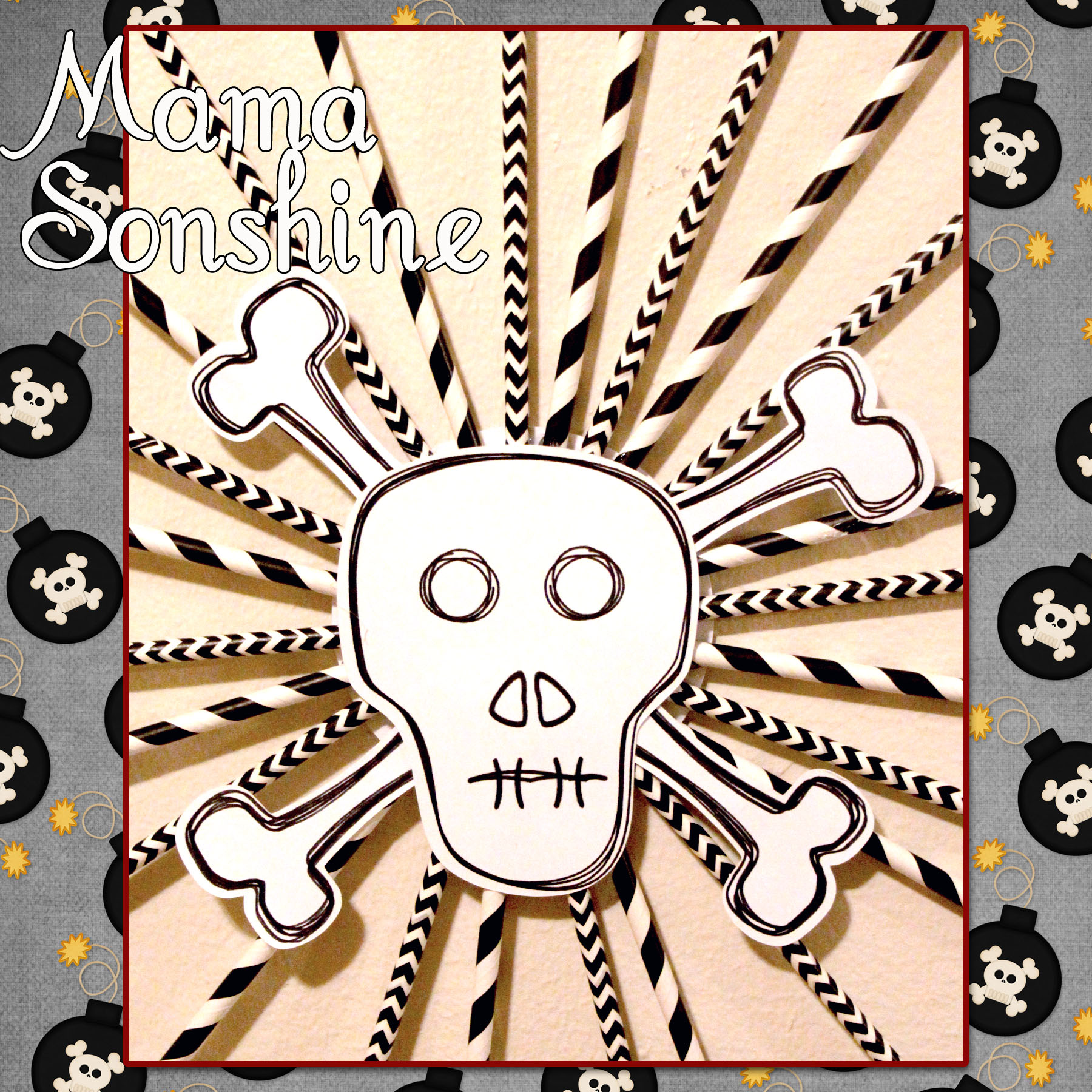
For the pin wheel I used the sketch feature that can only be found in the Silhouette Studio Designer Edition.

MSS_MarchSilChallenge02_2014

I ‘hand’ drew the skull and bones, and by hand I mean I used the draw polygon tool.  I used the sketch tool to make the skull look more hand-drawn.  I used a black Sharpie Marker to draw the lines with the Cameo and then made the cut around it.

MSS_MarchSilChallenge03_2014

This is only the tip of the iceberg when it comes to decorations that can be made using a personal cutting machine.  I would never have been able to cut out all the pieces to make forty invitations, if I had to do it by hand.

I have much more planned and will revel more after the party.

Happy Crafting
signature-black

facebook instagram pinterest parties by mamasonshine etsy bloglovin google+ email twitter Image Map

Want to Check Out More Silhouette Projects?

My Silhouette Challenge buddies and I are all sharing projects on our blogs today, so peruse the projects below for a wealth of Silhouette inspiration!

The Great Lamp Rescue Barnyard Animal Paper Garland & Party Details Sweet and Simple Easter Bunny Card Owl Theme Baby Shower Ombre Paint Chip Earrings & Free Cut File Spring is Blooming Drop It (Like It's Hot) Hexagon Tray Spruce Up Your RECIPE BOOK Gift Card Giving Free Cut Files Custom outlines for stamps Mickey Mouse Clubhouse Juice Boxes Wine Themed Bridal Shower Learn How To Make A Sewn Paper Garland! Moroccan Thank You Card 3D Flower Spring Wreath For the Love of Paper: Cutting Embellishments Create Your Own St. Patrick's Day Cupcake Wrappers and Toppers Swimming Word Art St. Patrick's Day Lime White Chocolate Chips Cupcakes + Freebie You're invited to a dog party! I'm so Lucky! Spring Wreath with SIlhouette Cut Flowers Tiny Princesses Paper Dolls Colorful Quote with your Silhouette Get Well Bouquet with Persimmon Roses Greeting Card Holder Baby Shower Invitations How-To Create a Custom Pillowbox on Your Silhouette Machine + Free Cut File! Quality Time Jar Matchbox Cover with {FREE CUT FILE} DIY Baby Girl Shower Invitation Candy Alphabet Travel Game Paper Garland Pretty Paper Roses DIY Geometric Heart Journal Hand Made Decorations for a Pirate Party Wedding Shower Gift Heart Map Decoupaged Letters (A scanner + A Silhouette = Spectacular results!) Easter Pop-up Box Card with Sweet Sorbet Designer Paper from Stampin' Up! Better World Greeting Cards Star Wars Silhouette Canvas Monogrammed Gifts Make Printable Gift Wrap with your Silhouette Software Free Printable: Blank Banner with free Silhouette Cut File

1. McCall Manor // 2. The Turquoise Home // 3. Creative Savings // 4. Sandpaper and Glue // 5. The Thinking Closet // 6. Sowdering About in Seattle // 7. Persia Lou // 8. From Wine to Whine // 9. Dream a Little Bigger // 10. Please Excuse My Craftermath… // 11. Play. Party. Pin. // 12. Everyday Paper // 13. Practically Functional // 14. A Tossed Salad Life // 15. My Favorite Finds // 16. The House on Hillbrook // 17. Adventures in All Things Food // 18. A Glimpse Into Barb’s Life // 19. TitiCrafty // 20. The Experimental Home // 21. feto soap blog // 22. Creative Ramblings // 23. The Stamp Doc // 24. Ginger Snap Crafts // 25. Simply Kelly Designs // 26. Whats Next Ma // 27. unOriginal Mom // 28. Bringing Creativity 2 Life // 29. Cutesy Crafts // 30. My Paper Craze // 31. Create & Babble // 32. Grey Luster Girl // 33. The Sensory Emporium // 34. Lil’ Mrs. Tori // 35. Black and White Obsession // 36. Mama Sonshine // 37. Weekend Craft // 38. Creative Carnival // 39. Peace, Love and Joyce // 40. Tried & True // 41. The Frill of Life // 42. Dragonfly & Lily Pads // 43. Get Silvered // 44. Minted Strawberry


Leave a comment

Birthday Pirate Shirt ~ A Silhouette Cameo how to (Part 3)

I wanted to share with you the steps I took to make my son’s birthday shirt. There was a few problems I had that I was able to work through.   Hopefully this will help so others won’t get stuck like I did.

In this tutorial I use my Silhouette Cameo and the Silhouette Studio DE software to make a custom shirt for my son’s birthday party.  I used graphics from Just So Scrappy‘s YoHo YoHo Pirate kit.  I used the Silhouette brand Flocked Heat Transfer Material for the skull, and Avery Dark T-Shirt Transfers for Ink Jet Printers.

Part One will be how to make the Skull & Crossbones

Part Two will be how to do the words & party hat

Part Three will be how to iron everything on and some tips.

MSS_BirthdayShirt01

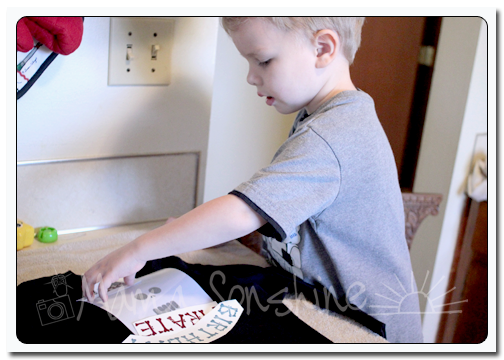
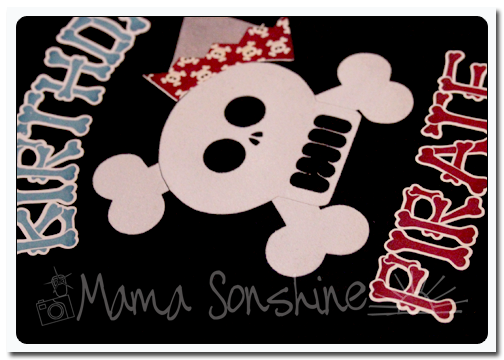
My first tip; if you want your words to be in the correct direction I would advise you not to let your three-year old place them on the shirt.

MSS_BirthdayShirt04

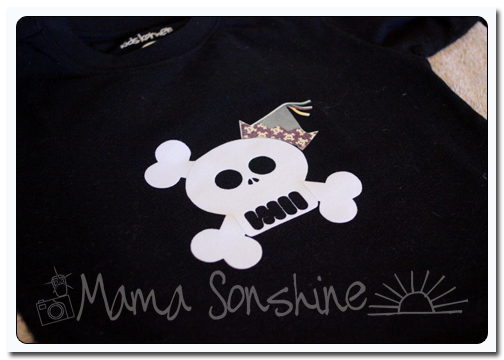
The flocked transfer material has a clear plastic film over the top.  This is the side you face down when cutting, you want the Silhouette to cut through the transfer material but not this film.  After weeding out the areas that you want the shirt to show through, lay your transfer material with the film facing up.  I would advise ironing on one piece at a time, just to ensure proper placement.

Use a dry iron, on the highest setting (please read the directions that come with your material) and a piece of thin cotton fabric between the iron and your material.  I used a pillowcase after determining a dish towel was too thick.  You want to apply a lot of pressure for up to a minute, or more.  Again, this is where you want to double-check the instructions that come with your material.  The time can very depending on manufactures, but the main thing is if isn’t sticking, you need more time and pressure.  Try not to move the iron around like you are ironing your clothes.  Just hold for a minute, then move to another area and hold, with lots of pressure.  Have I made it clear that pressure is important?

Some material is cool peel, meaning you need to wait until the ironed on design has cooled before removing the top film.  If this is the case, wait!  You will only ruin your design if you get impatient.

MSS_BirthdayShirt02


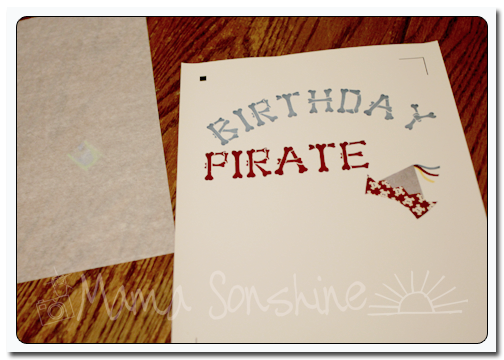
The intricate cut around the words was done as stated in the previous tutorial, but I wanted to separate the words from the page and lay them on the shirt without yet removing the backing, so I just cut them out with scissors.  The Silhouette settings I used made a ‘kiss cut’ meaning it cut through the transfer material but not through the backing.  When you are ready to iron on the material you peel it off like a sticker.

After placing the elements where you want them use the same iron settings but use the piece of parchment-like paper that comes with  the printable transfers between the material and your iron.  Again using lots of pressure.  Also, make sure something is covering the areas that have already been ironed on.  If you apply direct heat to this material you could melt it.

MSS_BirthdayShirt03


As I have stated above I used the printable material for dark fabric and ink jet printers.  The dark fabric is like a sticker.  What is face up is what will show, this is different from the material for light fabric.  The dark fabric material also leaves a white area on the printed material where there is a white area on your screen.  With the light fabric material, where there is white on your screen the shirt fabric will show through.  This is something to consider before purchasing your transfer material.  Also it is very important for you to  know what kind of printer you will be using.  The way an ink jet and laser printer adhere the ink to the paper is different and for this type of material it does make a difference.

The first time I printed this out I used a laser printer without thinking of the consequences.

MSS_BirthdayShirt05

It looks fine, there wasn’t any difference between it and the one I ended up printing on my ink jet printer.  At least not until I ironed it on.

MSS_BirthdayShirt06

See how the hat has faded?  This is because of the toner in a laser printer.  It can come off the printable heat transfer material when heat is applied.  I had to go back and reprint everything on an ink jet printer.  At this point I also had to make the hat a little bigger to cover up  the faded one.

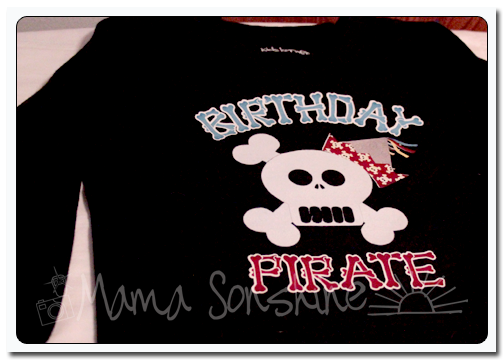
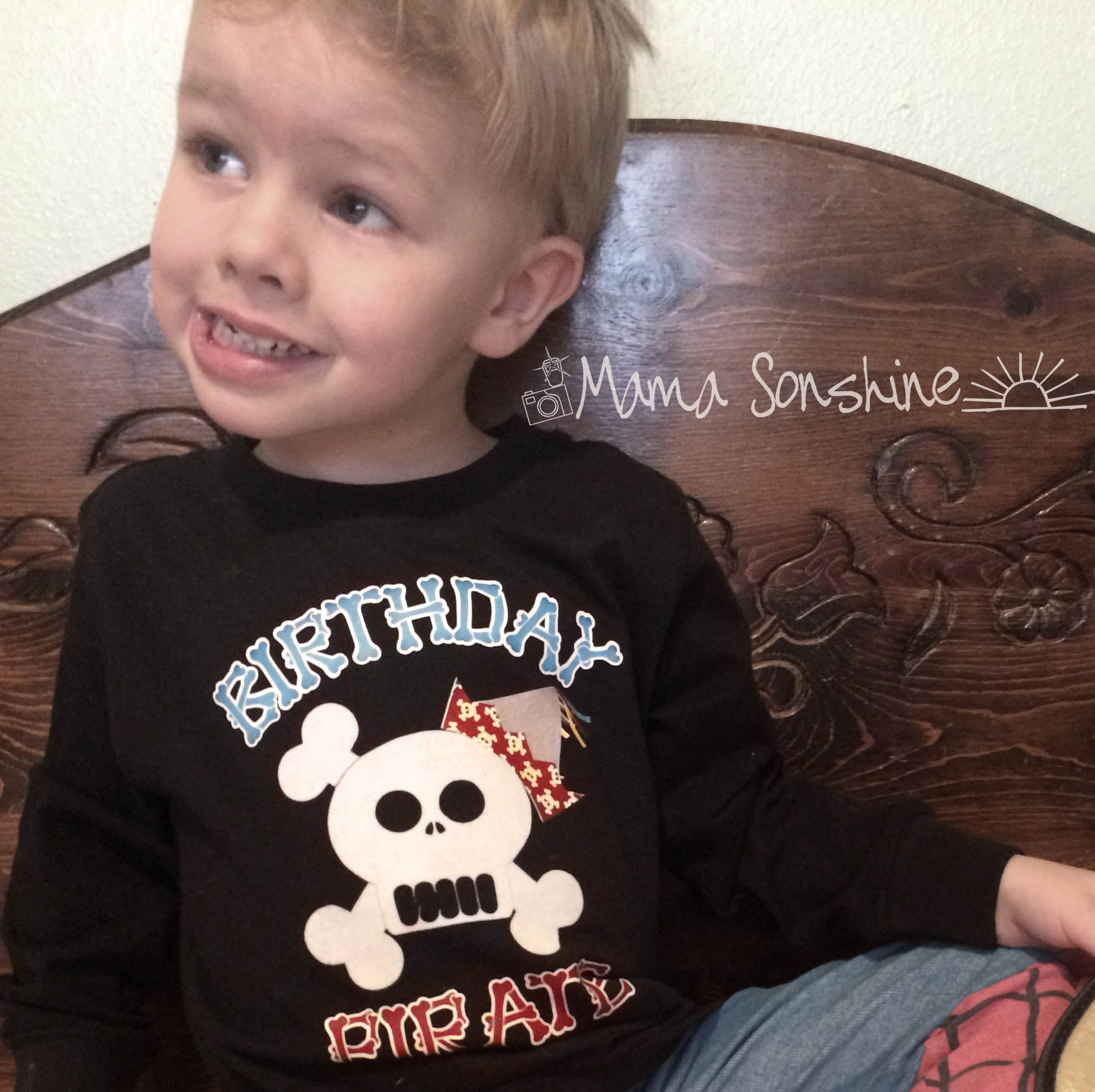
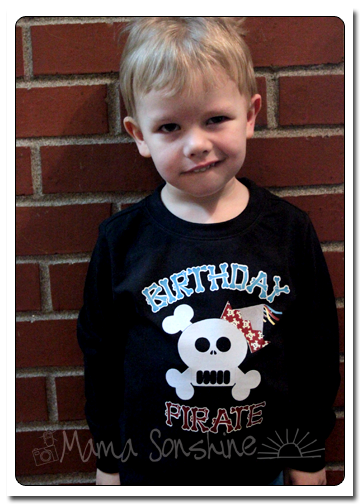
But the end result was still one happy birthday-boy-to-be.


MSS_BirthdayPirateShirt

If you want to see how I designed the skull check out Part one.

If you want to see how I designed the print and cut words and hat see Part Two.


Happy Crafting
signature-black

facebook instagram pinterest parties by mamasonshine etsy bloglovin google+ email twitter Image Map


Enhanced by Zemanta