Fall is in the air, and for us, that means it’s Halloween time!
Ian loves Halloween. I mean loves it.
Not just the candy, but the costumes and decorations too. Since this month’s Silhouette Challenge theme was fall I just knew I had to make something for Halloween.
If you remember from last year I made a candy treat folder and popcorn box for the kids at Ian’s school (those are a couple free printables if you want). Well that was pre-Silhouette. Now I can make things a little more intricate.
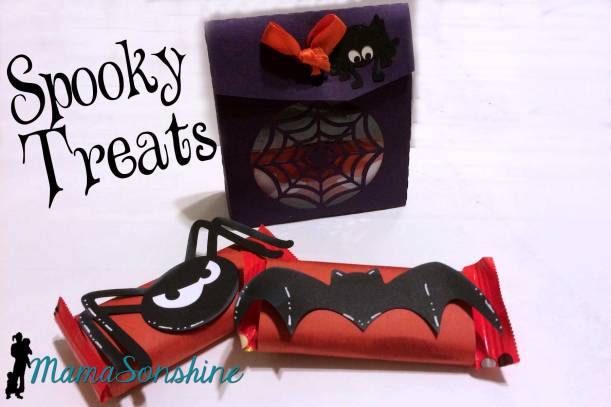
First I created a little gift bag for the kids at Ian’s school.
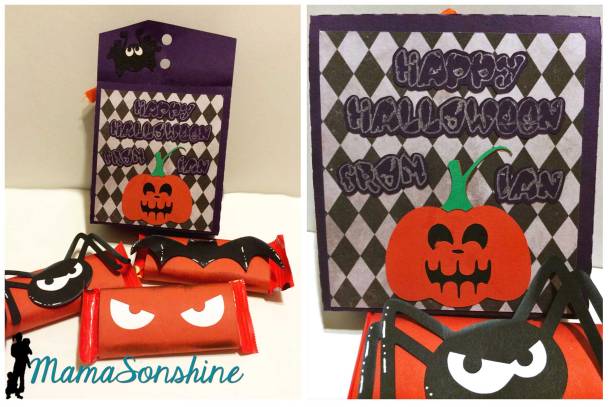
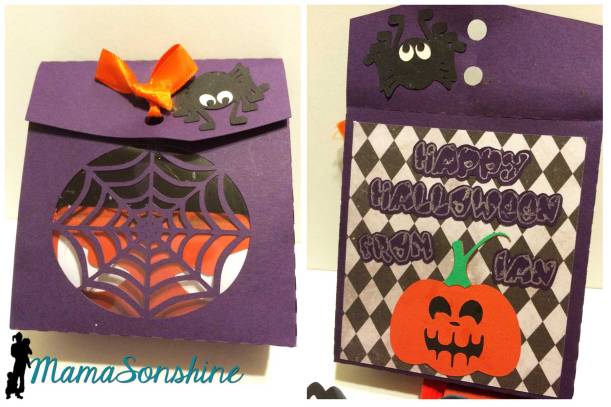
I created the bag with a little spider web window, and it is the perfect size for a couple treats and some stickers.
On the back panel is the sentiment and a little pumpkin. Of course I had to make some cute little wrappers for the candy.
I really like how the window turned out, and I glued a plastic sheet inside so the web doesn’t break.
But I didn’t stop there…
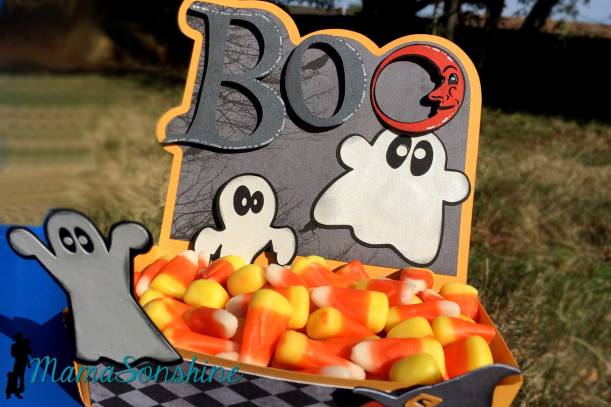
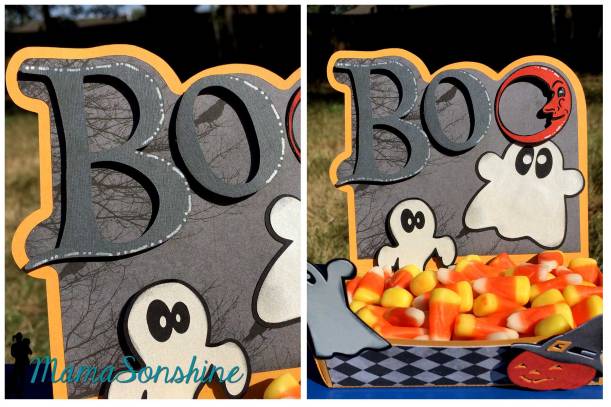
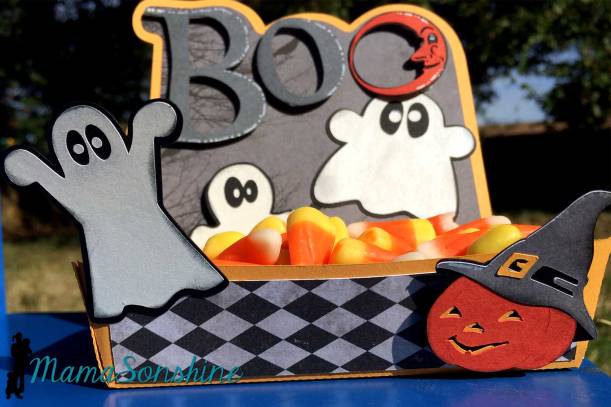
I decided to make a little candy dish, perfect for Candy Corn.
I used a hot dog boat file from Oh Happy Day as the base of the dish. I extend the dish up the back so I could create a little spooky Halloween scene.
I used foam dimensional tabs to pop out the letters, the lower ghost and the pumpkin.
I love this little dish, I have visions for a few more.
I used elements from one of Just So Scrappy‘s digital scrapbooking kit as well as from SVG Cuts.
Here is to Spook-tacular Halloween!
Want to Check Out More Silhouette Projects?
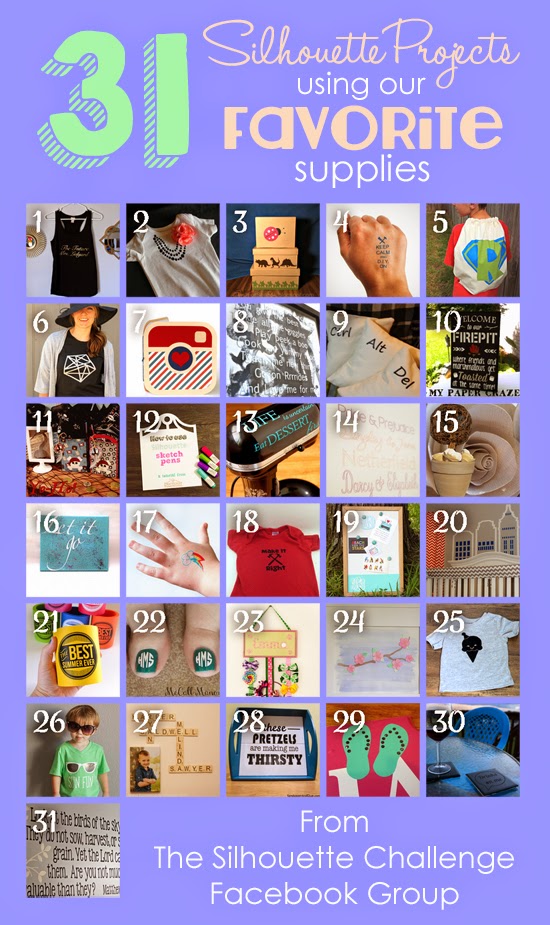
My Silhouette Challenge buddies and I are all sharing projects on our blogs today, so peruse the projects below for a wealth of Silhouette inspiration!
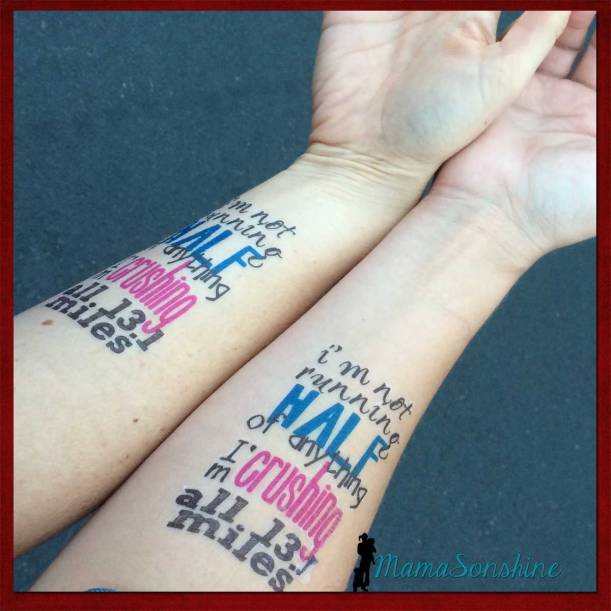
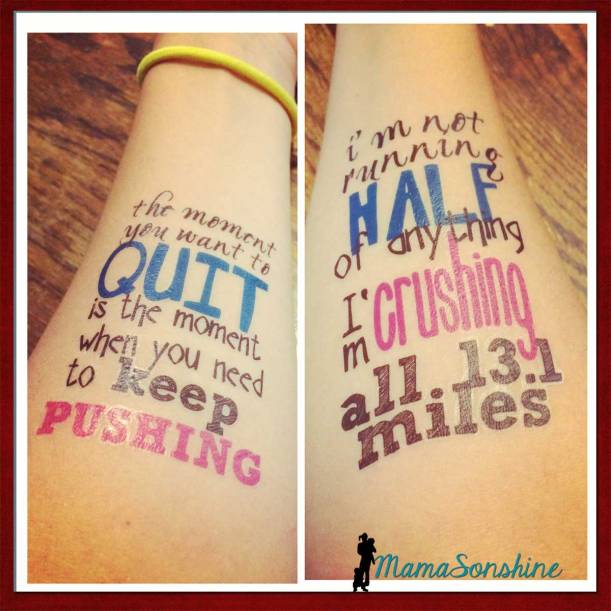
If you read my race recap about the half-marathon I ran this summer you saw that I made some motivational tattoos for my cousin and me to wear.
It was the first time I used the Silhouette brand Temporary Tattoo paper, but I knew that I would be using it again the following month for Sid’s birthday party. I ran into a few issues as a first time user and thought I would share them, in hopes that other’s don’t have the same troubles.
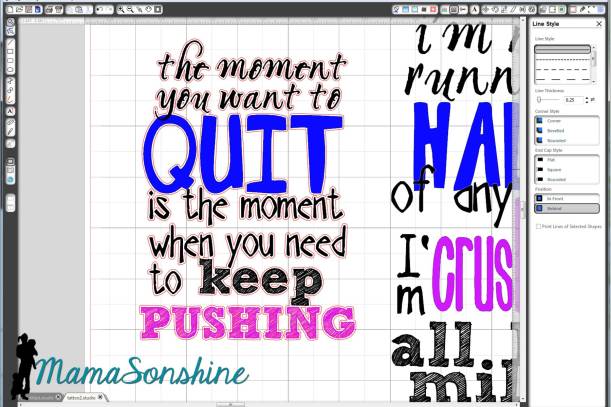
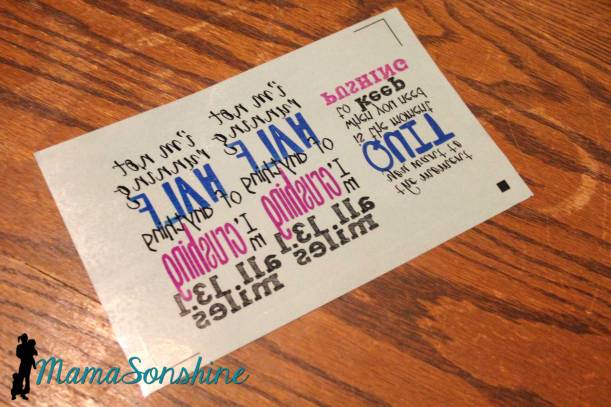
First I made my design. One of my favorite motivational quotes for running is “I’m not running half of anything. I’m crushing all 13.1 miles.” There are a few variations, but I like this wording the best. I made one for my cousin and one for me. I had room for one more quote, and since I had two arms I also used “The moment you want to quite, is the moment when you need to keep pushing.”
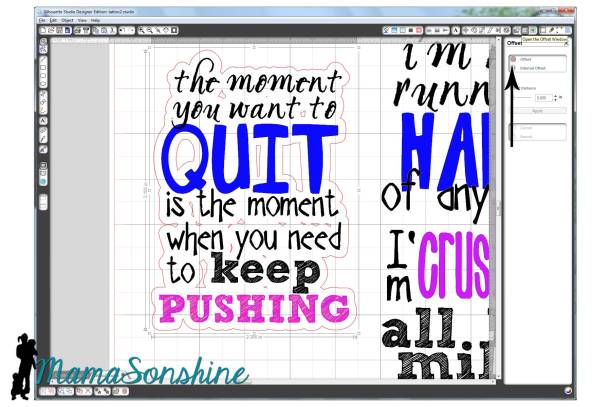
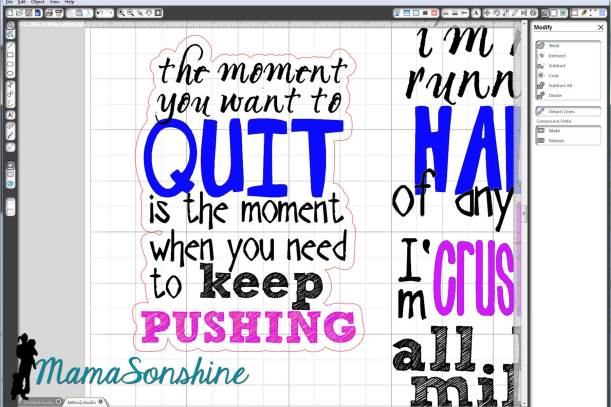
I sized out the space on my arm and made a box in Silhouette Studio. I then typed out my sayings and changed the fonts, sizes and colors for specific words. I then used the offset tool to create my cut lines around the words. Remember, anything that is white in your design will be clear on the tattoo, and your skin will show through.
My first instinct was to make a close-in offset, as I would when cutting other media.
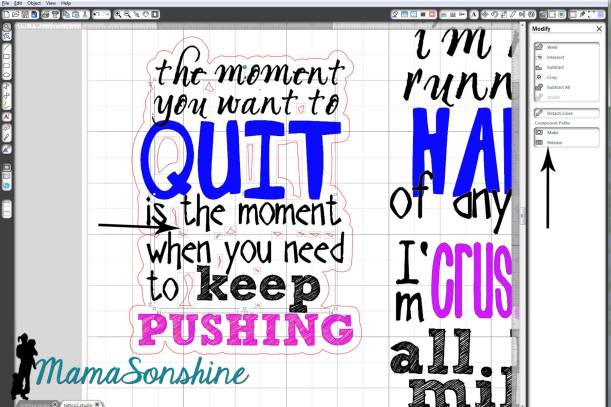
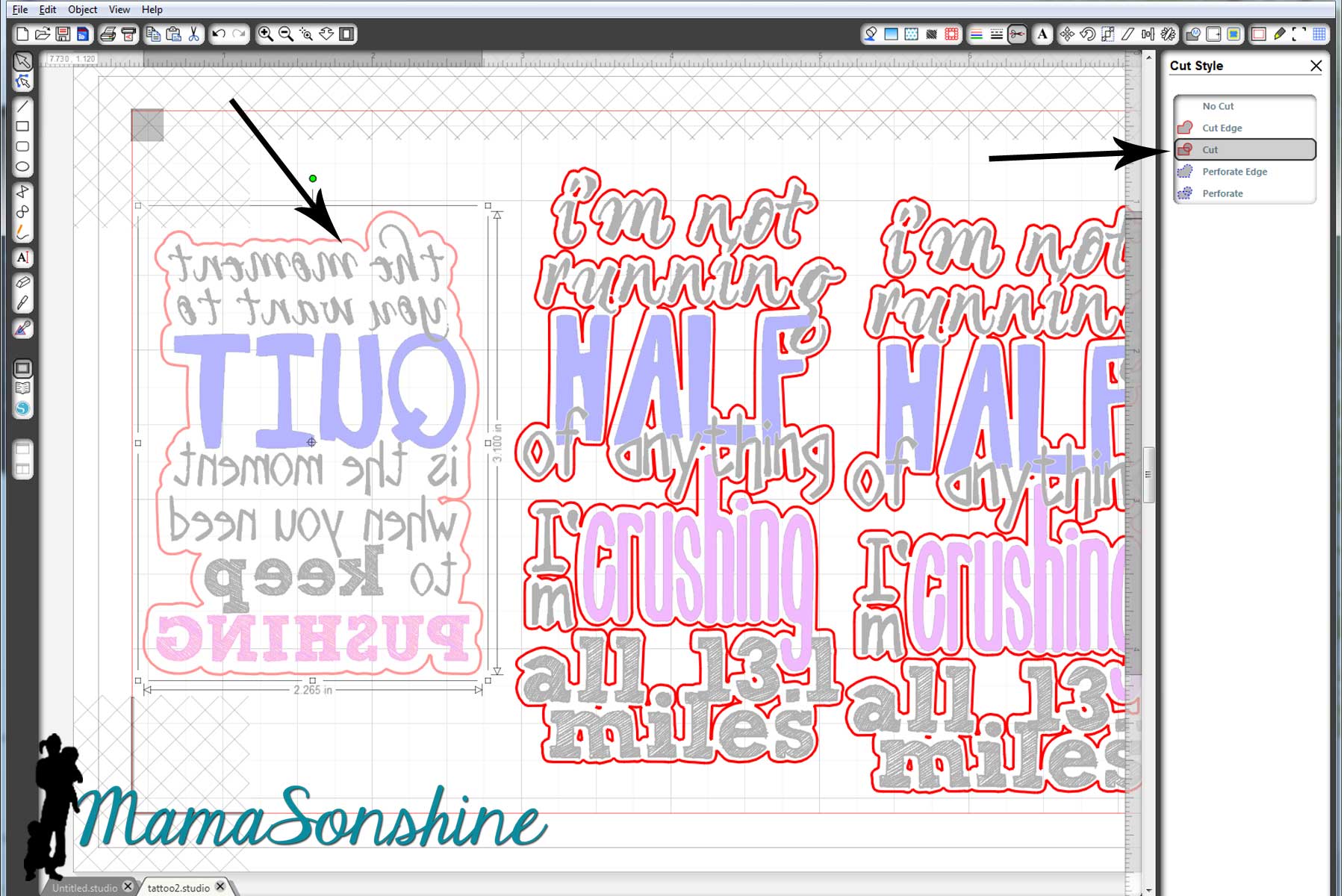
Here is the problem: when you cut it, it cuts through the paper backing. So now you have all the words in different pieces that you would have to place on your arm individually. So again, remember that the tattoo paper is clear, and make your offset big enough that all the words cut as one piece.
And there is no reason you need to waste time cutting out the middle of your o’s or other inner parts since the paper is clear. Release the compound path,
select all the unwanted parts, then delete them.
Now you are left with a nice group of text that will stay together once cut.
Check out your cut lines, make sure you are not cutting out the words you are printing, but just the offset you just made.
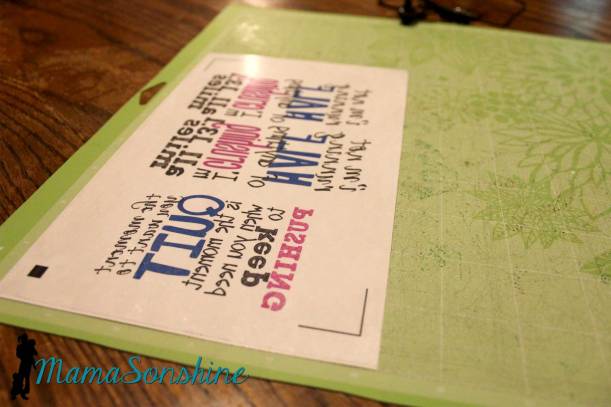
Once you have your design and cut lines all set, flip your image horizontally. This is very important when doing something with words, or your words will be backwards.
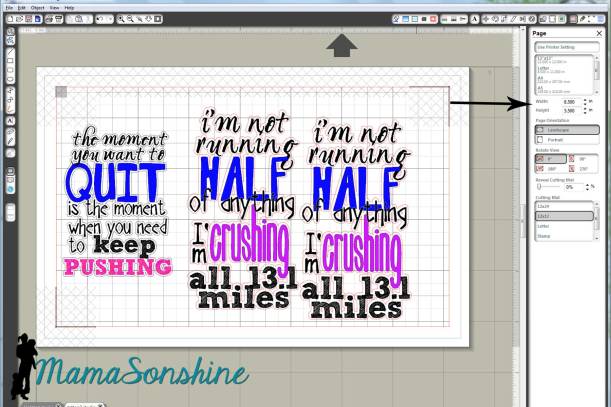
The key to the temporary tattoos is Silhouette‘s print and cut feature using the software’s registration marks. I don’t know about you, but when I print and cut, I change the paper to ‘letter’ (because that is the size of the paper I print on) and adjust my registration mark settings to the smallest available. One day when I was printing something small I realized I don’t have to waste the whole piece of paper. I say ‘waste’ because once I printed the registration marks, I couldn’t reprint (for cutting) on that same piece of paper.
So I changed the size of the paper, I know it seems like a simple statement. But I made the paper size just larger than my image size, with the registration marks, and that left the rest of the paper blank, for use again! So simple, yet so helpful.
The tattoo paper is a bit pricey, about five bucks a sheet; the pack comes with two sheets and is priced at $9.99. You can find it on sale at Amazon, and sometimes through Silhouette. I didn’t want to waste any of the paper, and I wasn’t ready to print out the favors for Sid’s party, so I just adjusted the size of the paper to fit my quotes. That way I still had half a sheet of unprinted paper I could use again.
Printing.
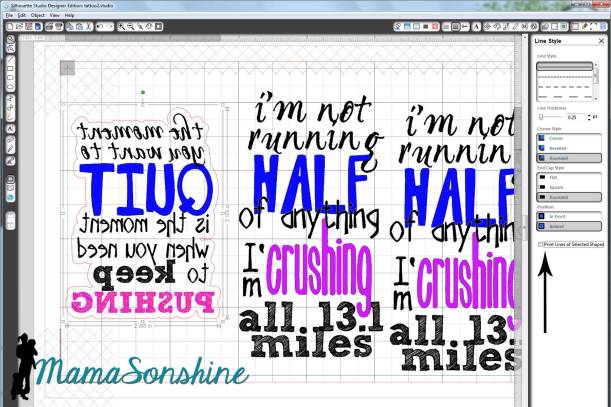
First you want to make sure when you print, that you print the lines of the words, but do not print the lines of the offset. (Note: this feature is different if you are using V3)
Here is where I had the main problem that I really didn’t want to admit to anyone. It’s a little embarrassing.
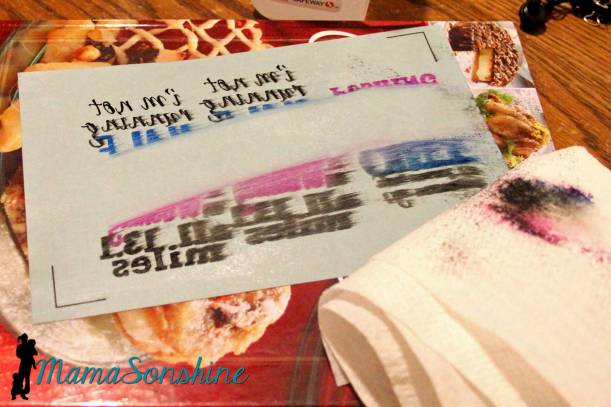
I opened the pack of tattoo paper and pulled out the first sheet on top. The instructions say to print on shiny side then peel of green backing to apply adhesive material. So I printed on the shiny side.
My ink wouldn’t dry. I left it while I went to work, when I got home it still wasn’t dry. I wiped it off, tried different print settings, still wouldn’t dry.
I googled instructions looking for a video tutorial. Finally when watching my second video I wondered why their paper was white when my paper was clear with a green paper backing….
Maybe I have to use my own paper, but that seemed silly because the instructions talk about printing on the shiny side…
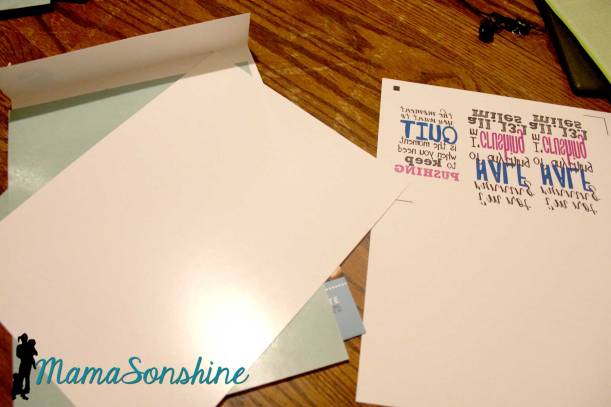
I went back to the package and looked inside it. Behind the two pieces of clear paper with green backing was two pieces of white paper with a shiny side.
*hand hits forehead*
Start over. Printed on the shiny side of the white paper, and ink came out dry and sharp.
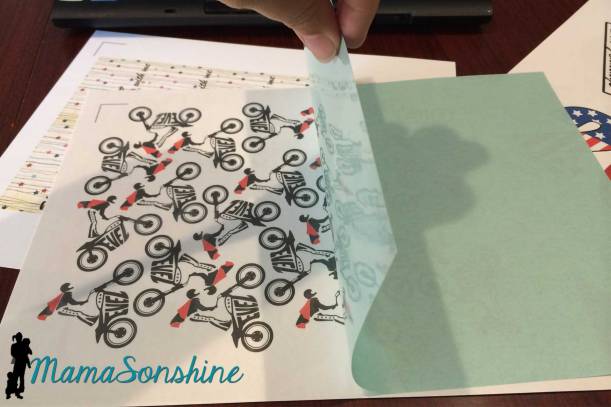
Followed directions by adding the adhesive layer. That is the clear paper with the green backing that I was trying to print on first.
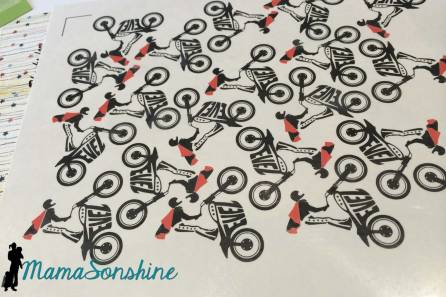
This is actually a picture of the tattoos I made for my son, but this is how you apply the adhesive layer
Because I wasn’t using the whole sheet of paper, I used a paper-cutter to trim down both the white sheet and the clear adhesive sheet before joining them. Then used my Silhouette to cut out the tattoos.
They look great and just the motivation we needed.
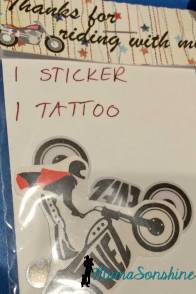
Now that I am a pro at the temporary tattoos, I made some as favors for Sid’s party. However, I neglected to flip the image horizontally, so the words were backwards. There is always something with me, right? I decided to let it ride (yep, pun intended) as the guest were toddlers who really couldn’t read anyway.
I am already planning my tattoos for my Halloween costume!
The theme for this month’s Silhouette Challenge is “my favorite things” meaning my favorite Silhouette supplies.
The main reason I got my Silhouette Cameo was to cut paper and make party decorations. I love to make party decorations and have always gone a little over board, but now that I have my Silhouette, I go hog-wild.
This past March we had my oldest son’s fourth birthday party and I just knew this month’s challenge would be the perfect opportunity to share them with you. Or should I say, the perfect opportunity to force motivate me to finally get around to writing this {wink-wink}….And let me warn you, this post is full of pictures.
Ian decided he wanted a pirate party for his birthday, so I got to work, starting in January.
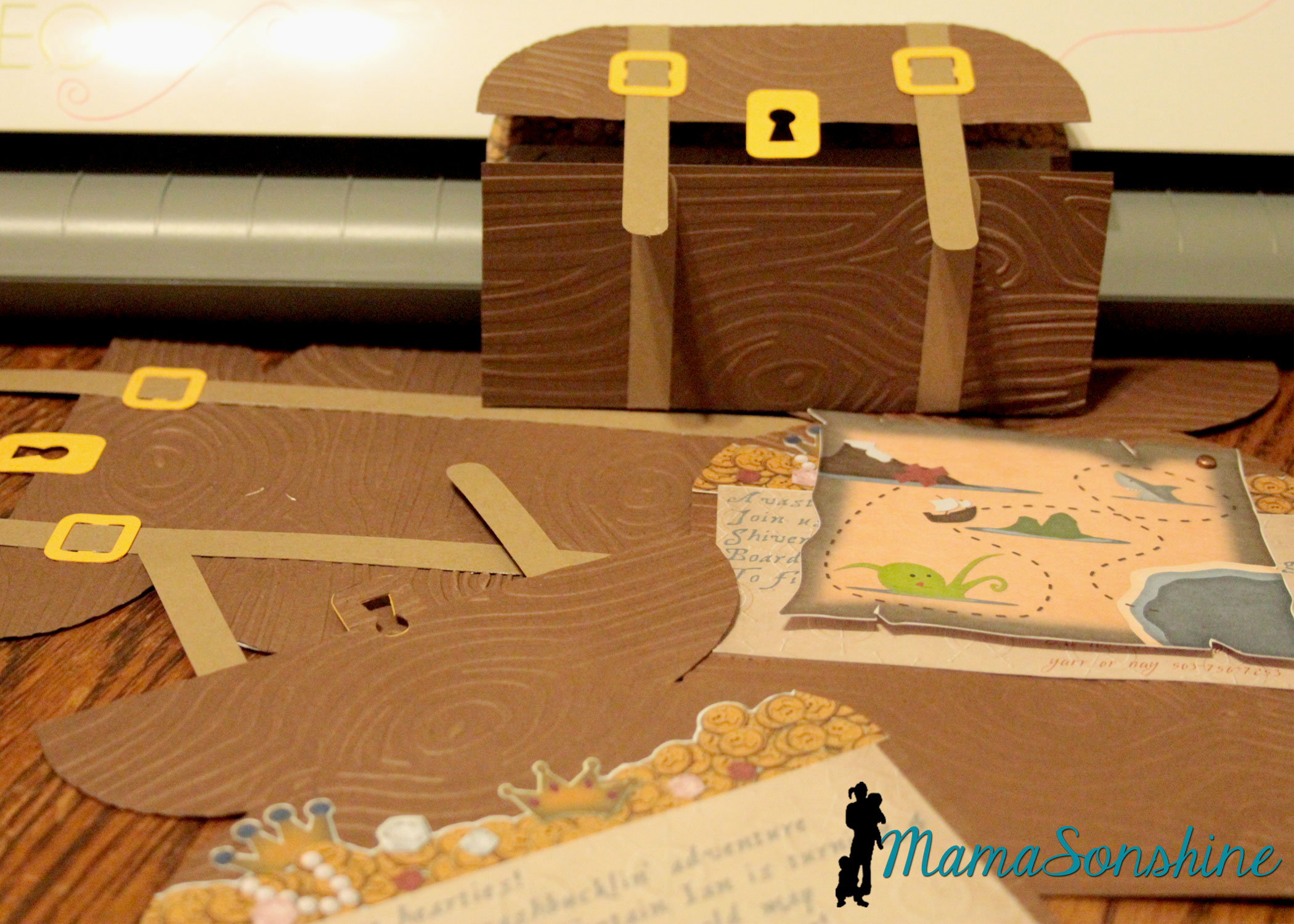
The invitations were treasure chests that opened to show a map, some treasure and the party info. The exterior of the invitation was a cut file I purchased through the Silhouette store. I used my Cuttlebug to give it the wood grain look. I used elements from Just So Scrappy’sYo-Ho Pirate digital scrapbook kit to make the map and as a background for the information section. I used graphics from this kit in almost everything I did for this party.
I designed the coin and jewel pile and used Silhouette’s print and cut option to cut them out.
I love making rosettes for parties, and this party was no exception.
This slideshow requires JavaScript.
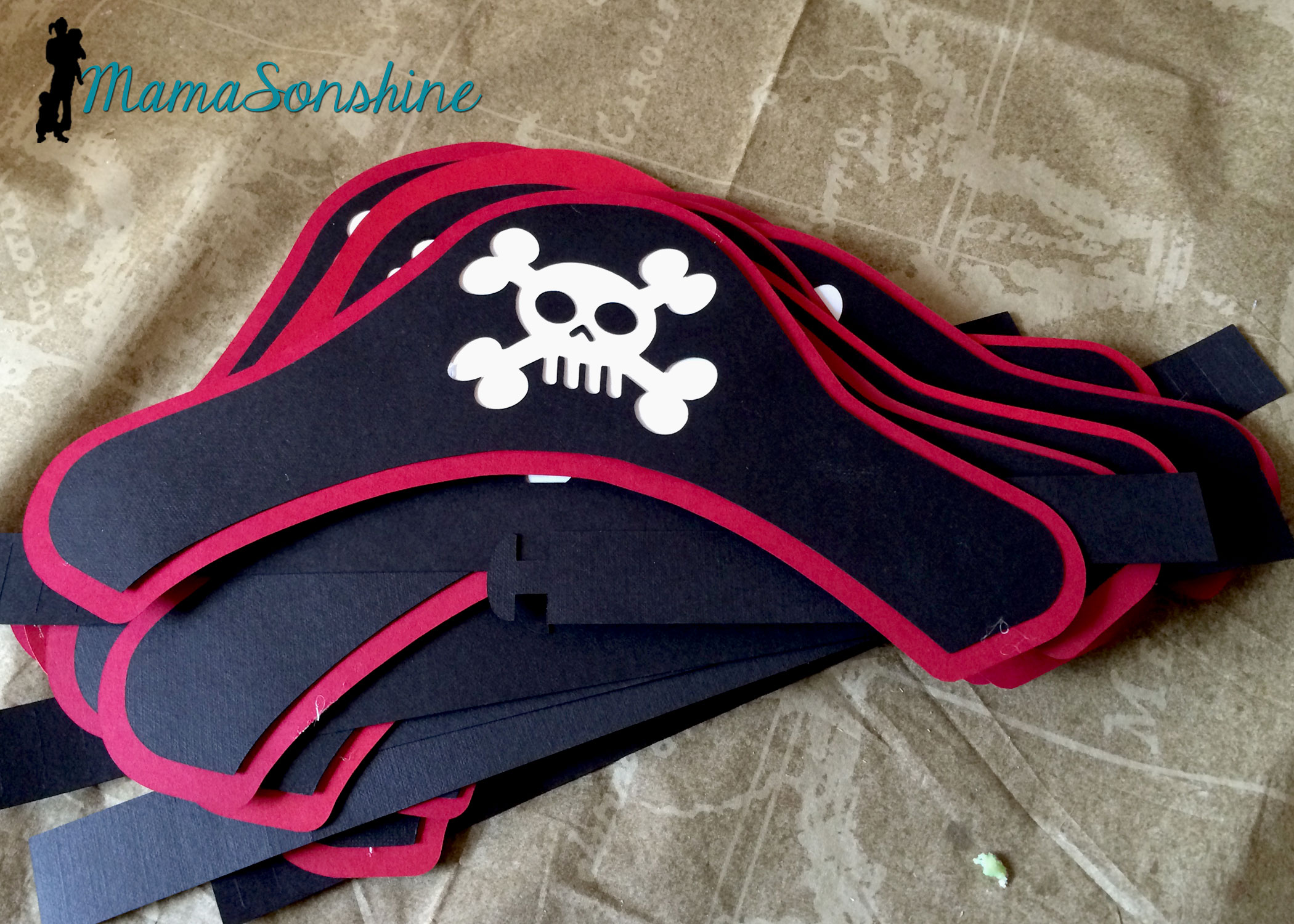
I created these party hats for the kids. This skull and cross-bones was from the a flag in the scrapbook kit. I used some of the negative skull and cross bone cut outs in other decorations, like the bunting flags (see below).
I don’t think I would have been able to make a dozen pirate party hats with out my Cameo.
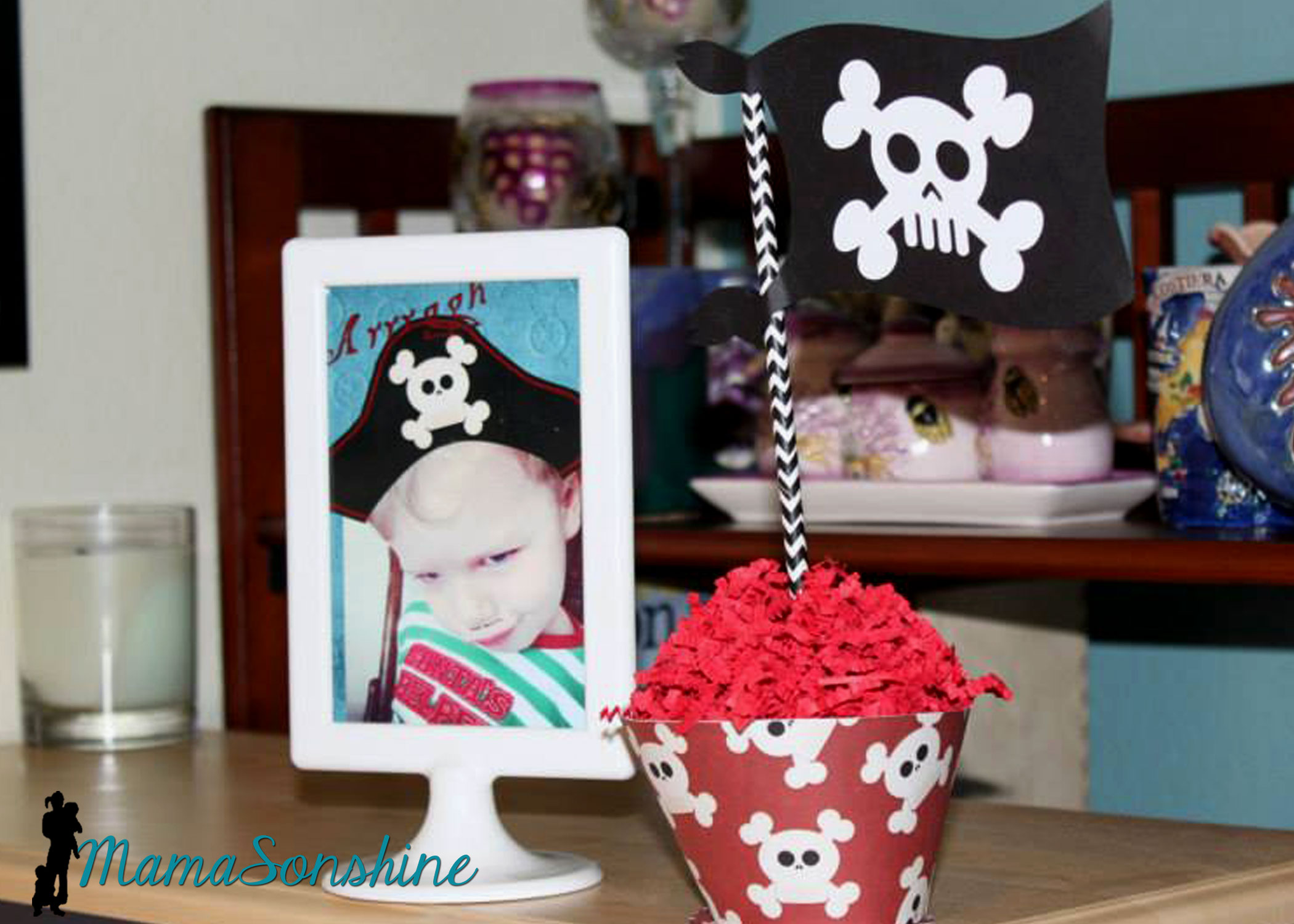
I really loved these flag topiaries. I cut the flags out from the kit and used the digital papers to make the each base.
This slideshow requires JavaScript.
Of course there has to be a picture of the Birthday Pirate!
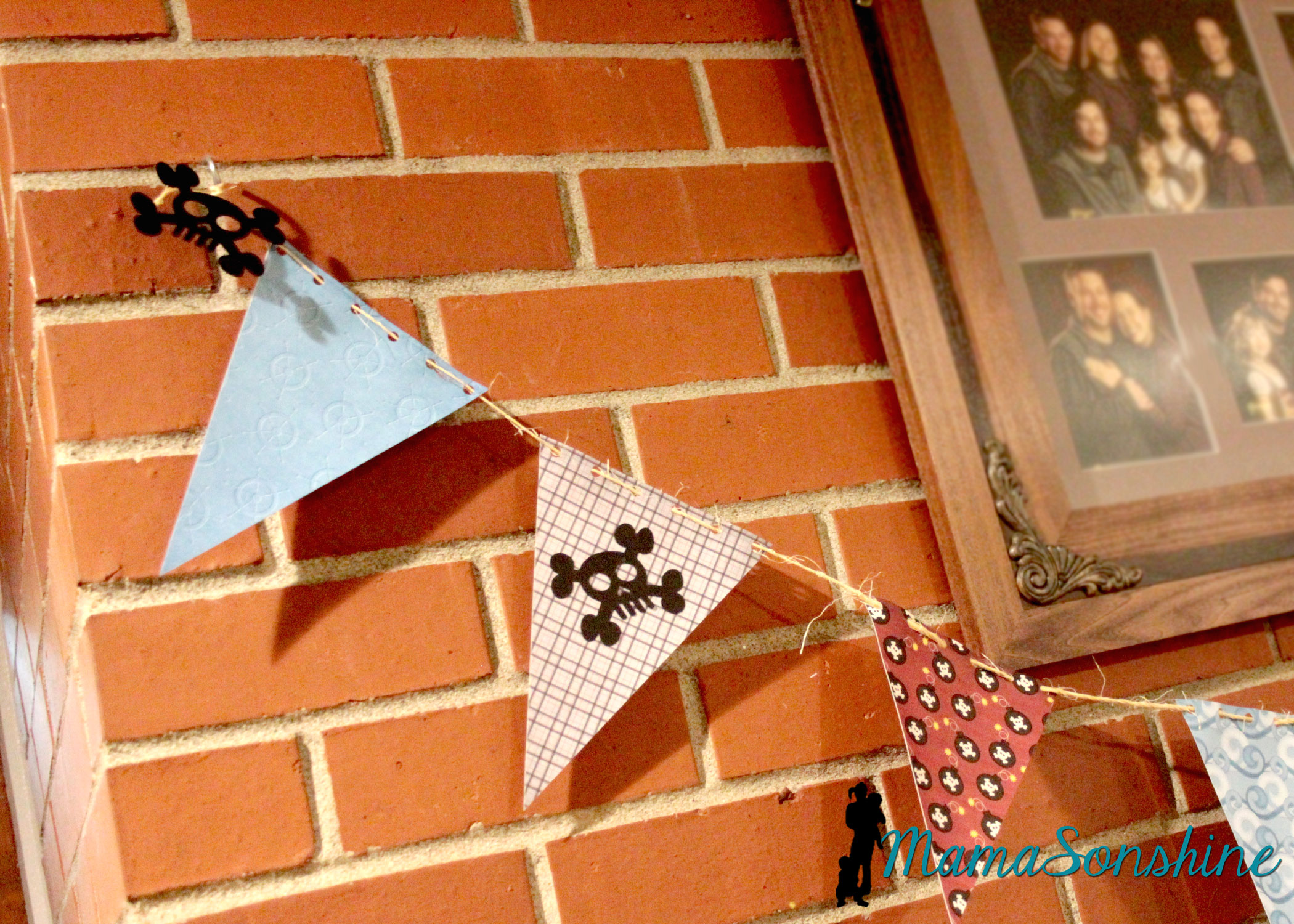
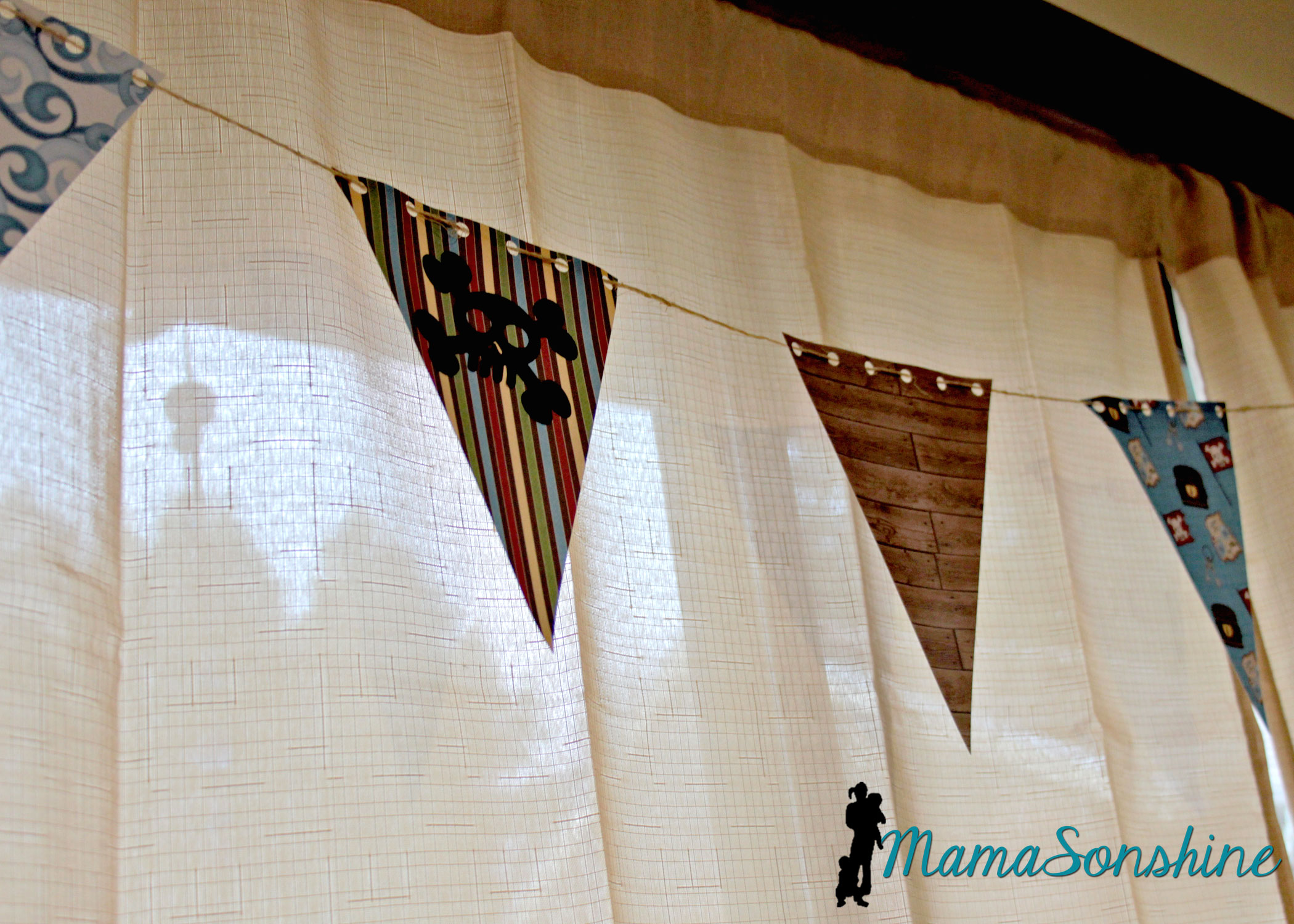
The bunting flags were made with the digital papers and cut with my cameo. I used twine to string them all together.
You can see where I added the negative skull and cross-bones from the party hats.
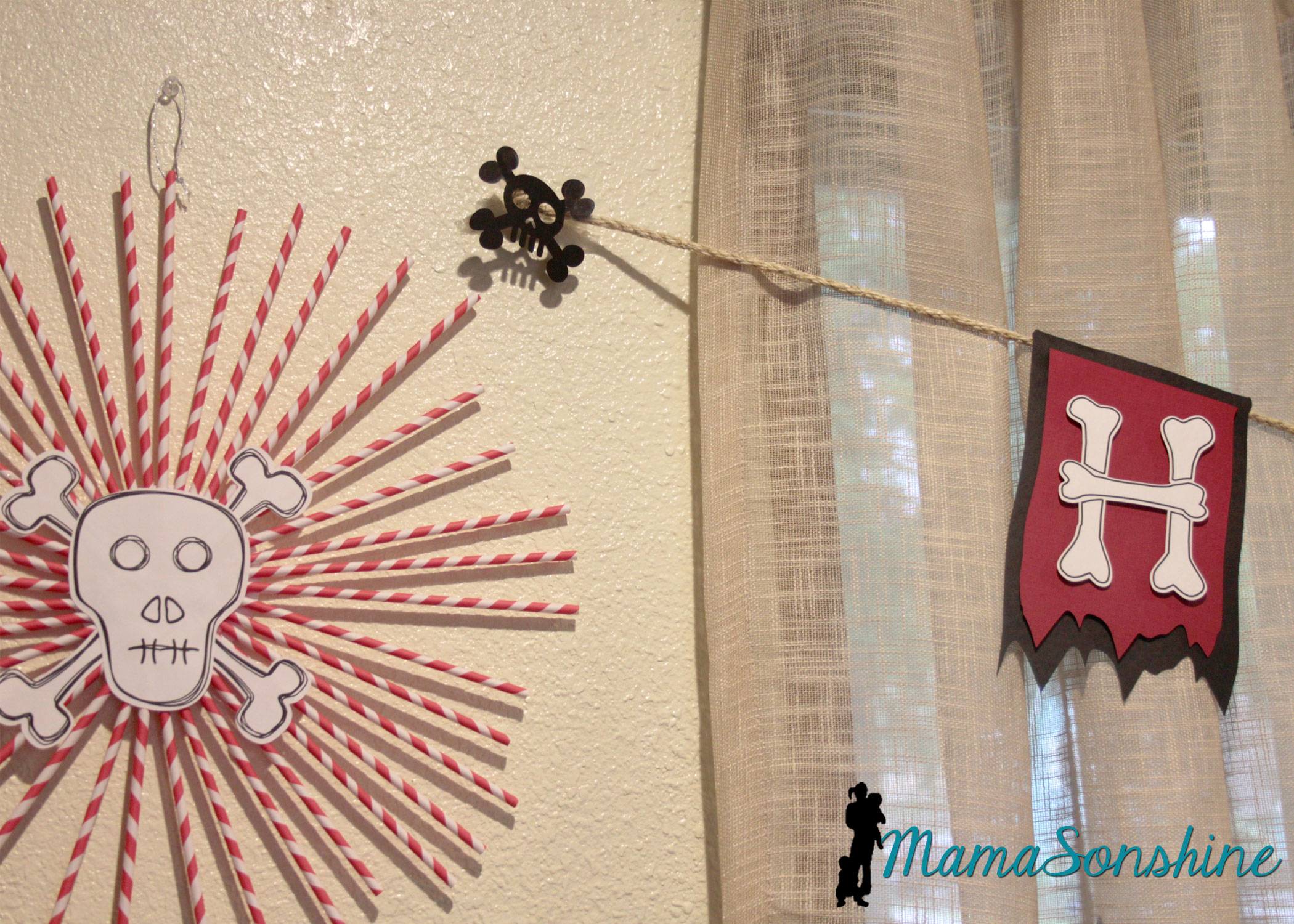
I decided to use the sketch feature in the Studio software to make the skull and cross-bones for these straw rosettes.
This slideshow requires JavaScript.
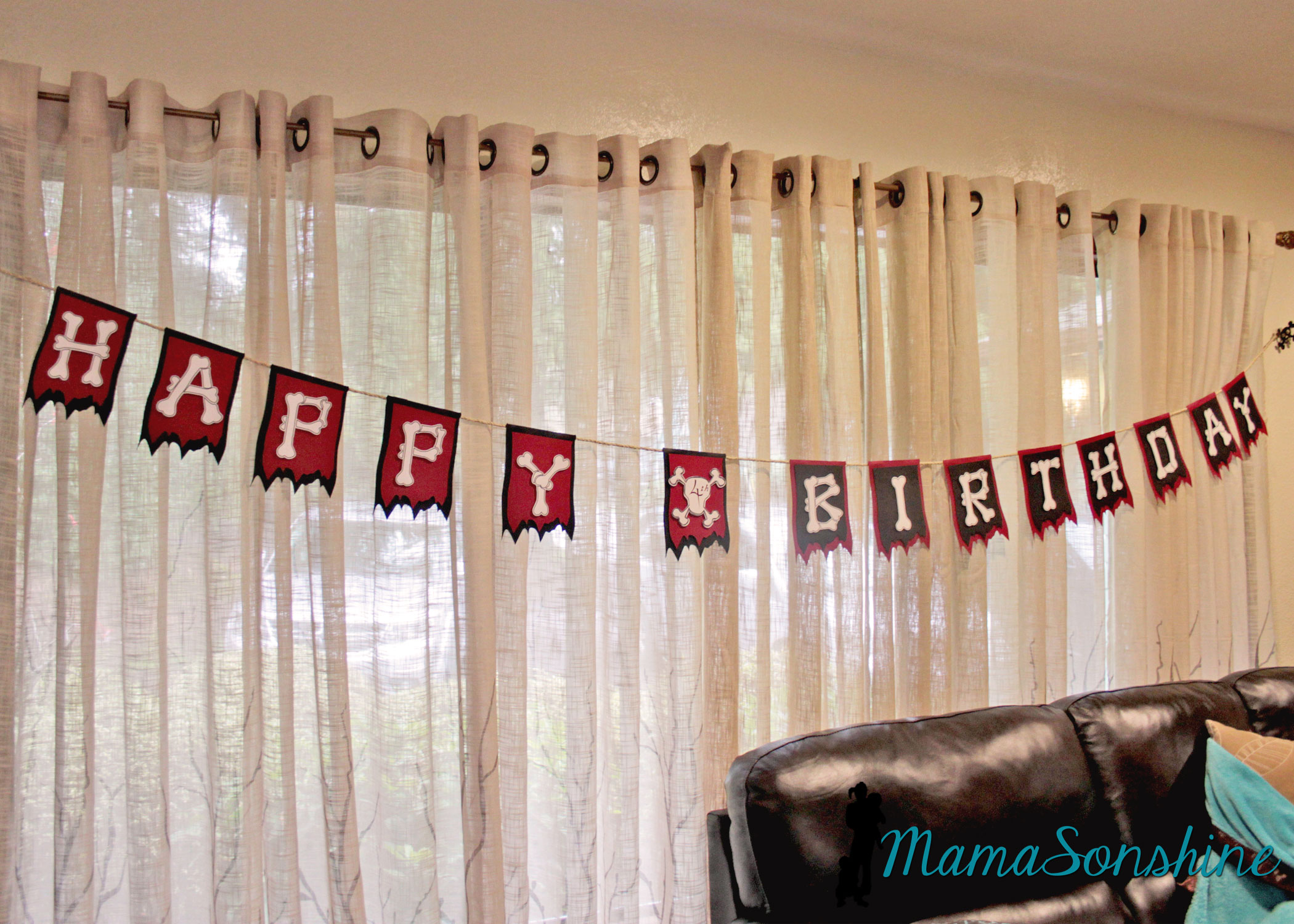
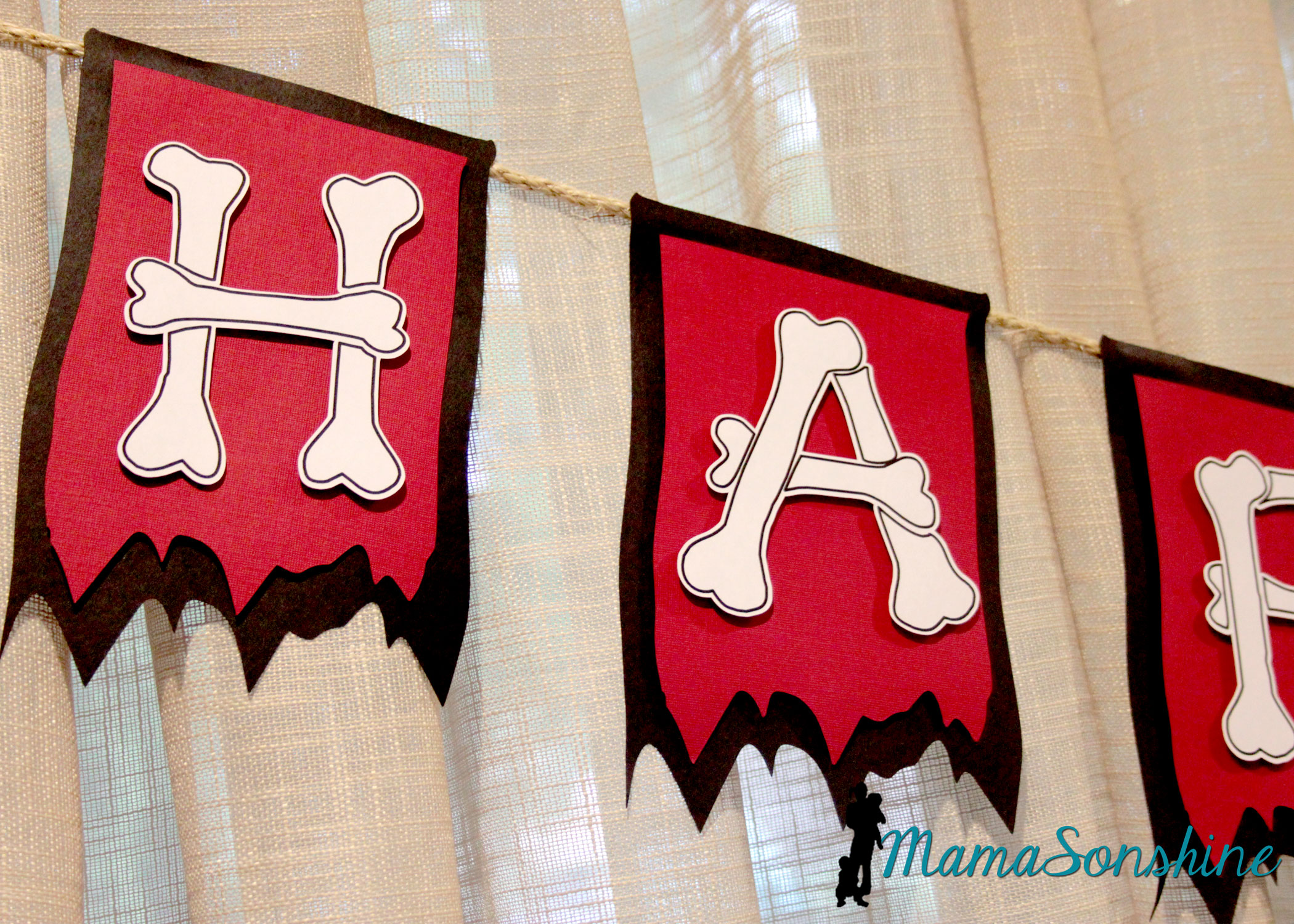
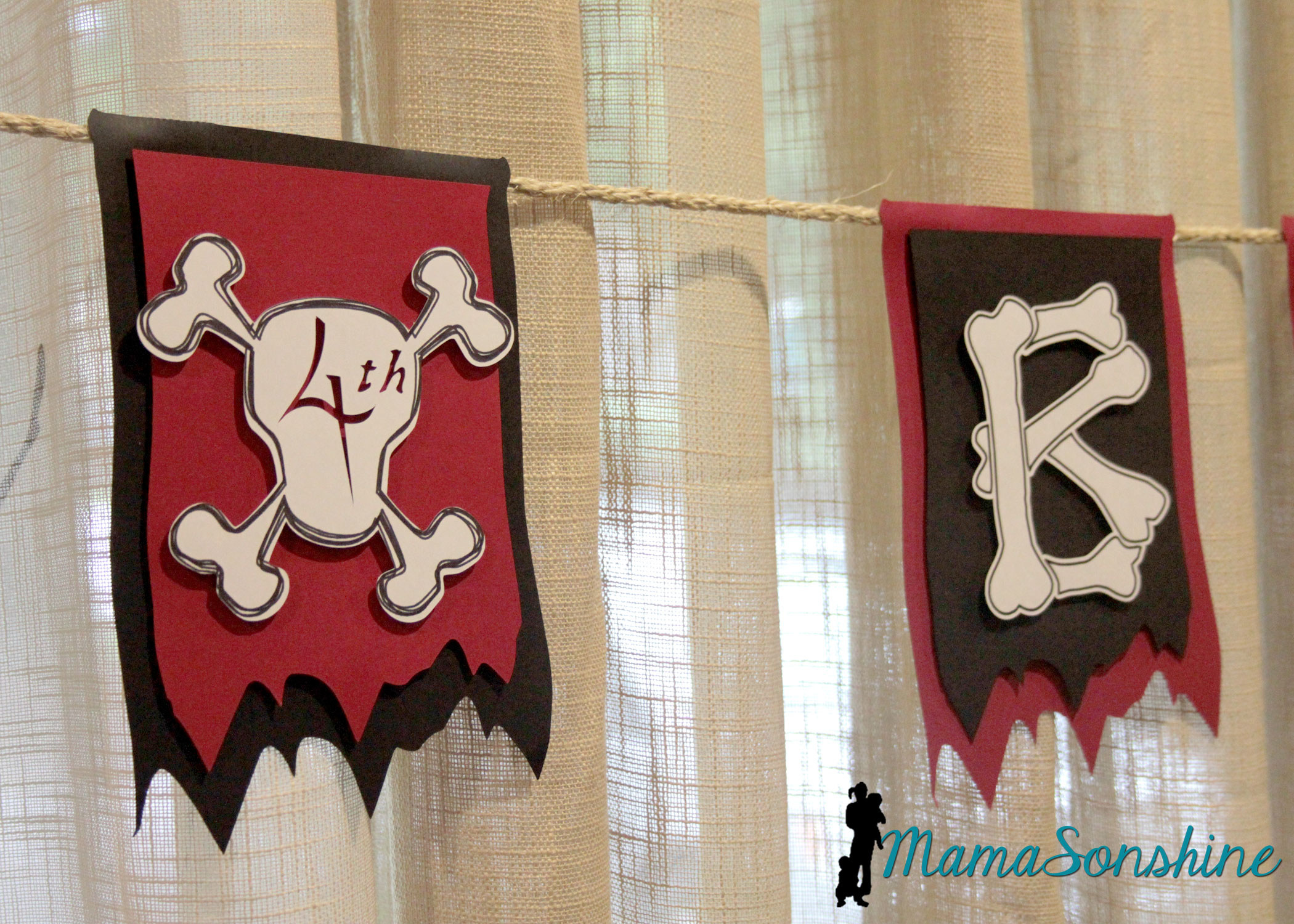
One of my favorite things from this party was the “Happy Birthday” banner.
I really like how the layered flags turned out.
I wanted to use this bone font but each piece of bone on one letter is a cut line, so I used the offset tool to cut all around the letter. I could have used a sketch pen, but I just printed them.
I used the custom design tool and the sketch feature to make the skull and cross-bones for the number part of the banner. Instead of writing the number, I cut it out, so you can see the background color. I used sisal rope to hang the banner across the window.
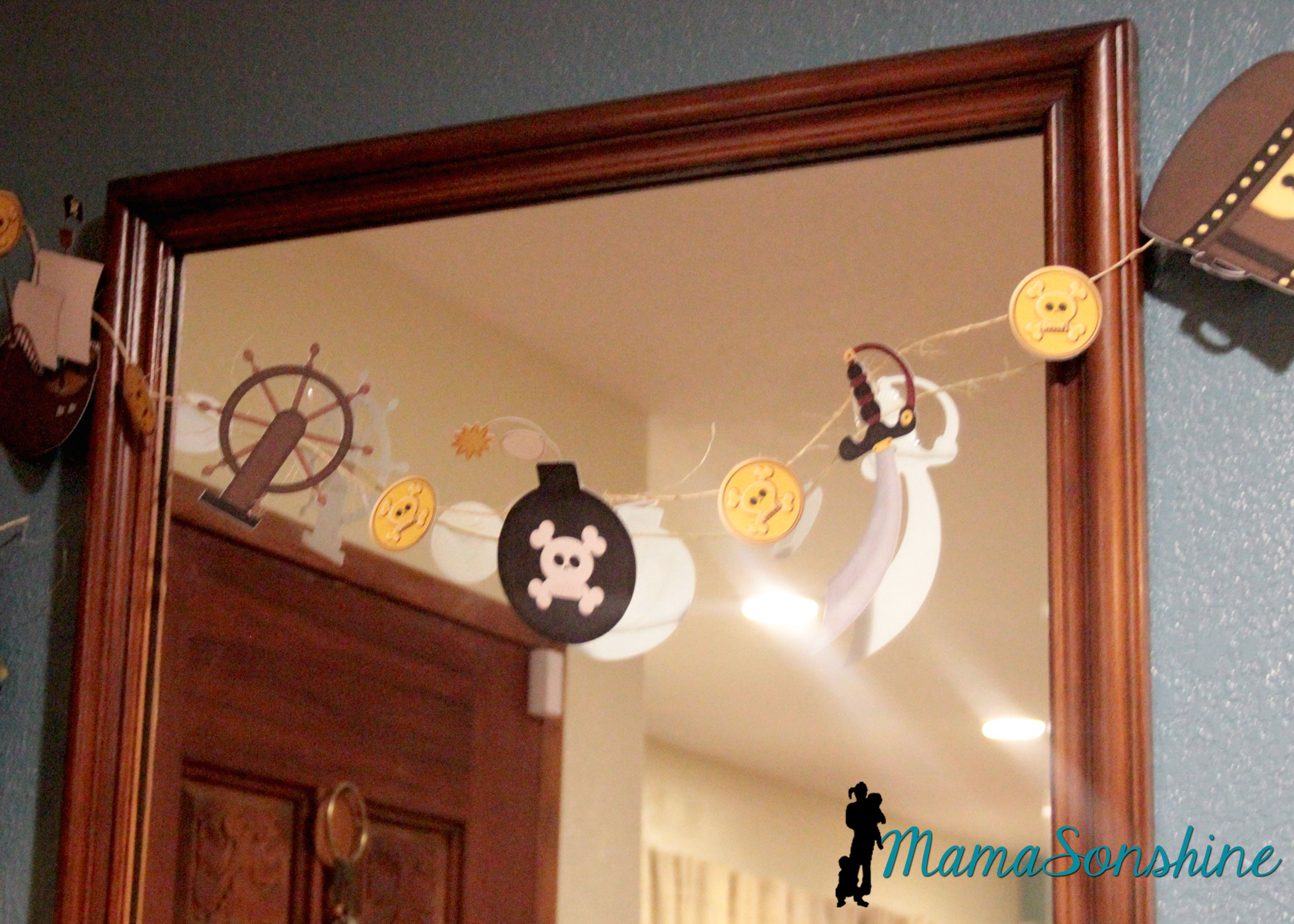
I also used the print and cut feature on the elements from the kit to make other banners.
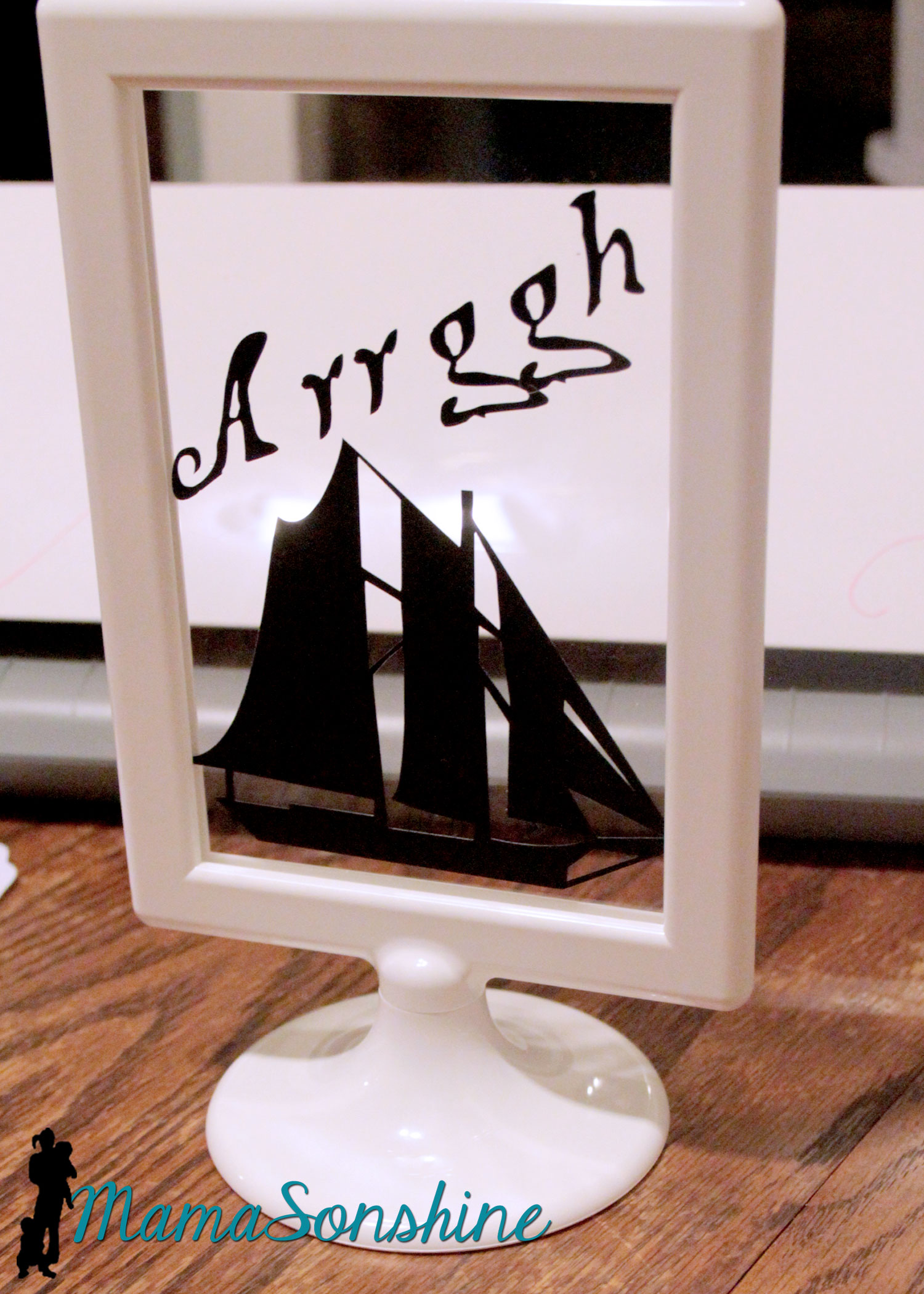
I cut out some pirate items as silhouettes and put them in these Tolsby frames from Ikea.
These are my new favorite party items, and they are really inexpensive and simple to adapt to any party.
I used black vinyl to keep the silhouette look.
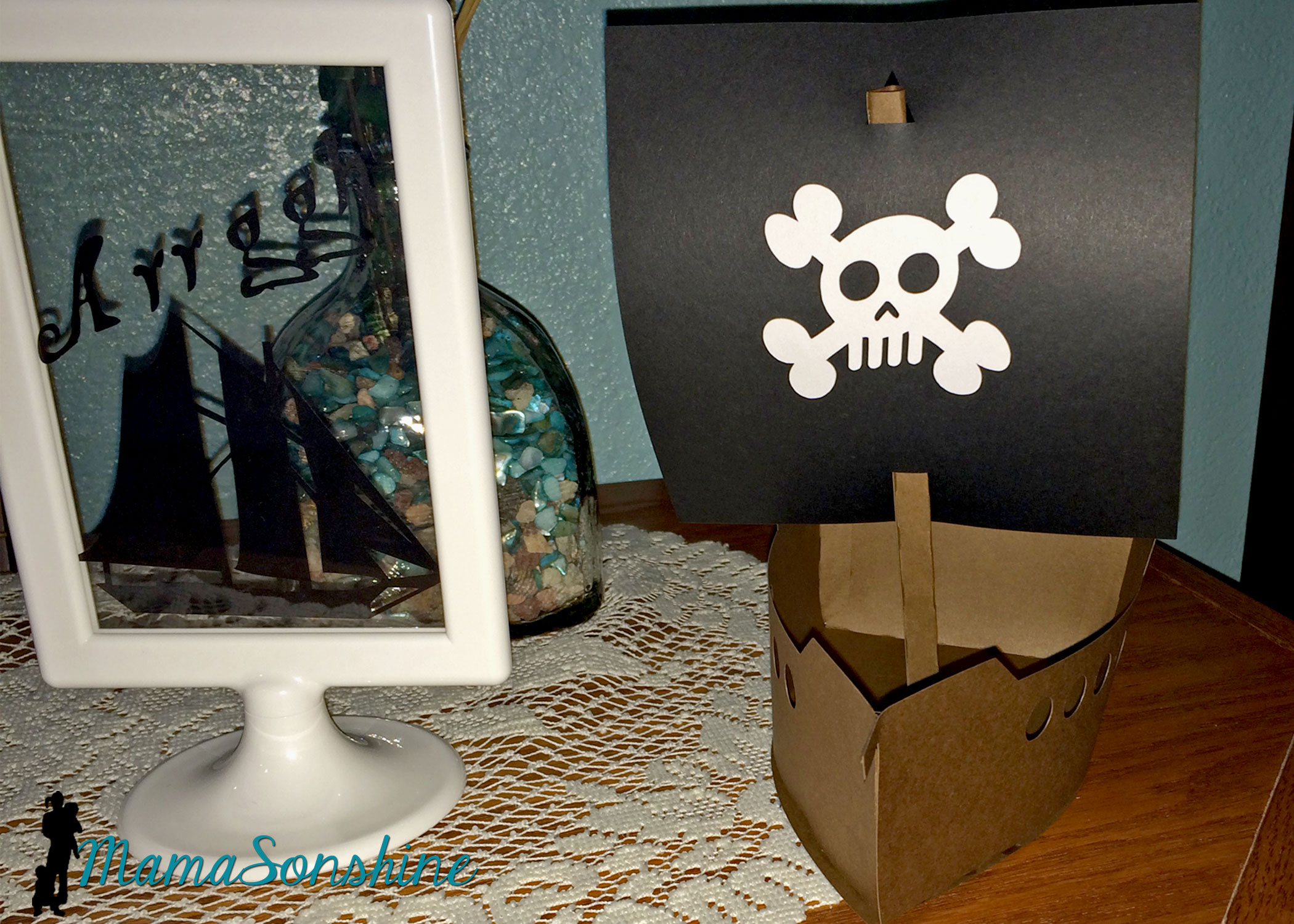
I also purchased this 3-D pirate ship, from the Silhouette store with the idea that I would enlarge it for the center piece. I had so much other work to do, that I just decided to use it as decorations.
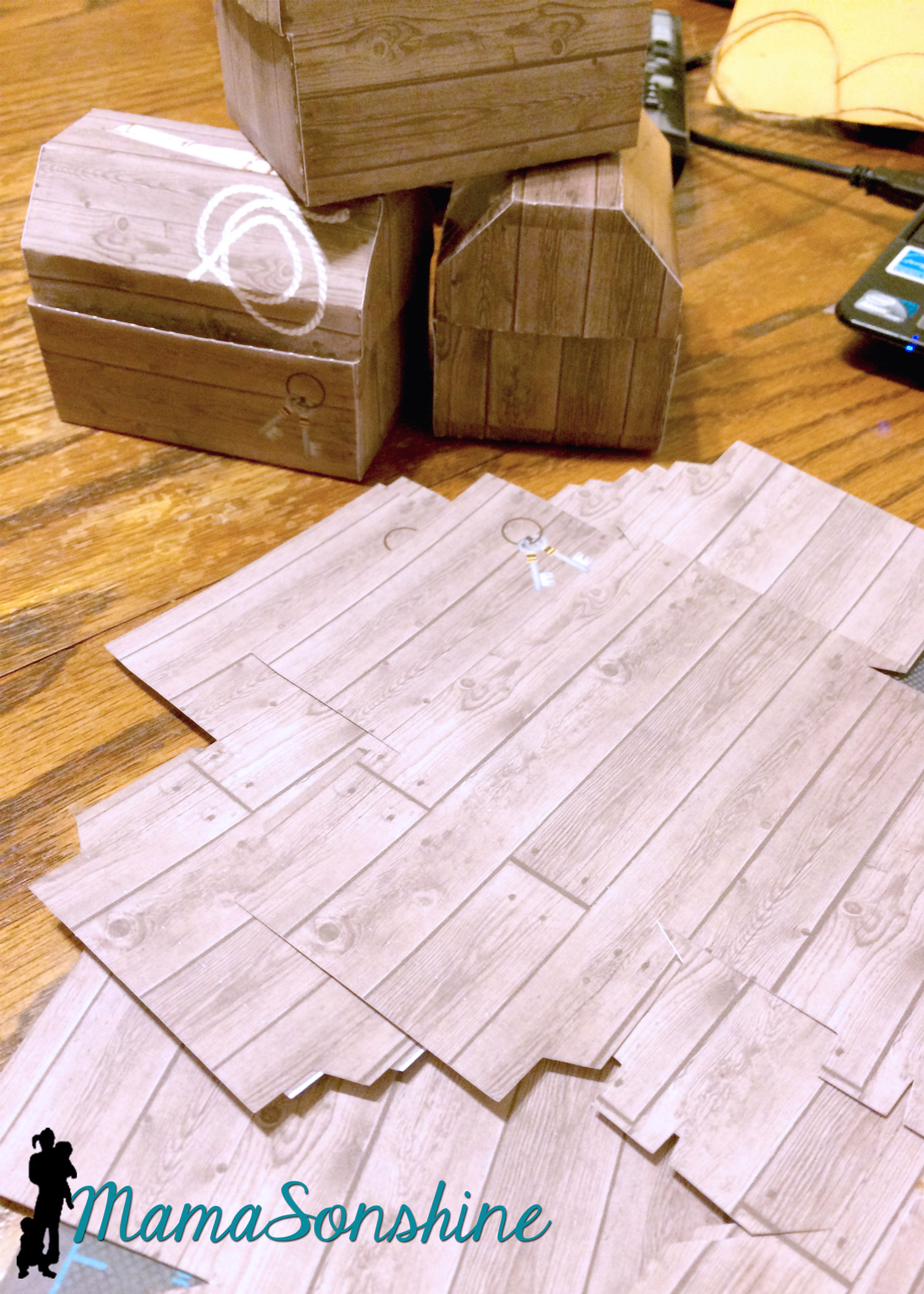
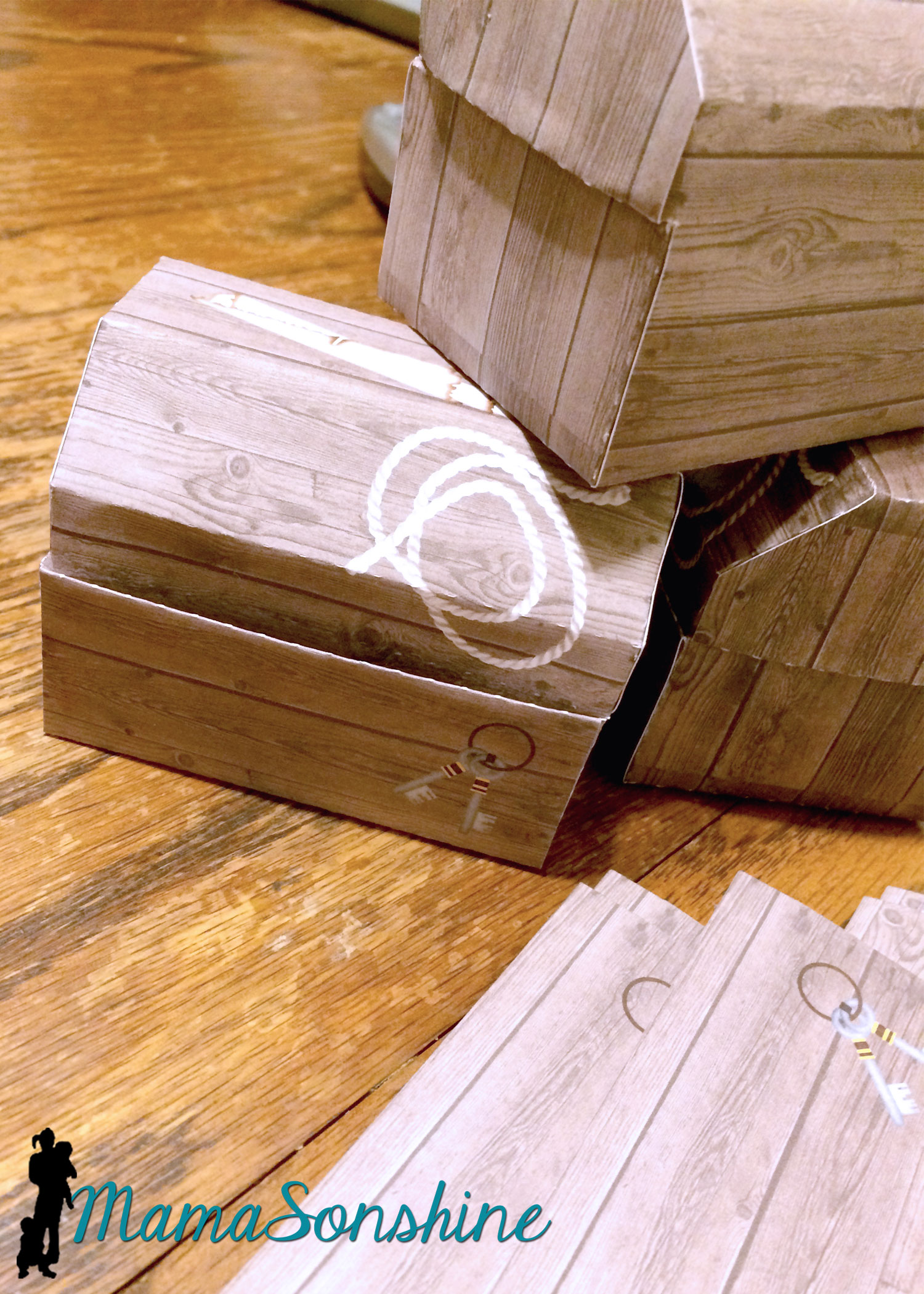
These treasure boxes were too small to be used as the gift boxes, but they made great decorations.
I filled them with glass stones and chocolate gold coins, and had them through out the house.
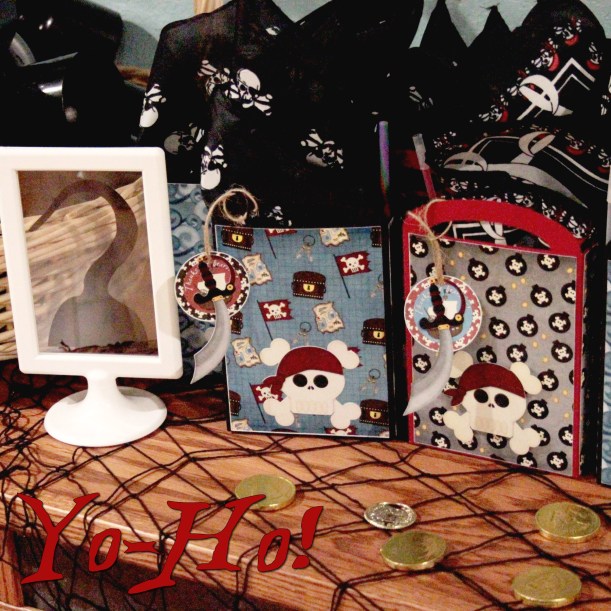
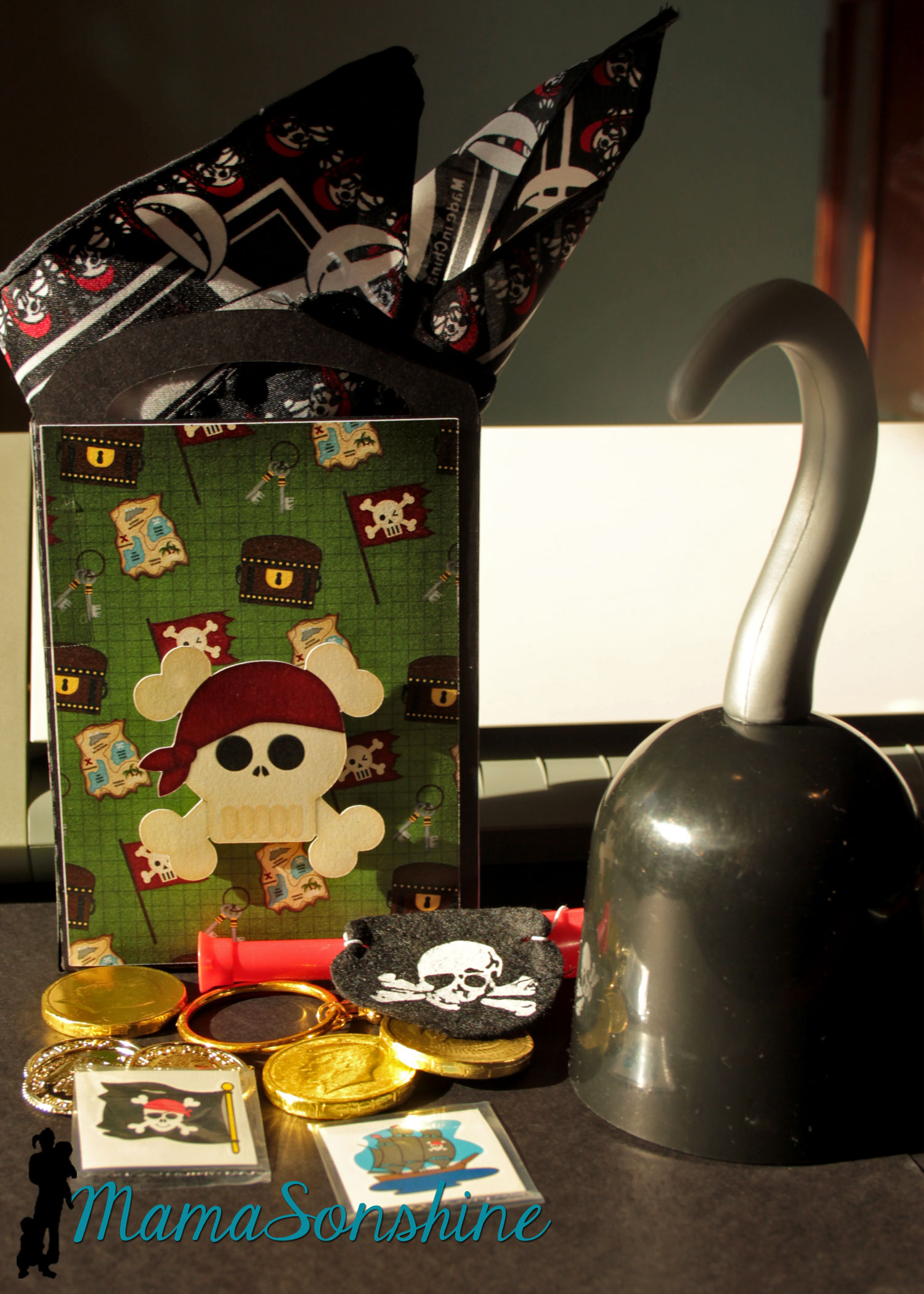
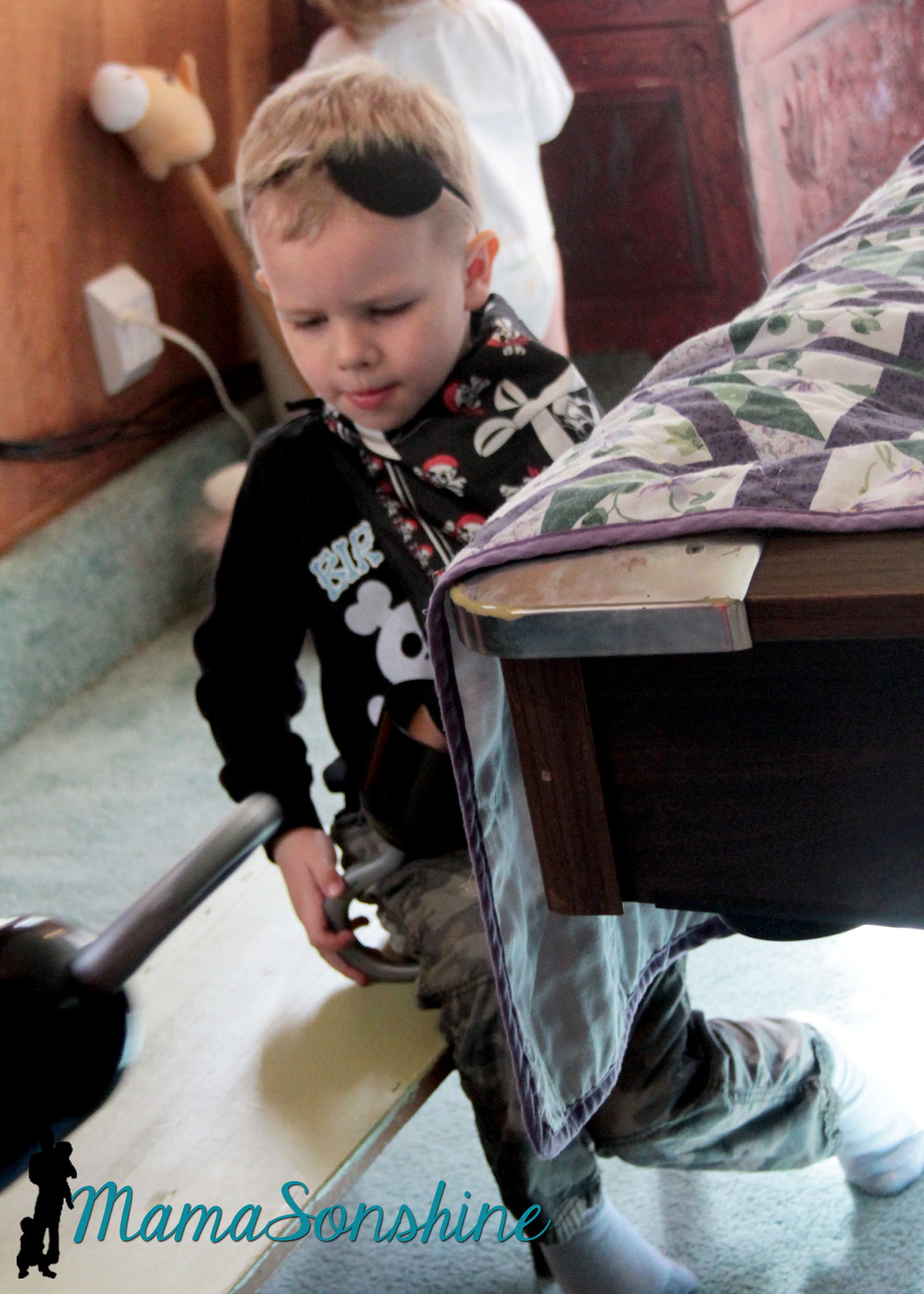
As a guest gift each kid got to take home a hook and a Thank You bag.
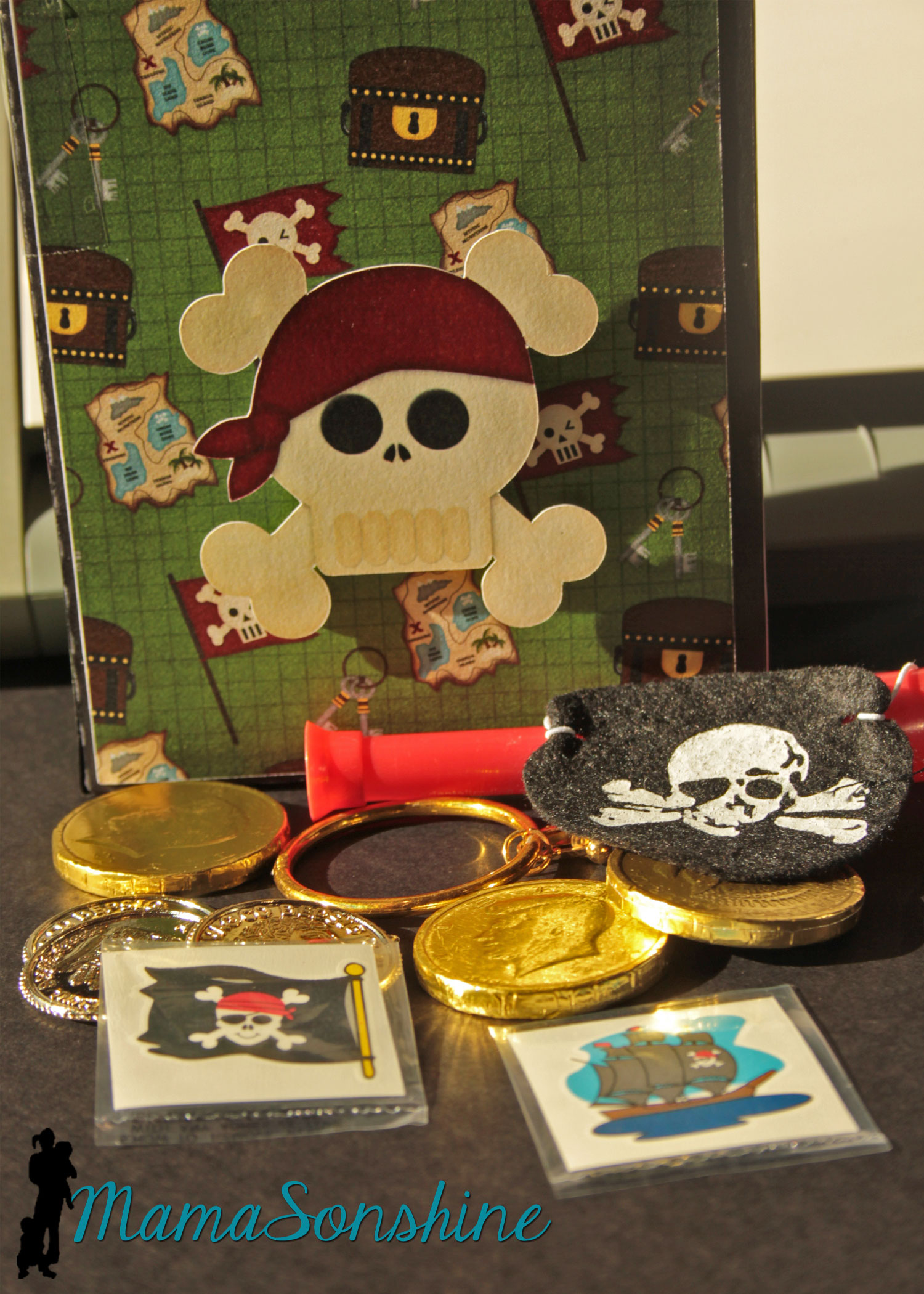
The tags say “Thanks me hearties!” I also made the gift bags using the digital papers as the panels for the bags and black card stock for the bag base. I used a variety of the papers included in the kit. The skull was attached with foam dimensional tabs.
Each bag had a pirate bandanna, an eye patch, a pirate ear-ring, some tattoos, cold coins, chocolate coins, and a telescope.
The hooks wouldn’t fit in the bag, so the kids got to get them out of a basket.
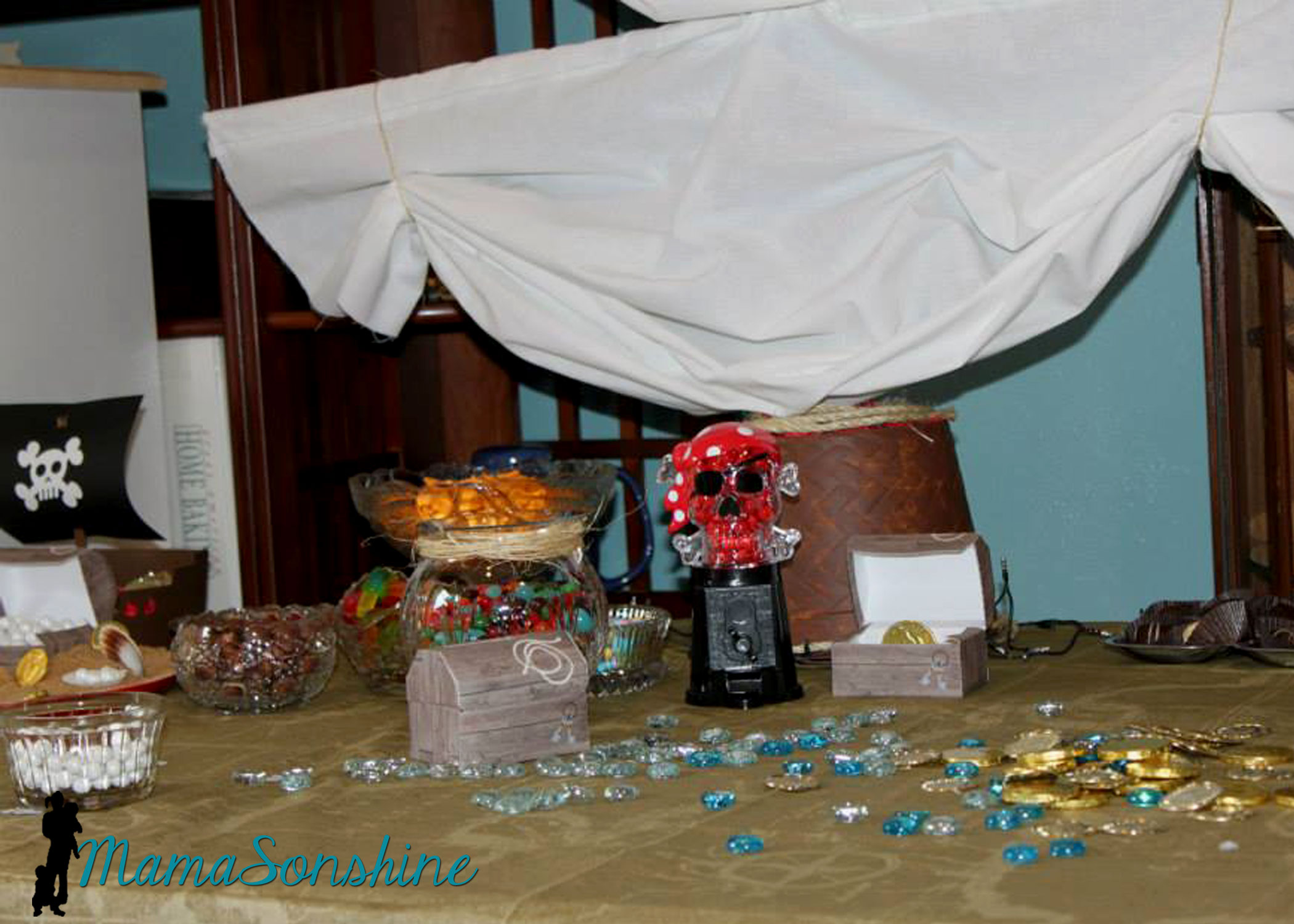
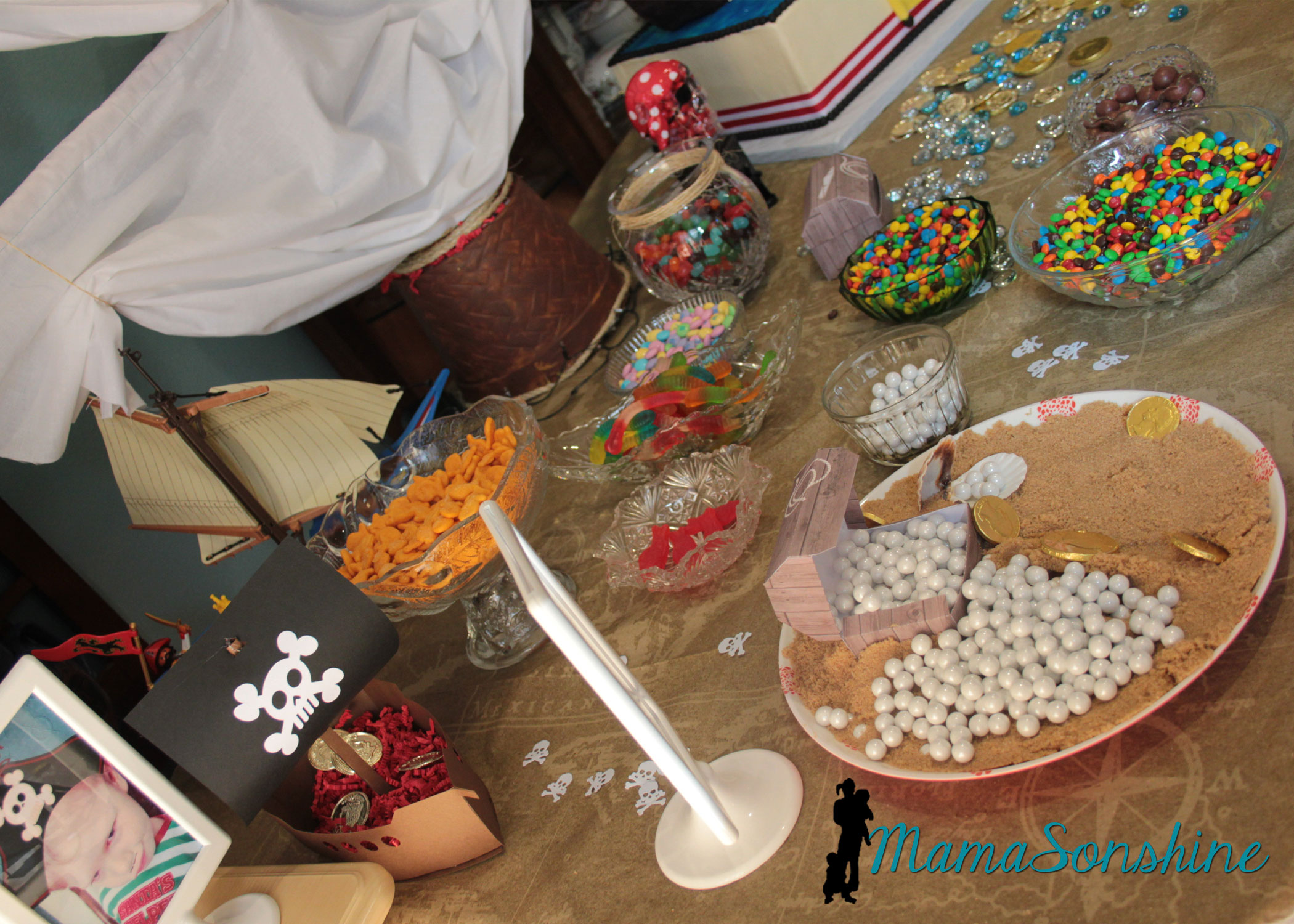
The Table
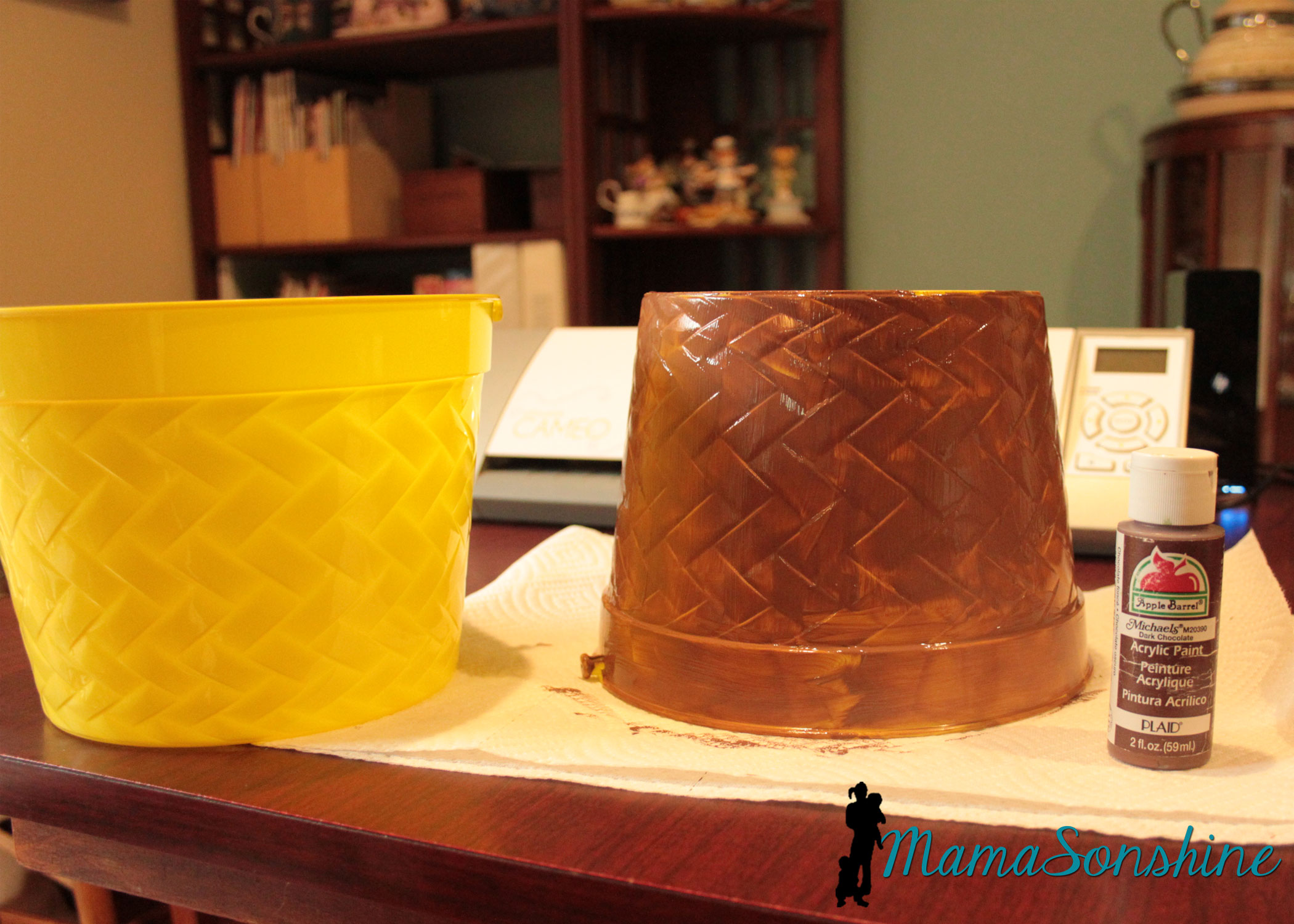
For the table center piece I took these Easter buckets I got at the dollar store and transformed them in to a mast from a boat.
I actually envisioned it much bigger, but the wooden dowels I had, limited the size.
Using the idea from Sid’s beach party, I made a plate with brown sugar sand and pearls (Sixlets) coming out of one of the paper treasure chests.
The cake
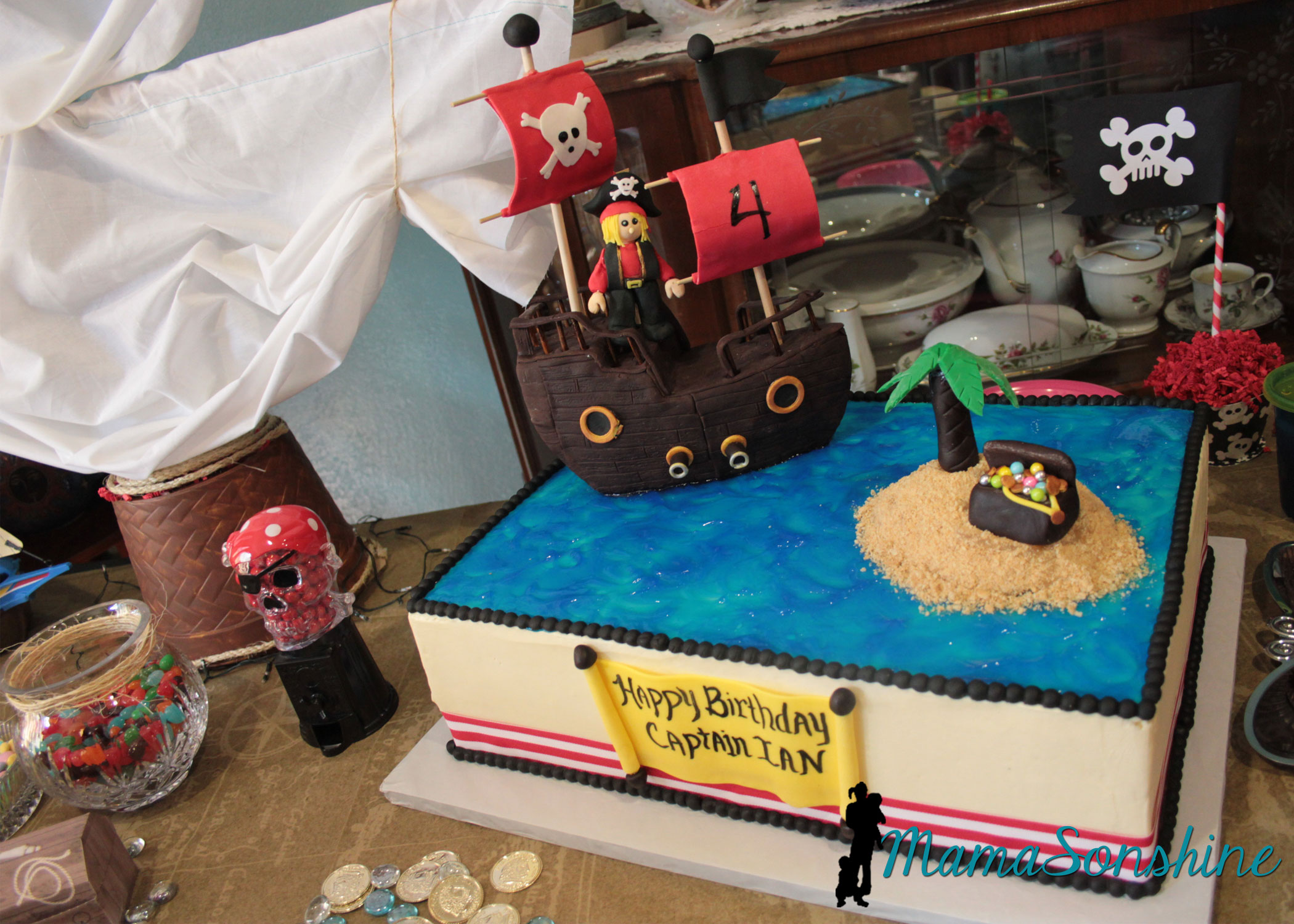
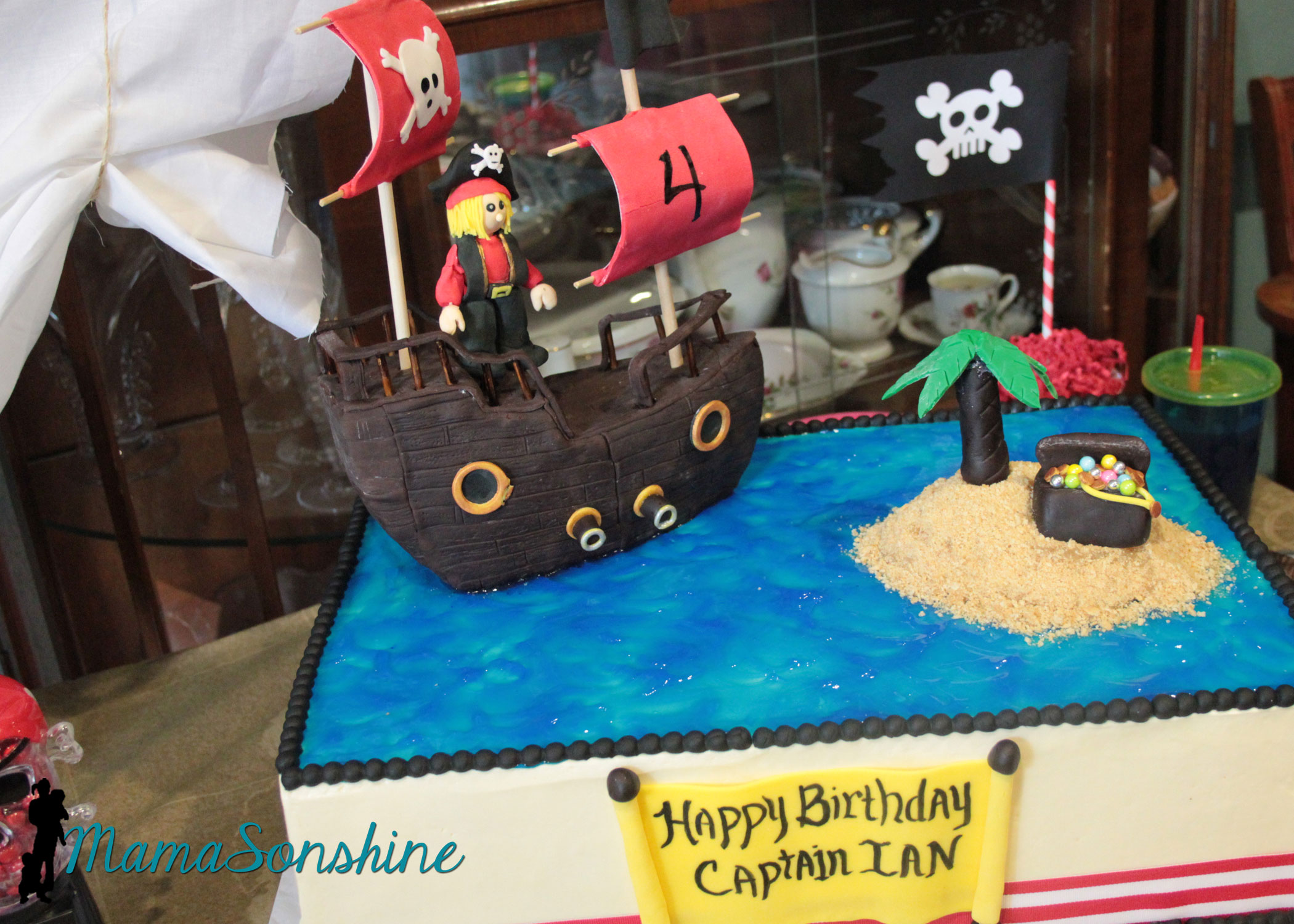
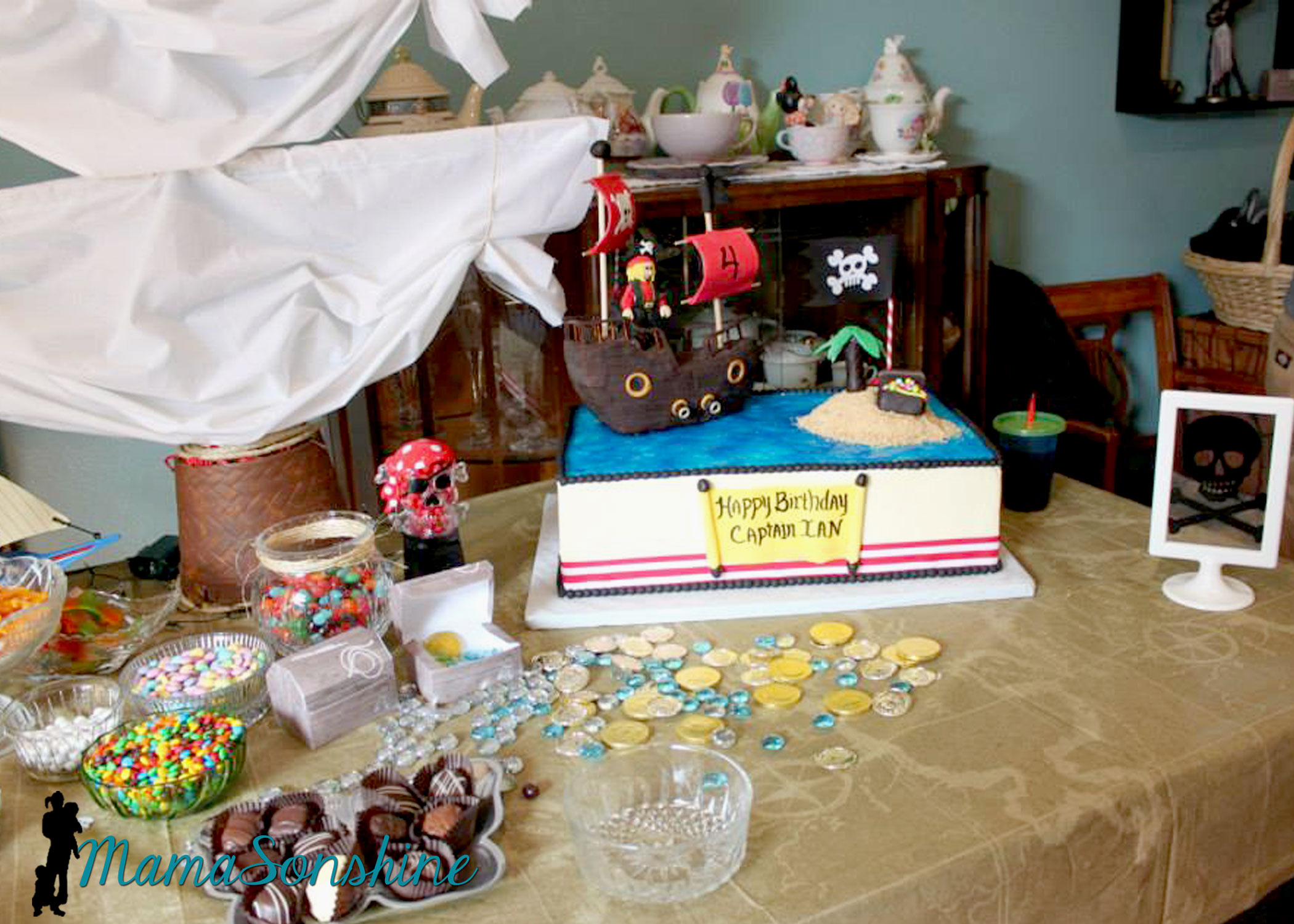
I did not make the cake, this awesome creation was made by my aunt.
This table-cloth was the most expensive paper table-cloth I have ever purchased, but I absolutely loved it. The skull candy dispenser was the one thing my son said he had to have at his pirate party.
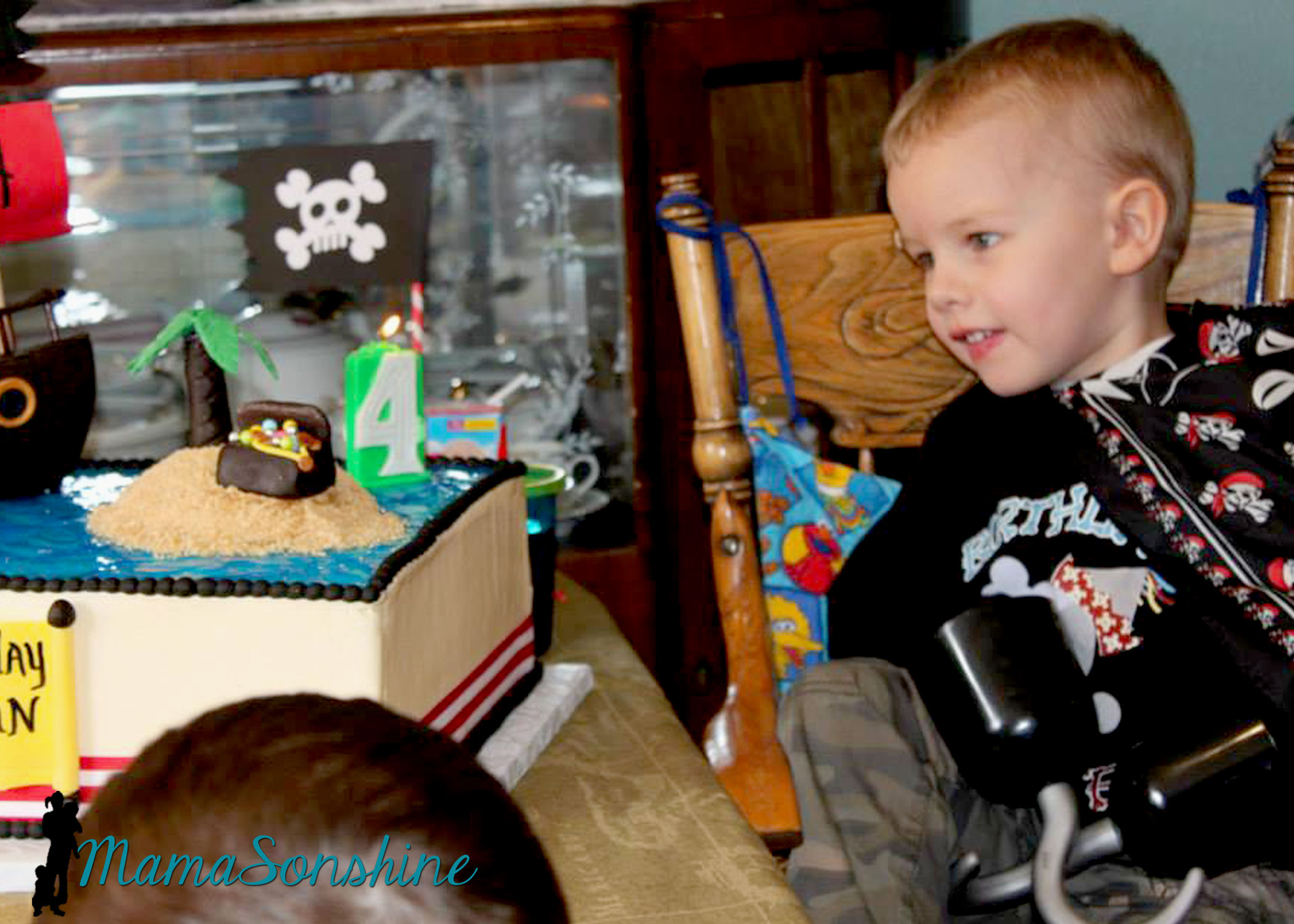
My son likes to wear his bandana as a pirate cape.
The drink labels were also made using the Cameo’s print and cut feature. Have I told you how much I love that feature?
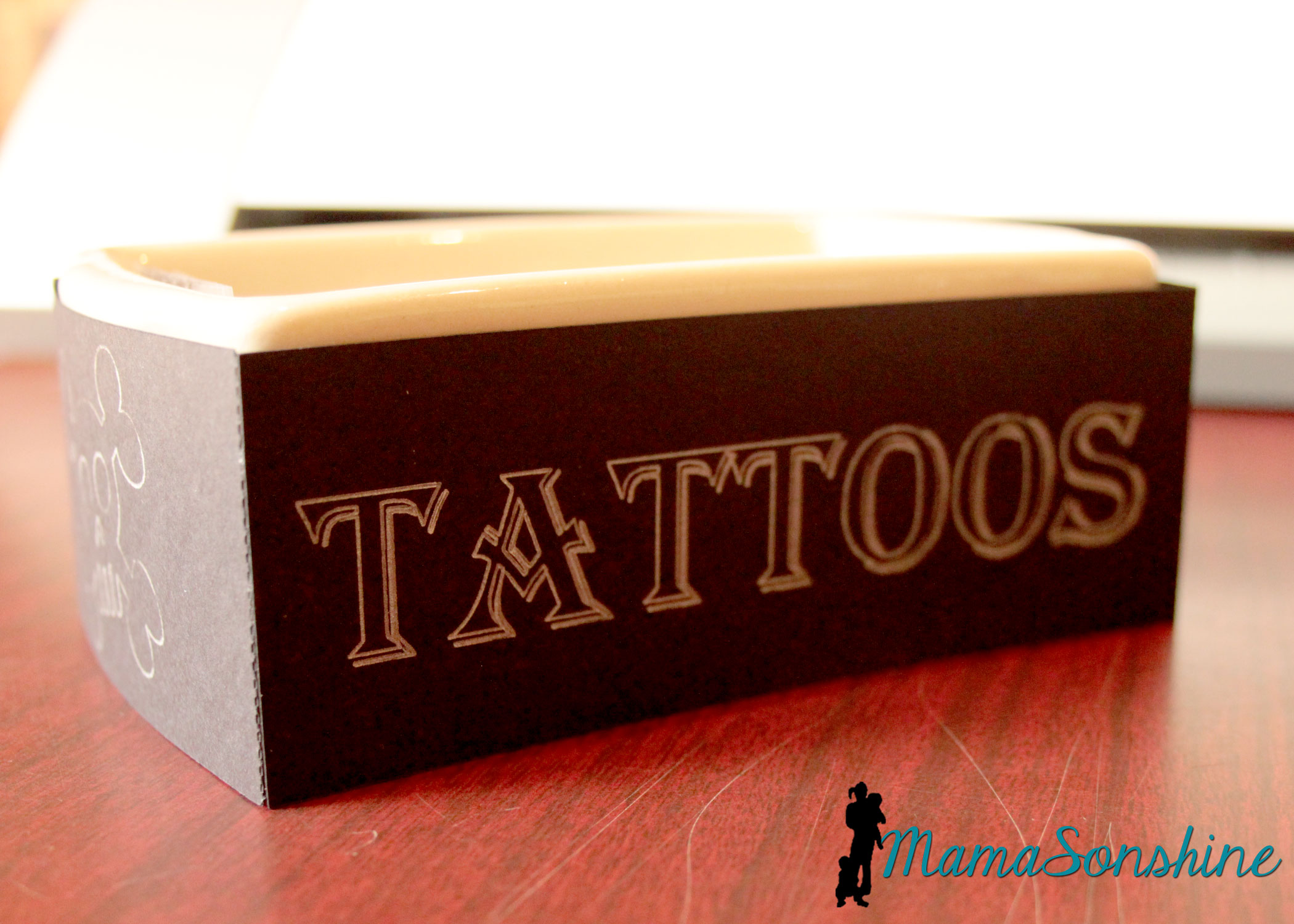
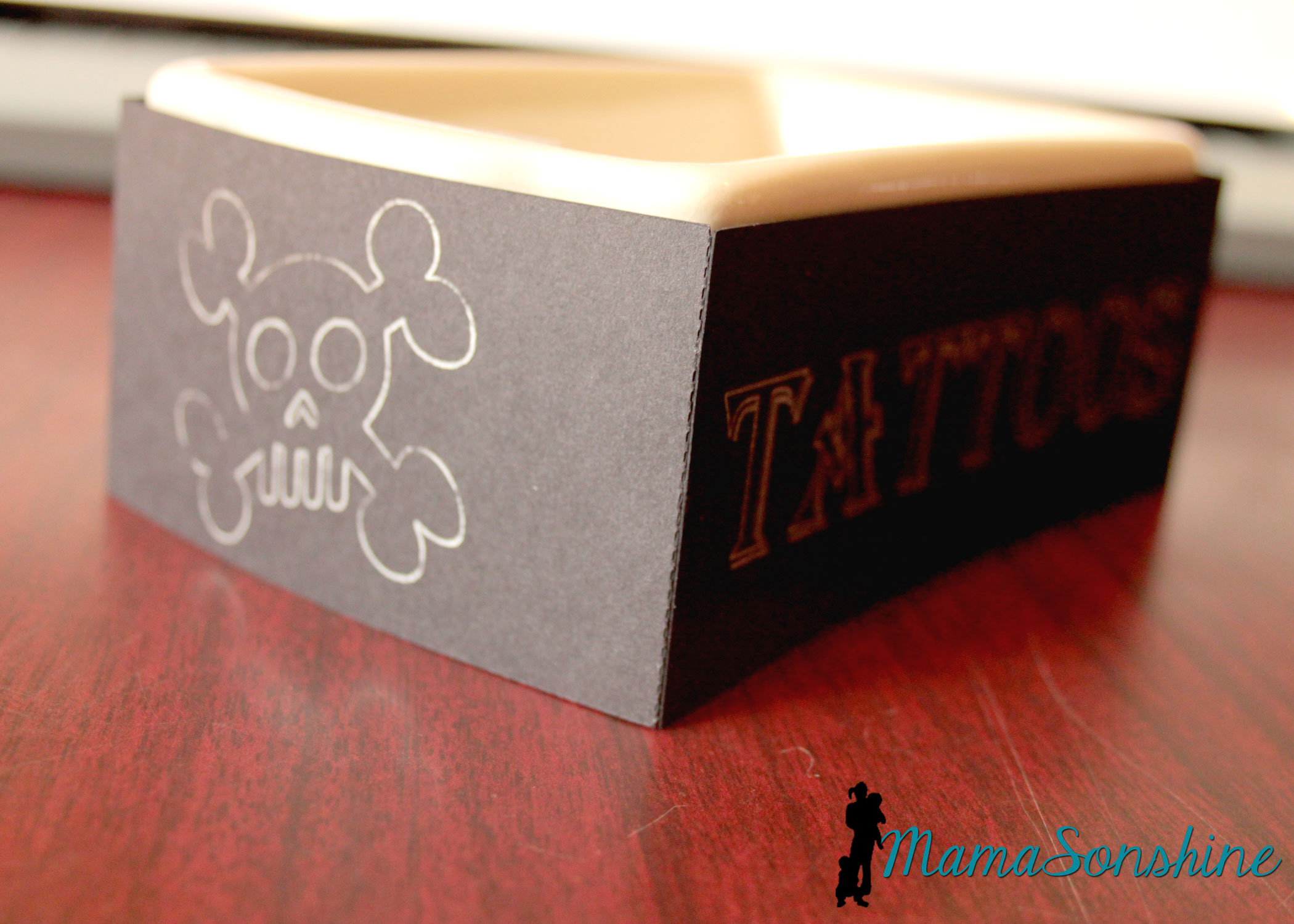
We had some extra tattoos so I transformed a dish my mom had.
I used the sketch pens on the cameo. It was really easy and something I did at the last-minute, but wouldn’t have if I didn’t have my Silhouette.
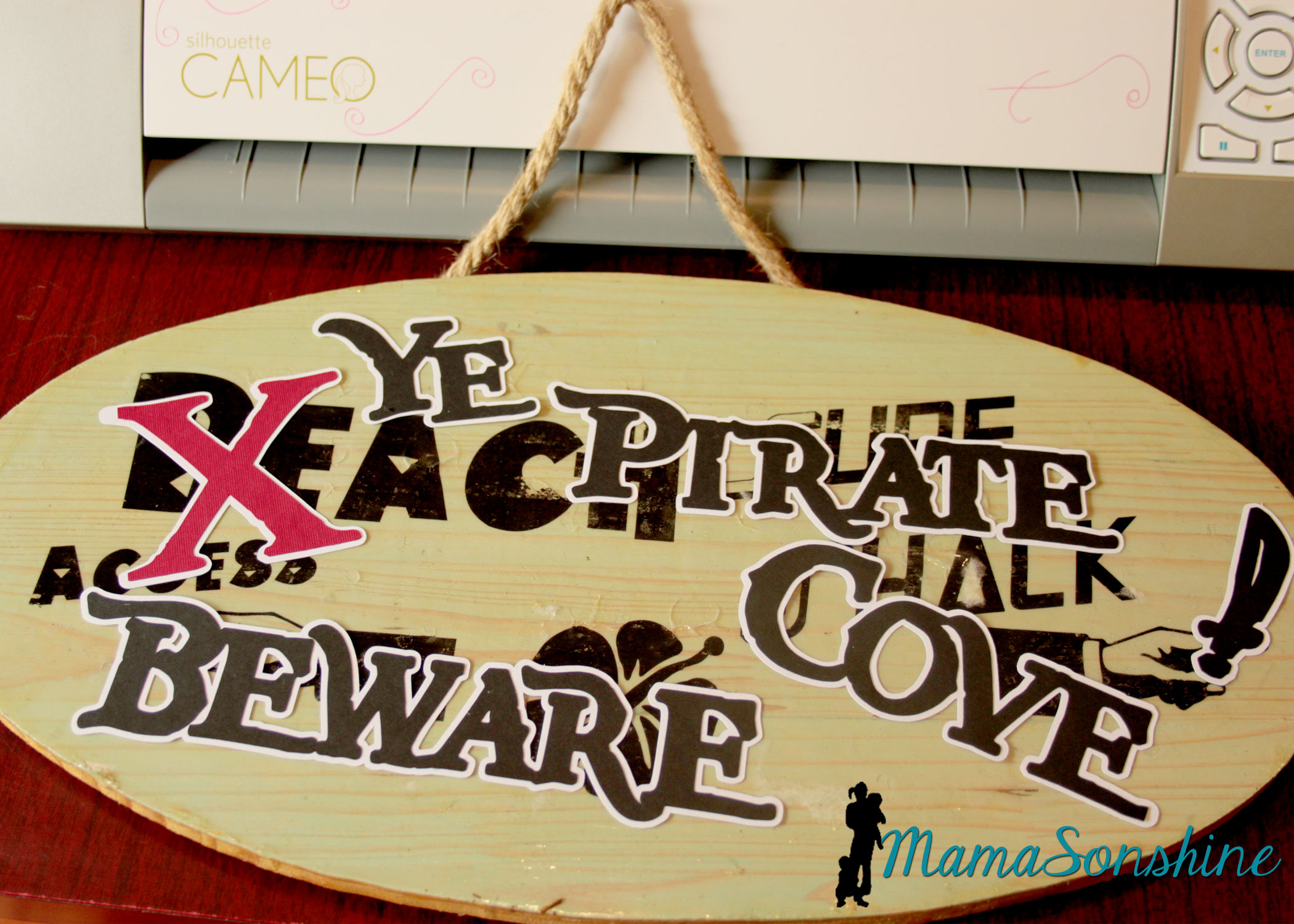
I took the sign I made for Sid’s beach party and cut out letters to make it look like Pirates had taken over the beach. I was going to redo the sign, but my mom wanted to keep the original, so I had to make something temporary. She has kept the sign up on the front of her house since Sid’s party.
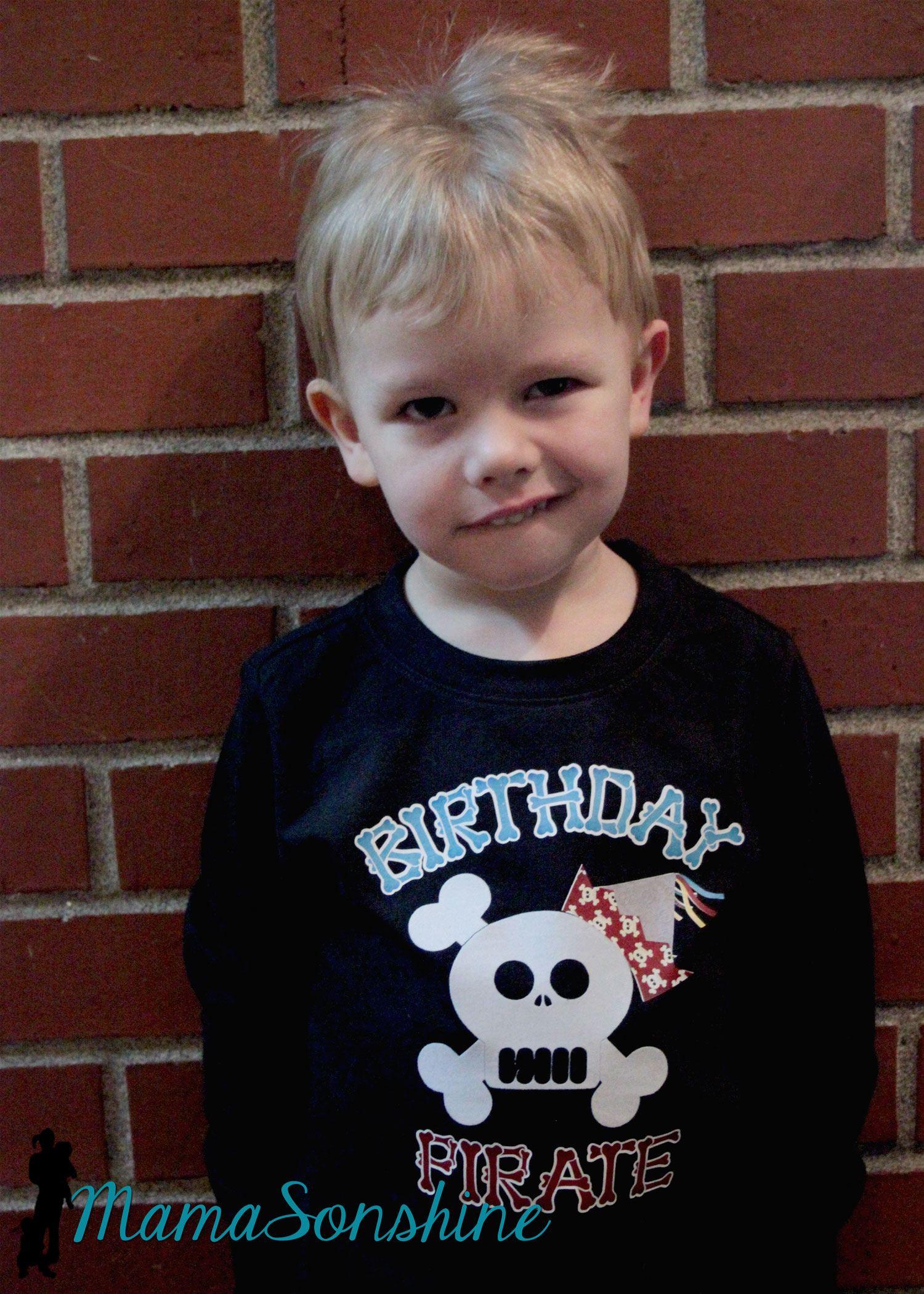
Of course the night before I decided to make Sid a shirt to wear for the party. Then I realized I had to make Ian one in a similar style, even though I had already made him a birthday shirt.
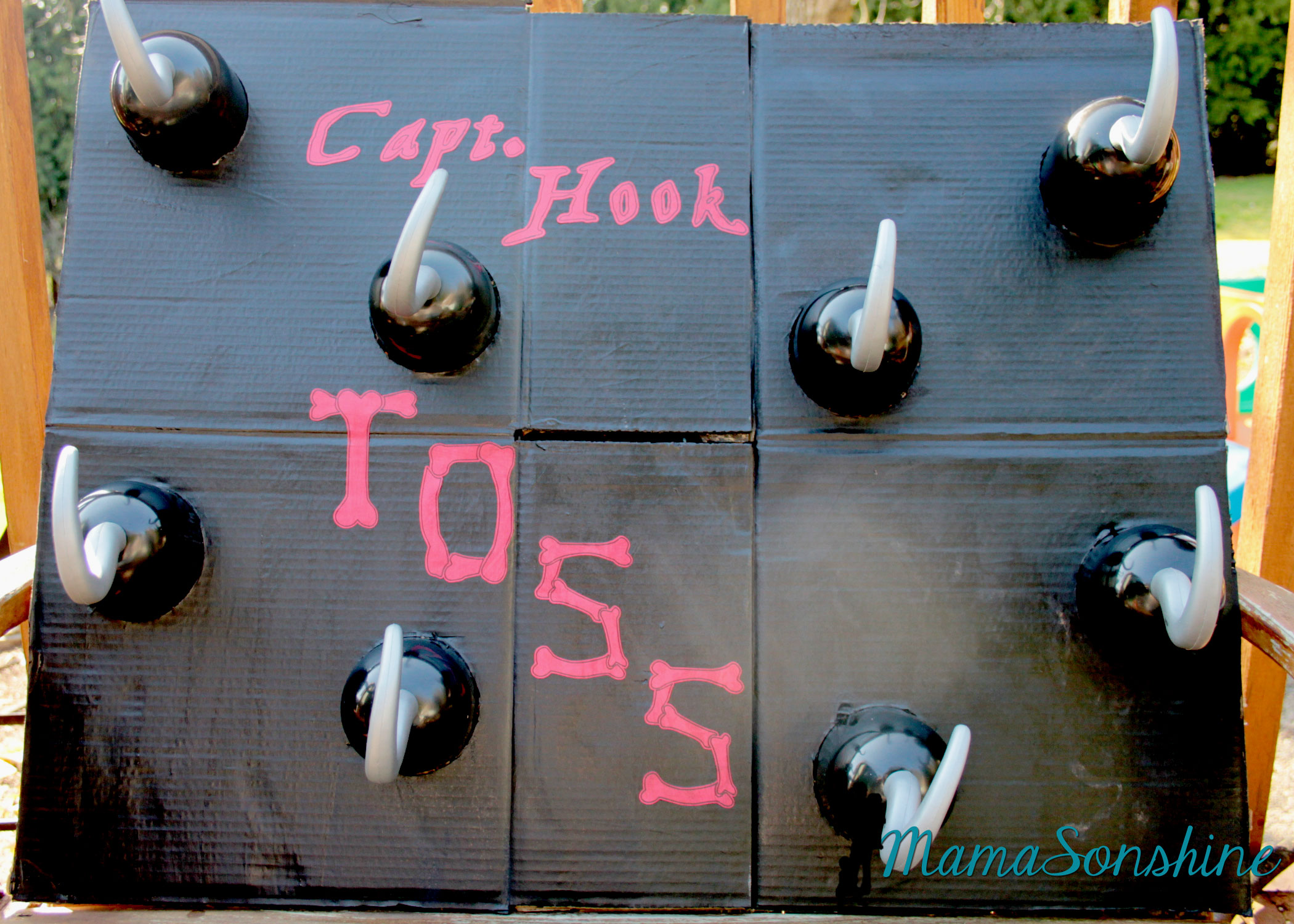
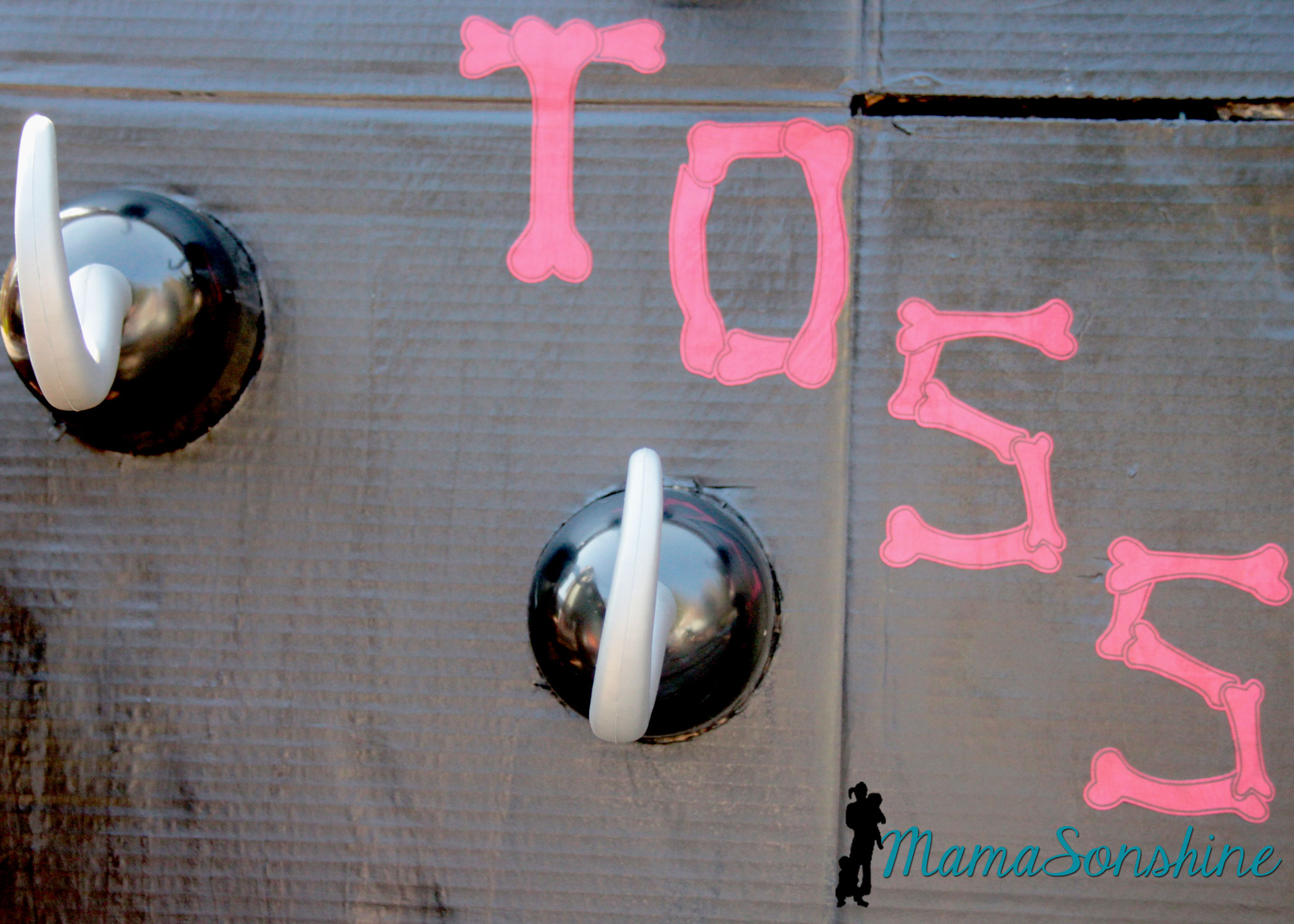
I just cut circles out of a cardboard box and painted the flattened box. I used my cameo to cut the letters out of cardstock and Mod Podge to glue them on.
Baby Sid loved playing the hook toss game.
It was super difficult to get a picture of the birthday boy, he was in constant motion that day.
Since it was March in the Pacific Northwest, we couldn’t let the kids play outside. The kids got walk the plank in the basement. I used a wood board my mom had, some step stools and the kid pool. I thought about filling it with those plastic balls you find in a ball pit, but didn’t have time to order them.
The kids didn’t need anything to jump into. They loved the plank just the way it was.
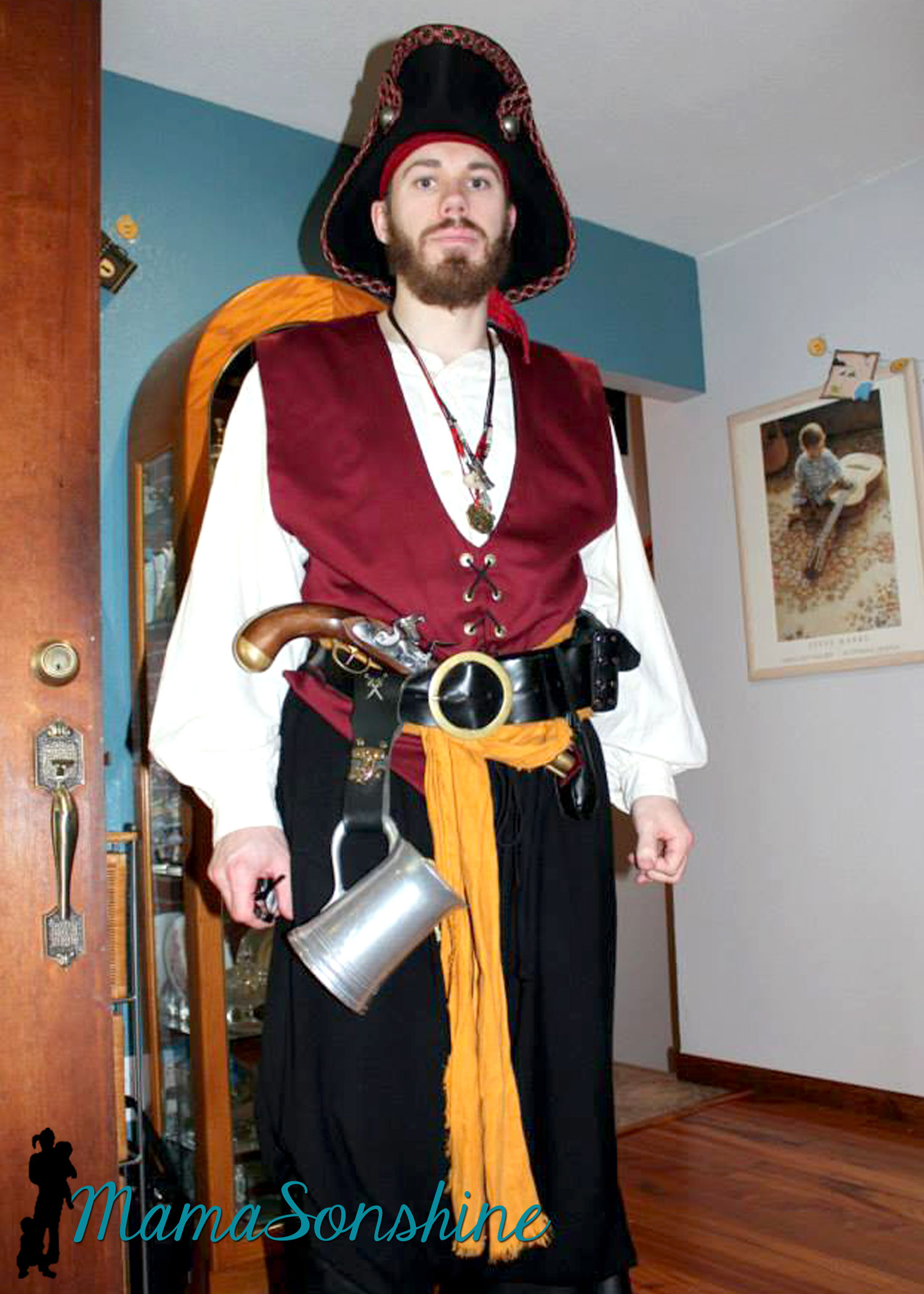
And what kind of pirate party would this be without a real pirate?
My cousin is part of a pirate group in Portland and he was kind enough to show up in full pirate grab. He was the hit of the party!
It was a busy day but Ian loved his party.
Thanks for visiting, remember to Shine On
Want to Check Out More Silhouette Projects?
My Silhouette Challenge buddies and I are all sharing projects on our blogs today, so pursue the projects below for a wealth of Silhouette inspiration!
I had thought I was very cleaver making my four-year old a Capt. America shirt for him to wear on July 4th.
Till I showed him and he said “I don’t yike Capt. America now”
hmmm….
OK back to the drawing board.
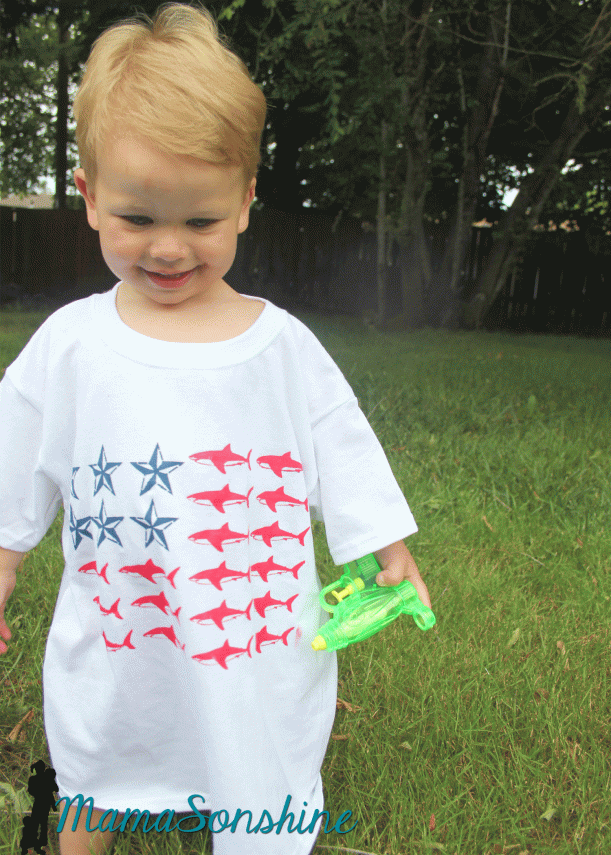
This time around I decided to take a sailors approach to the flag. Because I saw Lauren’s post (The Thinking Closet) about her Nautical Star Banner. I just loved the nautical star and thought it would look great on a shirt. But I didn’t want plain old boring stripes….
hmm….what to do….
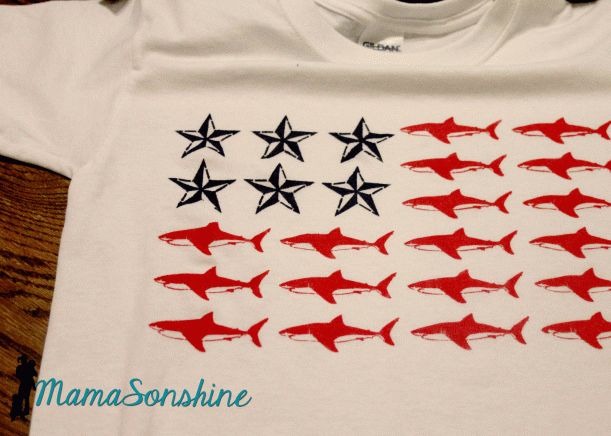
Then my son picks these out at the store. “I’m a SHARK! dana dana dana”
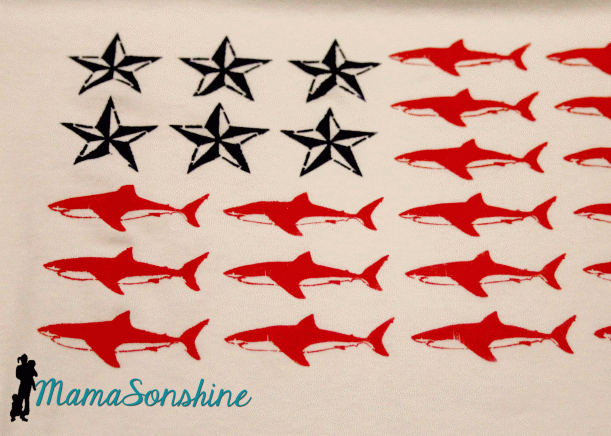
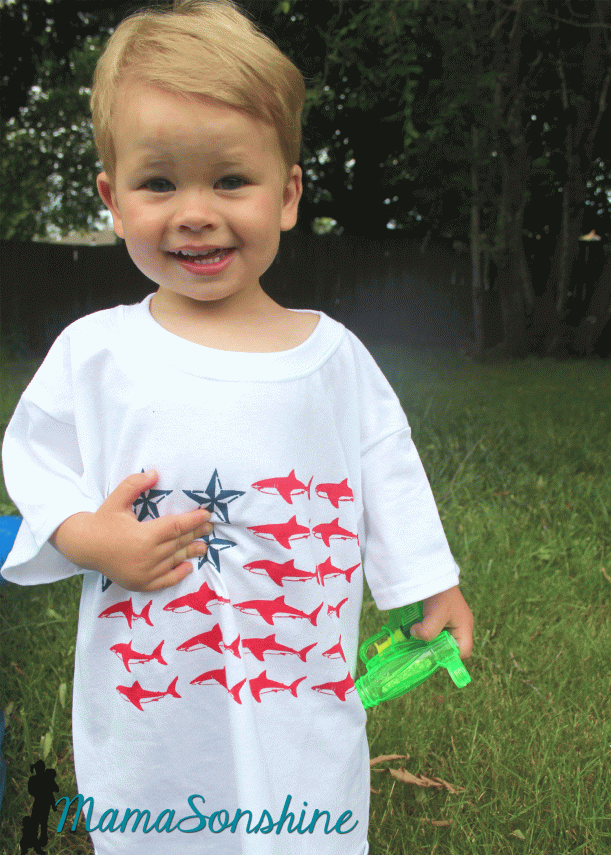
So my brain clicked and this shirt was born. Just in the nick of time.
My original plan was to do the stencil with freezer paper, because it makes a tighter seal and crisper lines.. But the cuts are too intricate for my dull blade. So I used vinyl, and as you can see some of the detail, like the gills was lost, and the edges are a little blurred.
The tricky part to this shirt is all the small pieces, I didn’t want to lay every little piece of freezer paper down one at a time. I thought I would share how I connected all the parts to make one complete stencil. Lauren also talks about how to do this in her afore-mentioned post.
First find the FREE images you want to use and trace them. (Please be mindful of copyright laws, and other people’s art work)
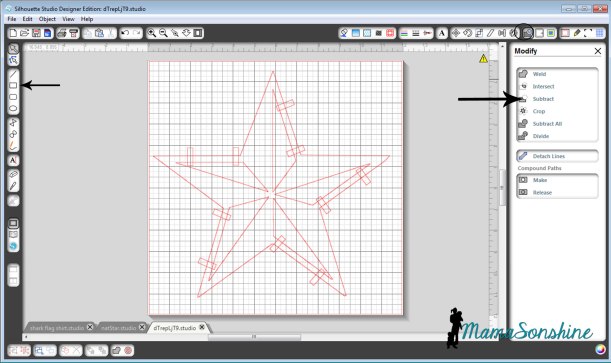
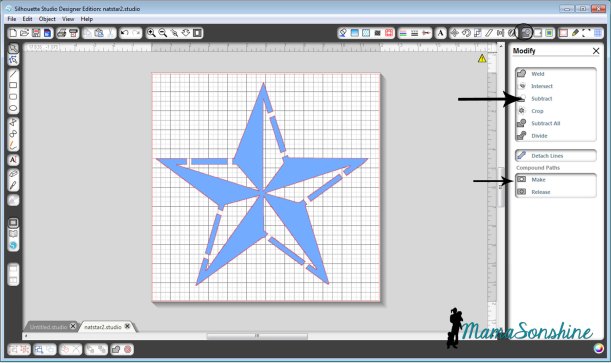
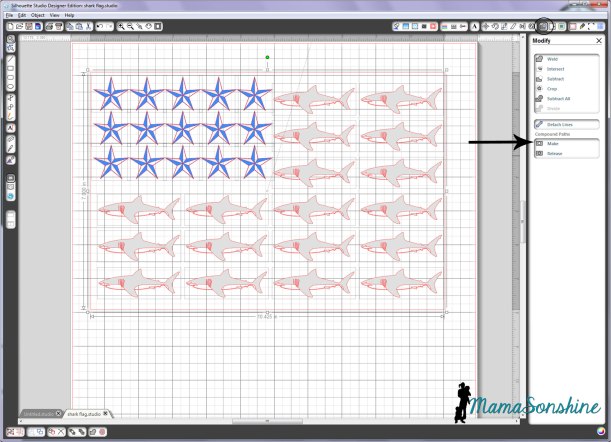
Draw lots of little rectangles using the rectangle tool. Place them on top, over the two parts you want connected. Select everything, go to the modify window and click on subtract. Then select everything again and click on make, under compound path.
If you go to the color fill tool box and fill your shape with a color, you can easily see you now have a star that has missing parts. The parts that are colored is what will be painted on the shirt.
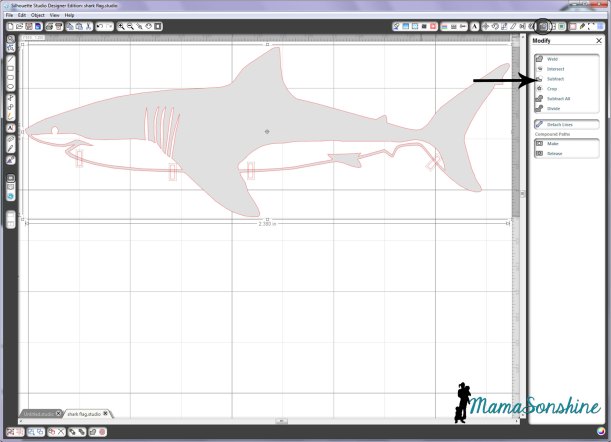
After tracing the shark, we do the same thing. Make rectangles, go to modify and click subtract.
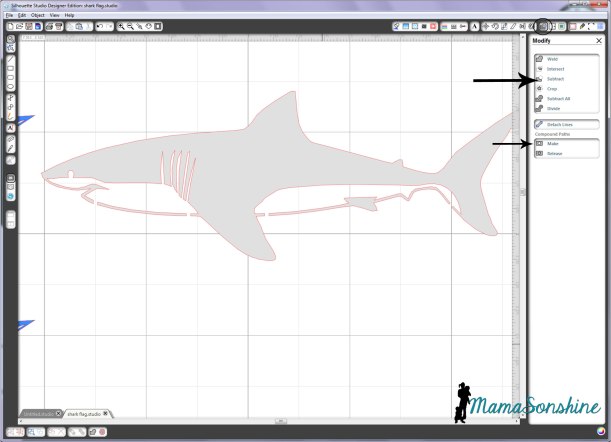
Then, under compound path, click make (after selecting all parts of the shark). You will see that when I traced the shark, I made sure that the gills and eye were part of the white portion. This eliminates a bunch of little eyes having to be added after the stencil is laid down.
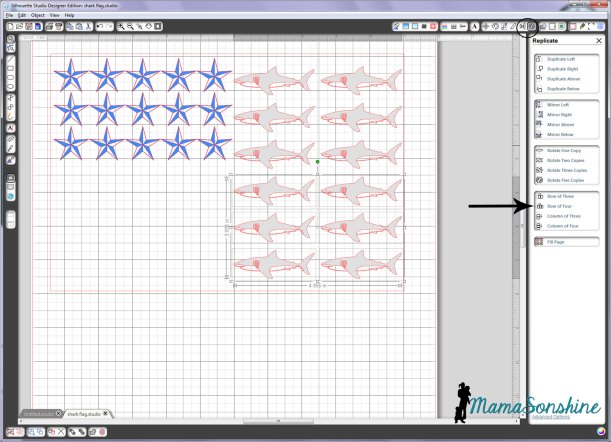
Draw a large rectangle, the size that you want your flag. Use the replicate and alignment tool boxes to fill the rectangle with your stars and stripes.
The row of … and column of…were especially useful in this design. As was the space vertically and space horizontally tools in the alignment tool box.
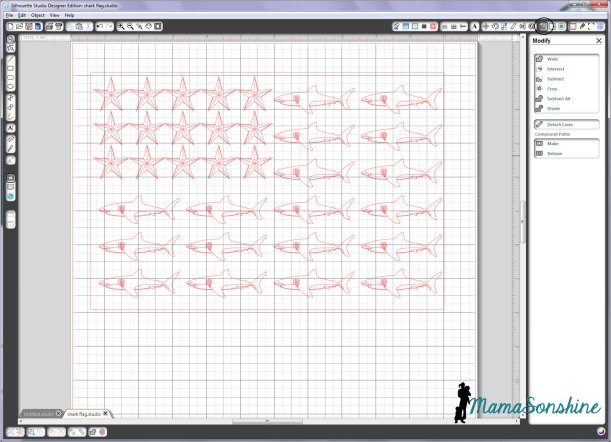
Now select everything, the outer rectangle, all the sharks and all the stars, go to the modify window and click on makecompound path.
Of course this removes all the fill colors you have used, but that’s ok.
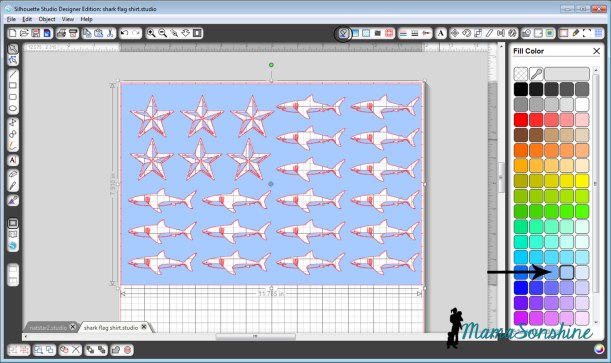
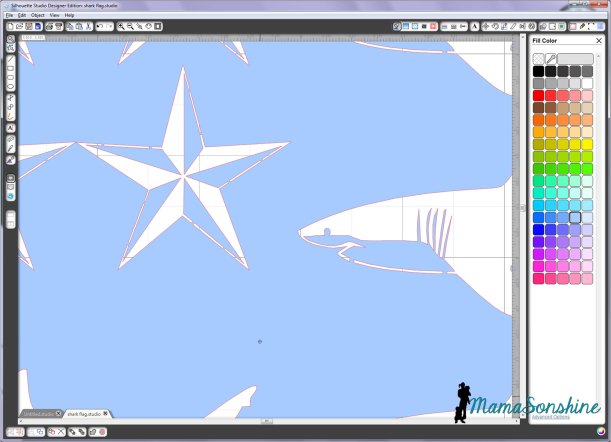
If you click on a fill color now, you will see that all the parts that will be your stencil are now colored. These are the parts that the shirt will show through.
You can look closely and see all the parts are connected and will come off in one piece.
Cut, apply to shirt, paint, etc. You know the drill.
Got all that?
Well don’t worry, I decided to just let you download this cut file. For free. Yep. Go ahead and make your own. Tonight. Cause the fourth is coming soon.

















 I Tri and Craft