I Tri and Craft

thoughts from a mother of boys, a marathoner, a triathlete, a crafter, a wife, and a scientist


4 Comments

Tips for Printable Heat Transfer Material

I may have mentioned once or twice how much I love the print and cut feature on my Silhouette Cameo.

Well, I am going to bring it up again.  Only this time I will be using a Heat Transfer Material to make a gift.

There are other brands out there that sell this kind of material, but I use Avery, because I can buy it just about anywhere.

Here is the concept, you print something out on your computer, cut it out and then iron it on to something made of fabric.  And viola! Your very own custom shirt, coat, bag, pillow, blanket, etc.

I wanted to make a six-year-old girl a bag with her favorite Monster High Character.   I could have made one by layering colored heat transfer vinyl (HTV) but the characters from Monster High have sooo many coloring shades, that it would either too much work (& too munch HTV) or it wouldn’t give me the same look I was going for.
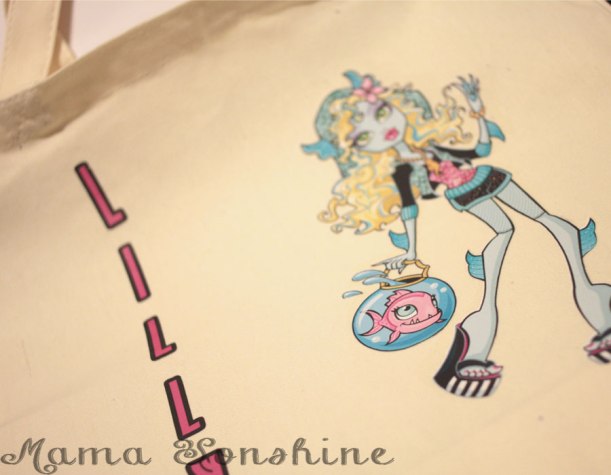
Lagoona Blue Tote Bag


I have used this material in the past, so I am very familiar with it, but as with all projects, I ran into some trouble.  I figured it would be beneficial to others if I shared my snafu, so you will not make the same mistake.

Here are a few tips for using the printable heat transfer material:

  • Know your printer.  Printer inks are different and behave differently.  If you have an ink jet printer, get the material designed for ink jet printers.  If it is a laser printer, there is a different material for that, as well as the other inks, like UV.  If you choose the wrong type your ink will not set and will either run or fade.
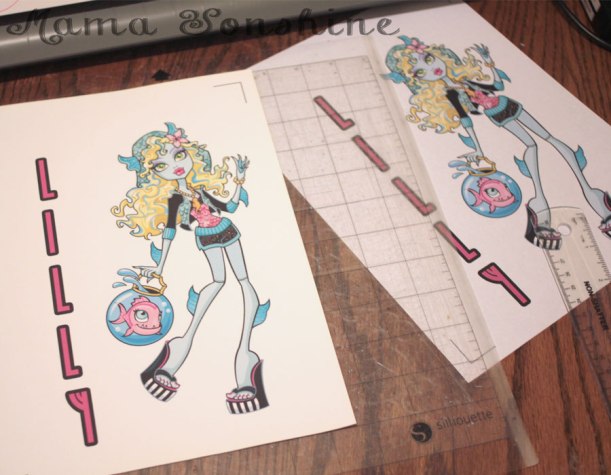
    • Print a test page on regular paper to see how your image will fit, and line up.  You don’t want to waste any of the transfer material.Print a test page first
  • There are two different kinds of transfer material.  One for light-colored fabrics and one for dark.
    • The one for light-colored fabrics is an actual ink transfer material.  It will transfer the ink on to your shirt, so the places in your design that are white, will be transparent, meaning the shirt will show through.  The material that it is printed on will adhere to the fabric, so there is a protective layer between the ink and the outside world.  You must also remember to flip your design on the horizontal plane when using this material.
    • The one for dark-colored fabrics is like a sticker.  It is a white material and so the white areas in your design will remain white.  Plus, there is no need to flip the design.  It is the one I like to use the best.Dark Fabric Material
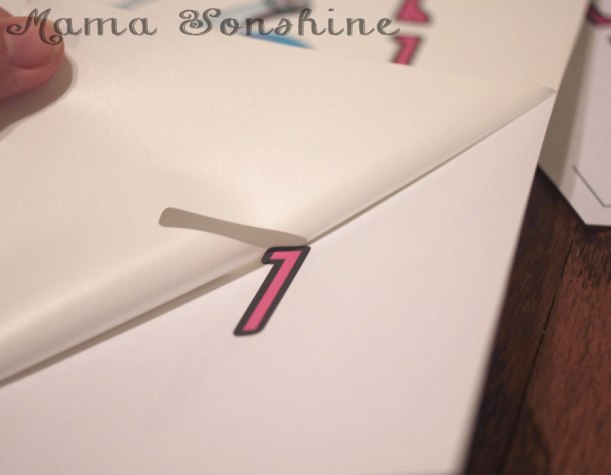
    • Weed carefully, this material can tear easily.  But it is not sticky, so you can do it in sections.
    • Don’t use the shade of fabric alone to make the decision on which one to use.  Think about what you want your project to look like in the end.  I use the material for dark fabrics all the time, even on light-colored fabric like this tote bag.Light colored bag, but using dark fabric transfer material
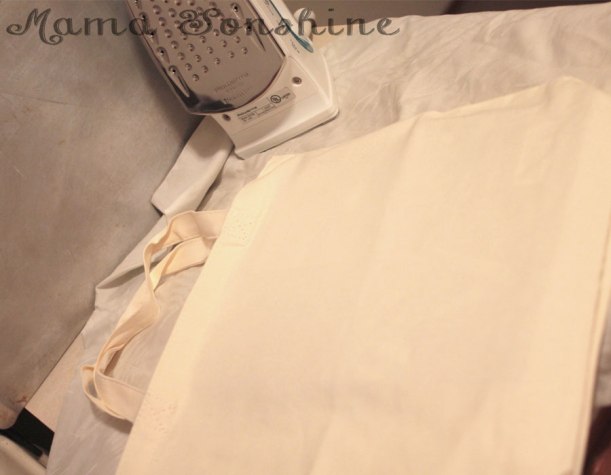
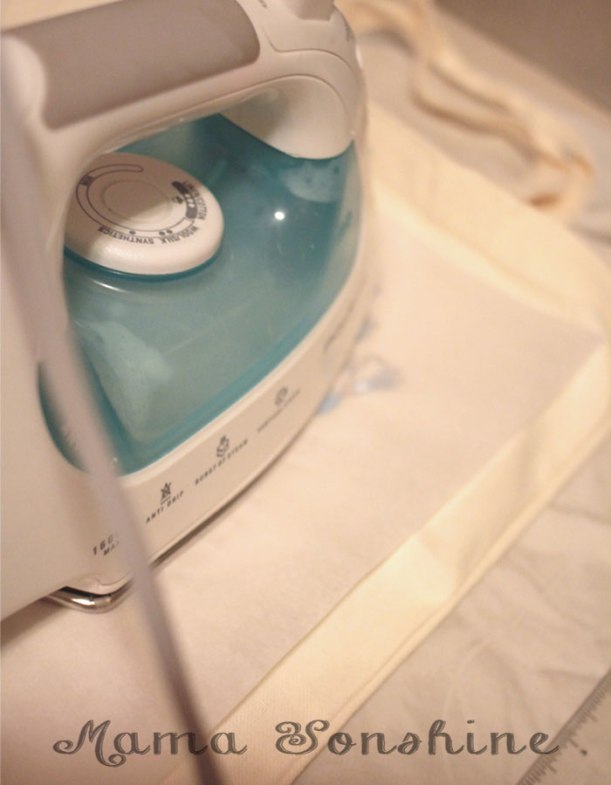
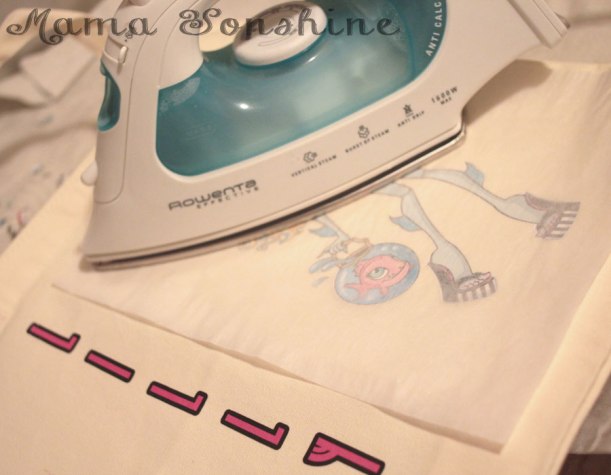
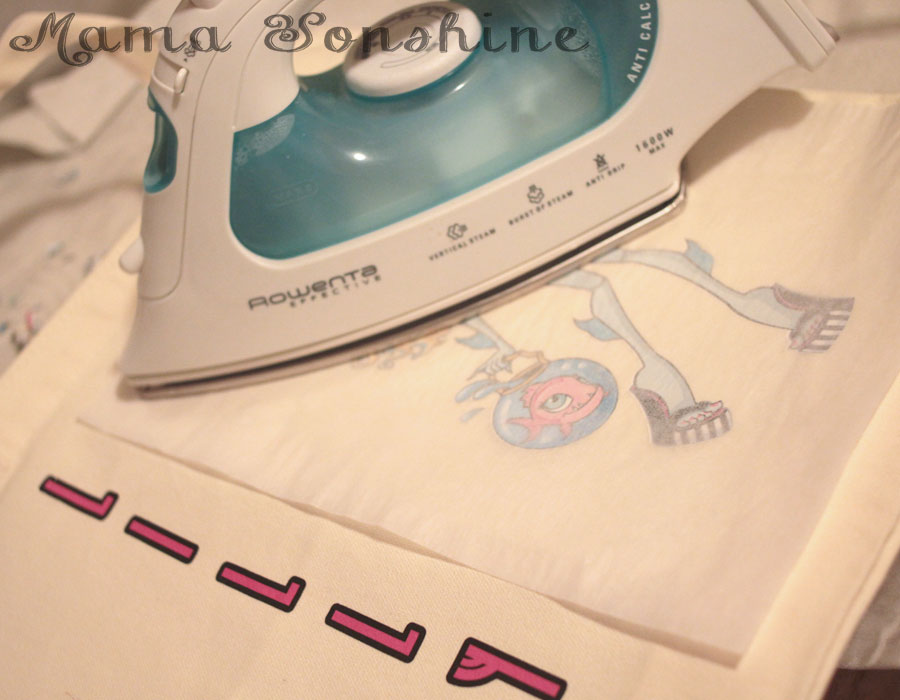
  • Your iron must be hot and dry.  If you use this to iron out the wrinkles in your clothes, dump out the water.  Set your iron to the hottest setting.  It is also not recommended you not use an ironing board.  This could be because you don’t want an uneven surface, but it is also because of the reflective heat material under the cover.  Heat on the bottom of the material may interfere with it bonding to the fabric.  I place a folded, ironed sheet on my kitchen counter.MSS_HTM_MHbag09
  • Cool removal or not?  Some heat transfer material requires you to wait until the design has cooled before removing the transfer plastic.  If it does and you rush it, you can peel off your design with the transfer plastic, so be patient.Sometimes you have to wait for it to cool before removing protective/transfer layer
  • Don’t be discouraged when it takes longer to adhere than the instructions say.  I have held the iron in place for minutes, when the instructions say 45-60 seconds.
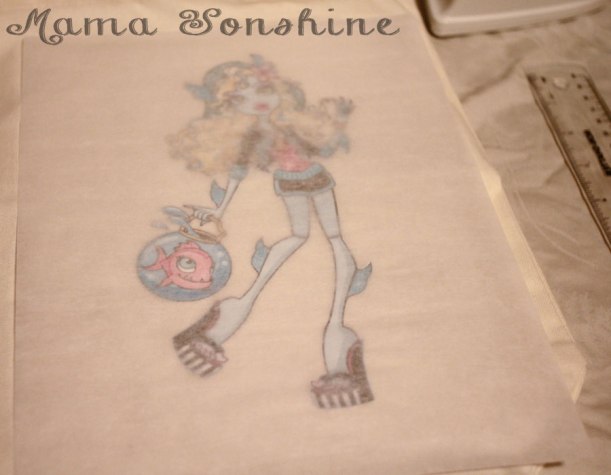
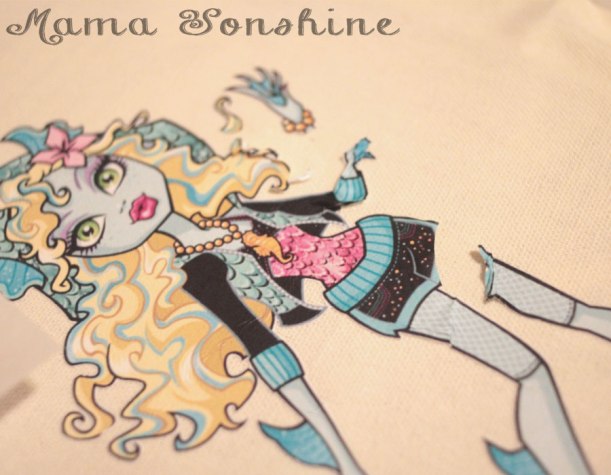
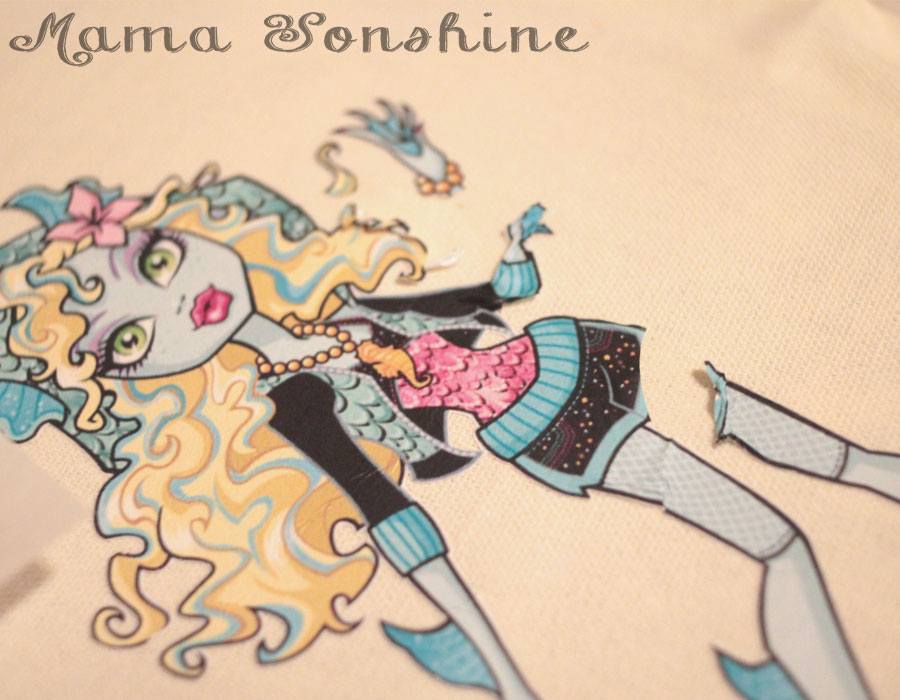
  • Apply constant high pressure.  You are not ironing out the wrinkles, so don’t move your iron around.  You can mess up your design, as I did.What can happen when you move your iron around
    • But not all is lost if you do.  Here is something you might not know: the heat that put it on, can take it off.
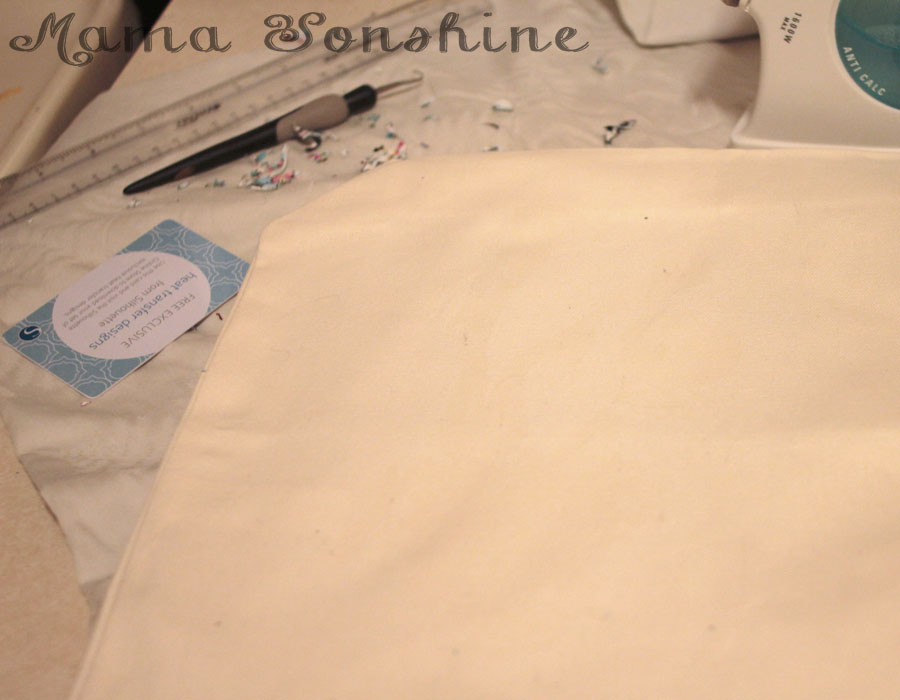
      • Apply heat back to the design and quickly use something to scrap away the design before it cools.  I first used my weeding tool to pull the design, but that was taking too long.  I then thought of my scrapping tool (a used Sil gift card), when the design was still hot I just scrapped it off.  You have to keep applying heat to small areas and scrapping, and repeating.  The scrapping doesn’t take too long, and within 10 minutes, it was gone.  There is a slight bit of ‘glue’ left, it’s not really glue, but there is a residue, it’s kind of like a shiny outline of your design.  MSS_HTM_MHbag07
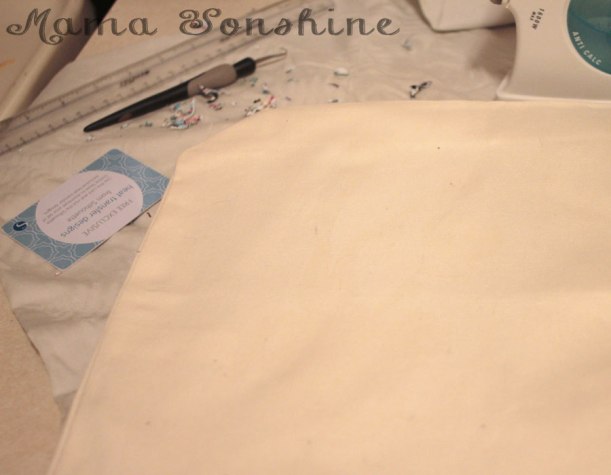
    • That’s OK, because you are going to reprint your design and reapply.  This time, not moving the iron around.MSS_HTM_MHbag08


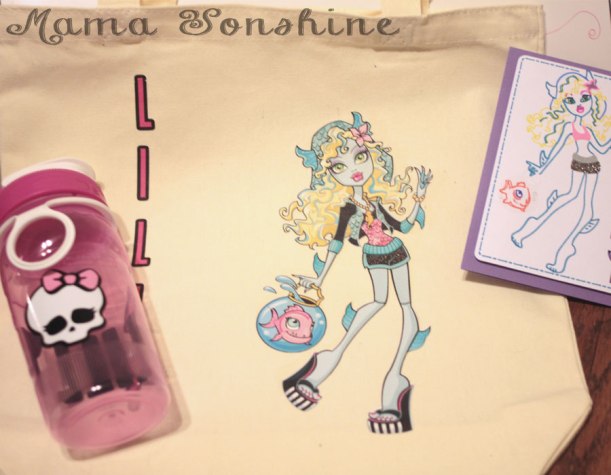
It turned out just the way I wanted it to, and the birthday girl was happy.
MSS_HTM_MHbag01


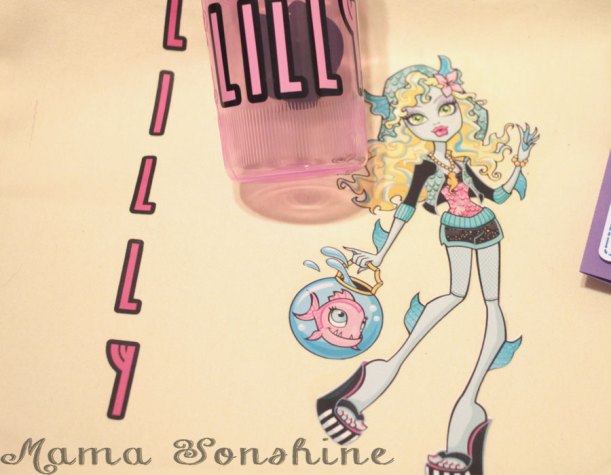
The bag went perfectly with the personalize Monster High water bottle & Lagoona Blue card I made.
MSS_HTM_MHbag11


Happy Crafting

signature-black
facebook instagram pinterest parties by mamasonshine etsy bloglovin google+ email twitter Image Map


Enhanced by Zemanta


Leave a comment

Handmade Baby Boy Onesie Gifts

Ahhh…..Spring is in the air.

Seriously all over the air, making us all sneeze like crazy!

But it also brings about more and more baby showers!  My new favorite thing to do is to make onesies for the new babies.

A cousin of mine lives all the way across the country and had a baby last December.  A few weeks ago she brought the baby back west to meet all the family and friends living here.  They had a little party and specifically asked for no gifts.


pfft.  yeah right! Like I could go see a brand new baby boy and not out fit him in some adorable clothes.

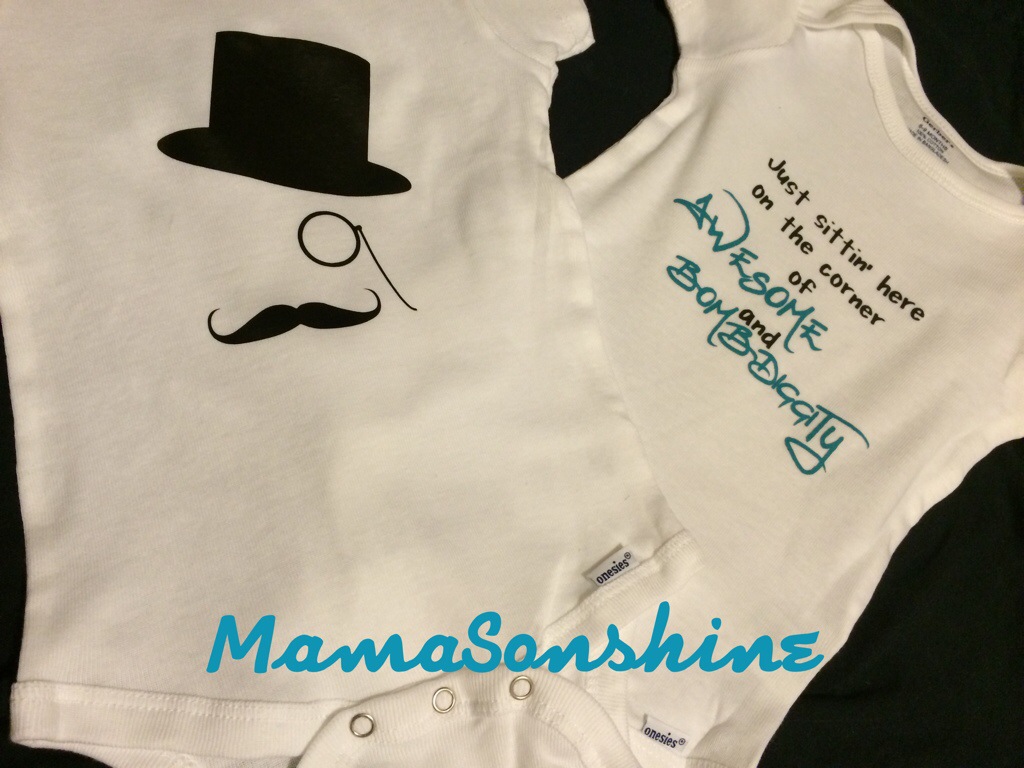
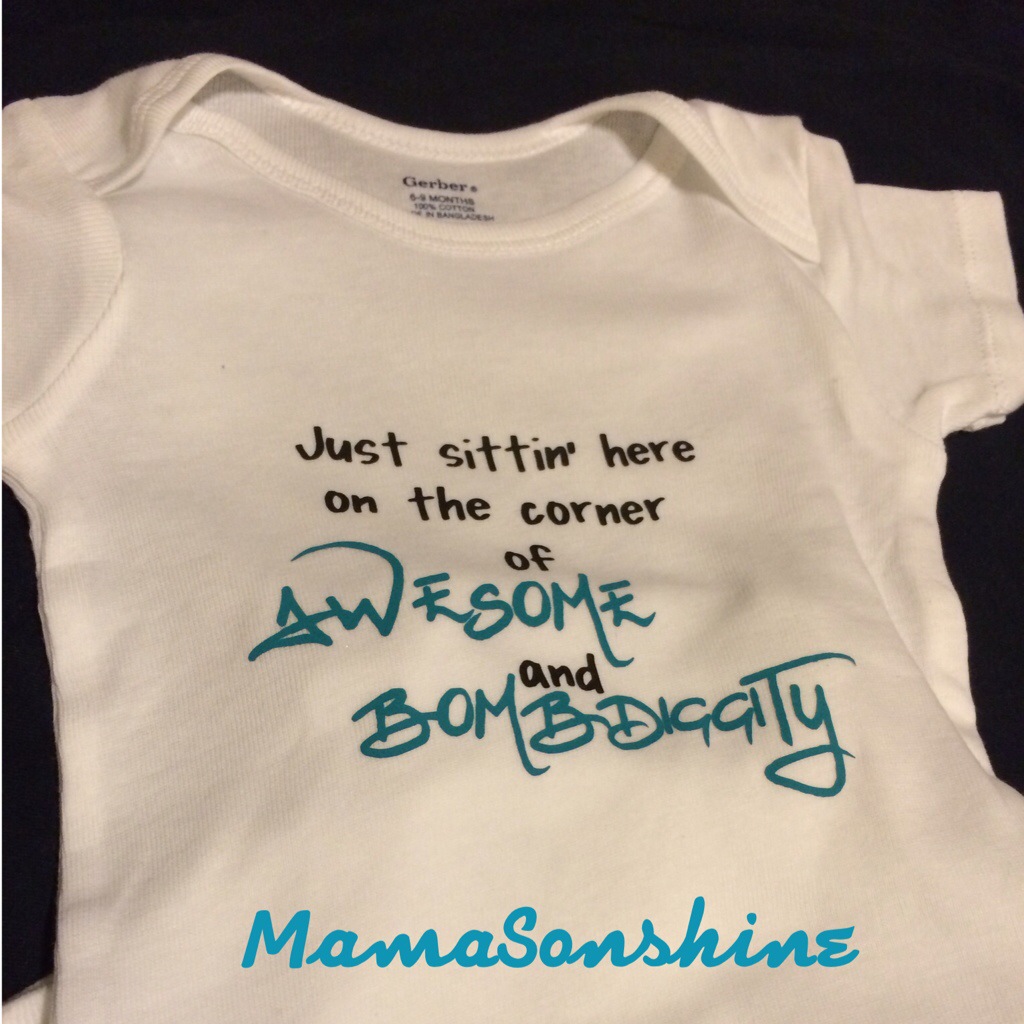
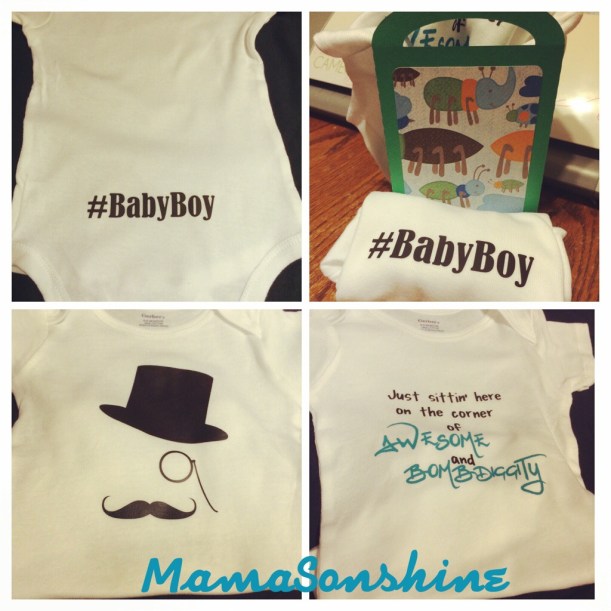
So I made these onesies using some heat transfer vinyl that I cut out with my Silhouette Cameo.


20140519-122547-44747833.jpg


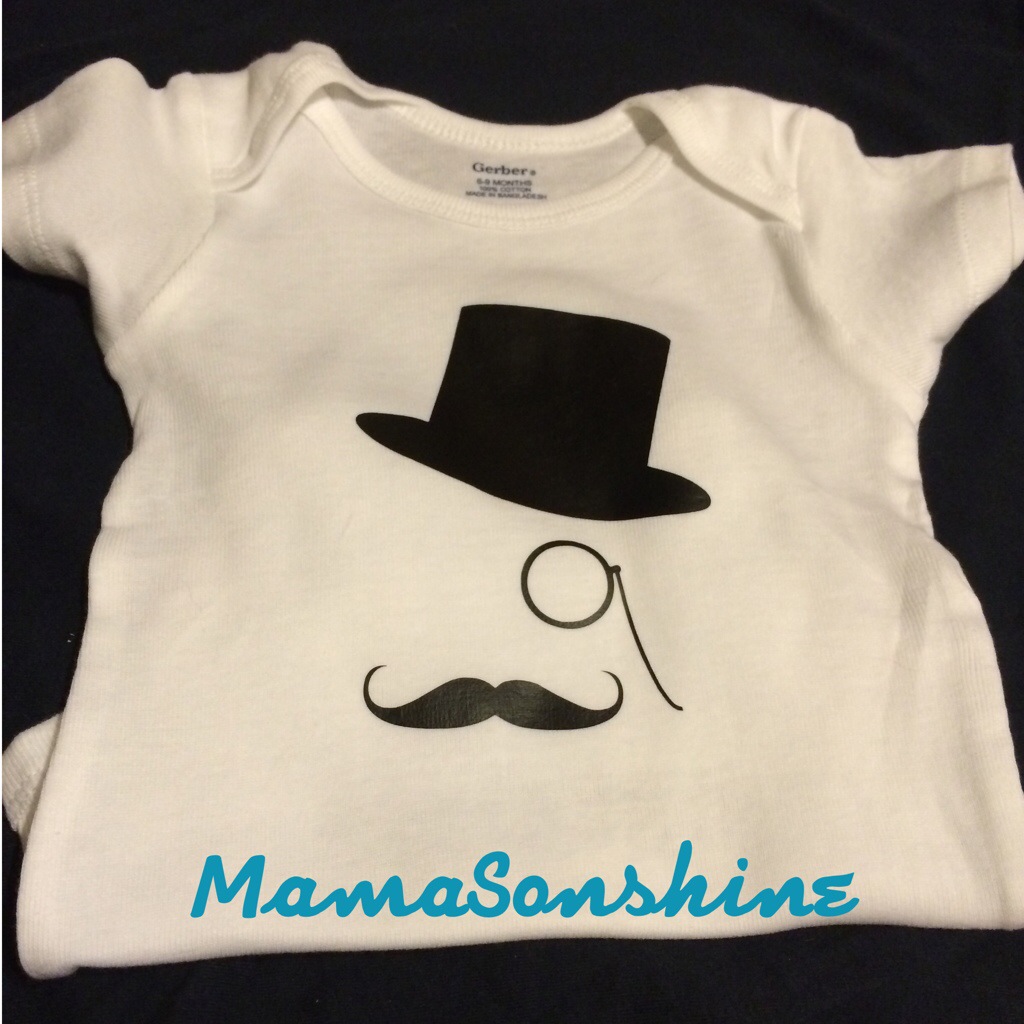
The black heat transfer vinyl was a free sample from Happy Crafters.  I was very pleased with the results.  The designs for the gentleman shirt went on smoothly and quickly.  When the vinyl adhered to the shirt it immediately released from the transfer plastic.  So there was no slowly lifting the corner to see to make sure it is sticking.


20140519-122547-44747058.jpg


The top hat and monocle seemed fitting for a southern gentleman.


20140519-122547-44747274.jpg

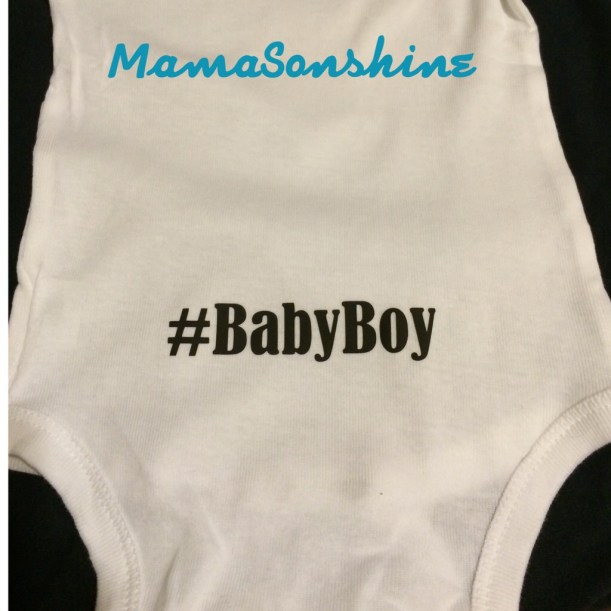
This is the back of the gentleman one.  My cousin is super funny and one day was complaining about the use of hashtags on Facebook.  So…..I couldn’t resist.


20140519-122547-44747477.jpg


I wasn’t sure if I was going to be able to attend the Meet & Greet, so I thought I might have to mail them to her.  But at the last-minute I was able to go, so of course I had to make a gift bag, because, well….I can.


20140519-122548-44748075.jpg


I have another cousin who is expecting and we will be giving her baby shower soon.  So stay tuned for some more adorable onesies.


Happy Crafting
signature-black
facebook instagram pinterest parties by mamasonshine etsy bloglovin google+ email twitter Image Map


Enhanced by Zemanta


19 Comments

Hand Made Floral Cards for Mom

This month’s Silhouette challenge had to involve flowers.  With it also being the month of Mother’s day I decided to combine the two topics.

This year I made three mother’s day cards and one Grandmother card (but the Grandma one doesn’t have flowers on it).

All of these cards were made with the help of my Silhouette Cameo.

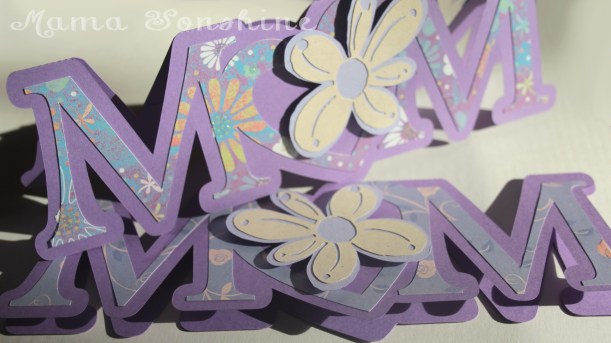
The first card I made was a shape in the word MOM, but I replaced the O with a heart.  I added a layer of floral scrapbook paper and to give it more depth I cut out a two layered flower which was attached with dimensional foam tabs.  Because of the font I used for the letters, there wasn’t a whole lot of room to write inside the card, so the sentiment is a simple “Happy Mother’s Day.”

This was my first shape card and while I am pleased with the results, I won’t make the Ms so thin next time.

Mom_Card01


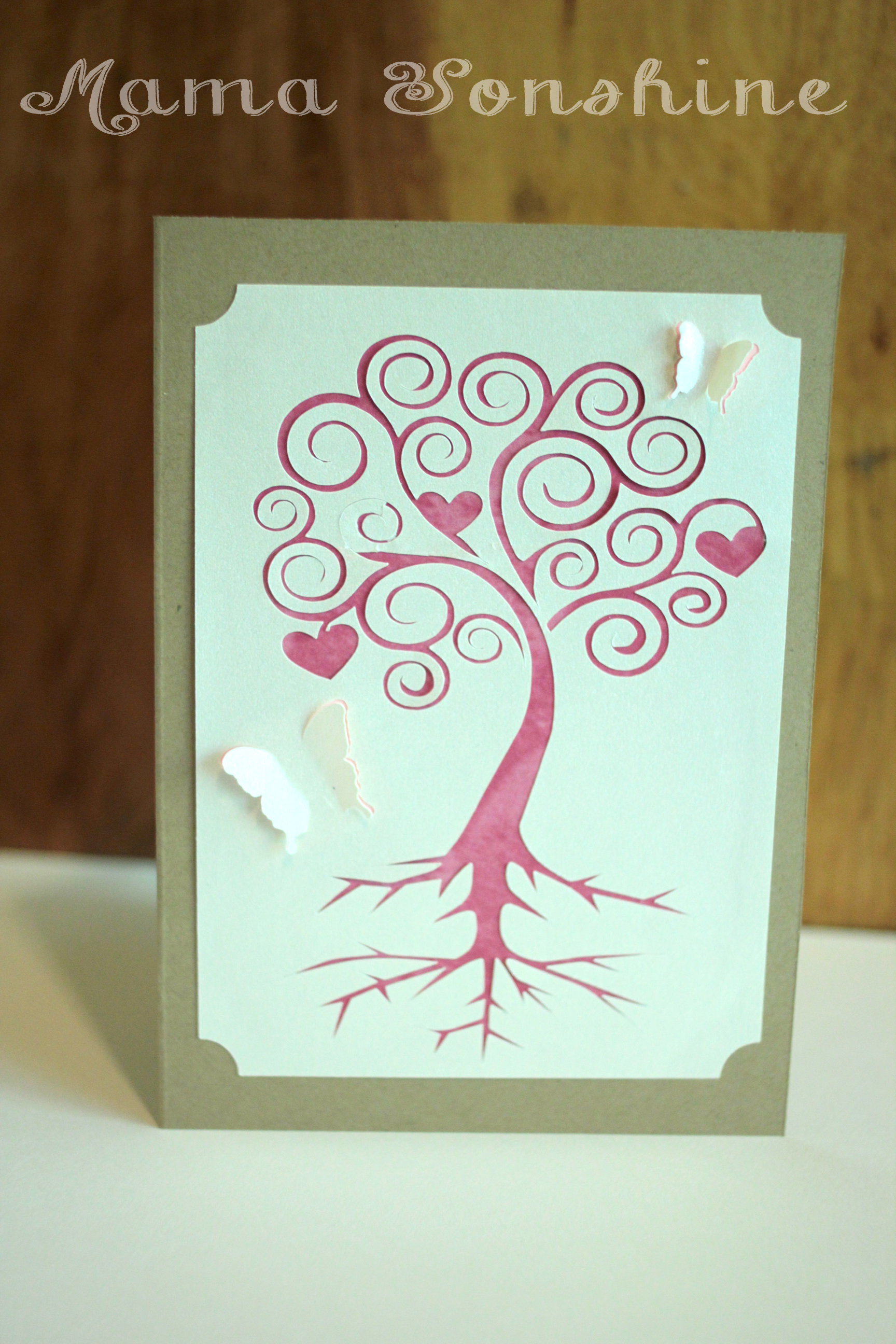
I came up with this next card after seeing the quote “There are two gifts we should give our children; one is roots and the other is wings” on-line while looking for mother’s day quotes.  Turns out my mom has had this quote hanging in her house for decades….and I had no idea.


Mom_Card06


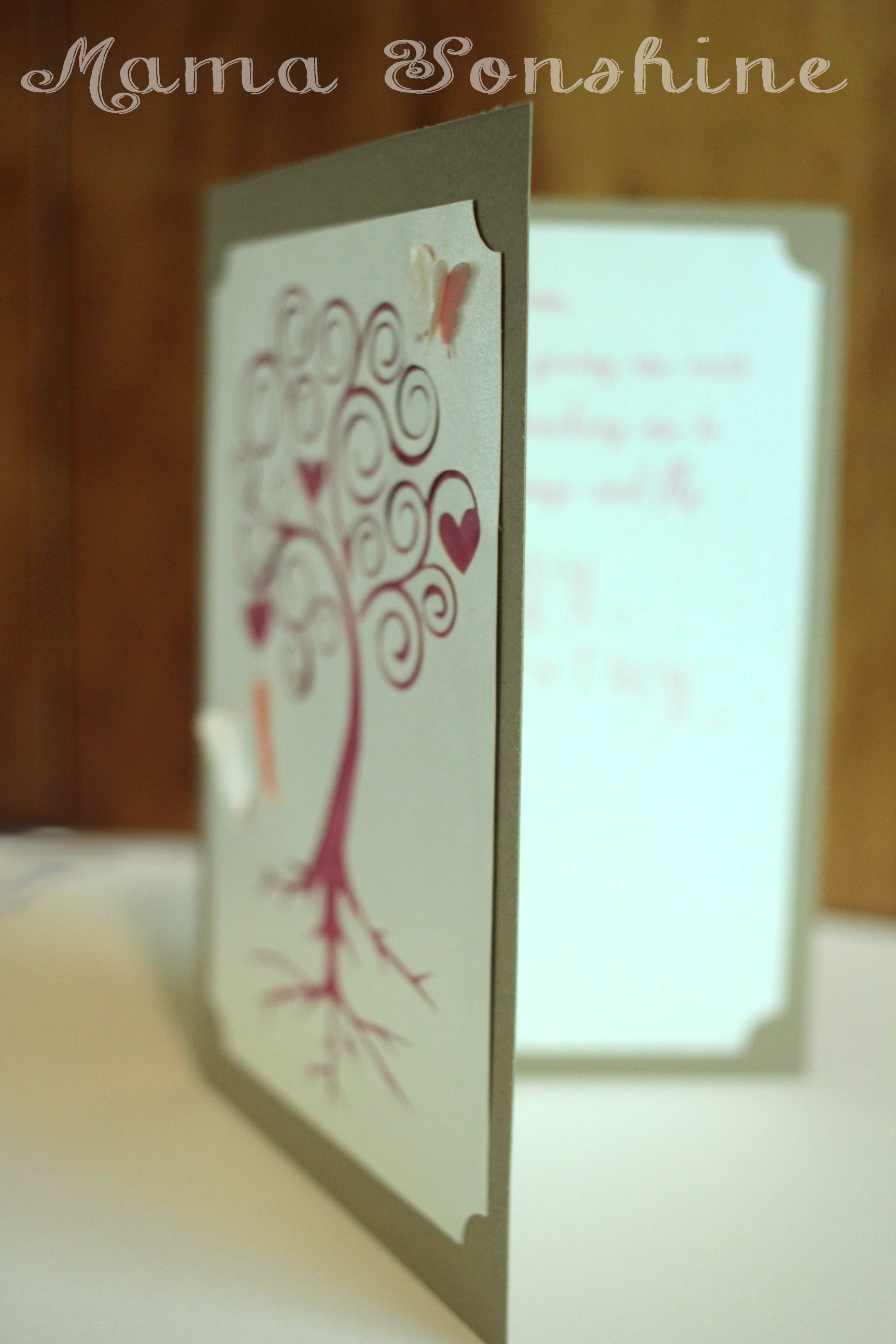
I used a champagne metallic paper for the top layer and on the inside of the card.  I used Silhouette’s print and cut feature to write the sentiment and cut out a frame that matches the one on the front of the card.  I used different colors for behind the butterflies and the tree.  I only had the machine make a cut on the outer edge of the butterfly wings, so they just pop out a little.

Mom_Card05


The sentiment on the inside says “Mom, Thank you for giving me roots to grow and teaching me to spread my wings and fly.  Happy Mother’s Day”  While this one was probably the easiest to put together, it is my favorite.  I think it is elegant in its simplicity.

Mom_Card04


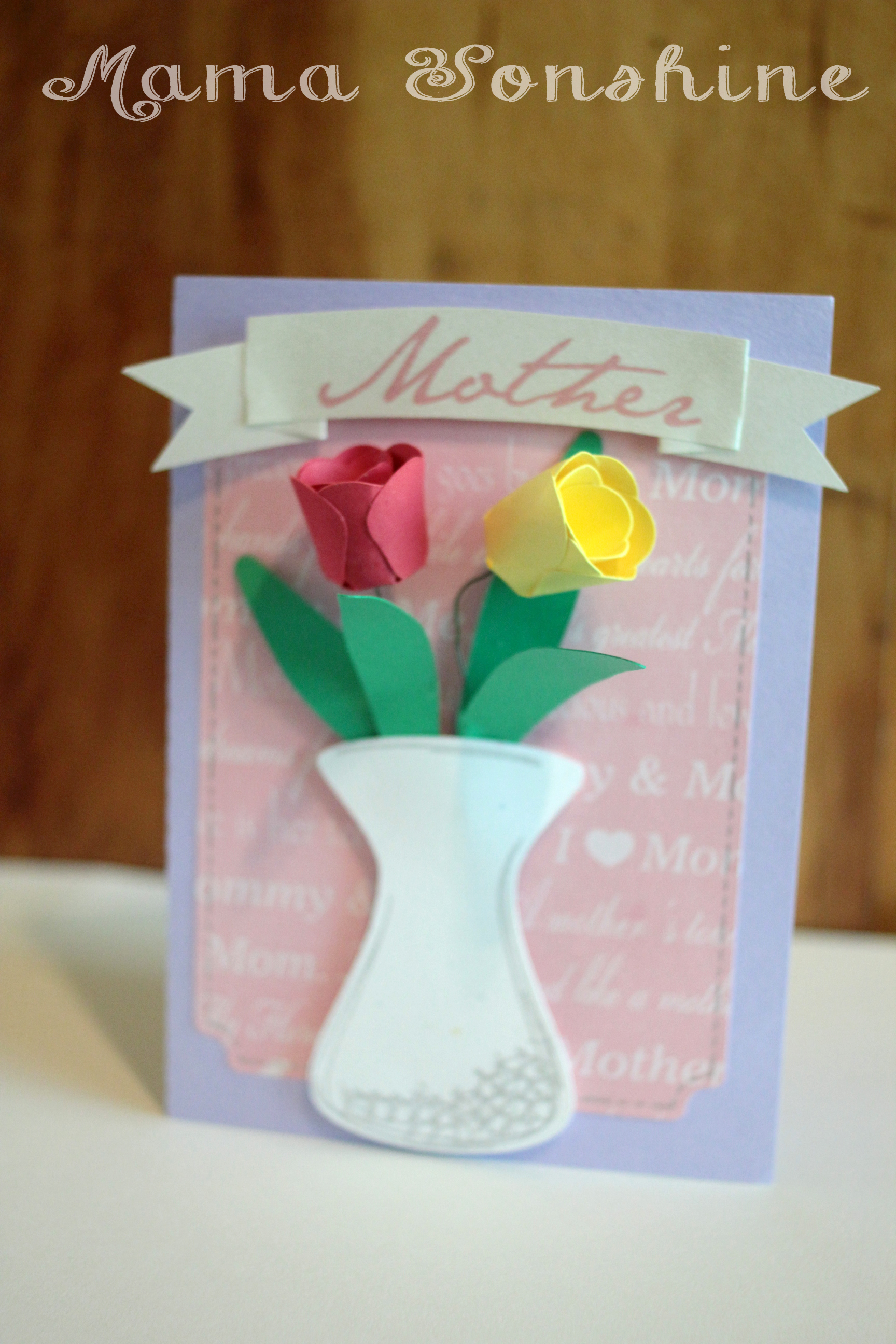
When I decided to make a floral themed mother’s day card, this next card is what I had in mind.  I wanted to make a vase of flowers on the front of the card.  The tulips would have been too difficult to put together if I had made them any smaller, and at that size, only two would fit in the vase.

In the end, two was the perfect number, because it didn’t clutter up the card.  I used pre-printed mother scrapbooking paper for the background and a silver sketch pen for the faux stitching. For the “Mother” banner I used the champagne metallic paper and the print and cut feature.  I tried using sketch pens, but it just wasn’t the right look.


Mom_Card02

I originally had thought about using velum or some kind of clear paper for the vase, to give it the look of glass, but then you could see the floral wire in the vase, and all the hot glue.  Not a pretty sight.

I still didn’t like the vase, just made with plain paper, so I used the sketch pens to add some dimension to it.  In the Designer Edition there is a sketch feature that allows you to fill in shapes, or change lines, to make the shape look more hand drawn, which is what I did to the vase.

I am very pleased with how this card turned out.  On the inside it says “May all the love you give to others come back to you on this special day.  Happy Mother’s Day”

Mom_Card03


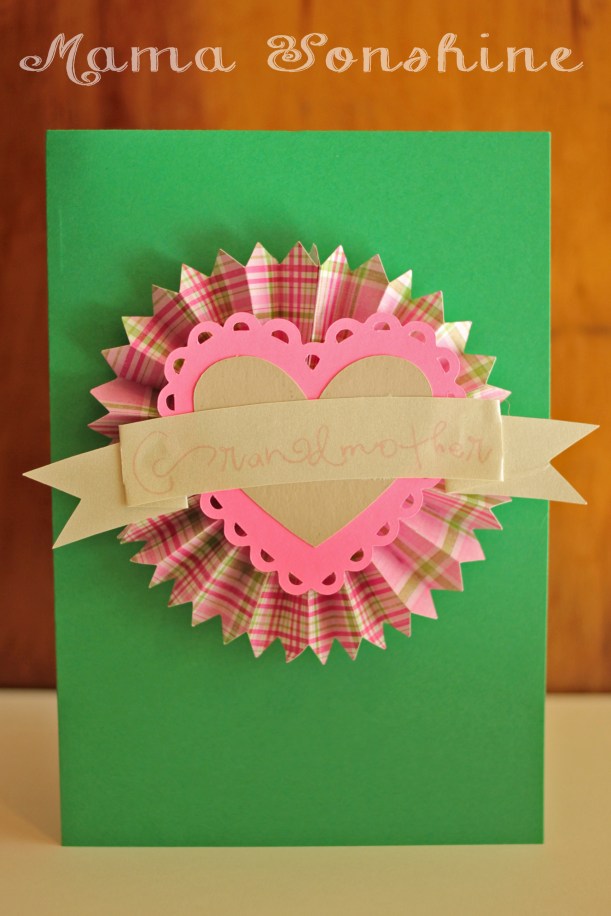
I didn’t want to leave the Grandmas out.  So I made this card too, although it doesn’t have any flowers on it.  I also made one in different colors.  It is very cute, but thick, so it doesn’t really mail well.

Mom_Card07


Inside it says “Only the best moms get promoted to Grandmother.  Happy Mother’s Day”


Happy Crafting
signature-black

Want to Check Out More Silhouette Projects?

My Silhouette Challenge buddies and I are all sharing projects on our blogs today, so pursue the projects below for a wealth of Silhouette inspiration!

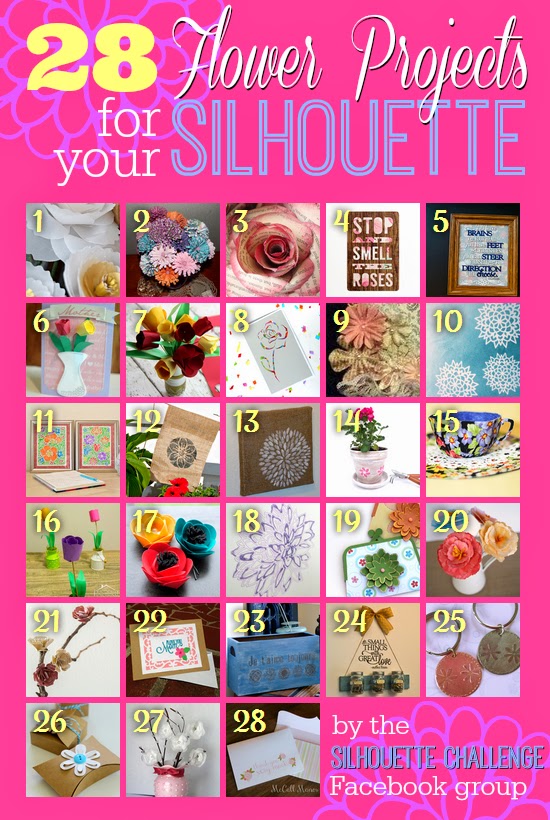
Vellum Flowers Silhouette Challenge - Shape Challenge - Flowers Paper Wedding Roses Tea Party Invites Dr. Seuss Graduation Gift Hand Made Floral Cards for Mom Say it With Flowers - May Silhouette Challenge (Paper Craft) Confetti Flower Card Silhouette Challenge! May flowers mixed media art Wearable Flower Power ~ Silhouette Challenge Silhouette Sketch Pen Tutorial - Watercolor Flowers Dingbat Font Flower Garden Flag Stenciled Burlap Canvas Distressed White Washed Terra Cotta Pot with Book Page Flowers Creating Floral Fabric Teacups Using Your Silhouette Machine + Free Cut File! DIY Paper Flowers: 3D Paper Tulips DIY: Fabric Flower Hairpins Silhouette Sketch Pens Peony Prints Paper Purse Gift Card Holder 3d Watercolor Paper Peony Flowers DIY Home Decor Paper Blossom Branches Floral Note Card Set French Box Upcycle with Graphic Challenge ‪#‎silhouettechallenge‬ DIY Summer Activity Mason Jar Decor with Upcycled Pallet Wood Metal Etching flower kraft boxes Vellum Flower Arrangement Thank-You Cards {Made on Silhouette}

1. Create & Babble // 2. Kate’s Paper Creations // 3. Please Excuse My Craftermath // 4. Tried & True // 5. unOriginal Mom // 6. Mama Sonshine // 7. Adventures in All Things Food & Family // 8. The Experimental Home // 9. The Outlandish Momma // 10. Whats Next Ma // 11. Dream a Little Bigger // 12. Silhouette School // 13. Creative Ramblings // 14. Our Rosey Life // 15. Bringing Creativity 2 Life // 16. Practically Functional // 17. Minted Strawberry // 18. Two Purple Couches // 19. Simply Kelly Designs // 20. Grey Luster Girl // 21. TitiCrafty // 22. My Mom Made That // 23. Architecture of a Mom // 24. My Paper Craze // 25. The Sensory Emporium // 26. Ginger Snap Crafts // 27. Mabey She Made It // 28. McCall Manor //

facebook instagram pinterest parties by mamasonshine etsy bloglovin google+ email twitter Image Map


Leave a comment

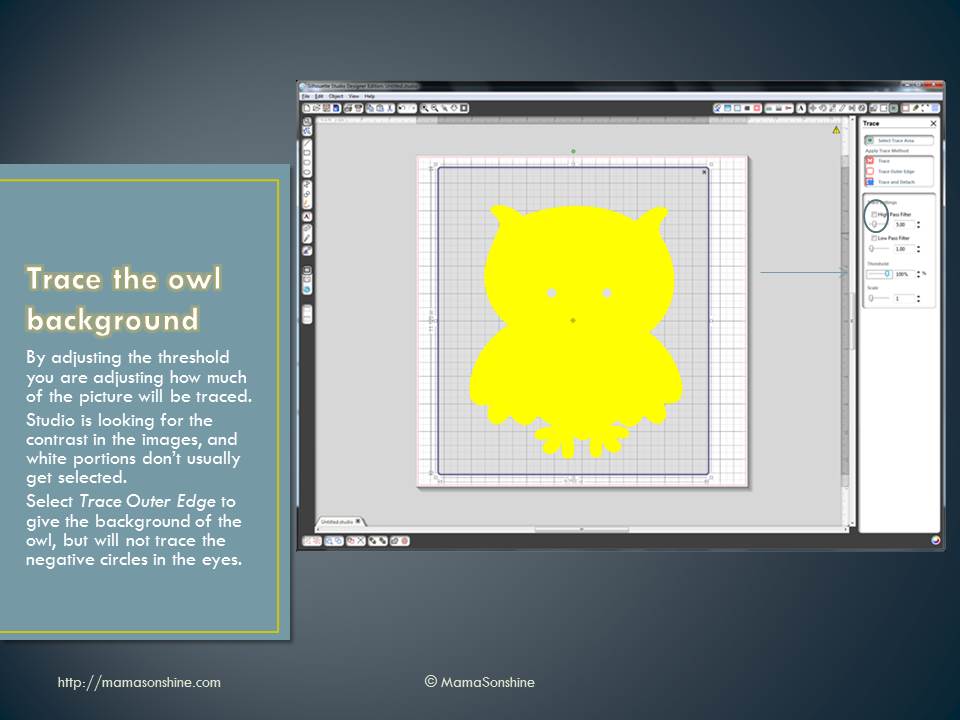
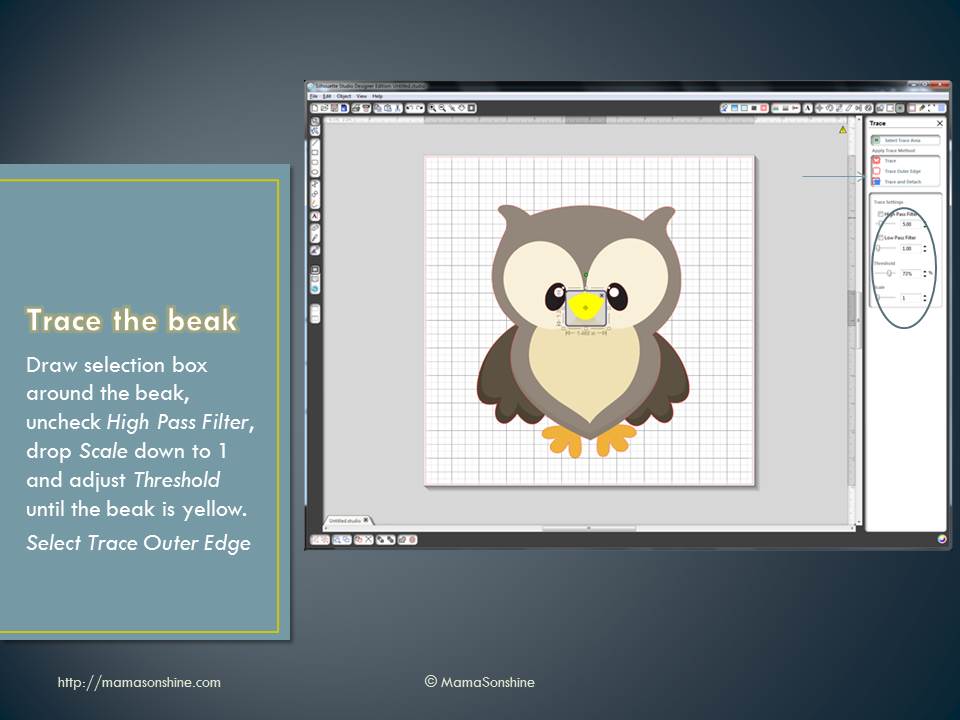
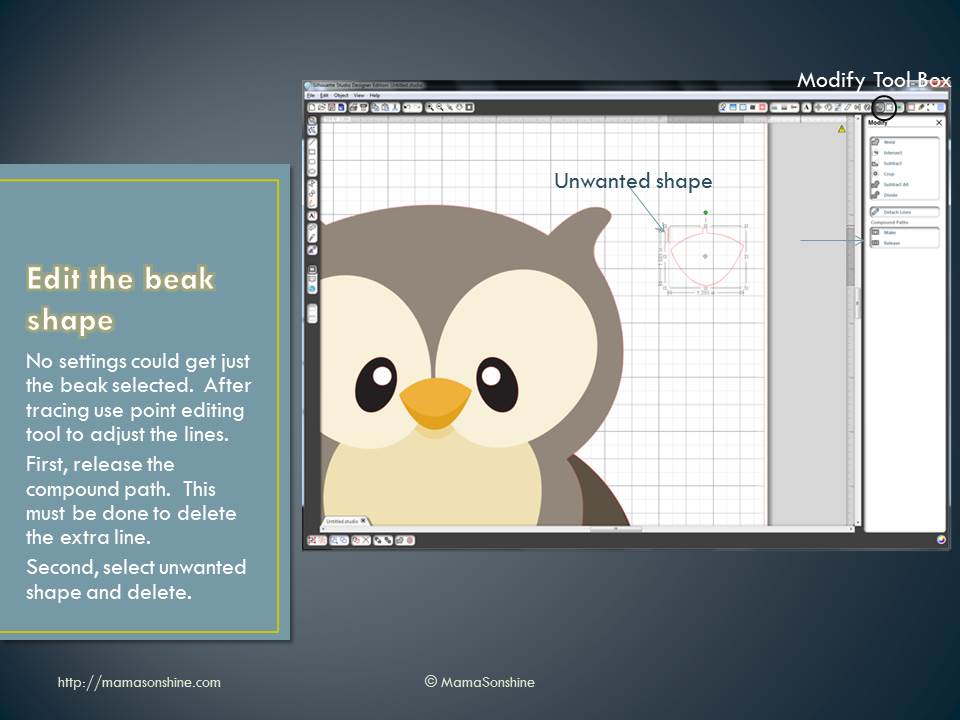
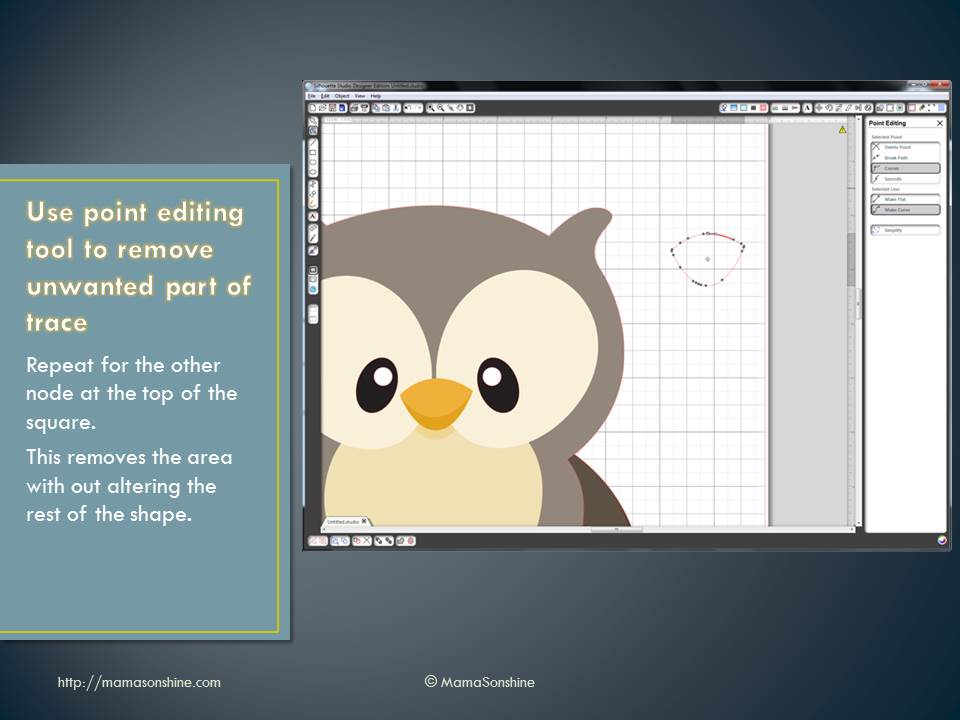
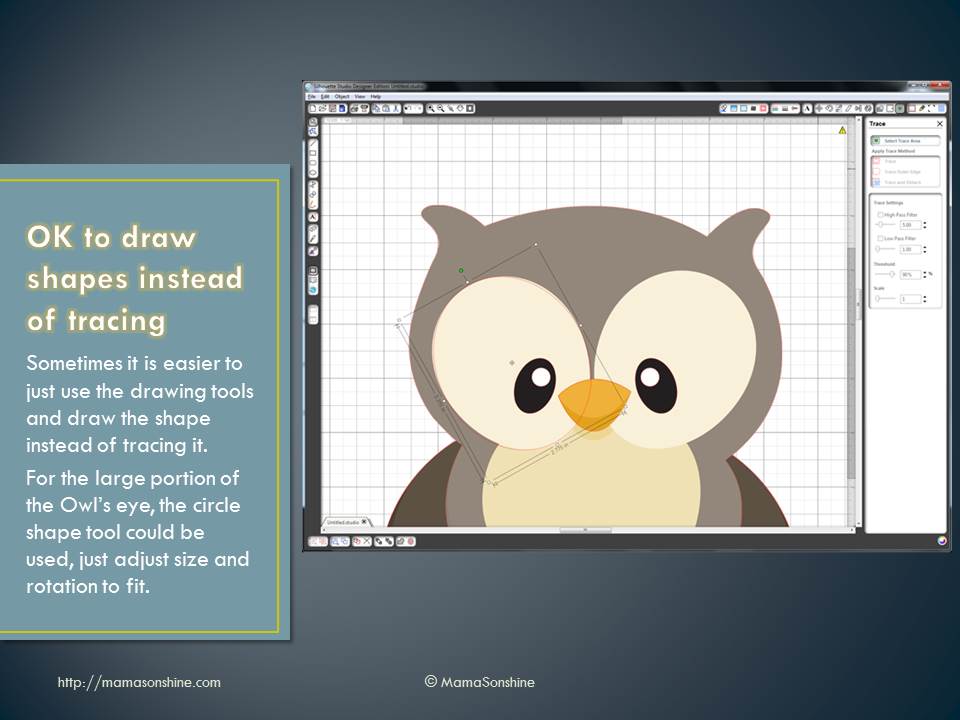
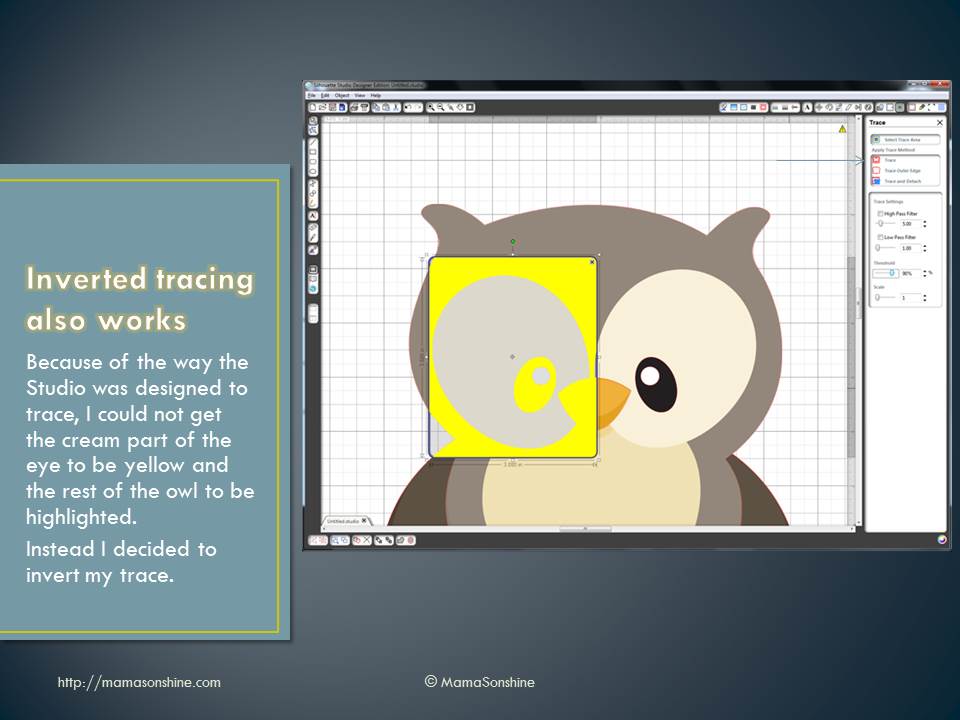
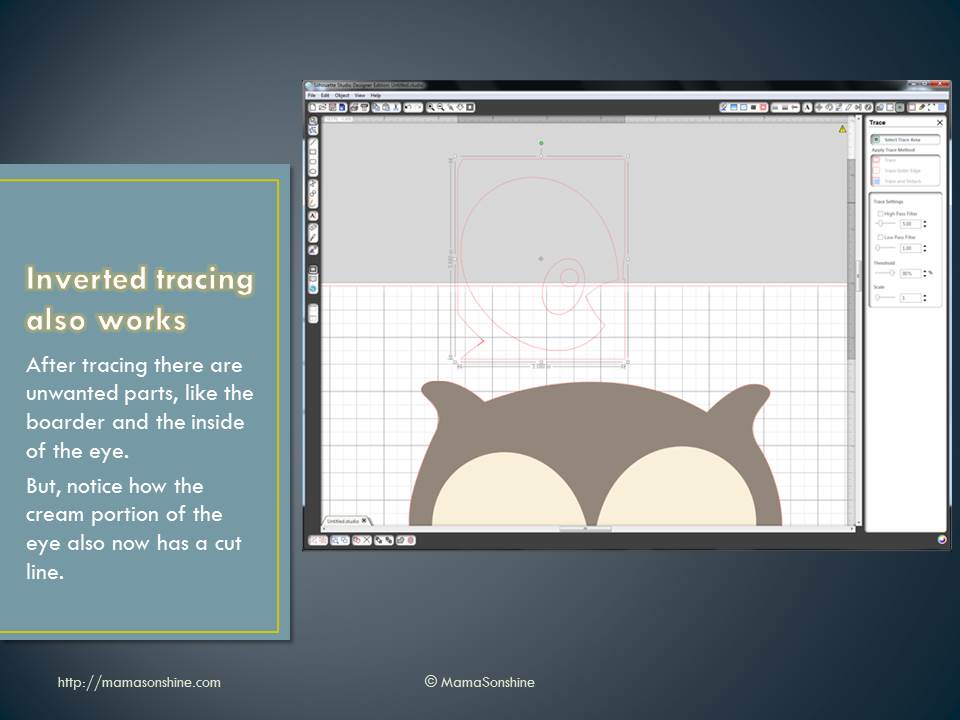
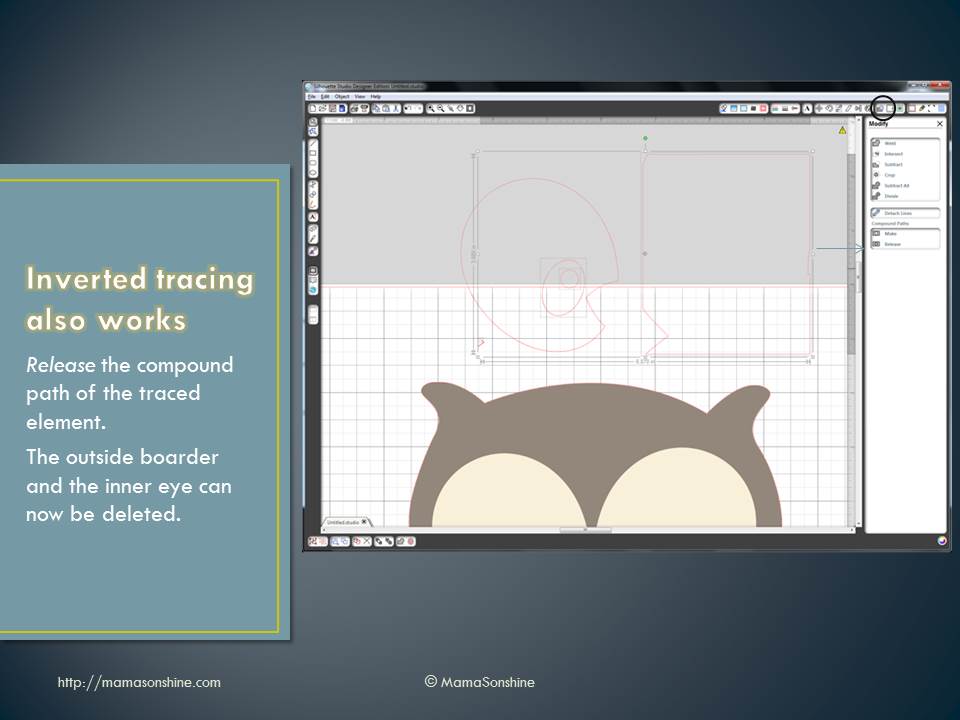
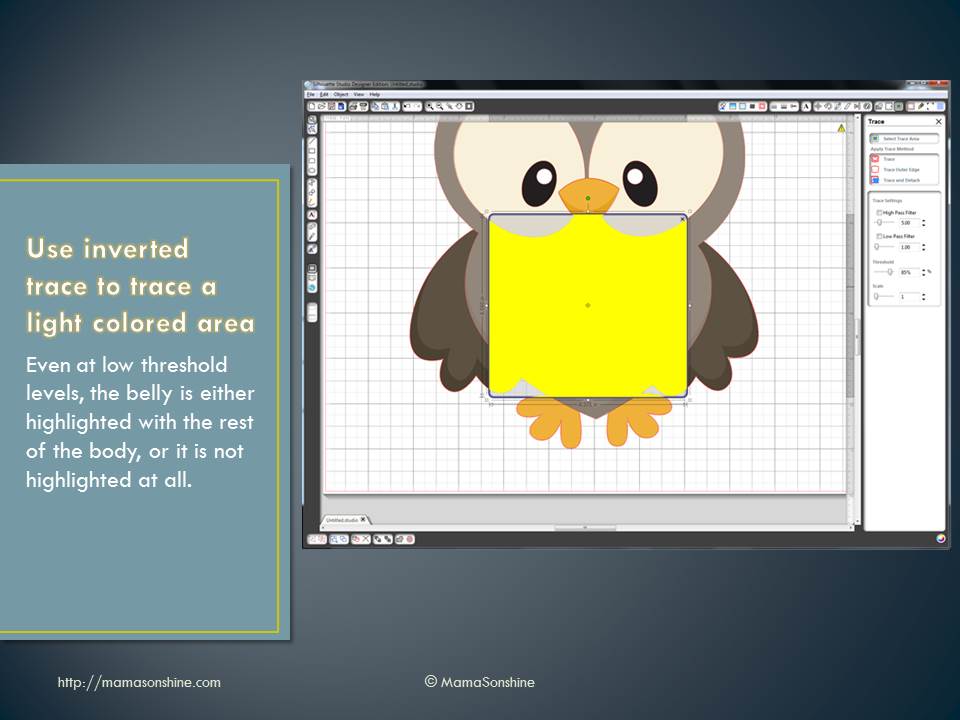
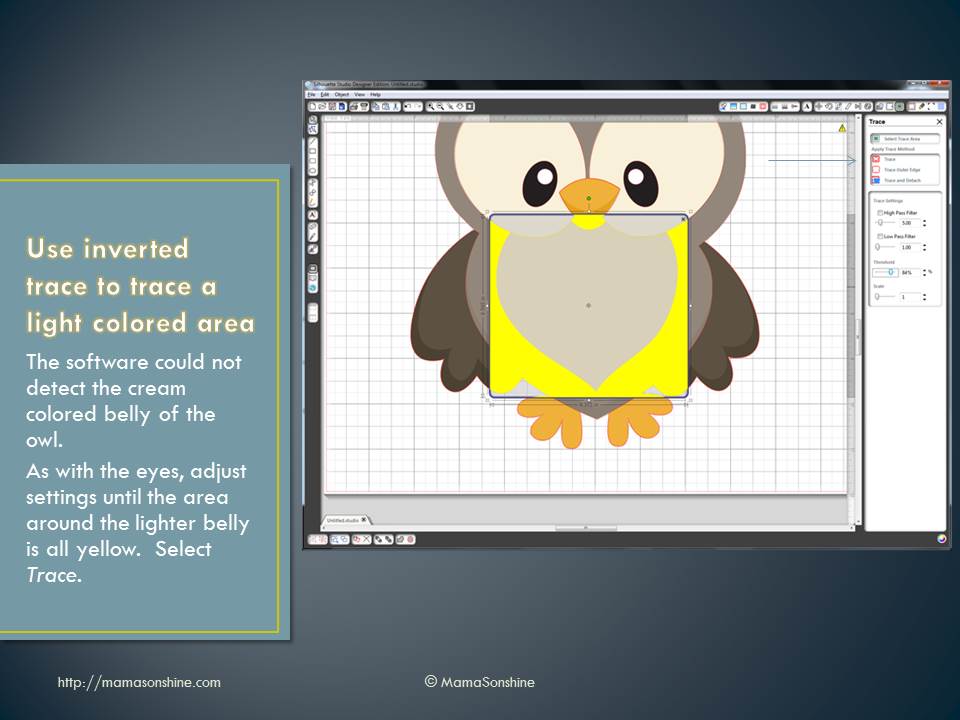
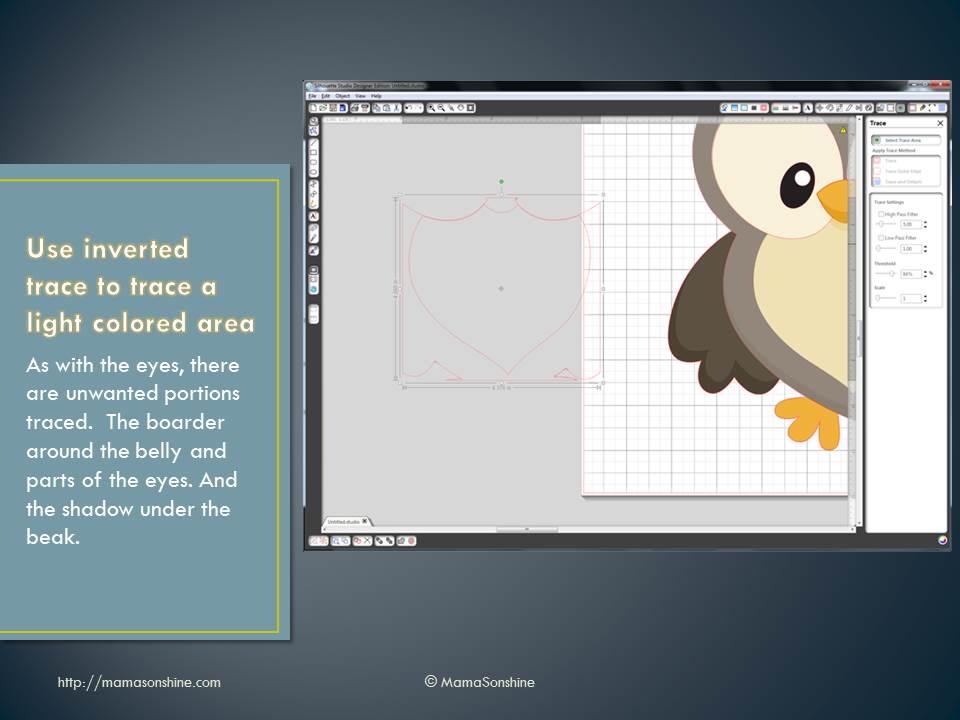
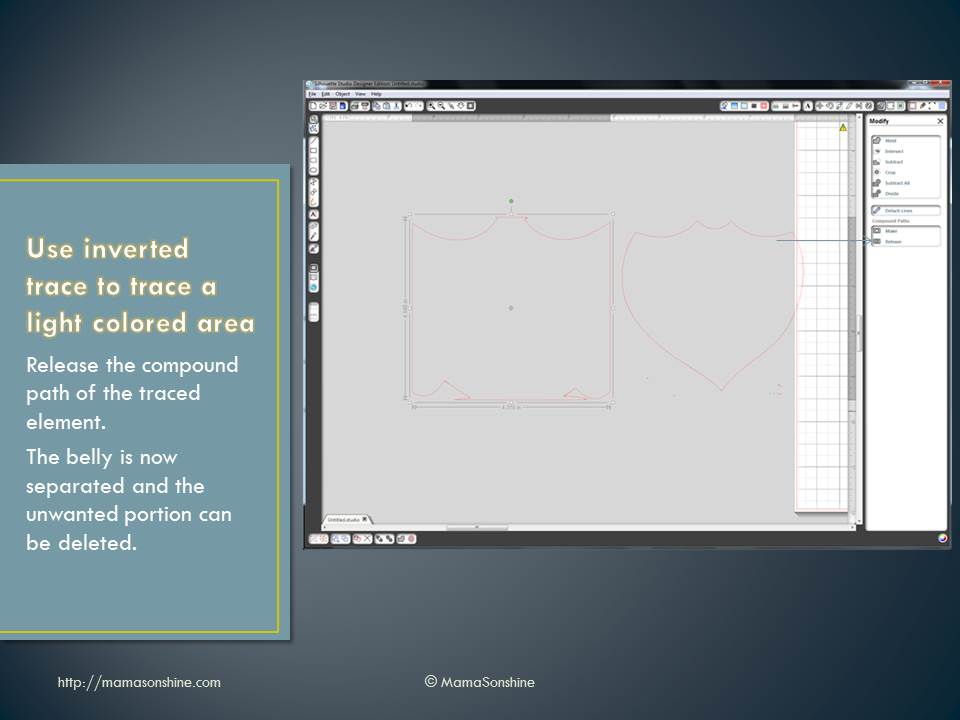
Tracing PNG & JPEG in Silhouette Studio

I belong to a few Silhouette related Facebook pages.  They are a wonderful support group for beginners and experienced users.

More and more I see questions about tracing images in the Silhouette software in order to make them cut files.  This is one of the main reasons I decided to go with the Silhouette brand cutting machine.

You are able to take any image and make your own cutting file.  I make a lot of decorations and invitations in Photoshop, then cut them with my Silhouette.

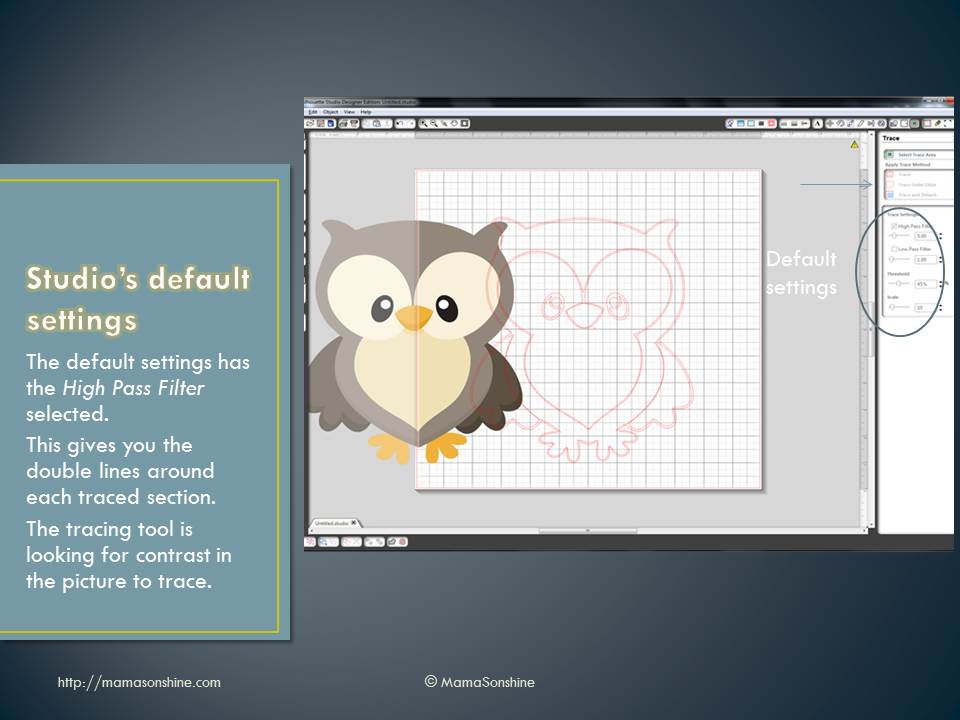
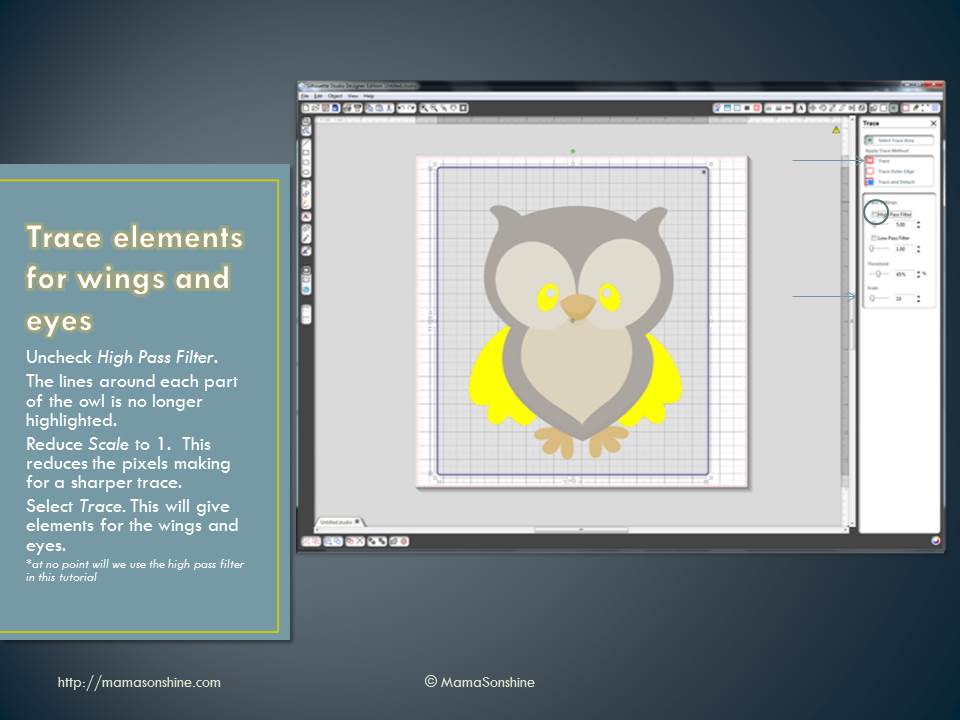
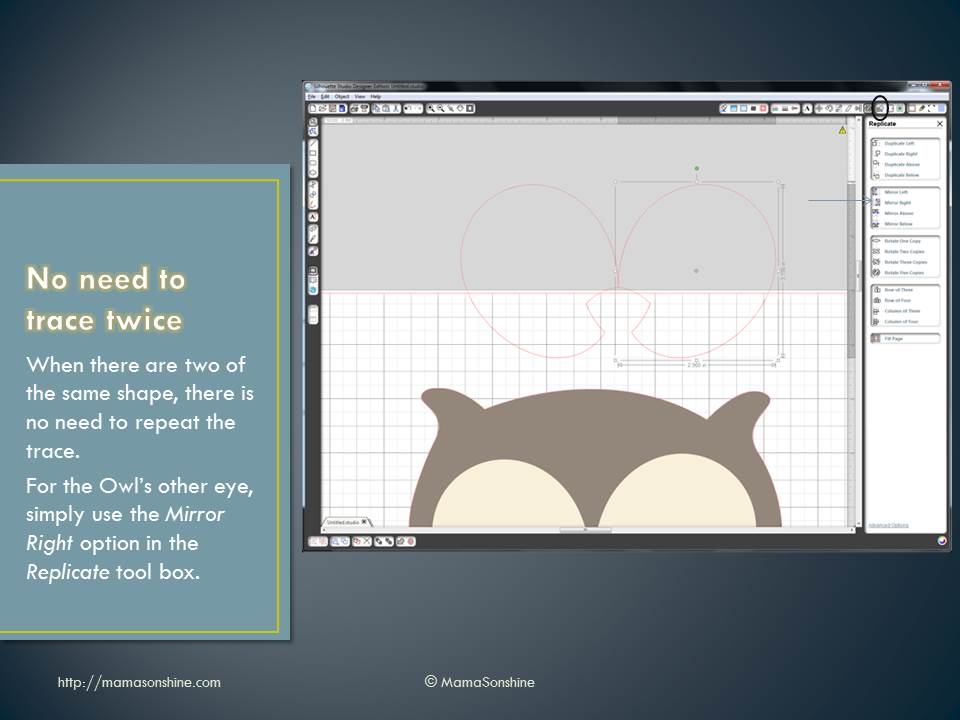
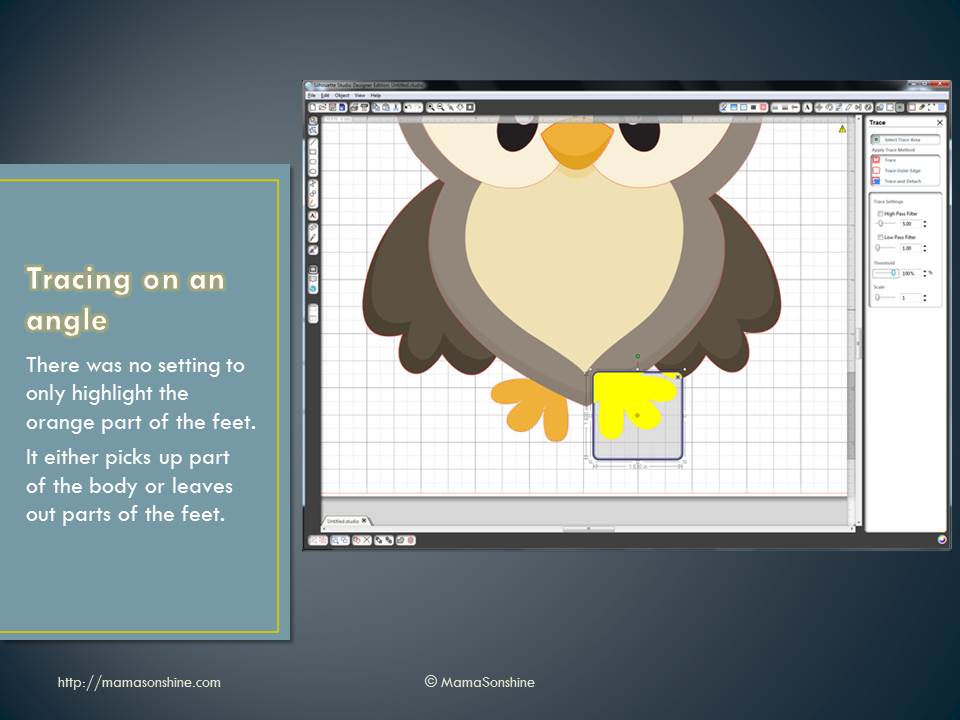
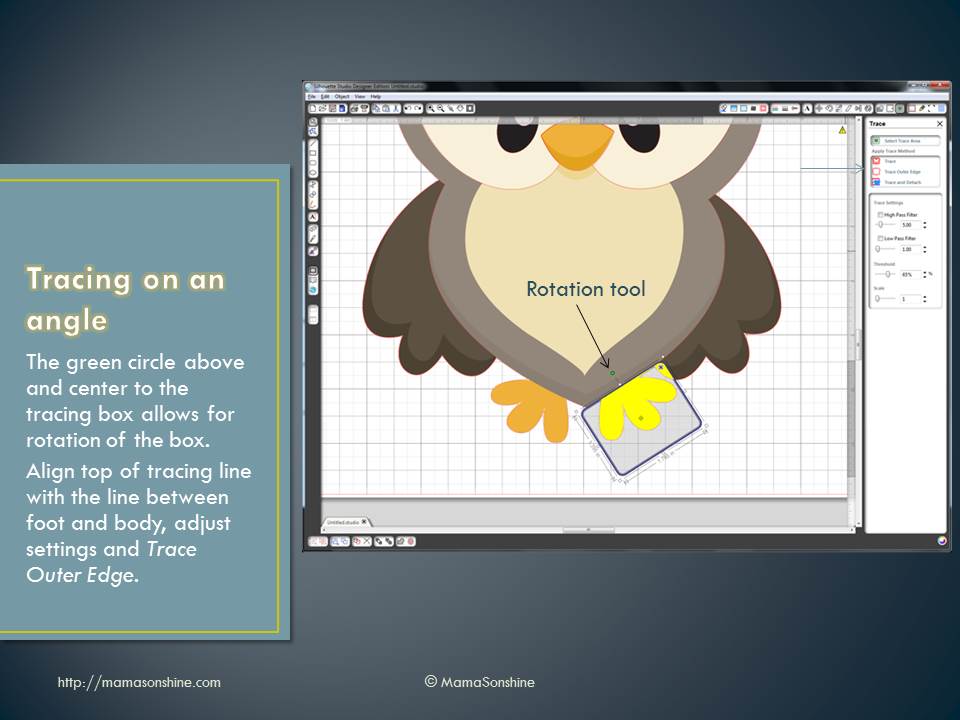
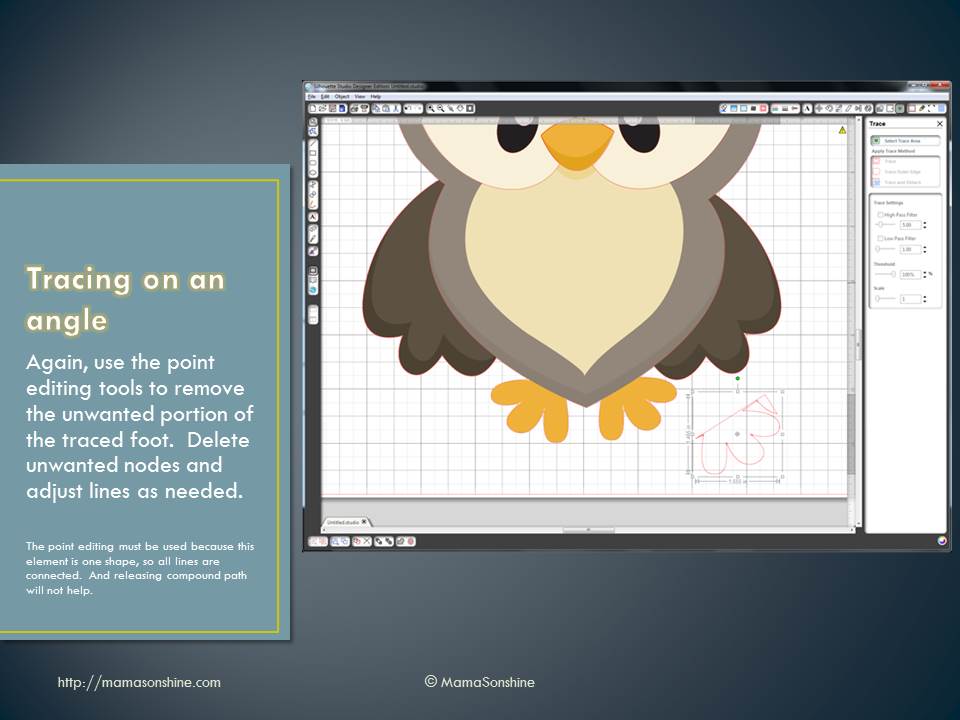
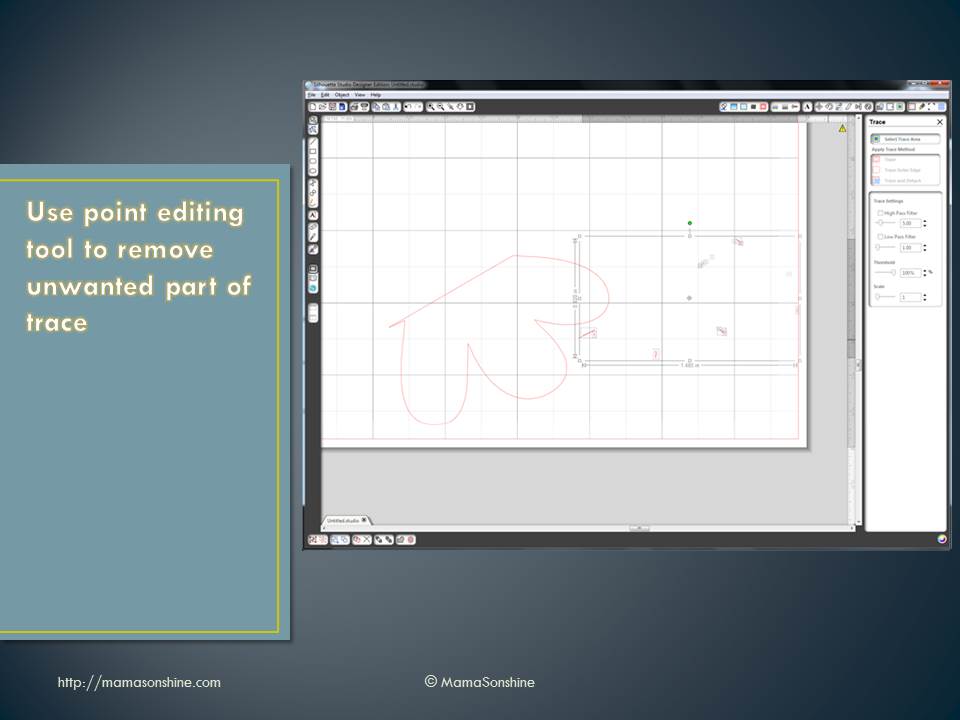
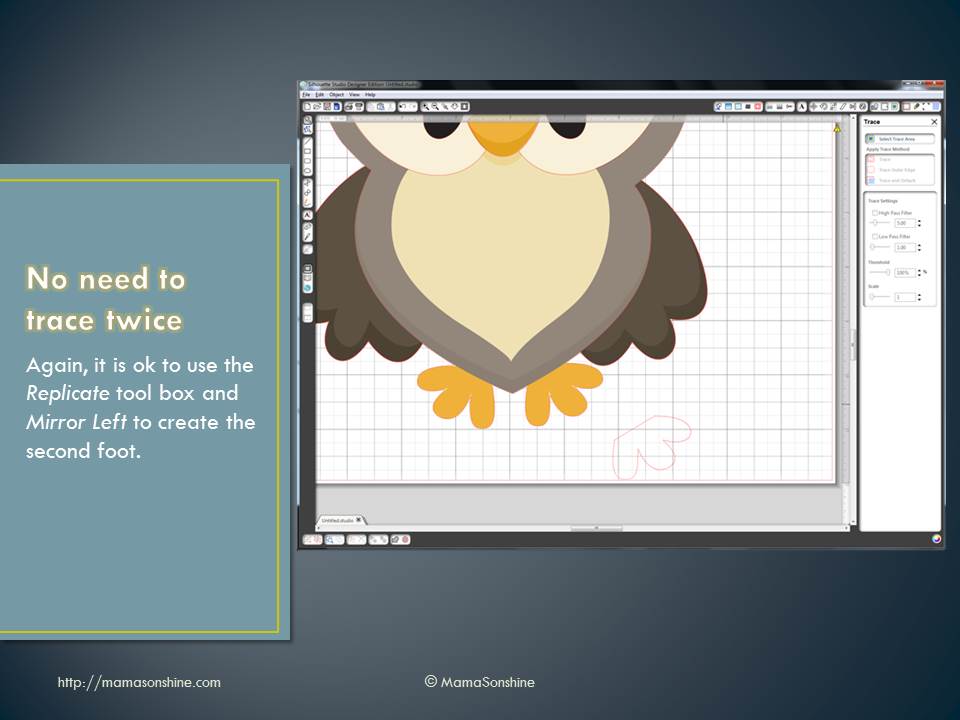
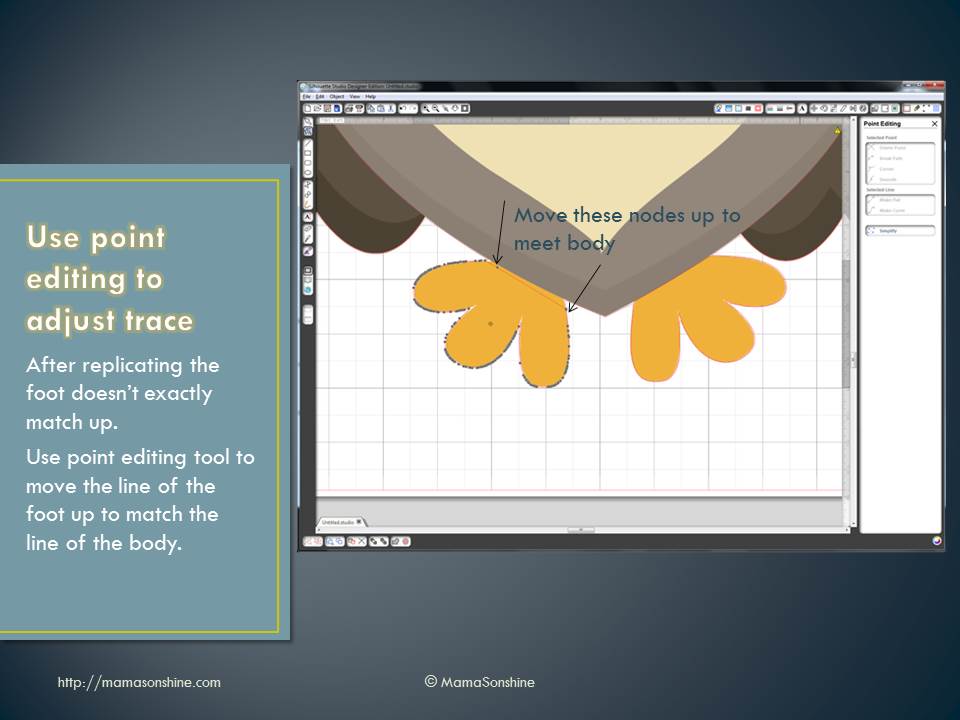
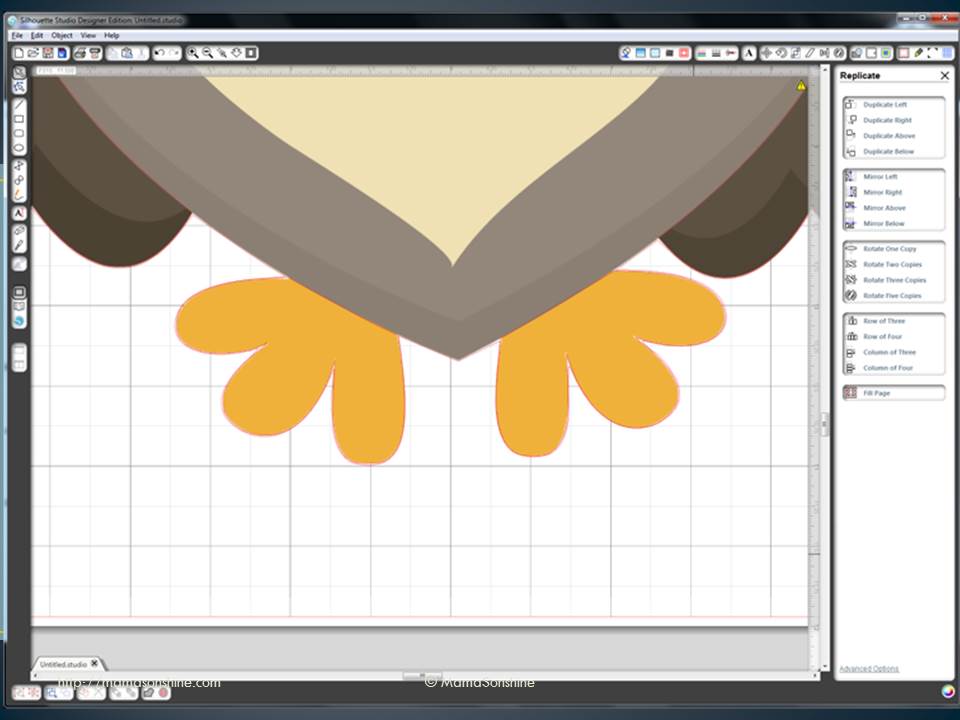
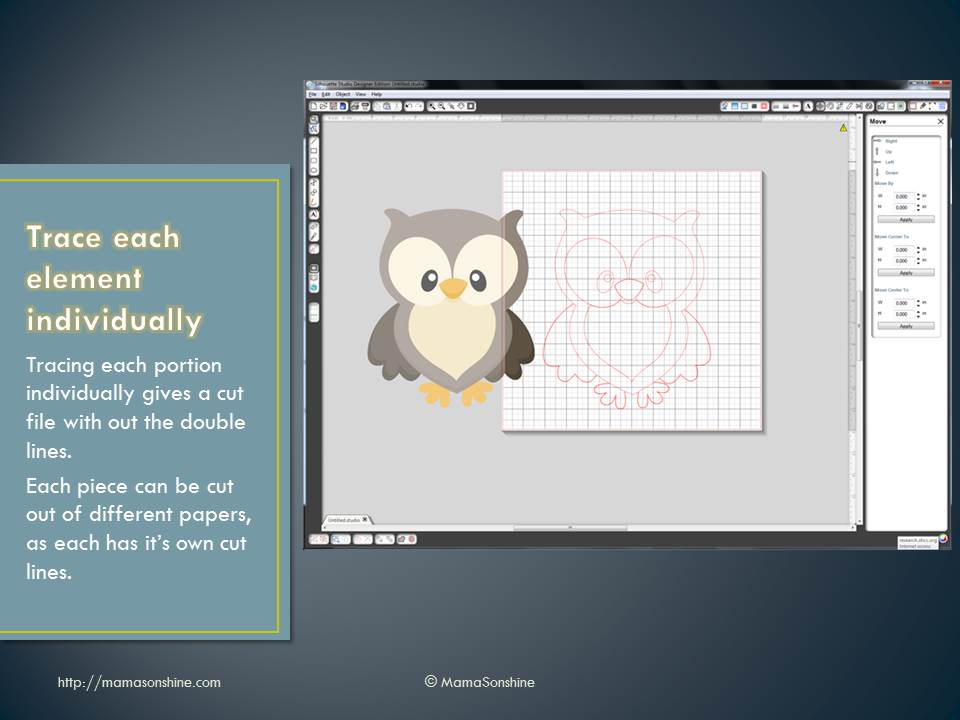
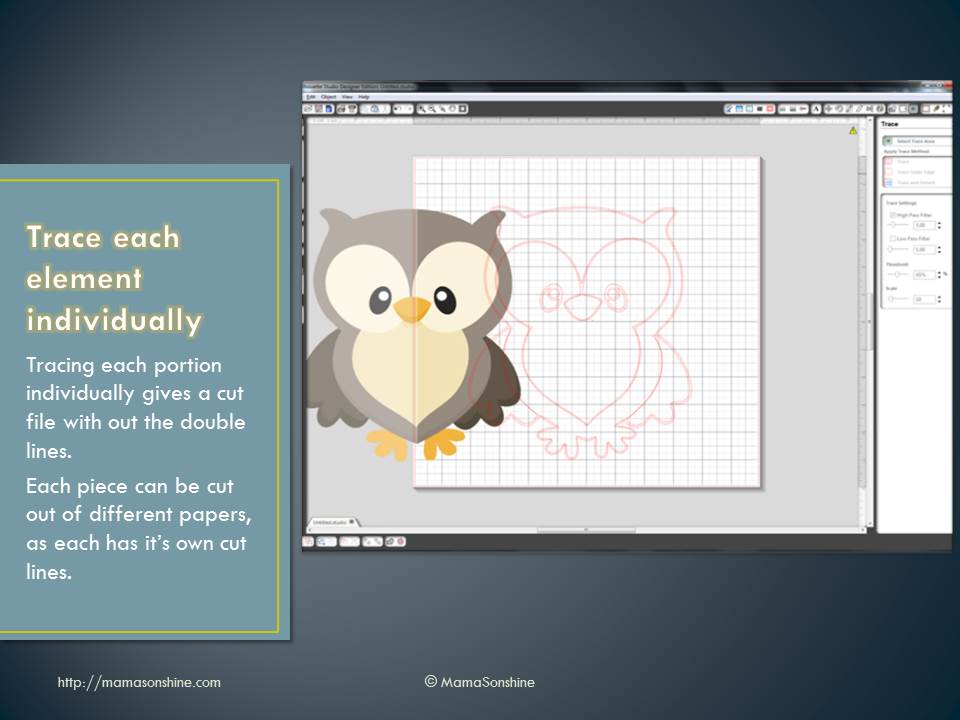
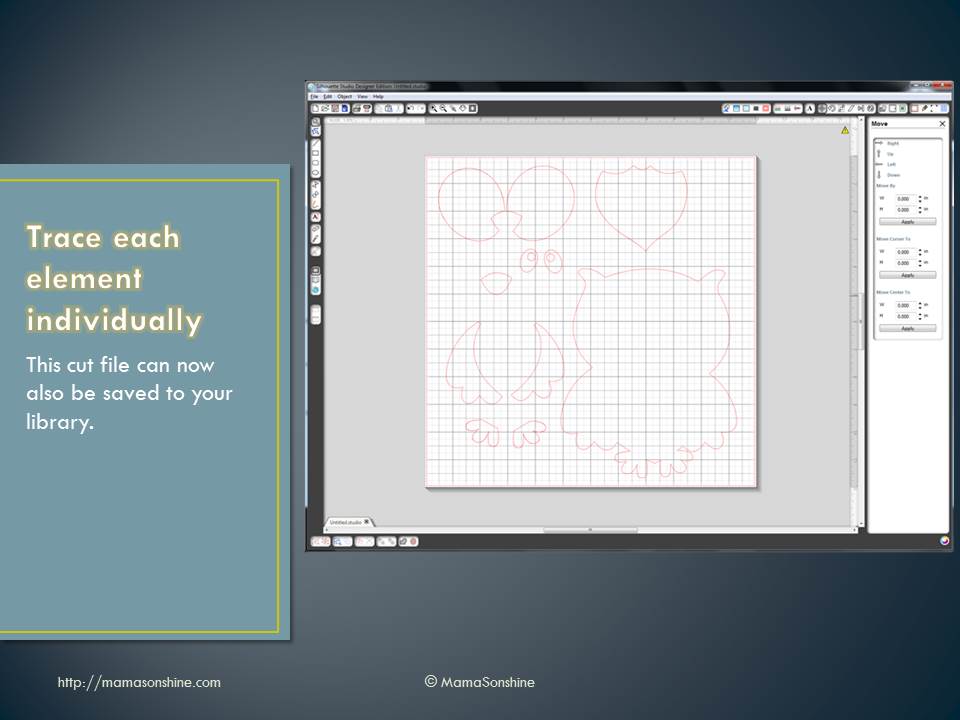
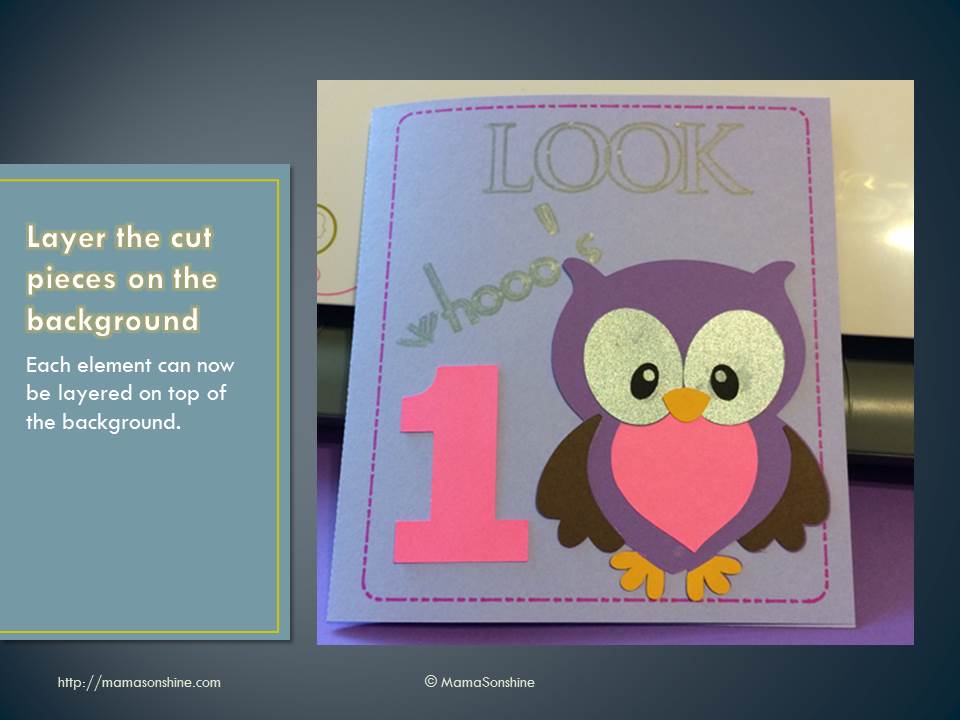
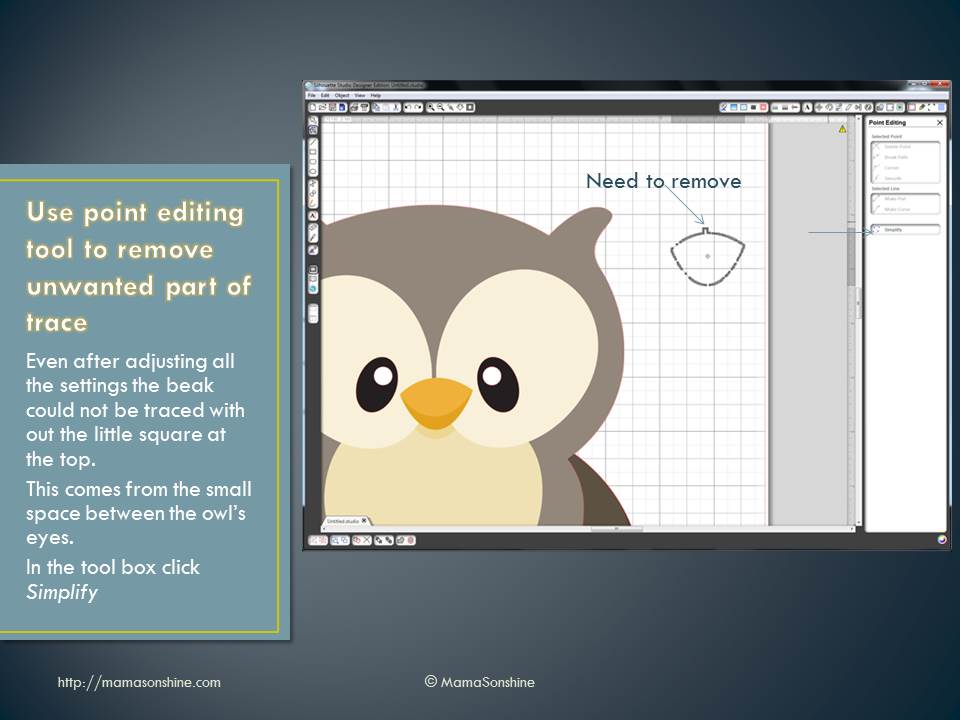
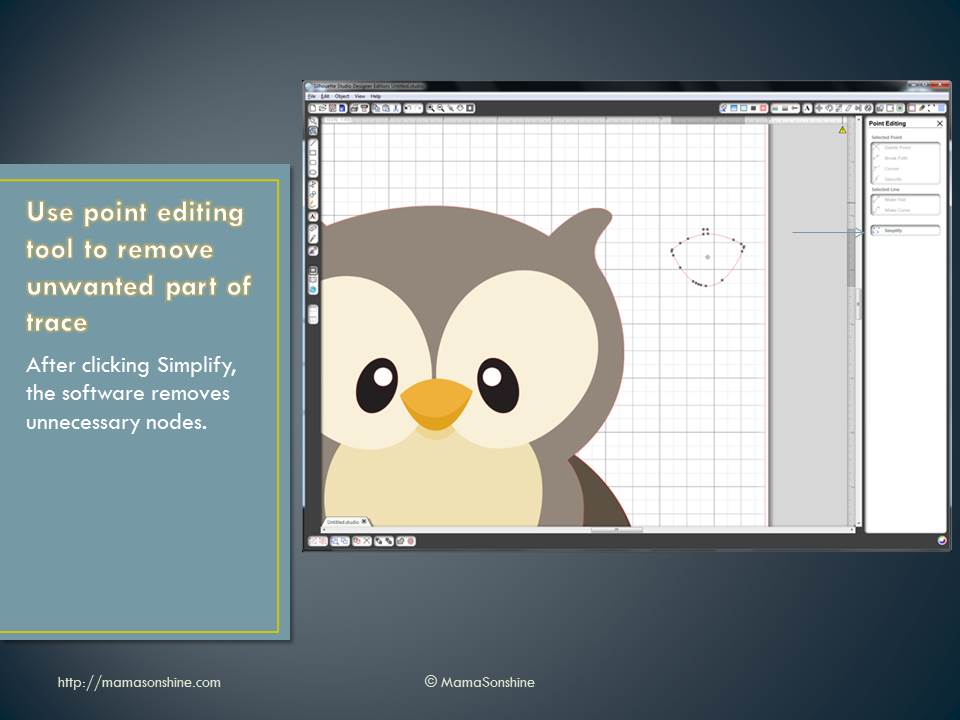
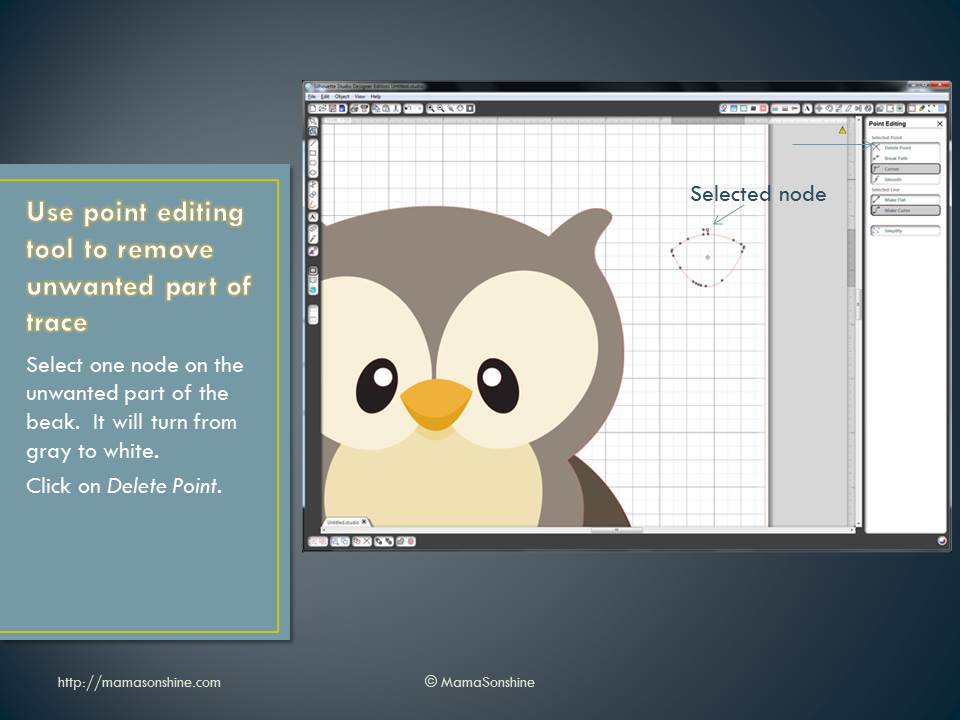
However, the tracing tool in the software is not that intuitive, so there is usually a number of questions about tracing.  I put together this power point to help someone with tracing and thought I would share it with everybody.


MSS_SilhouetteTraceing_Slide1

MSS_SilhouetteTraceing_Slide2

MSS_SilhouetteTraceing_Slide3

MSS_SilhouetteTraceing_Slide4

MSS_SilhouetteTraceing_Slide5

MSS_SilhouetteTraceing_Slide6

MSS_SilhouetteTraceing_Slide7 MSS_SilhouetteTraceing_Slide8

MSS_SilhouetteTraceing_Slide9

MSS_SilhouetteTraceing_Slide10

MSS_SilhouetteTraceing_Slide11

MSS_SilhouetteTraceing_Slide12

MSS_SilhouetteTraceing_Slide13

MSS_SilhouetteTraceing_Slide14

MSS_SilhouetteTraceing_Slide15

MSS_SilhouetteTraceing_Slide16

MSS_SilhouetteTraceing_Slide17

MSS_SilhouetteTraceing_Slide18

MSS_SilhouetteTraceing_Slide19

MSS_SilhouetteTraceing_Slide20

MSS_SilhouetteTraceing_Slide21

MSS_SilhouetteTraceing_Slide22

MSS_SilhouetteTraceing_Slide23

MSS_SilhouetteTraceing_Slide24

MSS_SilhouetteTraceing_Slide25

MSS_SilhouetteTraceing_Slide26

MSS_SilhouetteTraceing_Slide27

MSS_SilhouetteTraceing_Slide28

MSS_SilhouetteTraceing_Slide29

MSS_SilhouetteTraceing_Slide30


Please note, I have the second version of the software, as I have not taken the plunge and upgraded to the third version.  While the settings and option are the same, their location and how you do things might be different.  I also have the designer edition, but everything in the tutorial is available in the standard addition.

Happy Crafting


signature-black
facebook instagram pinterest parties by mamasonshine etsy bloglovin google+ email twitter Image Map
Enhanced by Zemanta