I Tri and Craft

thoughts from a mother of boys, a marathoner, a triathlete, a crafter, a wife, and a scientist


Leave a comment

Birthday Pirate Shirt ~ A Silhouette Cameo how to (Part 2)

I wanted to share with you the steps I took to make my son’s birthday shirt. There was a few problems I had that I was able to work through.   Hopefully this will help so others won’t get stuck like I did.

In this tutorial I use my Silhouette Cameo and the Silhouette Studio DE software to make a custom shirt for my son’s birthday party.  I used graphics from Just So Scrappy‘s YoHo YoHo Pirate kit.  I used the Silhouette brand Flocked Heat Transfer Material for the skull, and Avery Dark T-Shirt Transfers for Ink Jet Printers.

Part One will be how to make the Skull & Crossbones

Part Two will be how to do the words & party hat

Part Three will be how to iron everything on
MSS_BirthdayShirt01

This part of the shirt was made using printable heat transfer material for the Dark Shirt Transfer Material and an Ink Jet printer.  The HTM for light material is different and the steps you take to print and cut are different.  Also be sure you know what kind of printer you are going to be using, either ink jet or laser, and get the appropriate transfers.  The way the ink sets on the paper is different, if you use a laser printer on the ink jet papers your color will come off when ironed.

In the studio software I used the same file I had open for the skull & cross-bones because I needed the skull for a size and placement reference.  When I didn’t want it on the screen I simply moved it off the mat.

First the party hat:

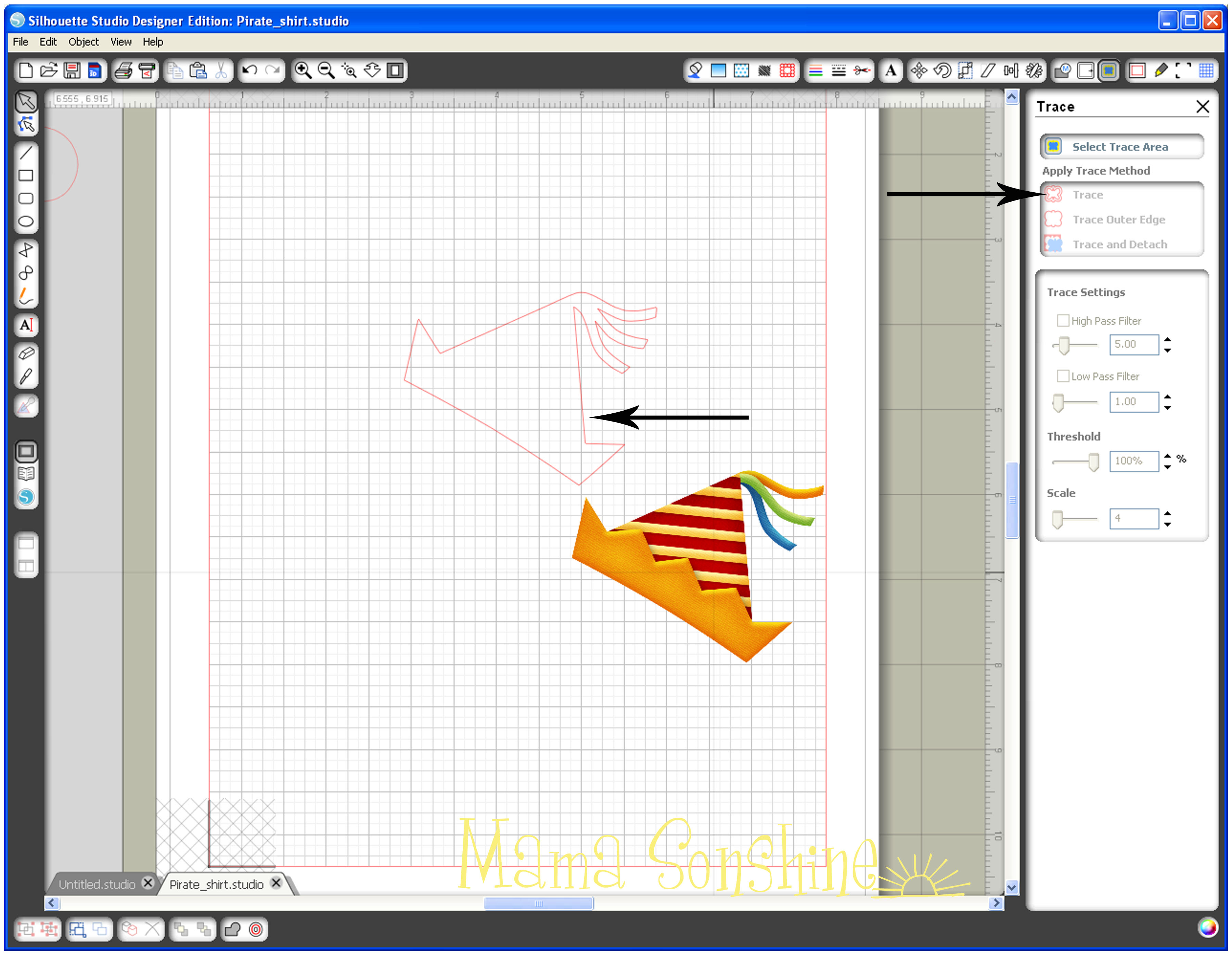
I wanted a birthday hat shape that I could fill with a pattern, using the digital papers from the YoHo Pirate kit mentioned above.  I chose a party hat .png file I had because I liked the shape.  Since I don’t want the pattern or colors that are currently I made a new cut file using the .png as a template.
MSS_PirateShirt_Tutorial13

I wanted to make the stripe portion one pattern, the yellow portion a different pattern, and I wanted to change the color of the ribbons.  The trace tool could not cleanly make these five individual elements.  Even when I selected trace instead of trace outside edge, I still only got the outside edge traced.

This slideshow requires JavaScript.

I found it more difficult to try to trace each portion than to simply make a new shape.  I selected the draw polygon tool and made a new shape for the yellow portion of the hat.  It is important not to move the picture after tracing it and drawing the shape.  You also don’t want to use the line tool, because you want an element that can be filled with a pattern.

I used the draw curve tool to make the three different ribbons on the top of the hat.  Again, the ribbons are three different shapes that sit on top of the traced hat.  After this you no longer need the picture of the hat, so you can delete it or just move it off the page.

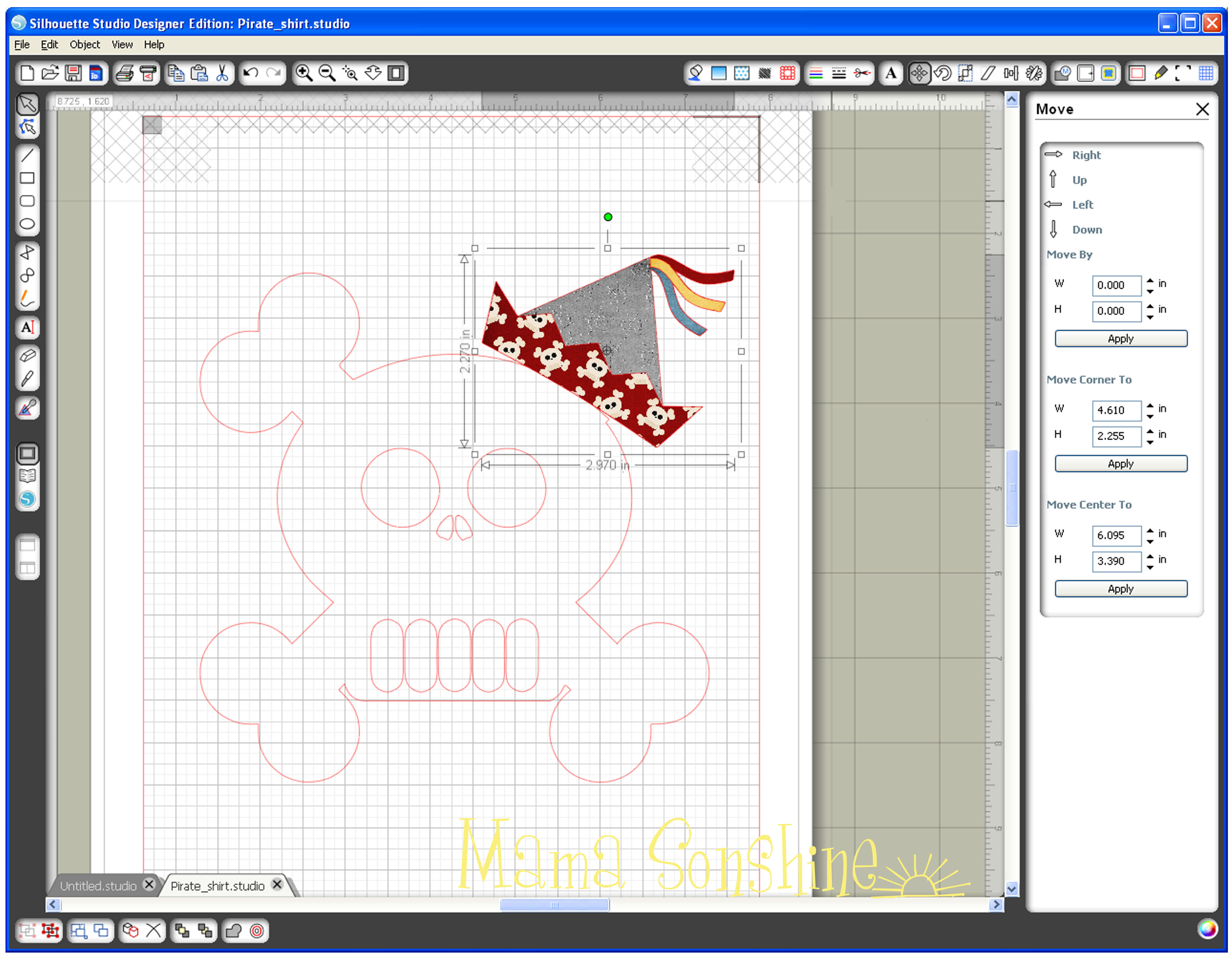
Use the fill pattern window to select the patterns for each element.  Bring back the skull & cross-bones to fit the hat on the skull.  Select all five elements of the hat, re-position and re-size the hat until you get the look you want.  Unselect all elements, then select only the bottom border of the hat, here the red portion.  Use the point edit tool to fit the hat to the shape of the skulls head.  At some point you may also need to edit the points of main hat shape.
MSS_PirateShirt_Tutorial18

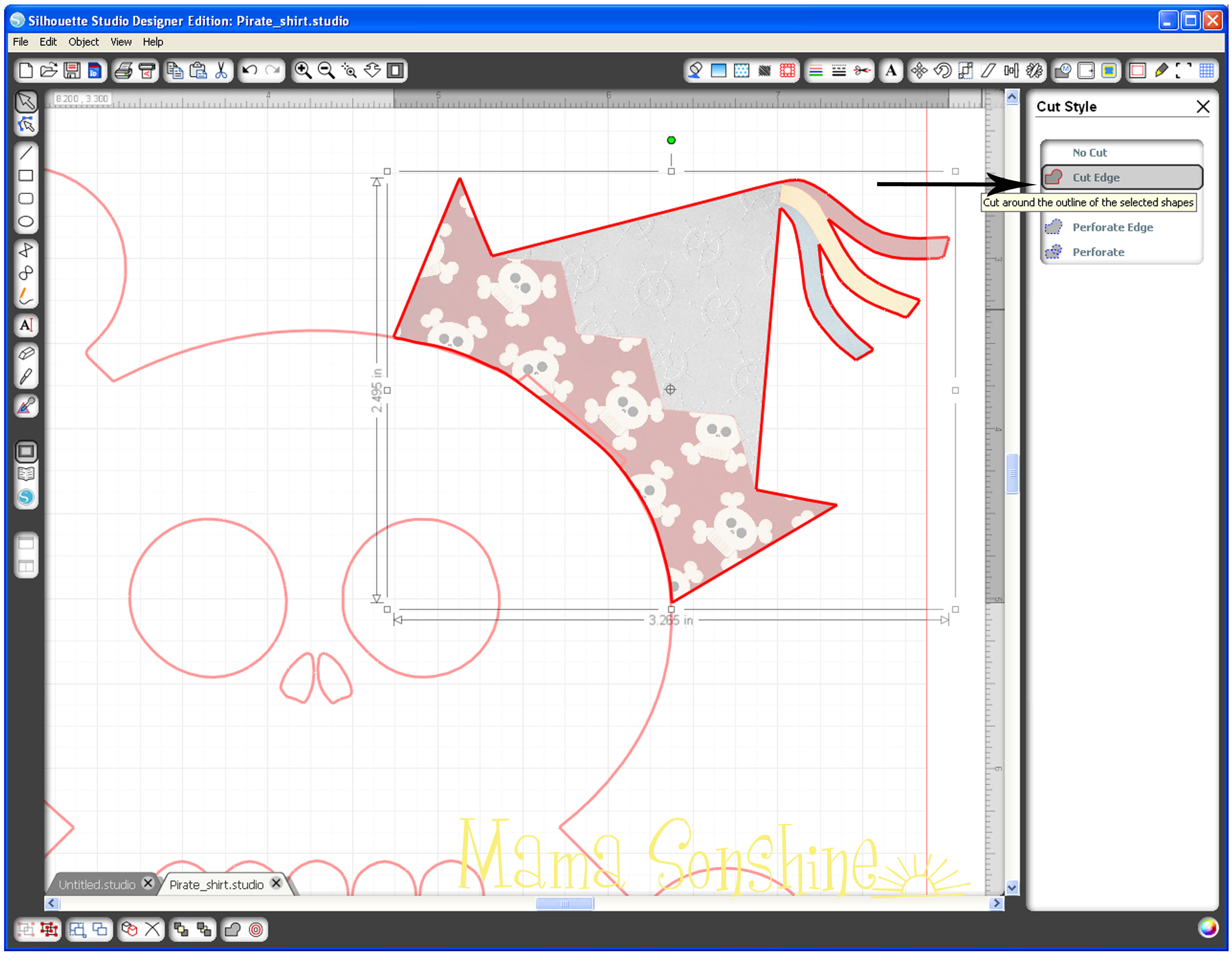
Once you have the hat fitting the shape of the head go to your cut style tool box because you don’t want the elements of the hat cut in separate pieces.  Select all the elements, and select no cut, then select only the main hat shape and select cut edge.  This ensures that you are only going to cut around the hat’s edge after printing.  Select the five elements of the hat and group them together, you don’t want any of them moved away from each other now.
MSS_PirateShirt_Tutorial19

Now for the text:

First I wanted the word birthday to be arched, I drew a circle, typed the text then dragged the text to the circle using the little circle with a cross inside.  Resize and move the text until you get it the desired results.  If the green outline and move tool go away because you had to select off the text, just double-click the text till they come back.  I had to move the skull off the page, because the text kept trying to link with it instead of the circle and move it back to fit the text to the skull size.

This slideshow requires JavaScript.

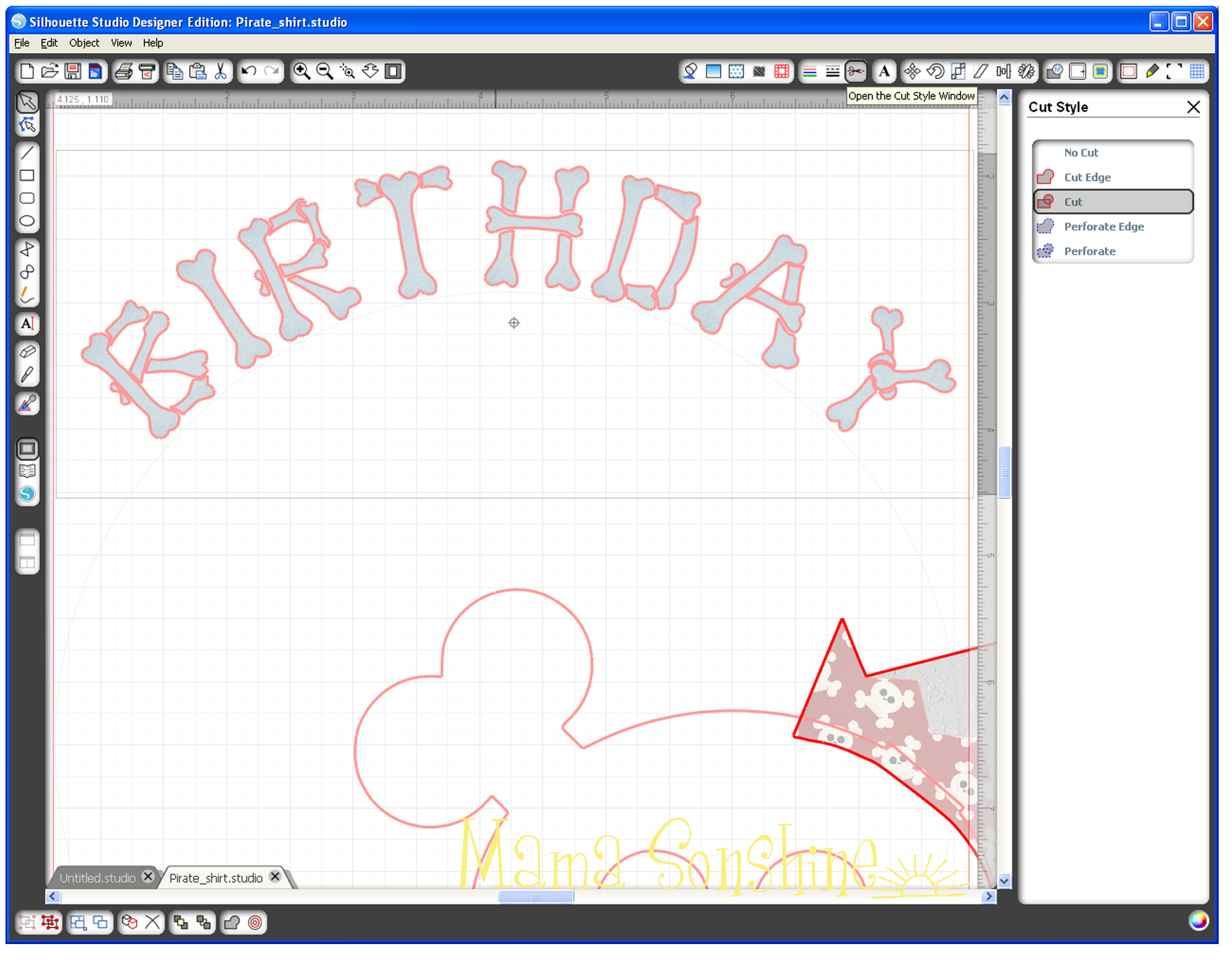
This next part is where I had the most difficulty.  I really liked this Bones font I found, the problem is that each letter has little bones that would be cut separately.  This would happen even if cut edge was selected, because the software sees each bone as a different element.  After hours of trial and error I finally figured out the simplest way to cut around the word, and not each individual letter or bone.
MSS_PirateShirt_Tutorial22

The first time I did this I took a very long route to get where I wanted.  I released compound paths, duplicated, filled patterns, made new compound paths, welded, grouped, un-grouped, made offsets, moved, re-sized, moved again, etc.  After I got the result I wanted I realized I was adding a bunch of extra steps.

This slideshow requires JavaScript.

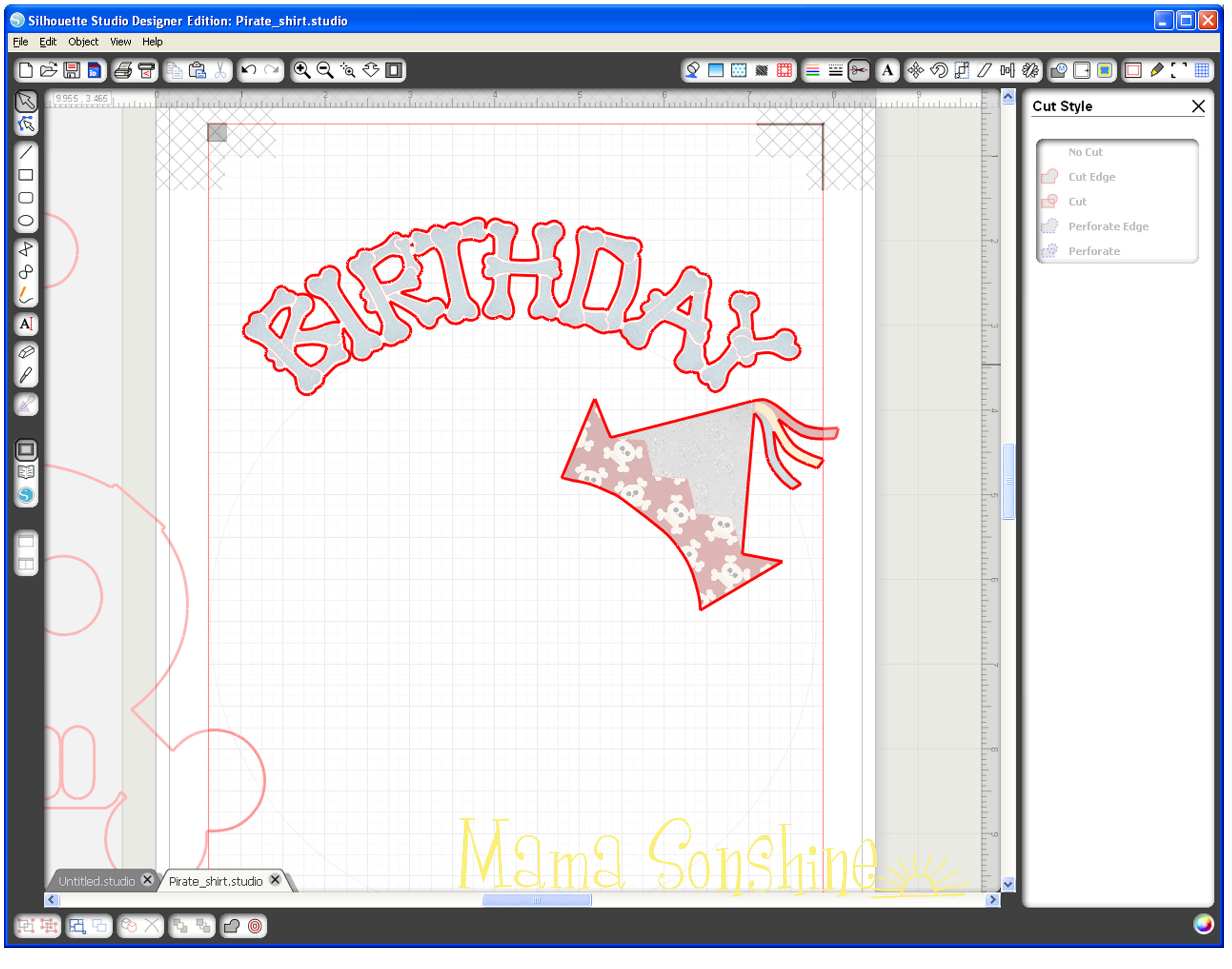
First select your text and go to the offset tool box, create an offset and adjust size so it is just slightly bigger than your text.  If you are using the dark T-shirt transfer material your offset will show as white, so it is up to you how much white you want to show.  At this point each letter will cut out separately, which I didn’t want because I didn’t want to align them on my shirt, I wanted the whole word as one element.  So I move my text up slightly to work with my offset.  I moved each offset letter closer to each other with a very slight overlap so I could weld them together.  The offset and the text no longer match up, so you may have to ungroup your text to move each letter back to the offset, but do not release compound path.

Choose a pattern to fill the text for printing.
MSS_PirateShirt_Tutorial28

Go to the cut style window and select all the letters of your text, then select no cut.  Select the offset and cut edge.  You will see that your machine will now cut around the letters as one piece.

Repeat the steps for your second word and align everything, including the skull, to make sure size and proportions look good.
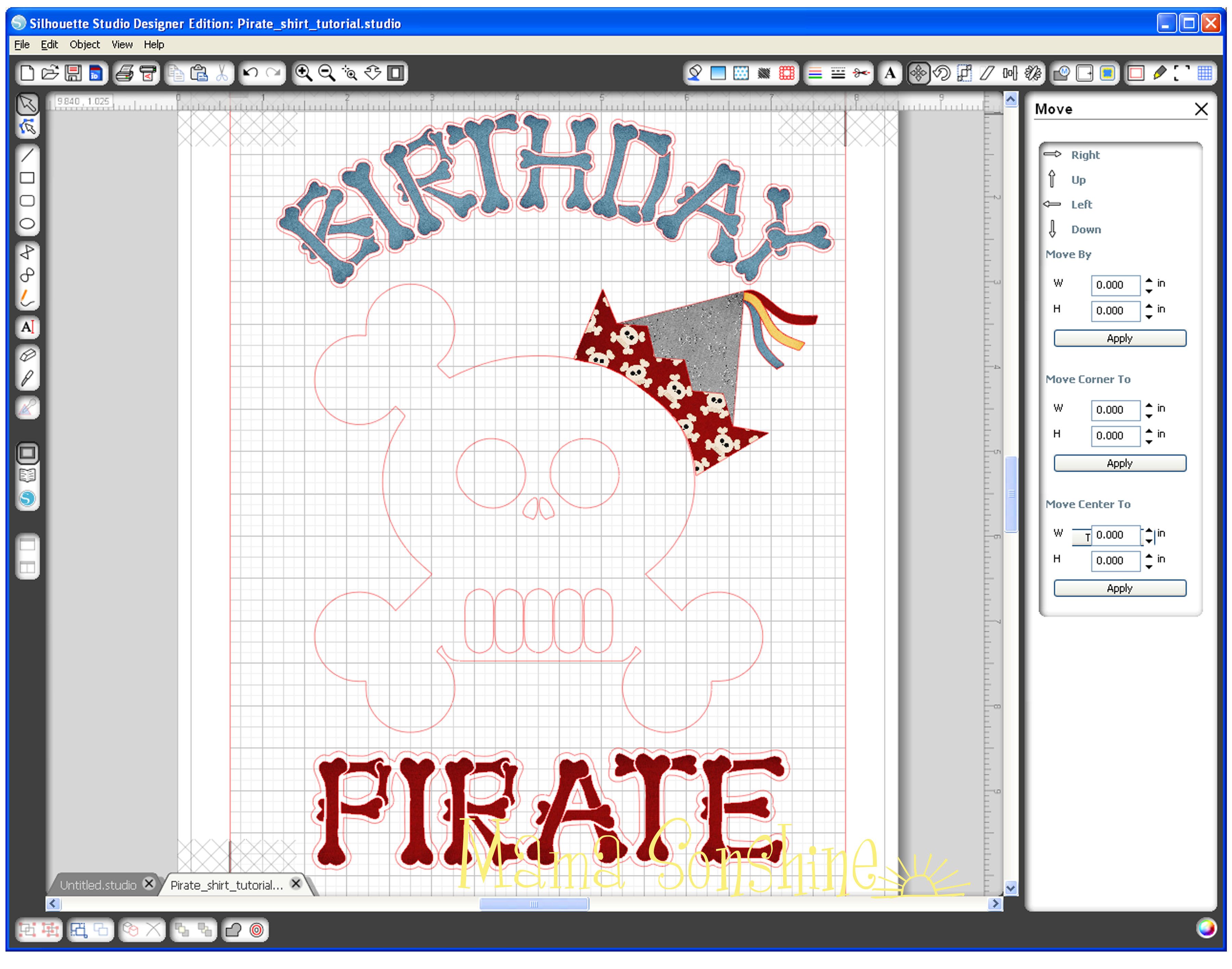
MSS_PirateShirt_Tutorial29

Since the skull is not part of the print ‘n cut, you would move it off the page.  Show registration marks and move your elements on your page for printing.  Just make sure your hat elements are grouped together and the text and offsets are grouped together.  After printing, do not move anything, it will need to be in the same location for cutting.
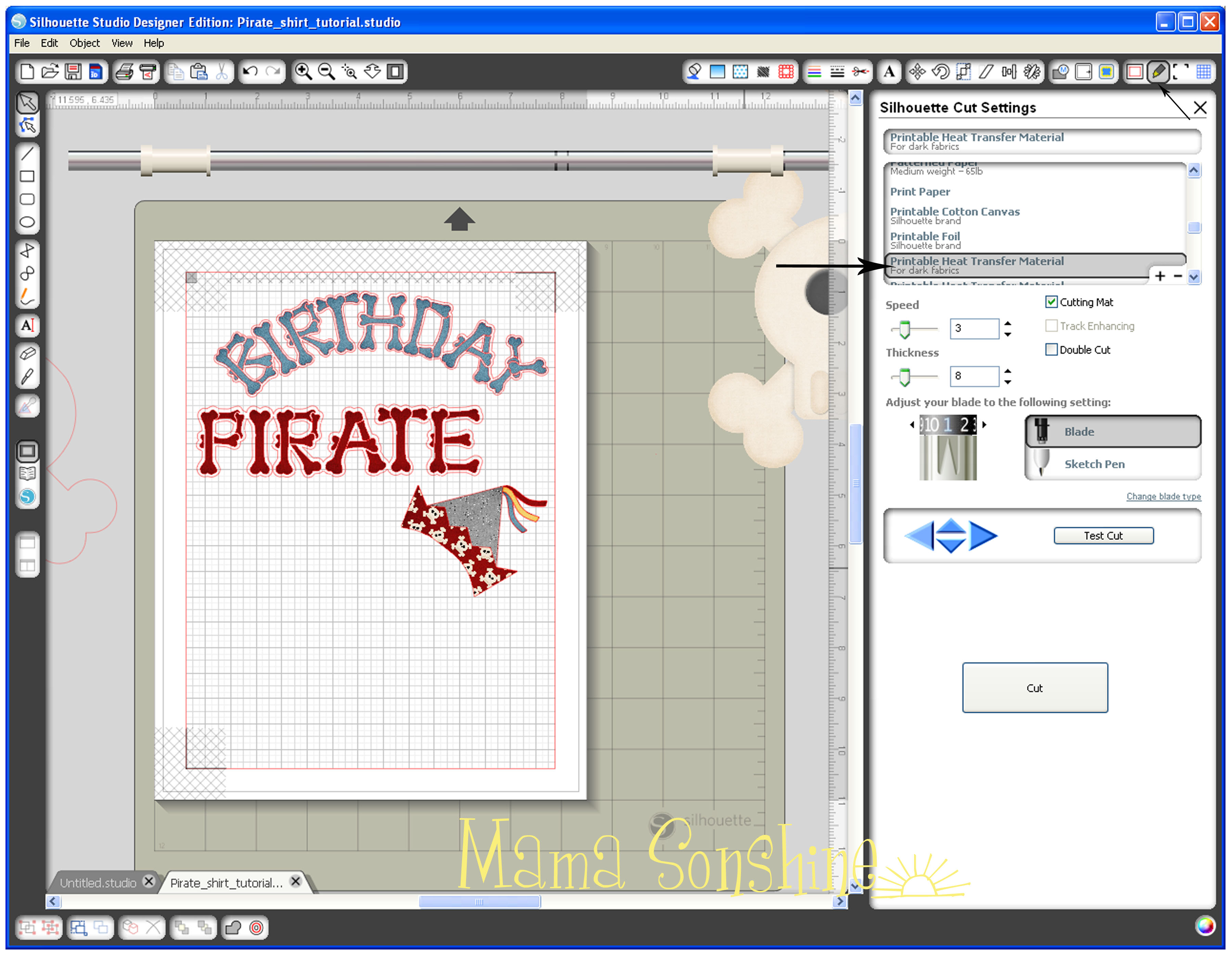
MSS_PirateShirt_Tutorial30

I found the cut settings for Silhouette Studio has for printable heat transfer-dark material worked great.

For the rest of the shirt check out Part Three.

If you want to see how I designed the skull check out Part one.

Happy Crafting

signature-black

facebook instagram pinterest parties by mamasonshine etsy bloglovin google+ email twitter Image Map

I have shared this project at
 Tip_Me_Tuesday_Button_TipJunkie-jpg


Leave a comment

Birthday Pirate Shirt ~ A Silhouette Cameo how to (Part 1)

I wanted to share with you the steps I took to make my son’s birthday shirt.

There was a few problems I had that I was able to work through.  Hopefully this will help so others won’t get stuck like I did.

In this tutorial I use my Silhouette Cameo and the Silhouette Studio DE software to make a custom shirt for my son’s birthday party.  I used graphics from Just So Scrappy‘s YoHo YoHo Pirate kit.  I used the Silhouette brand Flocked Heat Transfer Material for the skull, and Avery Dark T-Shirt Transfers for Ink Jet Printers.

Part One will be how to make the Skull & Crossbones

Part Two will be how to do the words & party hat

Part Three will be how to iron everything on with some tips

MSS_BirthdayShirt01

The flocked heat transfer material I had is 9″ wide, I set my paper size to normal Letter 8.5″x11″ since I will also be doing a print ‘n cut portion for his shirt.  Keeping the size the same helped me with proportions.

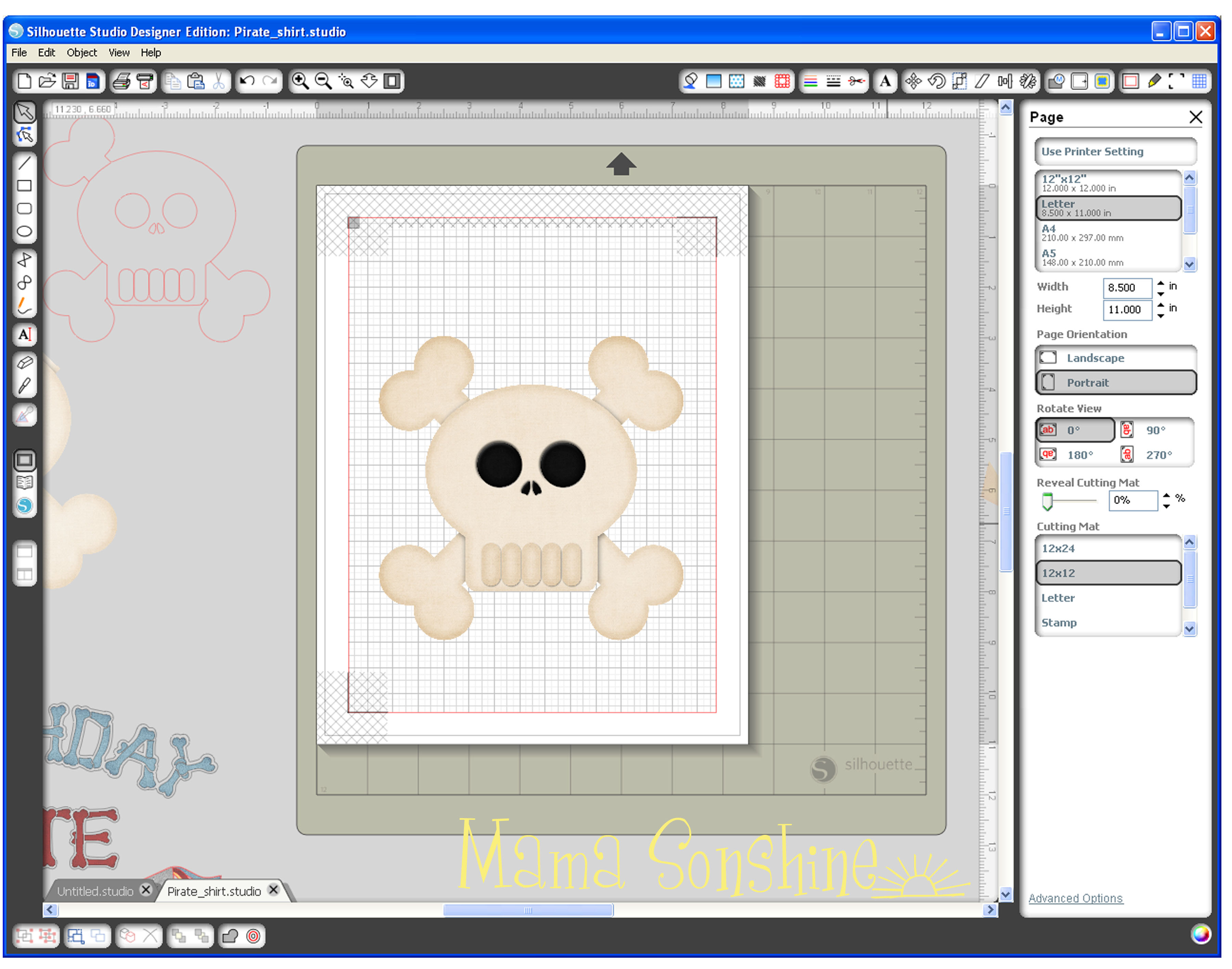
MSS_PirateShirt_Tutorial01I selected the skull and cross-bones from my library.  Since it is a .png file I had to trace the element.  I planned on cutting the skull out of the flocked heat transfer material, so I won’t need the picture after tracing it.

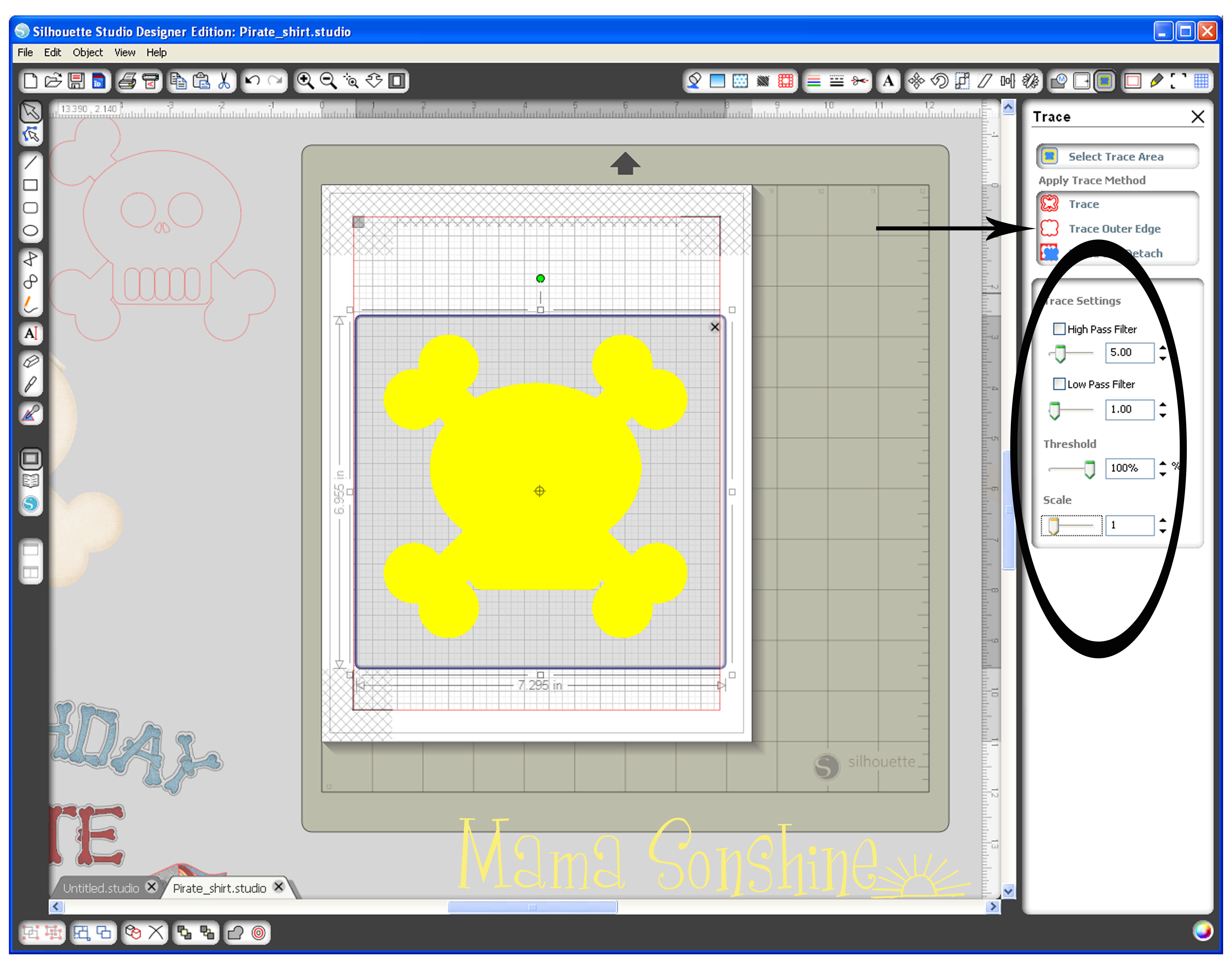
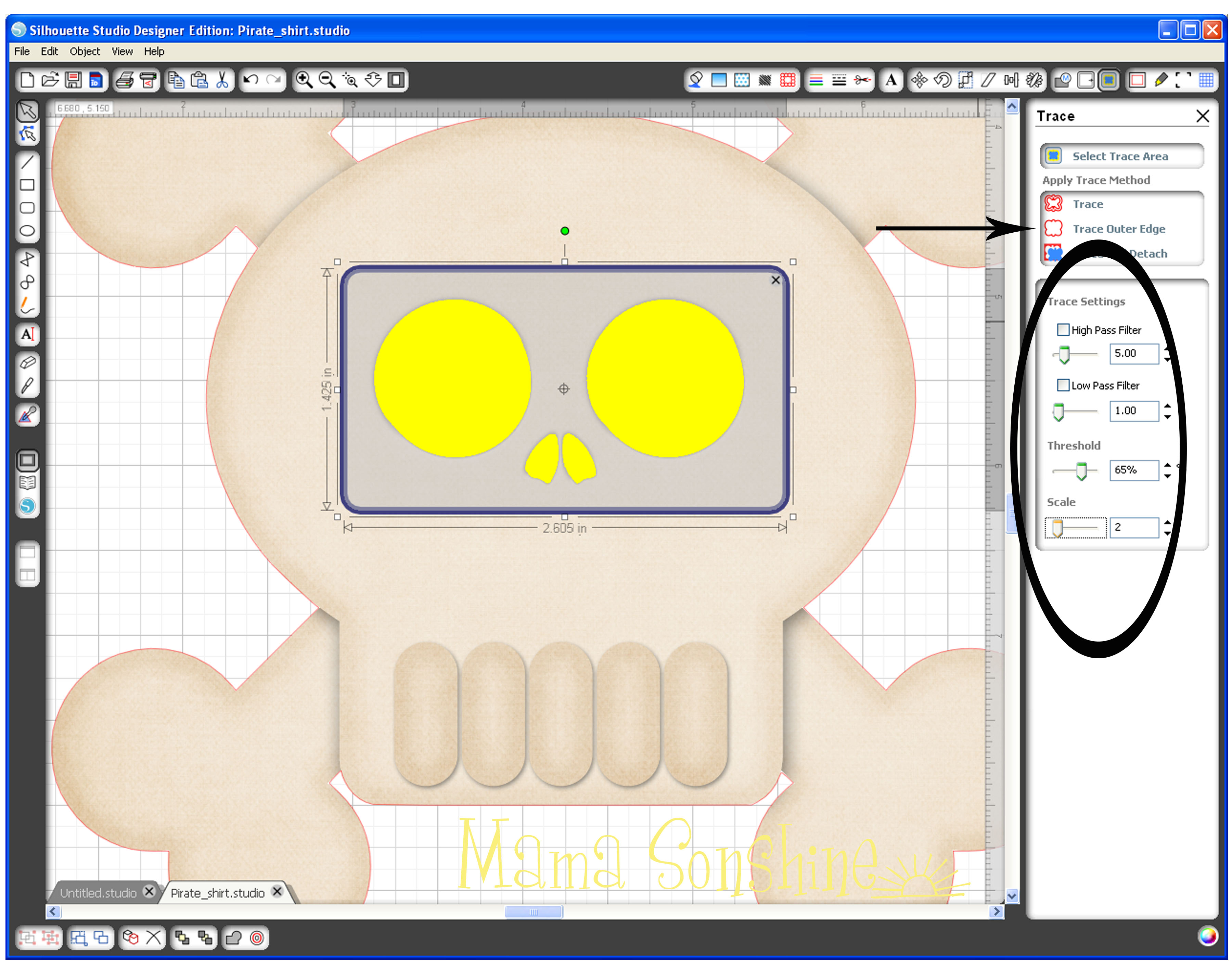
MSS_PirateShirt_Tutorial02No matter what my settings were, I could not get the eyes, nose and teeth to be traced.  This is because they are colored parts of the png, so the software couldn’t differentiate between them and the skull.  I chose to trace the outline first, then do the inside elements separate.

MSS_PirateShirt_Tutorial03

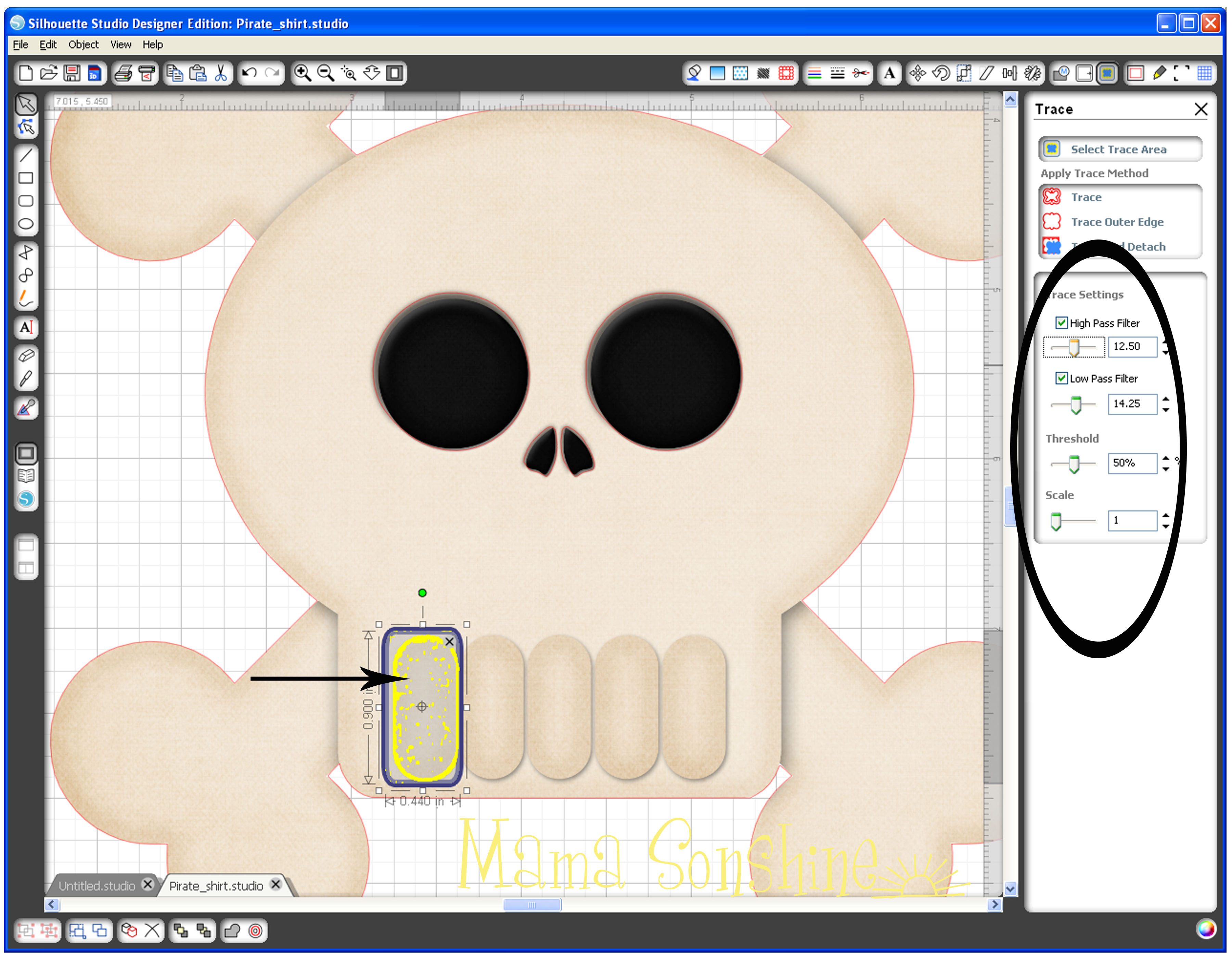
Since the teeth are basically the same color as the skull, I couldn’t get them to trace cleanly.

MSS_PirateShirt_Tutorial04

Notice all the yellow dots.  I could have gone back and deleted them all, but it is easier to just use the drawing tools.

MSS_PirateShirt_Tutorial06

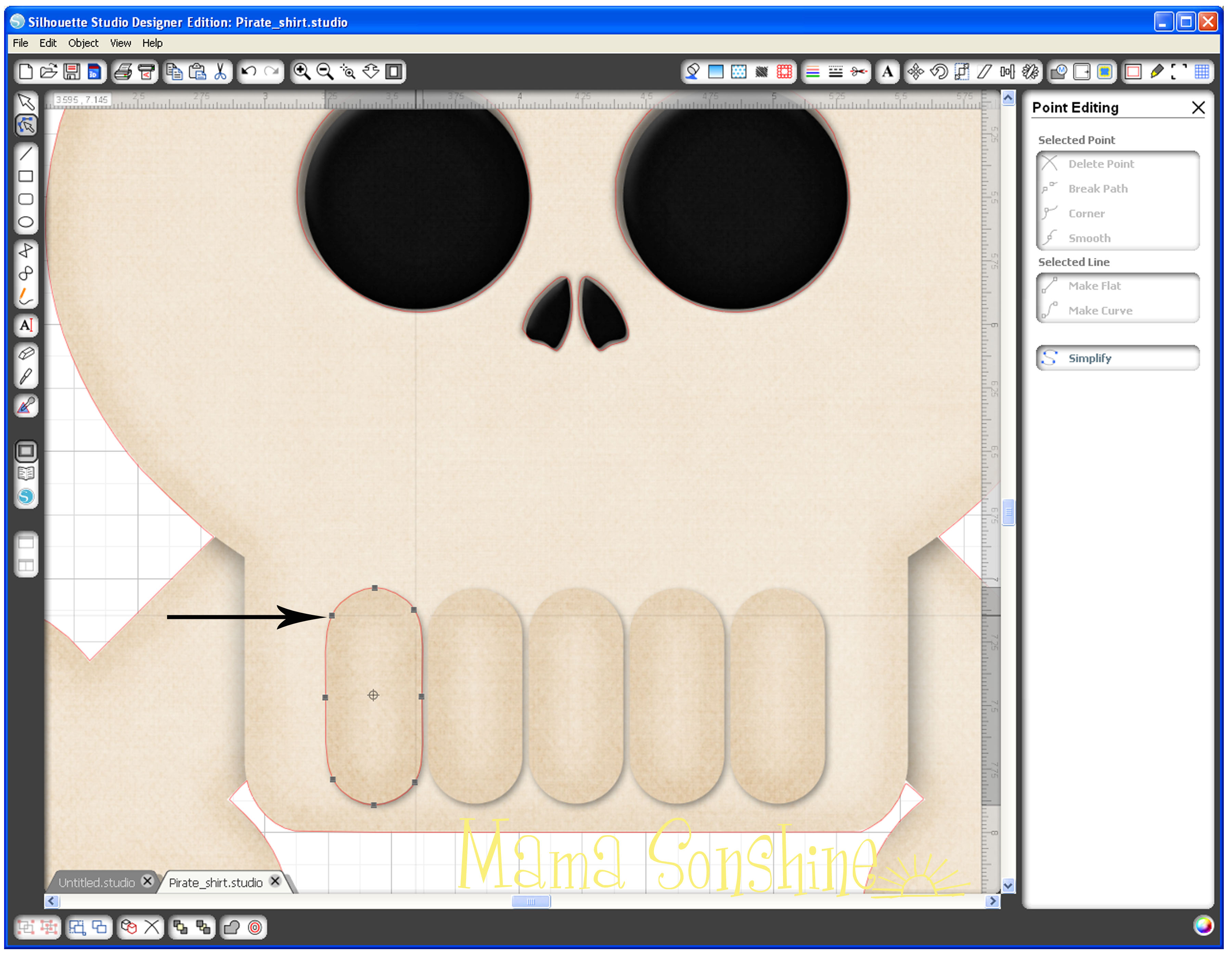
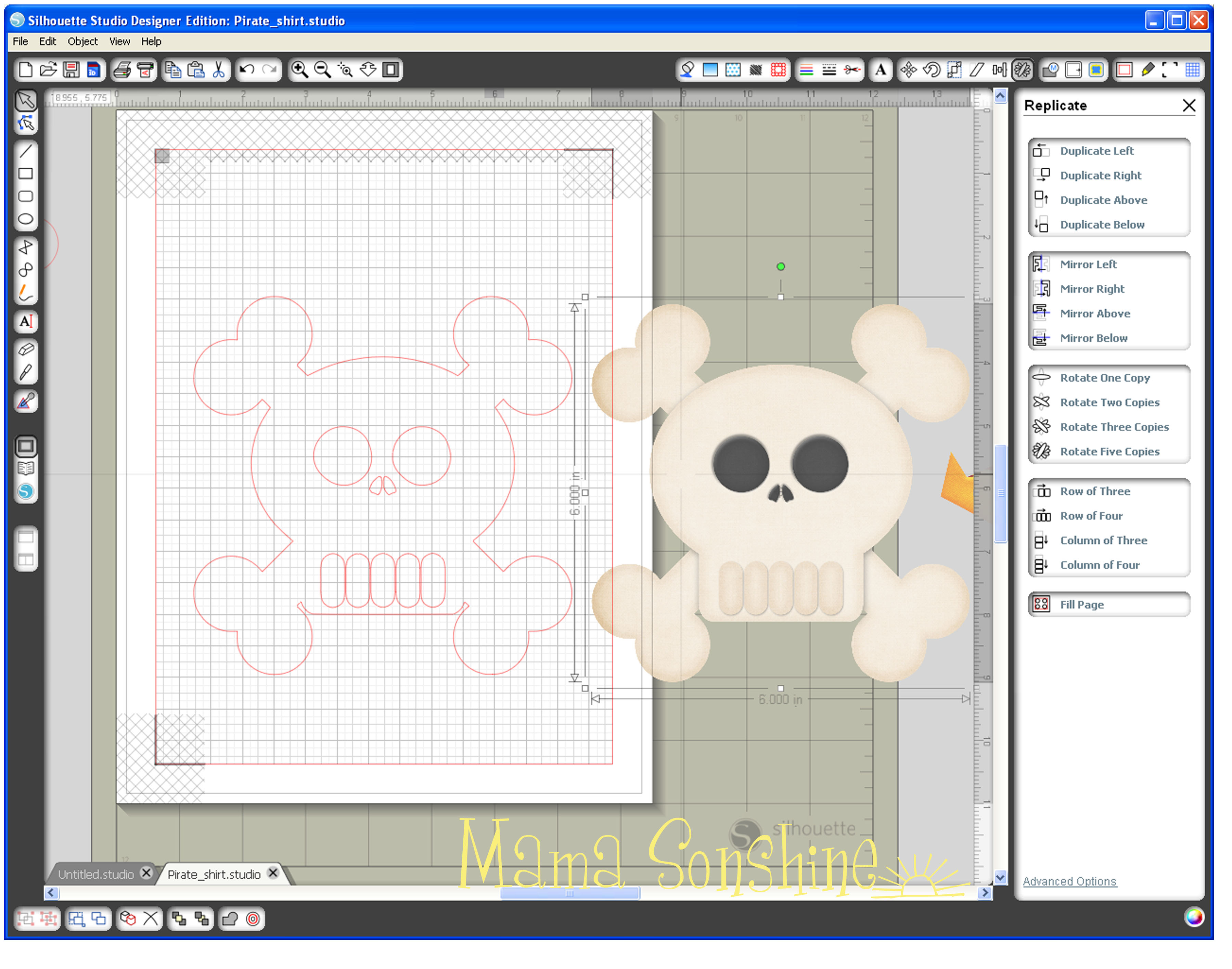
I used the circle tool to make an oval about the shape of one tooth, I then used the point editing tool to match the shape of one tooth.  Using the Replicate tool box, I made copies of the teeth and aligned them with the original picture.

MSS_PirateShirt_Tutorial07

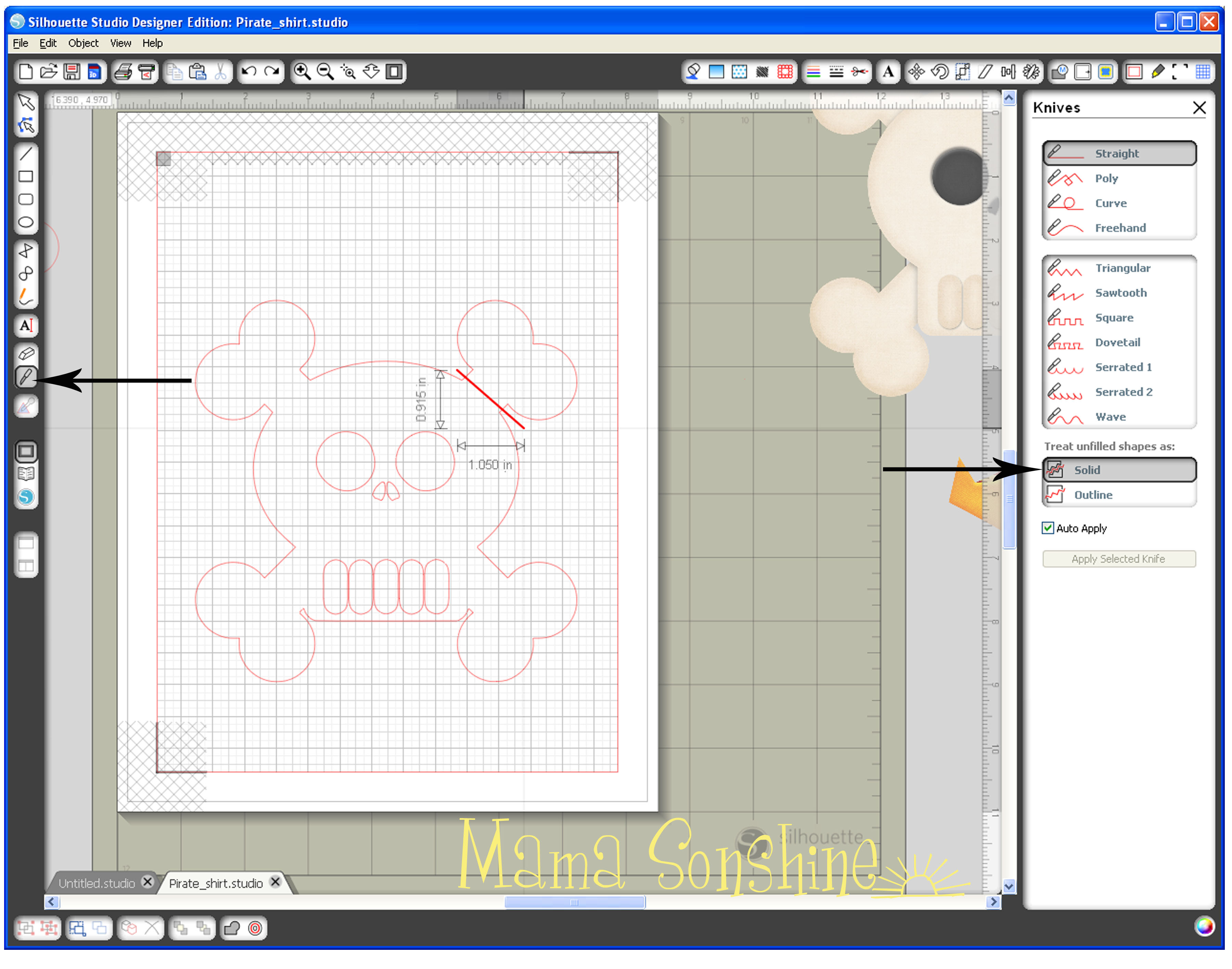
Since I no longer need the picture, I can delete it, or just move it off the mat.  One part of the bones needs to be removed because this is where the party hat will be.

MSS_PirateShirt_Tutorial08Using the knife tool I simply drew a line through the bone, making sure that “solid” is selected in my tool box.  If you don’t have the designer edition of the software this is the default setting.

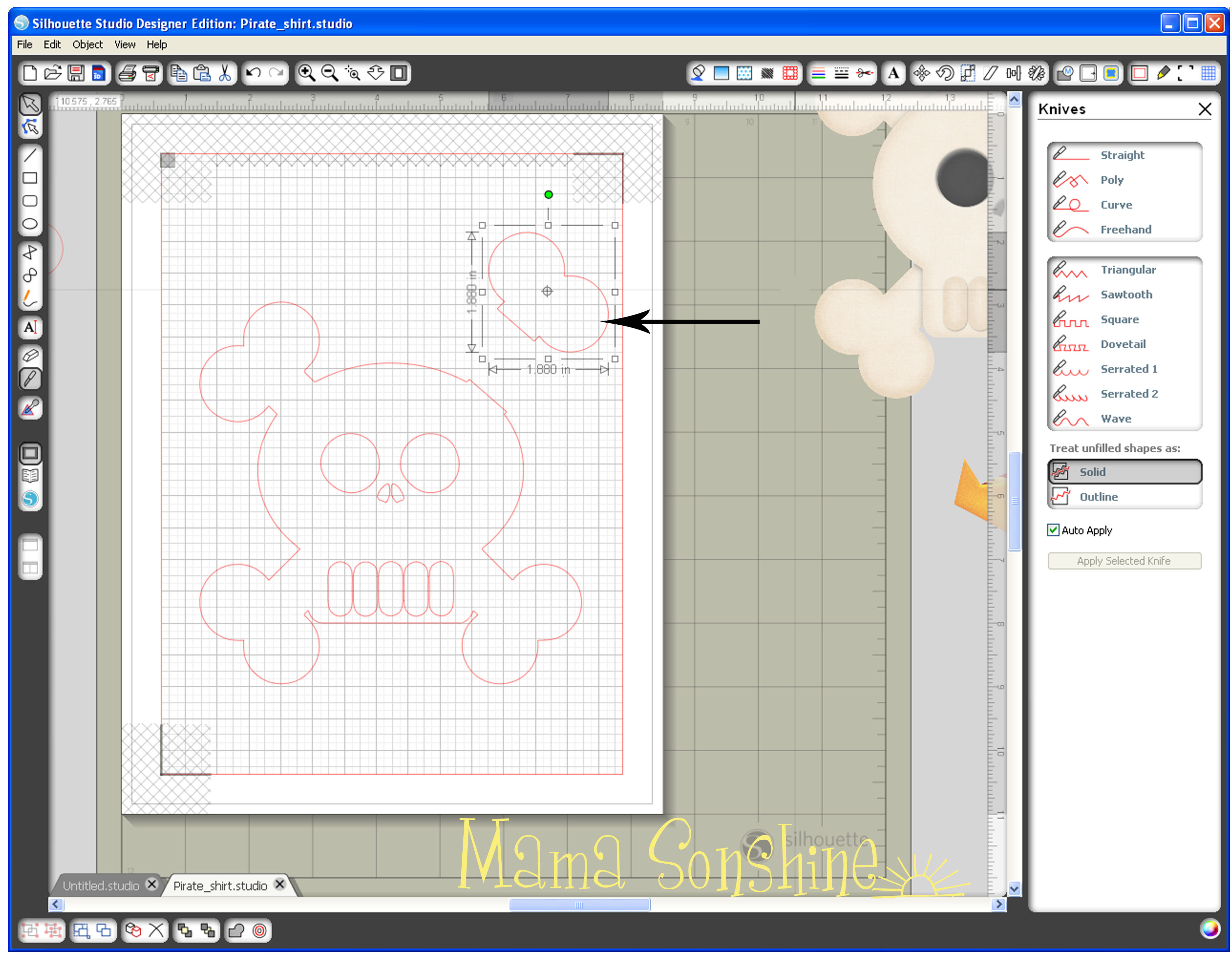
MSS_PirateShirt_Tutorial09This portion of the bone can now be deleted.  I then went back and smoothed the part of the skull where I made the cut.

MSS_PirateShirt_Tutorial10

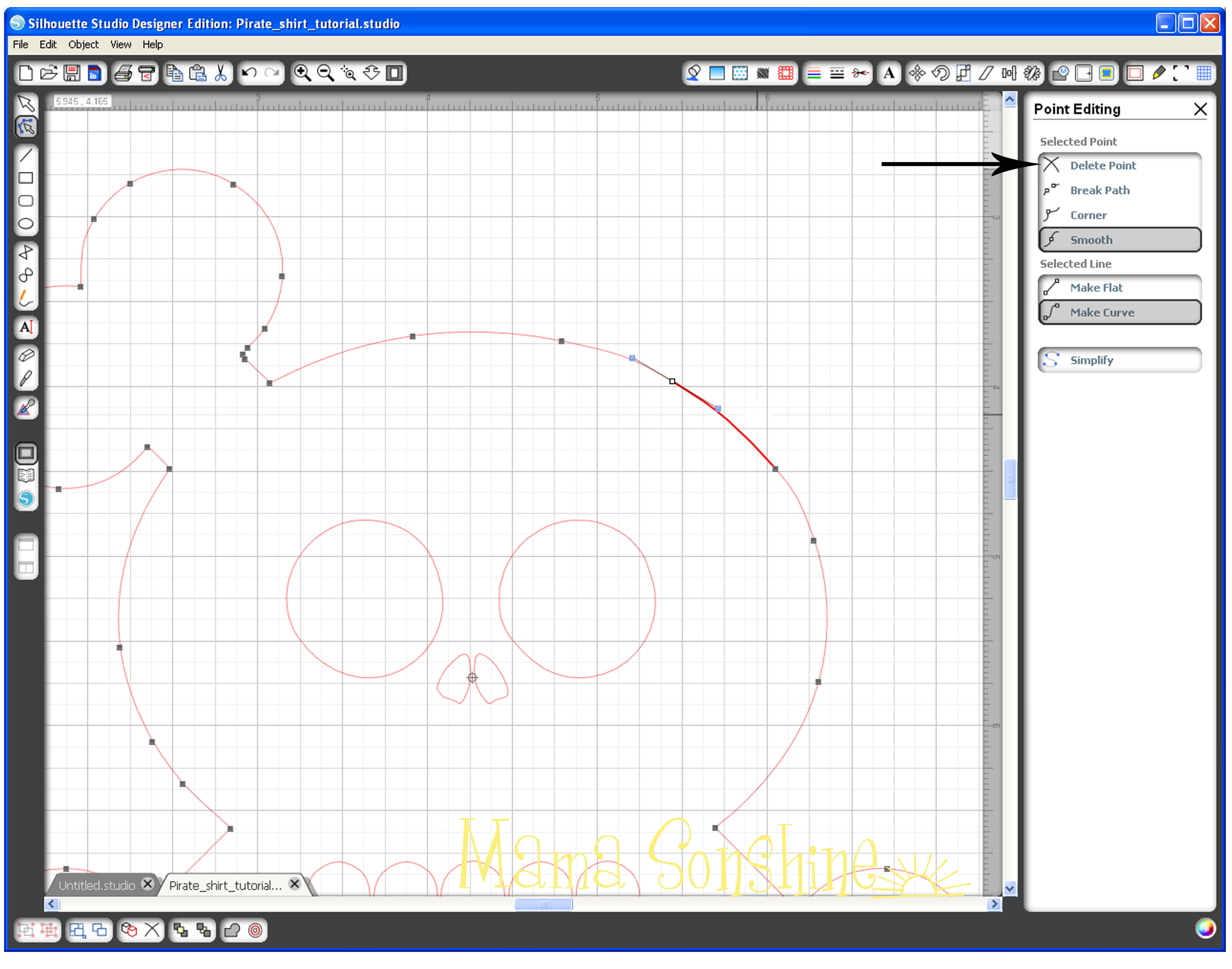
Using the point editing tool box, I deleted all points above the curve of the skull and smoothed out the remaining ones.  It is not shown in this tutorial, but I also added curved lines to separate the skull and reaming three bones.  I didn’t want the separate but I wanted a cut line there to give more depth to the finished product.

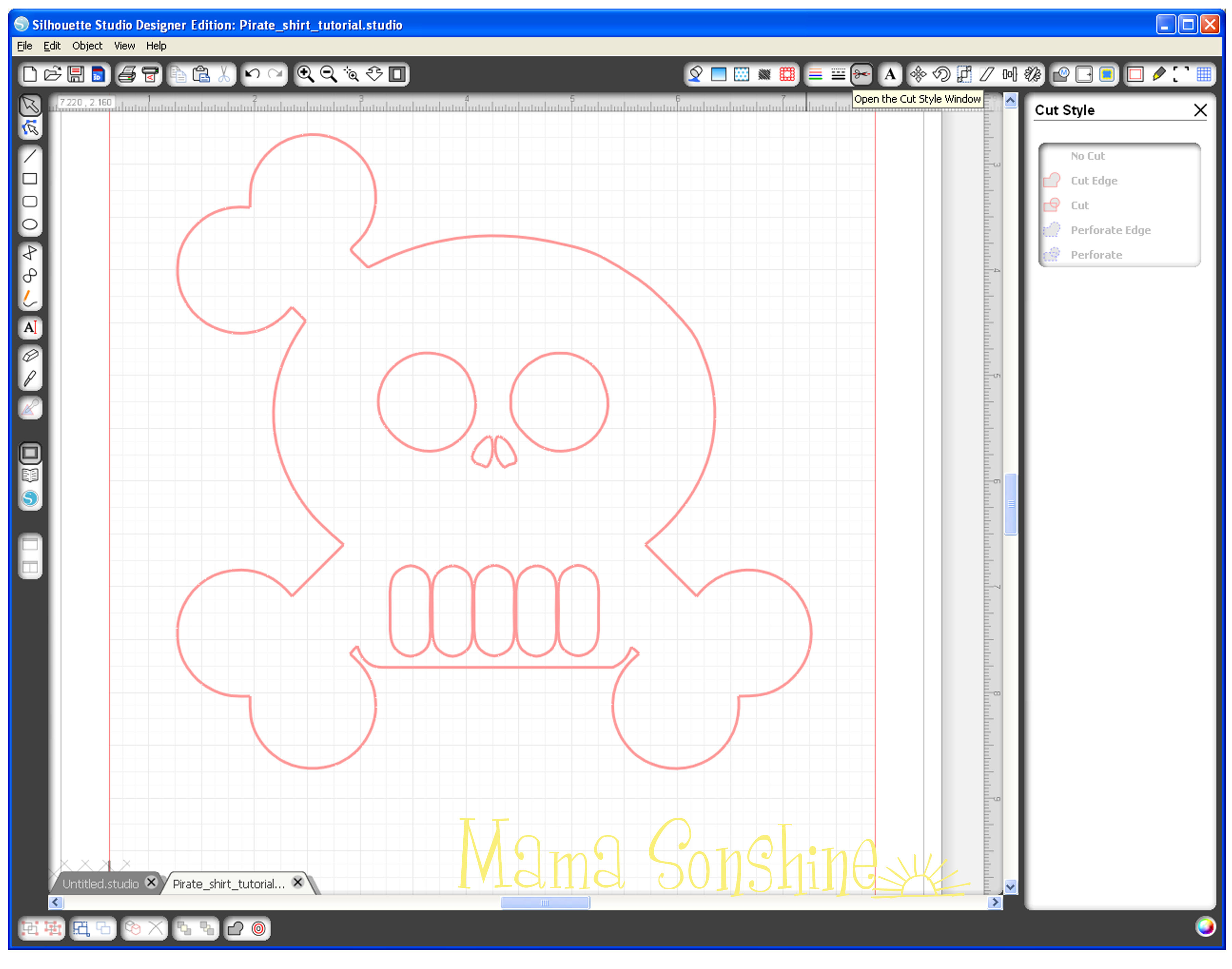
MSS_PirateShirt_Tutorial11In the cut style tool box make sure “cut” is selected so that it also cuts out the eyes, nose and teeth.  The shirt will show through on these parts.

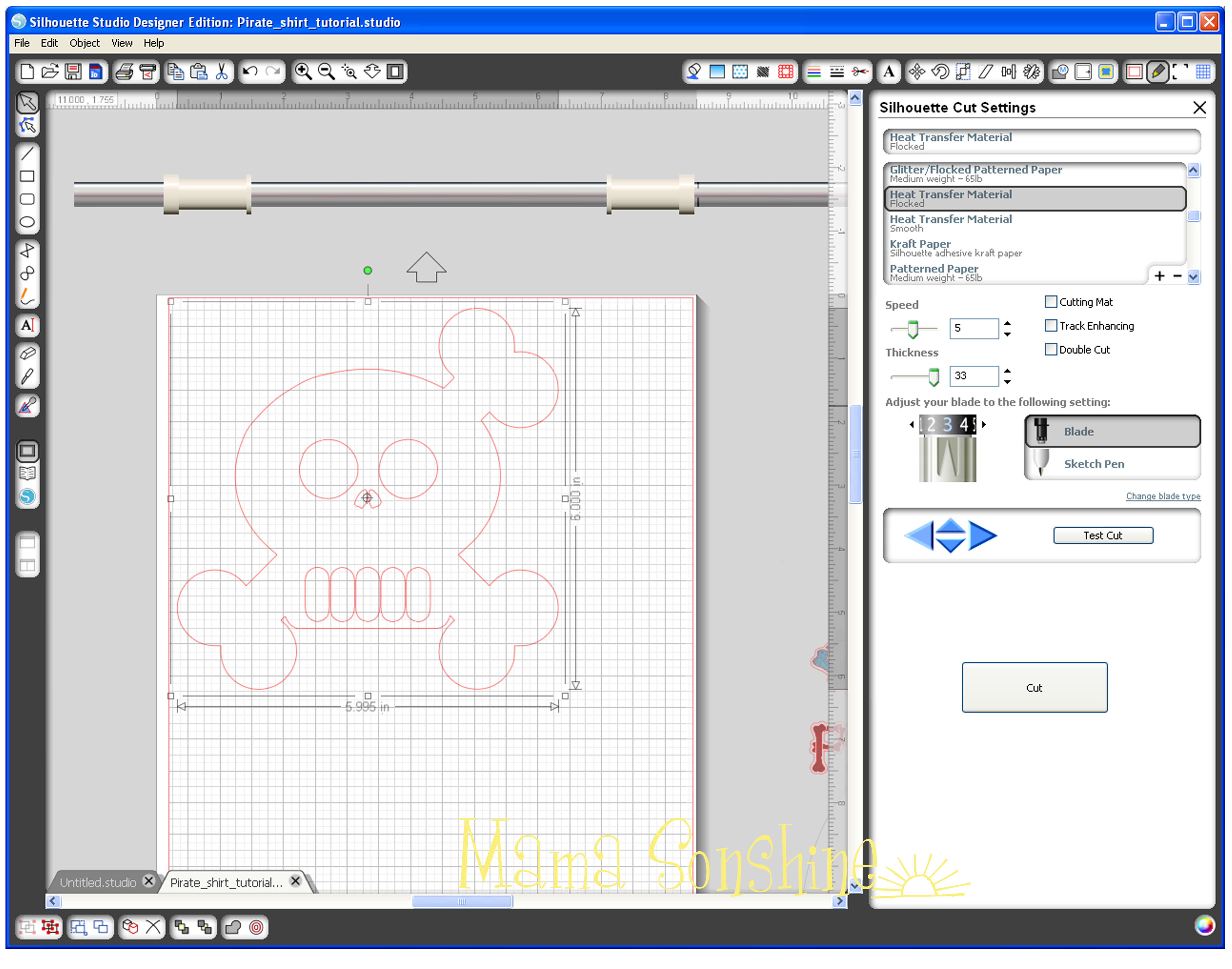
MSS_PirateShirt_Tutorial12Before you actually cut your design you want to flip it horizontally, make sure all elements are selected (ok to group them together).  You can right-click, or go to the edit menu, and select ‘flip horizontally.’  The cut settings for Heat Transfer Material Flocked worked perfect because it is a Silhouette media.  If you are unsure make a test cut first.  You don’t need a mat, so un-click that box and make sure the shiny side is down when cutting.  If unsure, follow the directions on the package.

For the rest of the shirt check out Part Two & Part Three.

Happy Crafting

signature-black

facebook instagram pinterest parties by mamasonshine etsy bloglovin google+ email twitter Image Map
Enhanced by Zemanta


3 Comments

Birthday Pirate Shirt

When my son makes a decision he sticks to it.  The past two Halloween’s I asked him to pick a costume in August and he stuck to that choice. For TWO months.

Oh, did I mention he is three?

His birthday is next month, March, so in December I mentioned that we needed to start thinking about a theme for his birthday party.

Without hesitation he asked for a Skeleton Birthday party.

We were in the car with my husband and we were talking about it and this is what was said:

Hubby: do you want a Dia de Muertos party?
Ian: No dad. A skeleton party.
Hubby: I know but a Dia de Muertos party has skeletons…
Ian: No Dad! a skeleton party because skeletons are my favorite.  Skeletons, turtles and seals are my favorites.

So I started planning a skeleton party.  For about a week.  Until we got a catalog with party supplies in the mail.

Ian looked through it for a few days.  He kept talking about who was going to have what party.  He then said “This boy is gonna have a pirate birfday party” while pointing to his chest.

After some discussion we decided to have a pirate party instead of a skeleton party.  There was still almost three months to plan.

He has not changed his mind, but he has picked out his next five party themes.

I wanted to make him a shirt for his birthday party.  My Silhouette Cameo has the ability to cut heat transfer material to iron on clothes.

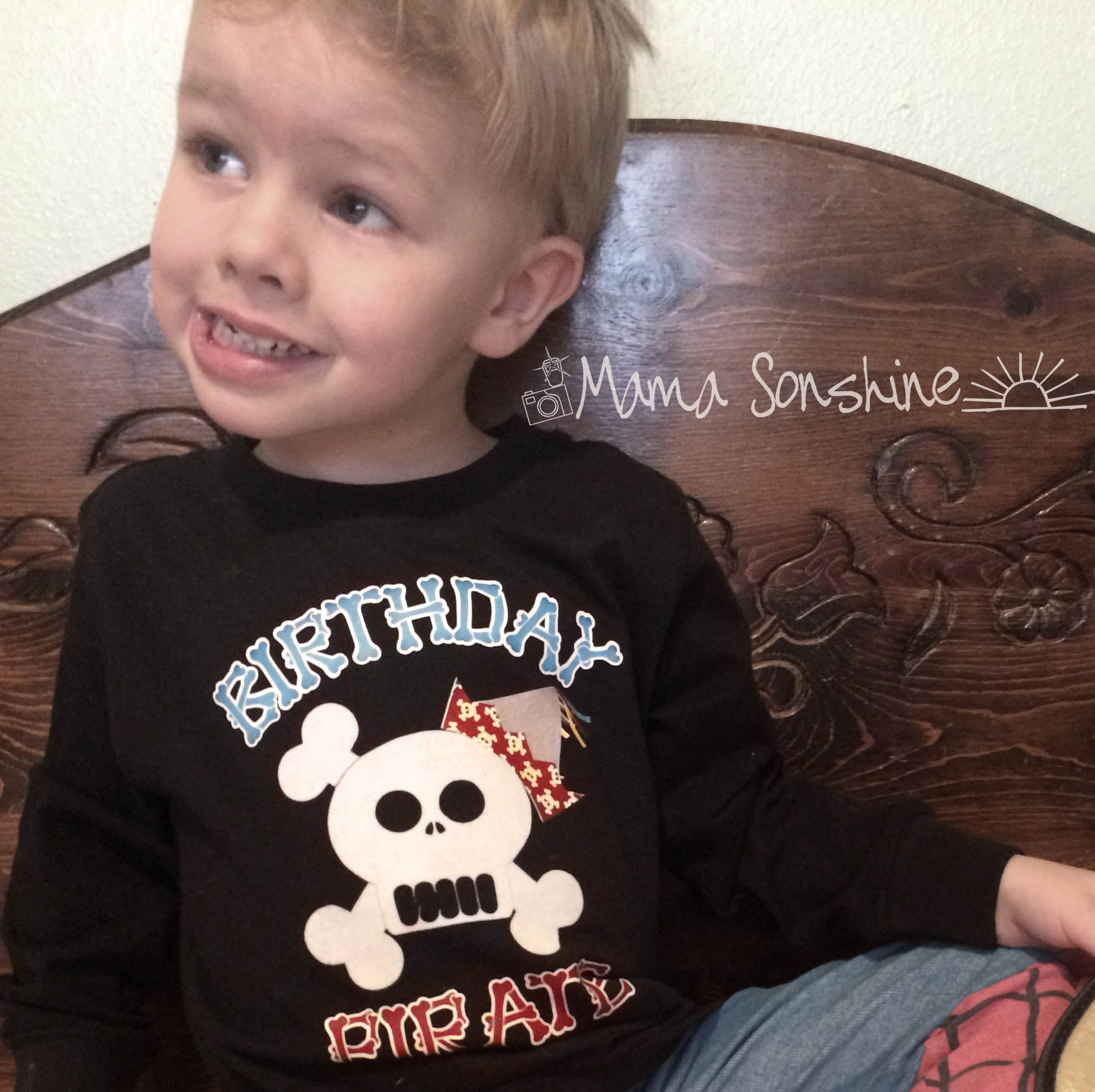
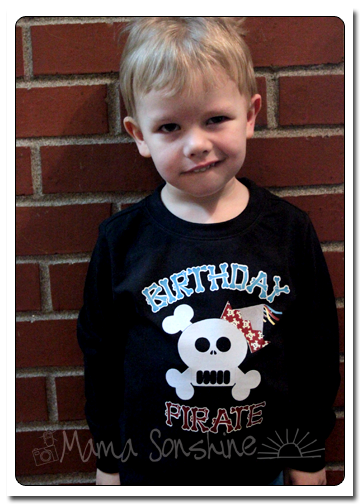
I designed a shirt with a skull and crossbones wearing a birthday party hat and the words “Birthday Pirate” instead of ‘Birthday Boy’

It was going to be a surprise but when the only time you have to work on something is when the kids are home nothing is a surprise.   Everyday he asked where his skeleton shirt was and if he could wear it.

MSS_BirthdayPirateShirt

I was finally able to say yes, and he was so excited.  Only about 2 months before his party.

You can read about the process in a three part series starting here.


Want to Check Out More Silhouette Projects?

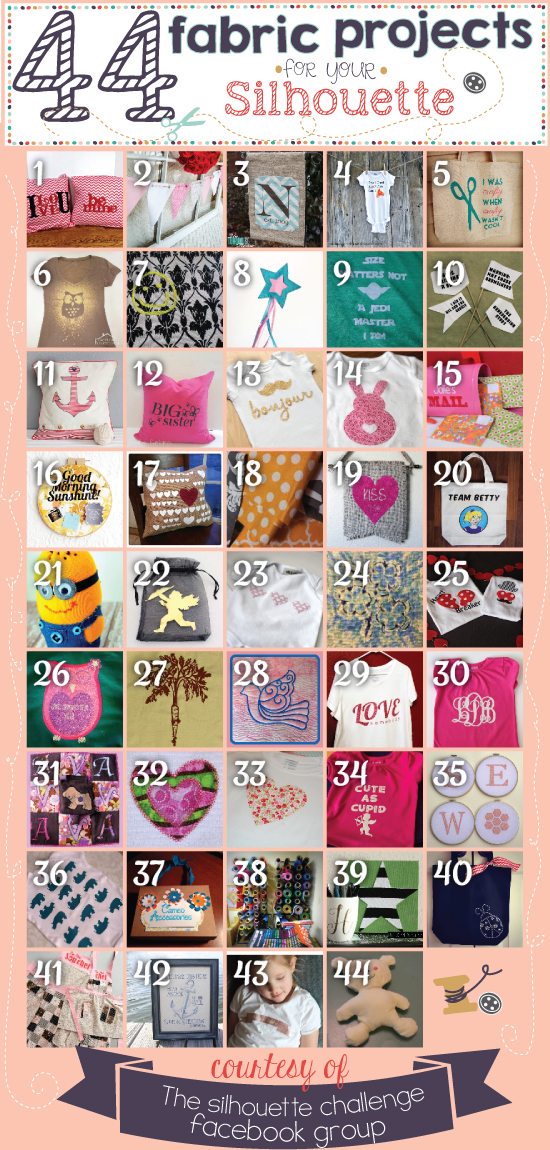
My Silhouette Challenge buddies and I are all sharing projects on our blogs, so pursue the projects below for a wealth of Silhouette inspiration!

Silhouettechallengecollage

  1. DIY Screen Printed Curtains by Chicken Scratch NY
  2. “Cute as Cupid” shirt by crafts, cakes, and cats
  3. Easy Easter Bunny Onesie – Silhouette Cameo Craft by Adventures in All Things Food & Family
  4. Hearts-A-Lot Burlap Pillow Cover by My Paper Craze
  5. DIY Monogrammed T-shirts with Silhouette Heat Transfer Material by Pitter and Glink
  6. Sew Cute Applique by Life After Laundry
  7. Machine Applique with SIlhouette Cameo by The Sensory Emporium
  8. Mommy and Em’s Coordinated Aprons by TitiCrafty
  9. Valentine’s OWL Always Love You T-shirt by My Favorite Finds
  10. Teddy Bear by Work in Progress
  11. Fabric Envelopes for LEARNING LETTERS! (& cut file) by From Wine to Whine
  12. Upcycled Birchbox Cameo Accesory Organizer by Cupcakes&Crowbars
  13. No-Sew Valentine’s Day Pillows by A Tossed Salad Life
  14. Nerdy Baby Onesies + Free Cut File by Essentially Eclectic
  15. Lady Bug Tote Bag with Silhouette Rhinestones by Ginger Snap Crafts
  16. Valentines Baby Onesie & Boy’s Shirt + Free Cut Files by The Frill of Life
  17. Easy Fabric Art by McCall Manor
  18. Easy Heart Appliqued Onsies by Create & Babble
  19. DIY Bleach Spray Shirt by Practically Functional
  20. Felt Star Wands by Cutesy Crafts
  21. Baby Quilt by Dragonfly & Lily Pads
  22. Canvas sketch project and a share by Clever Someday
  23. Glitter Iron-On Top by Simply Kelly Designs
  24. Crawl, Walk, Bike by It’s Always Craft Time
  25. Stenciling Sherlock by Please Excuse My Craftermath…
  26. Monogrammed Burlap Garden Flag by The Turquoise Home
  27. “Team Betty” Tote Bag by The Thinking Closet
  28. Customizing textiles with Heat Transfer Vinyl (working title) by feto soap
  29. Foxy Lady Pajamas by Mabey She Made It
  30. Rhino Onesie by It Happens in a Blink
  31. Surprise Holiday Banner by Whats Next Ma
  32. No-Sew Interchangeable Fabric Bunting by unOriginal Mom
  33. Freezer Paper Stenciled Tote Bags by Weekend Craft
  34. Fabric Applique Valentine’s Day T-Shirt by DailyDwelling
  35. Pretty Up Some Organza Bags by Getsilvered
  36. Birthday Challenge by Fadville
  37. Yoda Kid’s T-Shirt by Architecture of a Mom
  38. DIY Sock Minion by Create it. Go!
  39. Big Sister Gift & Silhouette Cut File by Creative Ramblings
  40. Bleach Pen Gel & Freezer Paper Stencils Made with the Silhouette Machine by Bringing Creativity 2 Life
  41. Fabric Painted Quilted Wall Hanging by Terri Johnson Creates
  42. Nautical Pillows by Lil’ Mrs. Tori
  43. Mark Your Territory- Dog Flags by Black and White Obsession
  44. “Good Morning, Sunshine!” Memo Board by Tried & True

Happy Crafting

signature-black

facebook instagram pinterest parties by mamasonshine etsy bloglovin google+ email twitter Image Map


Leave a comment

A Birthday Beach Bonanza

When Ian was born during spring break, which is in March, I was sad he couldn’t ever have a pool party at my mom’s house.  Well unless everyone has wet suits.

Then Sid was due in mid-Sept. and I thought for sure he would be early and was excited cause we could have a pool party/BBQ for his first birthday.

I was wrong and he wasn’t early, but right on time, he was born on his namesake’s birthday.  So when his first birthday was approaching I decided to have his party on the first Saturday after the Labor Day holiday.  In hopes that the weather would still be nice that early in Sept.

I decided on a beach theme; melding a luau, surfer and underwater theme.

As usual I spent a lot of time on Pinterest finding inspiration.  I can’t believe how creative people are with food!

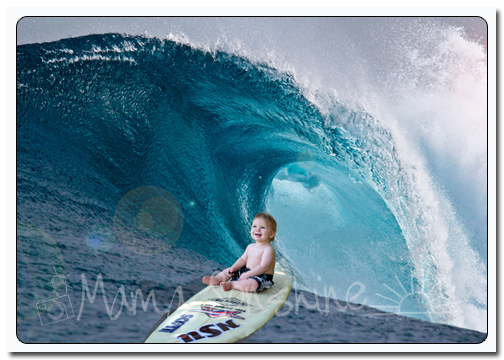
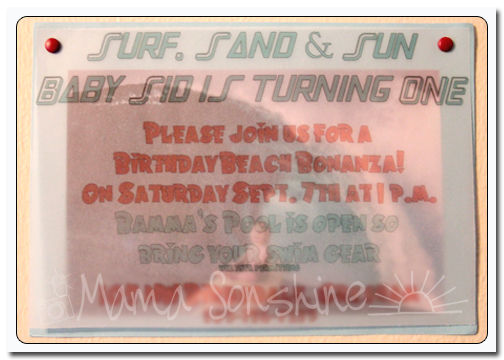
I got one of my hubby’s old surfboards down and sat Baby Sid on it for some pictures for his invitations.

The picture for Sid's invitation

The picture for Sid’s invitation

MamaSonehine2013_BeachParty_Invite1

For the decorations I used five digital scrapbook kits from Just So Scrappy.

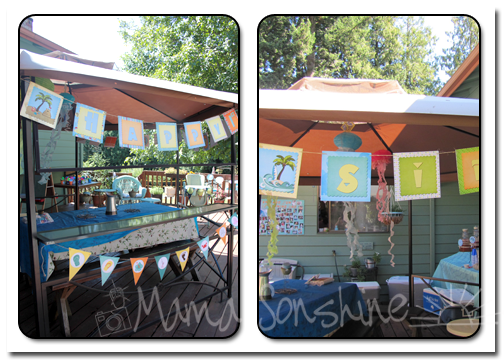
I of course had to make a “Happy Birthday Baby Sid” banner for the gazebo on my mom’s deck.  I also made some triangle and circle bunting banners.

"Happy Birthday Sid"

“Happy Birthday Sid”

Bunting

Bunting

I also made an “I am 1” banner for Sid’s high chair.

Highchair bunting and The Birthday Boy

Highchair bunting and The Birthday Boy

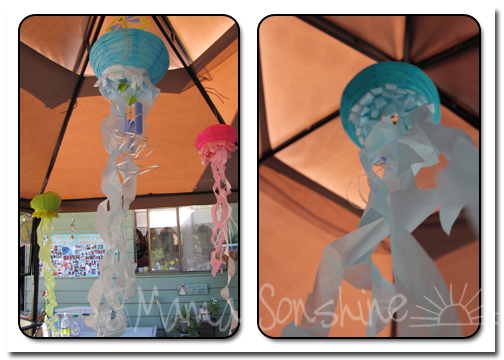
I saw these Jelly Fish made out of paper lanterns and thought they would be perfect for hanging in the gazebo.

Jelly Fish

Jelly Fish

My mom collects mugs, and has a wall of mugs in her dinning room.  Yes a WALL of mugs, which holds the ones she doesn’t want used that often.  Cause there are more in her kitchen.  This is only a problem when I am trying to take pictures of our food table and/or cake.

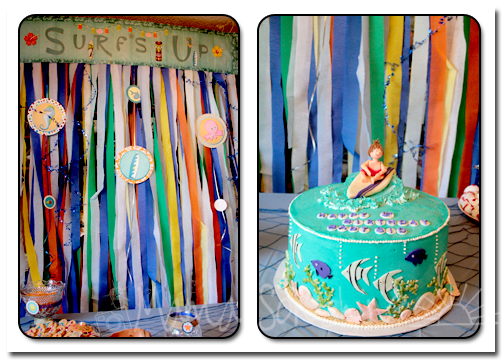
This time I decided to make a back drop to hide the mugs.  I made the “Surf’s Up” banner and glued it to cardboard taping the crape paper behind it along with some circles taped to ribbon and the blue “Happy Birthday” garland.

Backdrop and Cake

Backdrop and Cake

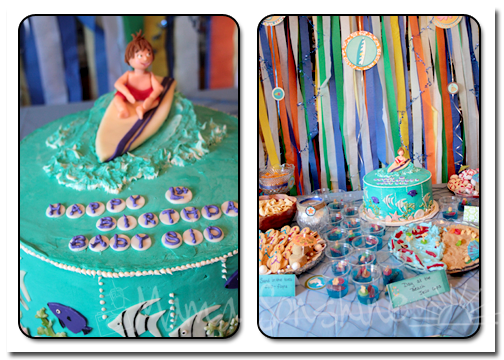
Let’s talk about THIS cake.  Not only was it adorable, with the little fondant boy to match the invitations, but it was DELICIOUS!!!   My Auntie made the cake, she does all our cakes.  It was vanilla with an orange cream filling.  Yes it tasted like a  dreamsicle ice cream bar.  And yes it was dreamlike and I probably could have eaten the whole cake. By. My. Self.

The Cake table

The Cake table

The Cake!

The Cake!

We made some fun beach themed food.  My mom hand dipped the Bugles in white chocolate to make sweet/salty shark teeth.  I bought the white powdered sugar doughnuts and pipped on frosting to make life preservers.  Using frosting we turned Nutter Butter Cookies into flip-flops.  The oyster pearls are Sixlets and Bubble Gum that I bought at the craft store in the wedding section.

Shark Teeth, Life Preservers, Flip Flop Cookies, Oyster Pearls

Shark Teeth, Life Preservers, Flip Flop Cookies, Oyster Pearls

My nieces decorated Jello cups with Teddy Graham, Swedish Fish and Gummy Life Savers.  My sister and nieces then made a beach scene on a platter for more fun edible decorations.  Brown Sugar was used for all the beaches and sand.

Food Table

Food Table

We also had Sour Punch Straws as pool noodles, Sour Gummy worms as fish bait and Goldfish Crackers as the catch of the day.

Food Table

Food Table

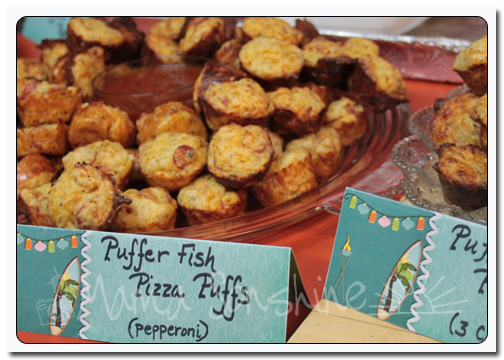
Of course I had to have food tag tents, how else would people know what they are eating?  My sister came up with some witty little names for the dishes.

Food Tags

Food Tags

The menu included

  • Puffer Fish Pizza Puffs; Three Cheese or Pepperoni
  • Driftwood Deli Meat Dip
  • Under the Seafood Dip
  • Chicken Curry Sand-Crab-wiches
  • Egg Salad Sand-Crab-wiches
  • Garlic Dip
  • High Tide Veggies and Ranch
Crab-whiches

Sand-crab-wiches

We made a Surf’s Up  Strawberry Punch and a Sparkling Beach Berry Lemonade and also offered soda, juice and water to drink.

Beverages

Beverages

I made the little thank you tags for the guest gifts.

"Thanks a beach"

“Thanks a beach”

I bought the items for the guest gifts from Oriental Trading Company.

Guest Gifts

Guest Gifts

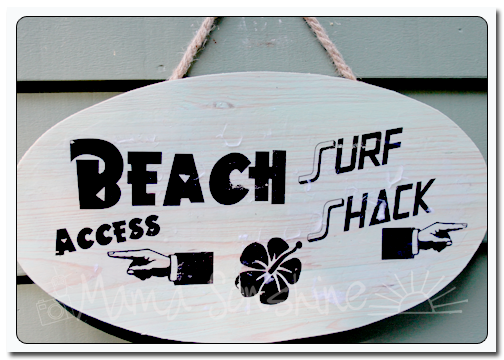
I made this sign to hang on the front of my mom’s house.

Beach Access Sign

Beach Access Sign

I also made this photo collage of pictures from Baby Sid’s first year.

A year of photos collage

A year of photos collage

Baby Sid woke up from his nap right before the party and came down to see the house decorated.  He was so excited!  I wish I had my camera at hand, but I didn’t know his whole face would light up!  He was wonderful and such a little trooper with all the excitement and people.

The weather was great so the kids got to swim and use the slip ‘n slide.

As always I couldn’t have pulled it off with out the help of my mom, sister and the rest of my family.

Happy Party Planning
signature-black

Top Mommy Blogs - Mom Blog Directory