We are now at the point in our lives where we aren’t attending weddings every weekend of the summer.
It seems that you have two waves of wedding times. For the first few years out of high school it seems like your summer weekends are only weddings. Then there is a time when you don’t really attend any weddings, maybe one or two. Then about your early 30’s you start getting all the invitations to the rest of your friends weddings. After that, you may get one or two a year, and usually they are family members kids or for the wedding of someone younger than yourselves.
This year we only have two weddings. One of which we are traveling across the country for and one that happened in the summer.
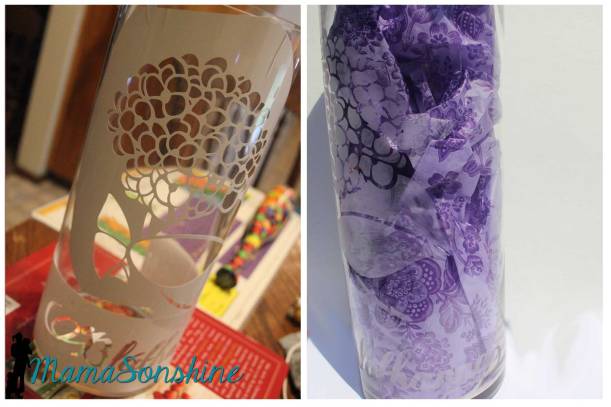
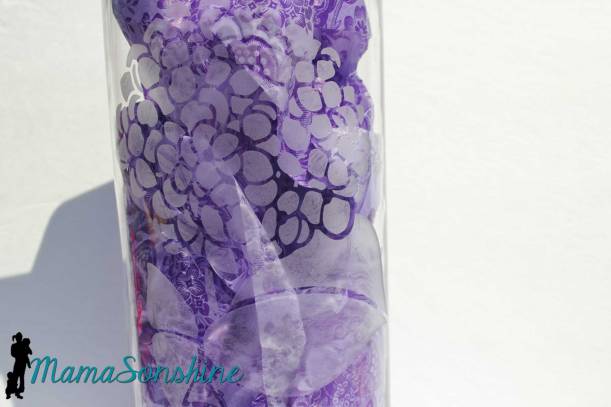
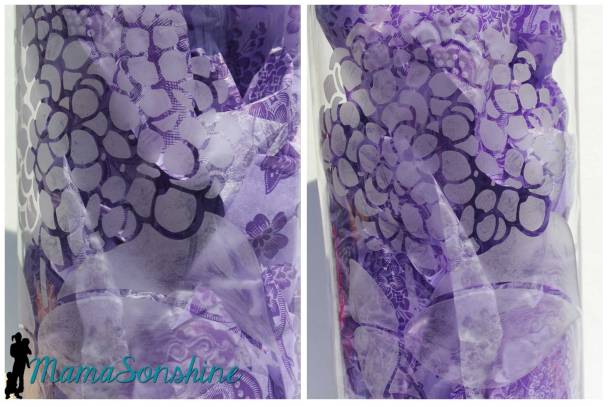
The one we attended this summer was a wedding of one of my husbands friends. He is an artist, a very wonderful painter, and for his invitations he drew and painted a hydrangea bouquet. I thought the perfect gift would be a large glass vase with the same picture etched on it.
Turns out, his style of painting and my starting on the project late, made for the inability to trace the image and create a stencil.
So I did the next best thing. Found another picture of a hydrangea that I could trace, and made a stencil out of it.
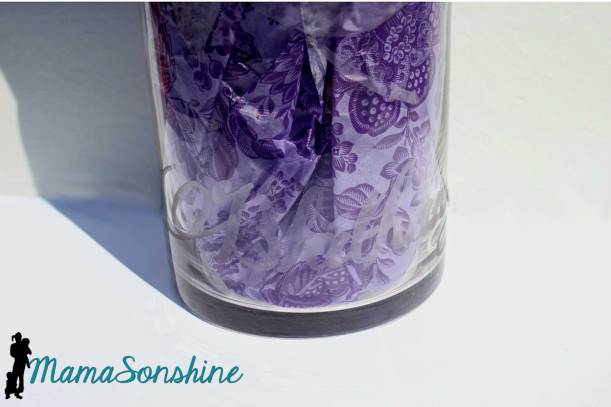
I like the glass vases that have the word “flower” etched on it in some foreign language, usually in French. The groom is Irish and so I decided to use the Gaelic word for flowers which is bláthanna. Singular for flower would be bláth.
So I found a fancy font with swirls but it was a little thin, so I had to create an offset to make it a little easier to cut.
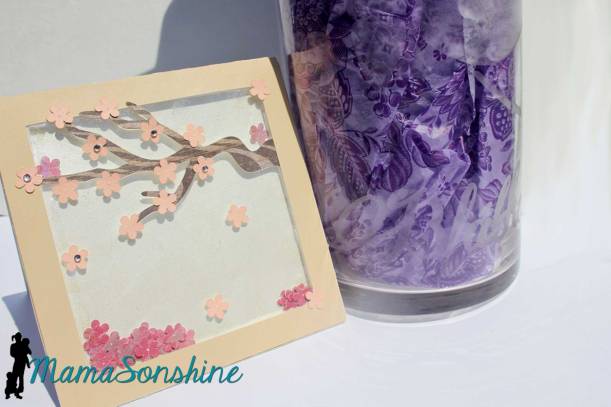
To keep with the floral, nature theme I made a card with a Cherry Blossom tree. I found this card base at Bird’s Cards, it’s a free download. I decided to make it a shaker card adding more cherry blossom flower and glitter.
Big glass vases that are already decorated can come at a larger price tag. By decorating it myself, not only could I make it more personal without breaking the bank, and on short notice.
Fall is in the air, and for us, that means it’s Halloween time!
Ian loves Halloween. I mean loves it.
Not just the candy, but the costumes and decorations too. Since this month’s Silhouette Challenge theme was fall I just knew I had to make something for Halloween.
If you remember from last year I made a candy treat folder and popcorn box for the kids at Ian’s school (those are a couple free printables if you want). Well that was pre-Silhouette. Now I can make things a little more intricate.
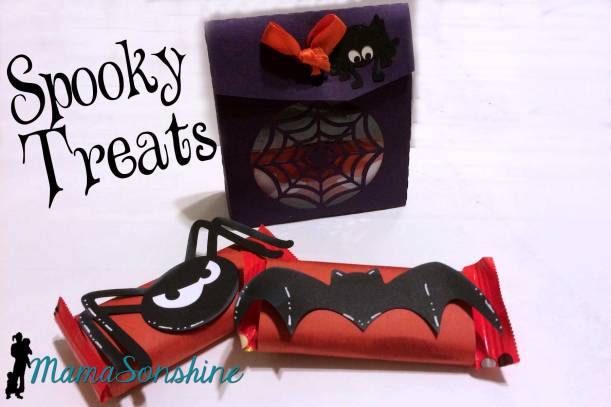
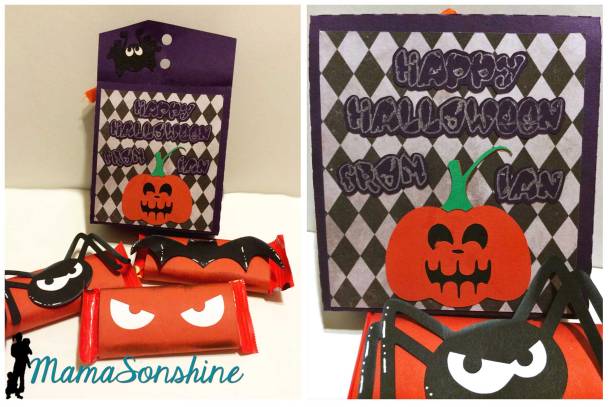
First I created a little gift bag for the kids at Ian’s school.
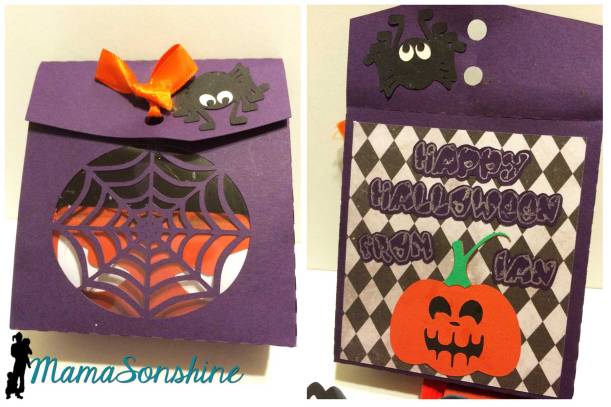
I created the bag with a little spider web window, and it is the perfect size for a couple treats and some stickers.
On the back panel is the sentiment and a little pumpkin. Of course I had to make some cute little wrappers for the candy.
I really like how the window turned out, and I glued a plastic sheet inside so the web doesn’t break.
But I didn’t stop there…
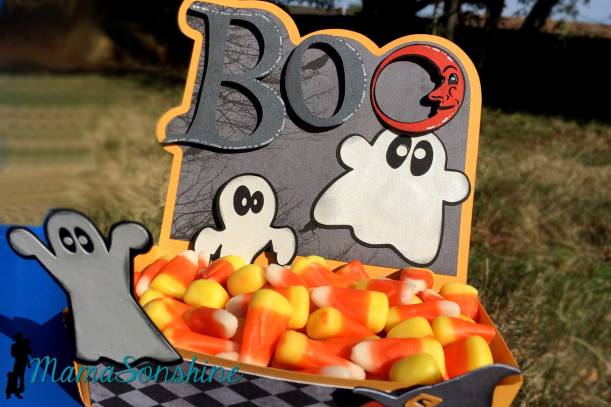
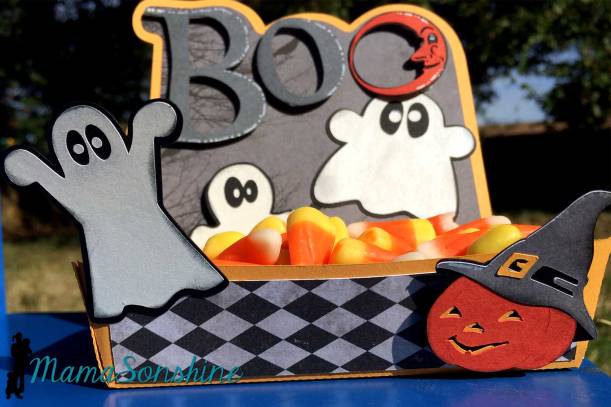
I decided to make a little candy dish, perfect for Candy Corn.
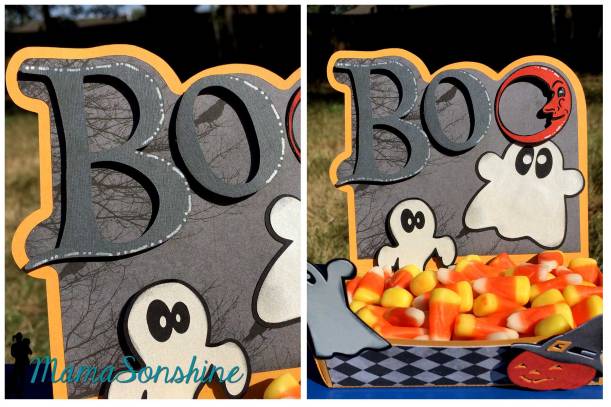
I used a hot dog boat file from Oh Happy Day as the base of the dish. I extend the dish up the back so I could create a little spooky Halloween scene.
I used foam dimensional tabs to pop out the letters, the lower ghost and the pumpkin.
I love this little dish, I have visions for a few more.
I used elements from one of Just So Scrappy‘s digital scrapbooking kit as well as from SVG Cuts.
Here is to Spook-tacular Halloween!
Want to Check Out More Silhouette Projects?
My Silhouette Challenge buddies and I are all sharing projects on our blogs today, so peruse the projects below for a wealth of Silhouette inspiration!
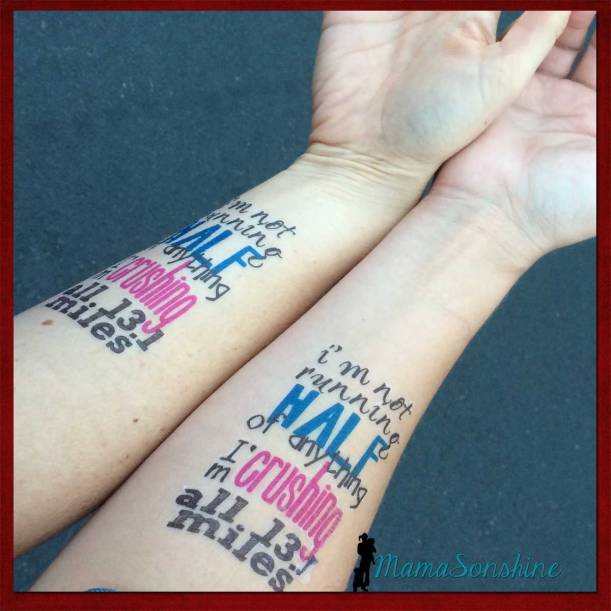
If you read my race recap about the half-marathon I ran this summer you saw that I made some motivational tattoos for my cousin and me to wear.
It was the first time I used the Silhouette brand Temporary Tattoo paper, but I knew that I would be using it again the following month for Sid’s birthday party. I ran into a few issues as a first time user and thought I would share them, in hopes that other’s don’t have the same troubles.
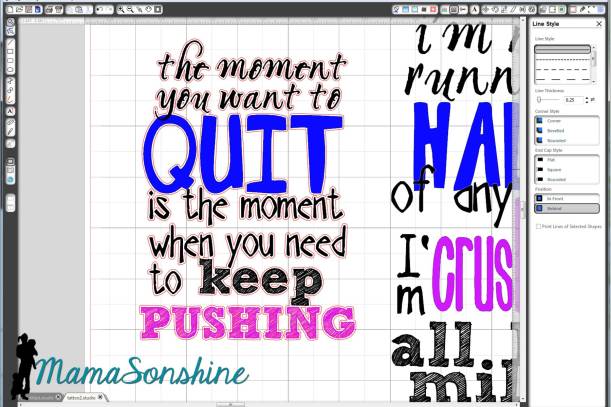
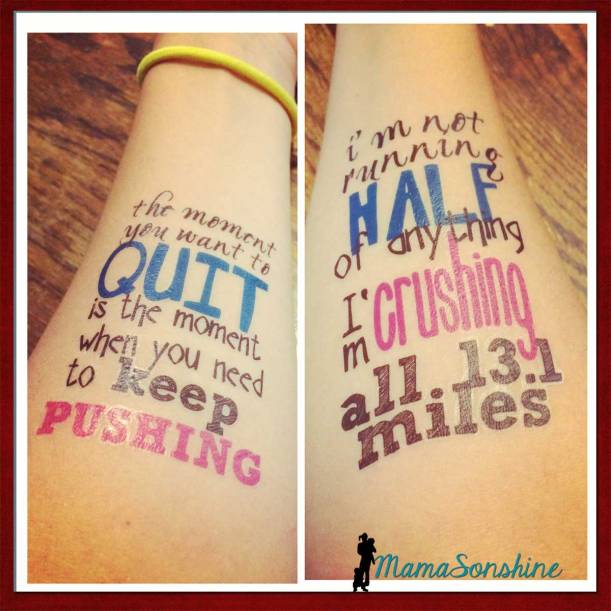
First I made my design. One of my favorite motivational quotes for running is “I’m not running half of anything. I’m crushing all 13.1 miles.” There are a few variations, but I like this wording the best. I made one for my cousin and one for me. I had room for one more quote, and since I had two arms I also used “The moment you want to quite, is the moment when you need to keep pushing.”
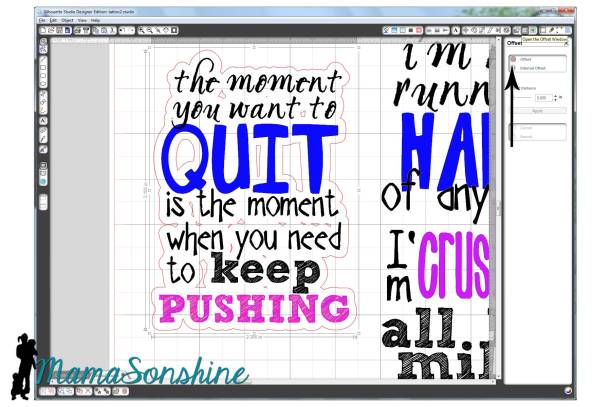
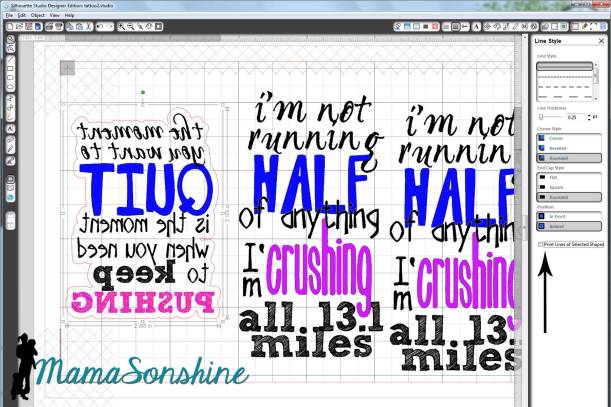
I sized out the space on my arm and made a box in Silhouette Studio. I then typed out my sayings and changed the fonts, sizes and colors for specific words. I then used the offset tool to create my cut lines around the words. Remember, anything that is white in your design will be clear on the tattoo, and your skin will show through.
My first instinct was to make a close-in offset, as I would when cutting other media.
Here is the problem: when you cut it, it cuts through the paper backing. So now you have all the words in different pieces that you would have to place on your arm individually. So again, remember that the tattoo paper is clear, and make your offset big enough that all the words cut as one piece.
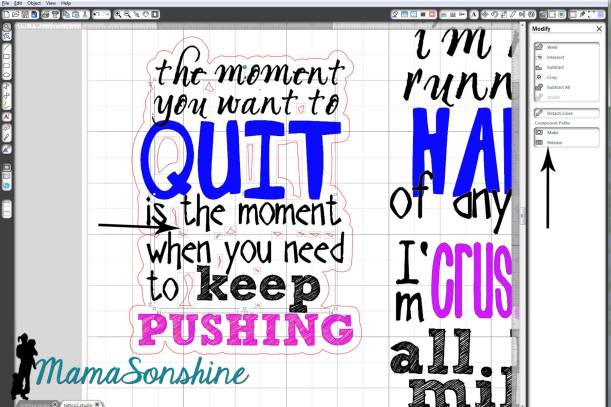
And there is no reason you need to waste time cutting out the middle of your o’s or other inner parts since the paper is clear. Release the compound path,
select all the unwanted parts, then delete them.
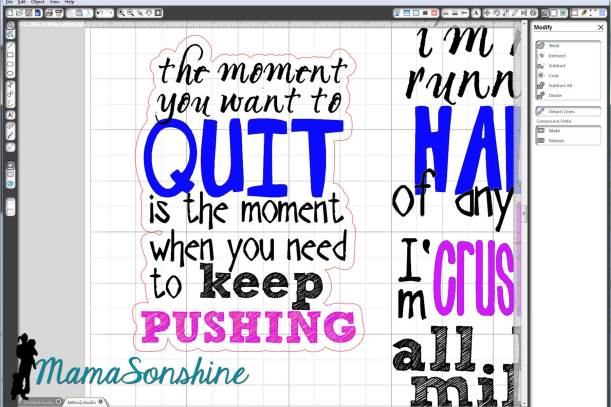
Now you are left with a nice group of text that will stay together once cut.
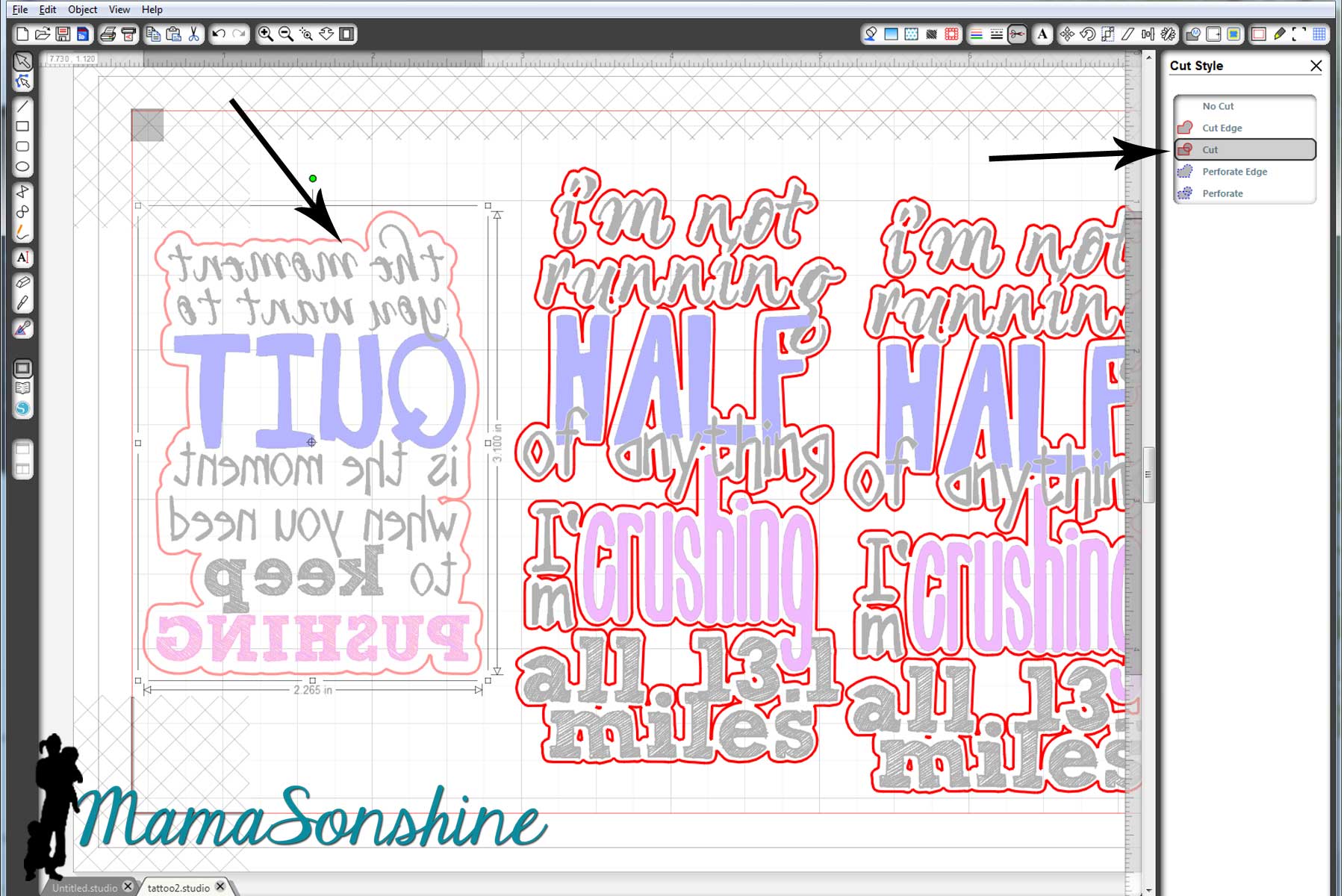
Check out your cut lines, make sure you are not cutting out the words you are printing, but just the offset you just made.
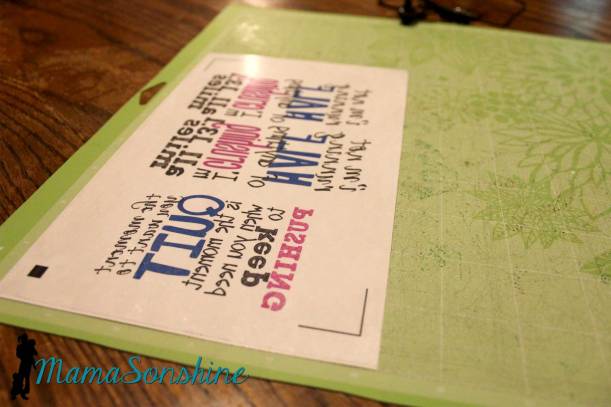
Once you have your design and cut lines all set, flip your image horizontally. This is very important when doing something with words, or your words will be backwards.
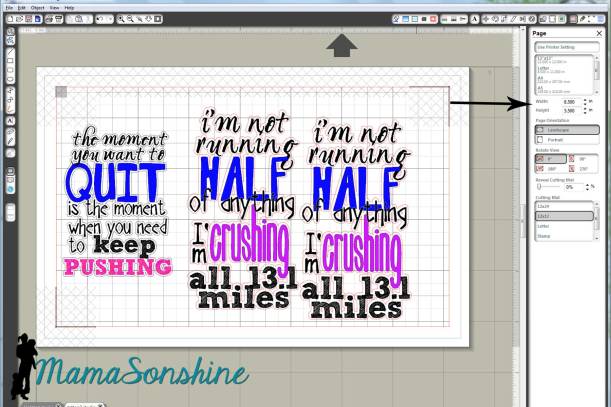
The key to the temporary tattoos is Silhouette‘s print and cut feature using the software’s registration marks. I don’t know about you, but when I print and cut, I change the paper to ‘letter’ (because that is the size of the paper I print on) and adjust my registration mark settings to the smallest available. One day when I was printing something small I realized I don’t have to waste the whole piece of paper. I say ‘waste’ because once I printed the registration marks, I couldn’t reprint (for cutting) on that same piece of paper.
So I changed the size of the paper, I know it seems like a simple statement. But I made the paper size just larger than my image size, with the registration marks, and that left the rest of the paper blank, for use again! So simple, yet so helpful.
The tattoo paper is a bit pricey, about five bucks a sheet; the pack comes with two sheets and is priced at $9.99. You can find it on sale at Amazon, and sometimes through Silhouette. I didn’t want to waste any of the paper, and I wasn’t ready to print out the favors for Sid’s party, so I just adjusted the size of the paper to fit my quotes. That way I still had half a sheet of unprinted paper I could use again.
Printing.
First you want to make sure when you print, that you print the lines of the words, but do not print the lines of the offset. (Note: this feature is different if you are using V3)
Here is where I had the main problem that I really didn’t want to admit to anyone. It’s a little embarrassing.
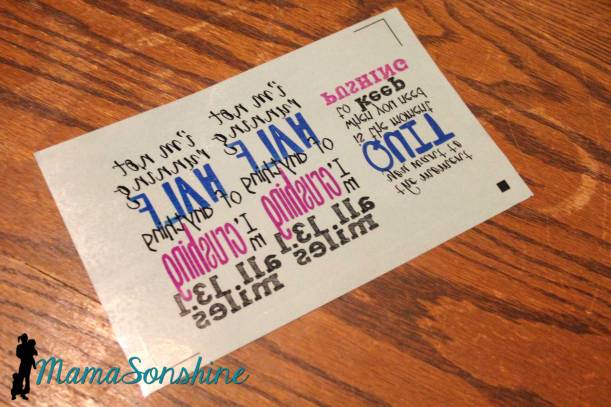
I opened the pack of tattoo paper and pulled out the first sheet on top. The instructions say to print on shiny side then peel of green backing to apply adhesive material. So I printed on the shiny side.
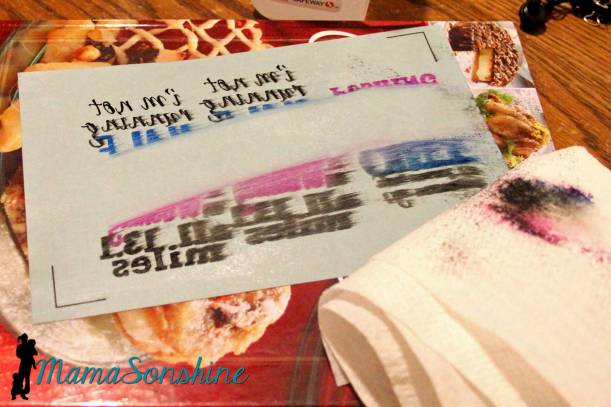
My ink wouldn’t dry. I left it while I went to work, when I got home it still wasn’t dry. I wiped it off, tried different print settings, still wouldn’t dry.
I googled instructions looking for a video tutorial. Finally when watching my second video I wondered why their paper was white when my paper was clear with a green paper backing….
Maybe I have to use my own paper, but that seemed silly because the instructions talk about printing on the shiny side…
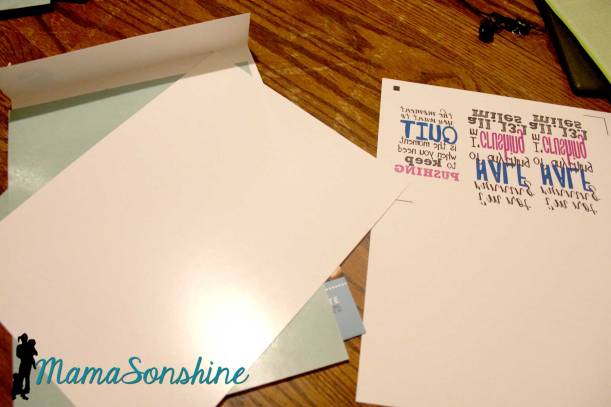
I went back to the package and looked inside it. Behind the two pieces of clear paper with green backing was two pieces of white paper with a shiny side.
*hand hits forehead*
Start over. Printed on the shiny side of the white paper, and ink came out dry and sharp.
Followed directions by adding the adhesive layer. That is the clear paper with the green backing that I was trying to print on first.
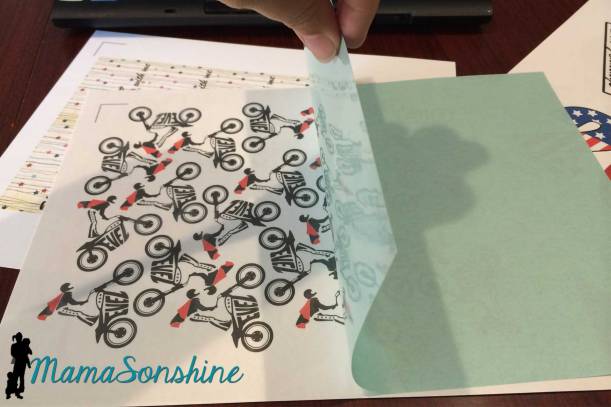
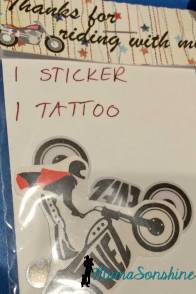
This is actually a picture of the tattoos I made for my son, but this is how you apply the adhesive layer
Because I wasn’t using the whole sheet of paper, I used a paper-cutter to trim down both the white sheet and the clear adhesive sheet before joining them. Then used my Silhouette to cut out the tattoos.
They look great and just the motivation we needed.
Now that I am a pro at the temporary tattoos, I made some as favors for Sid’s party. However, I neglected to flip the image horizontally, so the words were backwards. There is always something with me, right? I decided to let it ride (yep, pun intended) as the guest were toddlers who really couldn’t read anyway.
I am already planning my tattoos for my Halloween costume!
I decided to participate in another challenge with SVG Cutting Files. This challenge is for birthday cards, the main focus should be something purchased from SVG Cutting Files.
I found it a little more difficult to make a card without someone specific in mind. I knew I wanted to make a Halloween birthday card at least, but in order to get the free files associated with the challenge I had to make two cards.
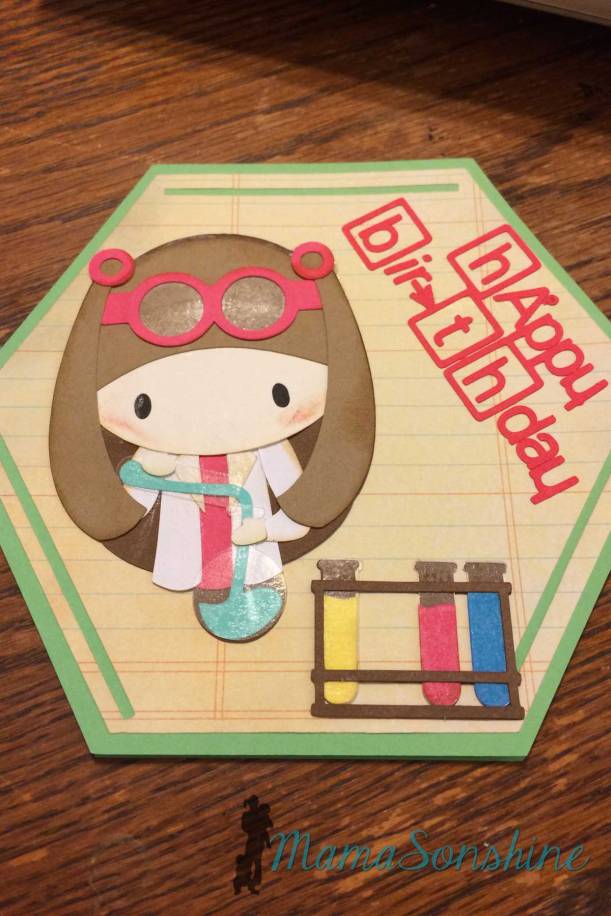
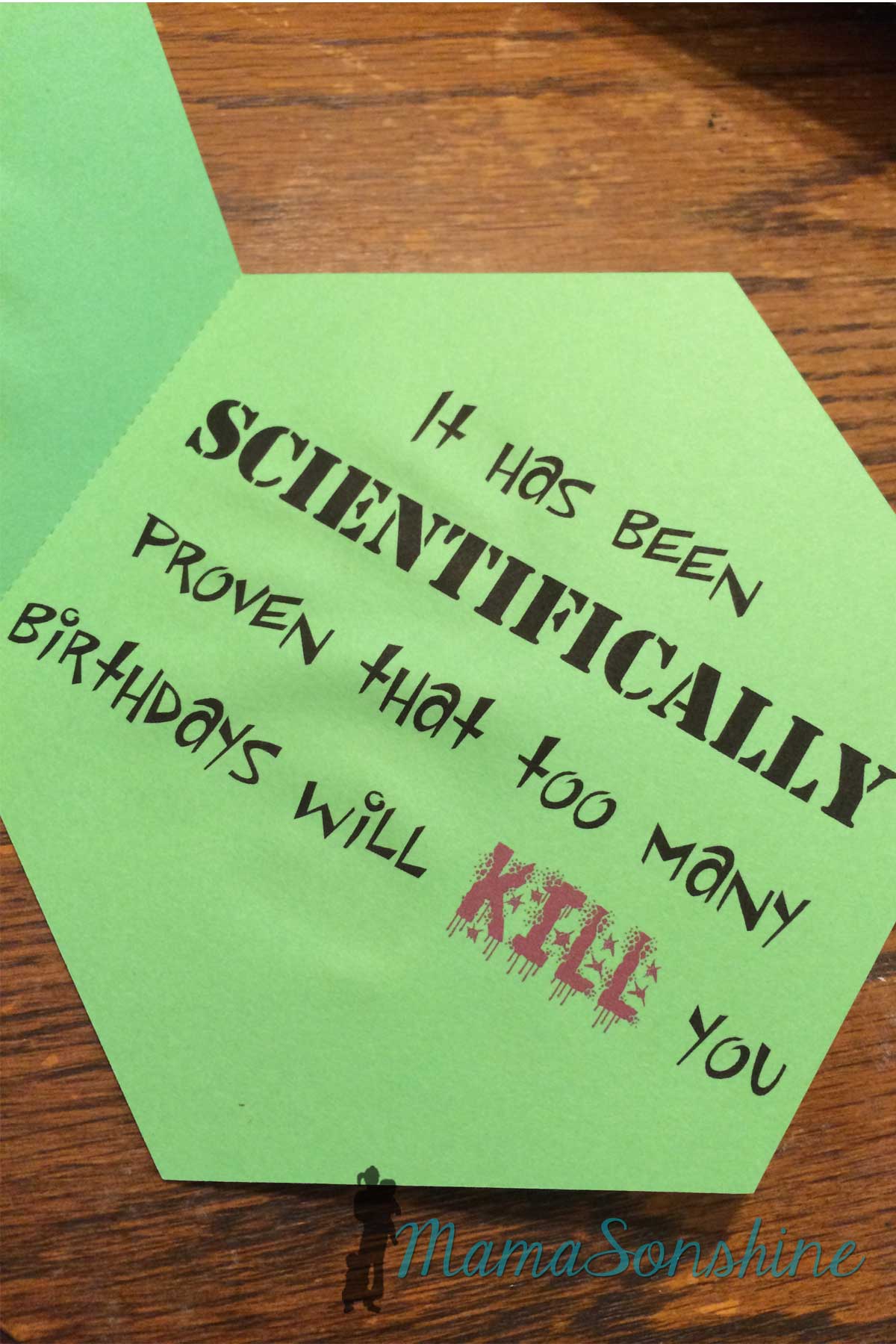
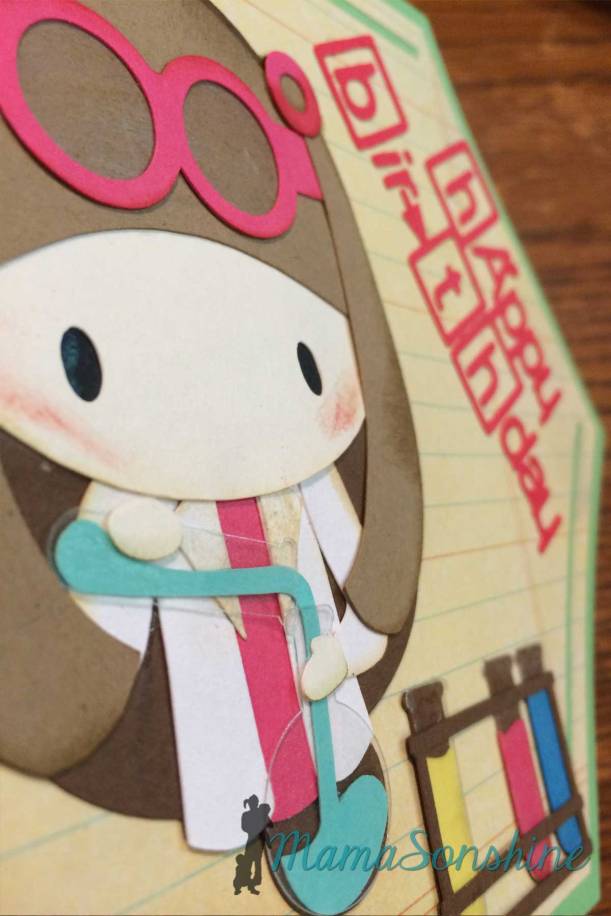
Since I am a scientist I thought I need to make a birthday card using the Science Rocks kit I had.
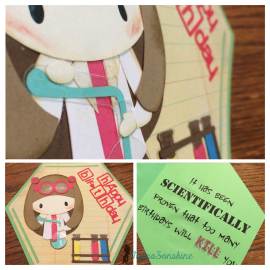
I made the card base to look like a benzene ring and used the science girl and test tube rack.
Inside it says “it has been scientifically proven that too many birthdays will kill you.”
I love using clear sticker paper for glass elements, like the test tubes and her goggle lenses.
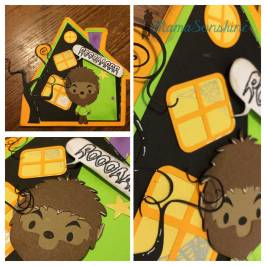
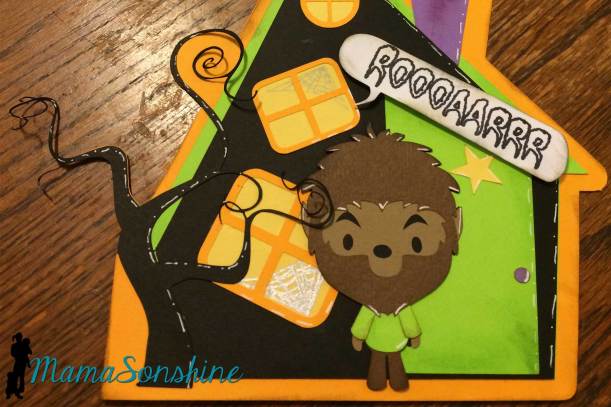
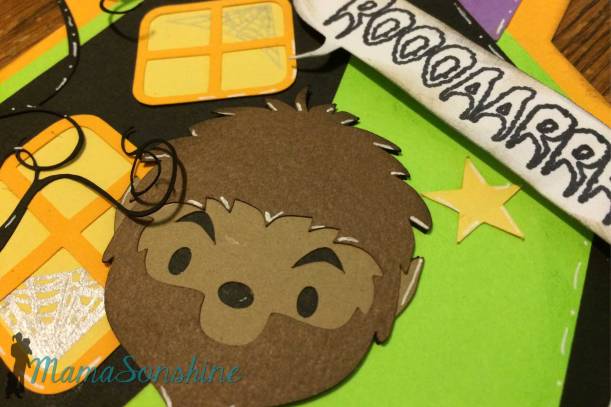
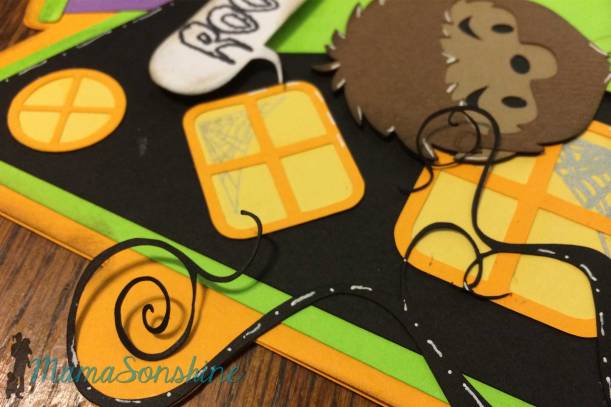
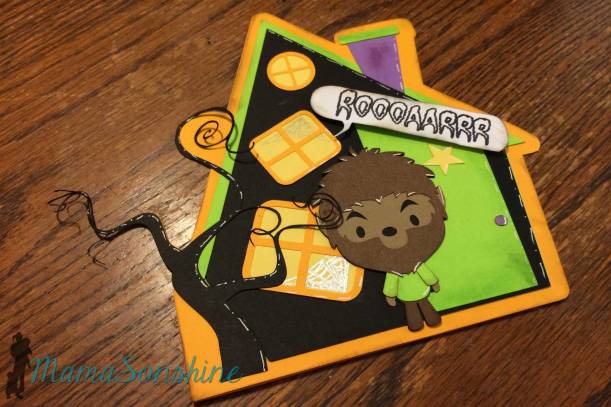
For the Halloween birthday card I used the Chibi Werewolf file. I had actually purchased the set for the mummy, but the werewolf was perfect for this idea. Inside it says ‘Have a howling good birthday!’
I designed the card base to be like a haunted house. I used sketch pens to draw the spider webs in the windows. Parts of the tree are not glued down so the stick out for some dimension.
I also used dimensional foam tabs to pop out the ‘roar’ word balloon.
I, of course, used my Silhouette Cameo to cut out all the elements for the card.
Don’t forget to go to the challenge page and see all the other amazing projects.




 I Tri and Craft