I Tri and Craft

thoughts from a mother of boys, a marathoner, a triathlete, a crafter, a wife, and a scientist


Leave a comment

Birthday Pirate Shirt ~ A Silhouette Cameo how to (Part 2)

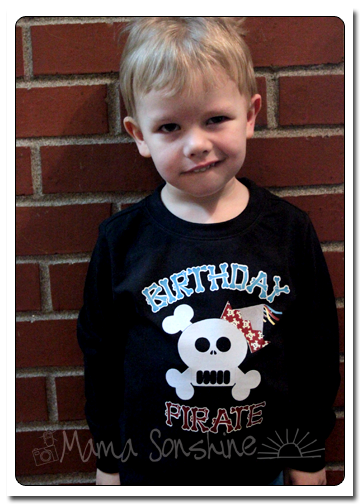
I wanted to share with you the steps I took to make my son’s birthday shirt. There was a few problems I had that I was able to work through.   Hopefully this will help so others won’t get stuck like I did.

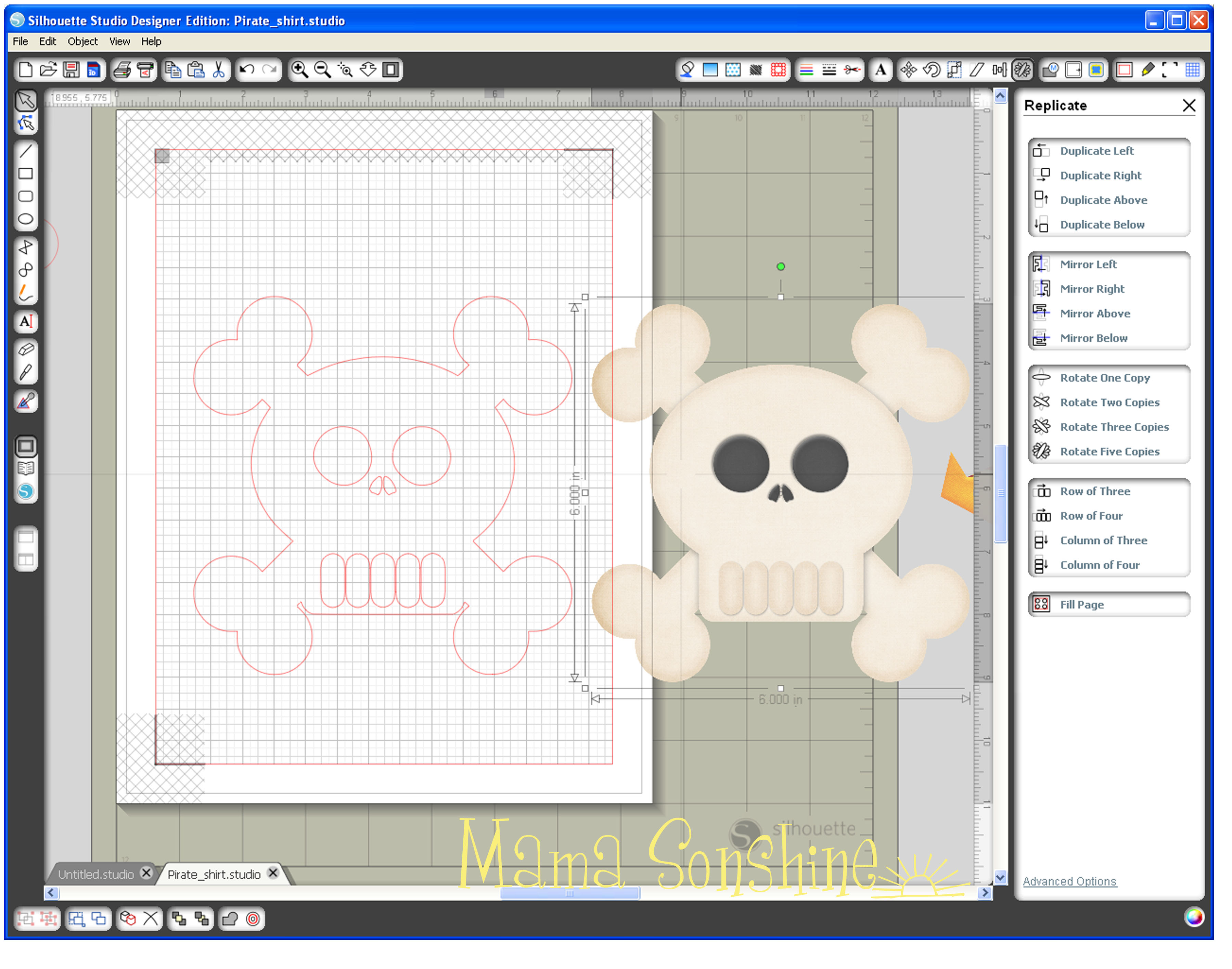
In this tutorial I use my Silhouette Cameo and the Silhouette Studio DE software to make a custom shirt for my son’s birthday party.  I used graphics from Just So Scrappy‘s YoHo YoHo Pirate kit.  I used the Silhouette brand Flocked Heat Transfer Material for the skull, and Avery Dark T-Shirt Transfers for Ink Jet Printers.

Part One will be how to make the Skull & Crossbones

Part Two will be how to do the words & party hat

Part Three will be how to iron everything on
MSS_BirthdayShirt01

This part of the shirt was made using printable heat transfer material for the Dark Shirt Transfer Material and an Ink Jet printer.  The HTM for light material is different and the steps you take to print and cut are different.  Also be sure you know what kind of printer you are going to be using, either ink jet or laser, and get the appropriate transfers.  The way the ink sets on the paper is different, if you use a laser printer on the ink jet papers your color will come off when ironed.

In the studio software I used the same file I had open for the skull & cross-bones because I needed the skull for a size and placement reference.  When I didn’t want it on the screen I simply moved it off the mat.

First the party hat:

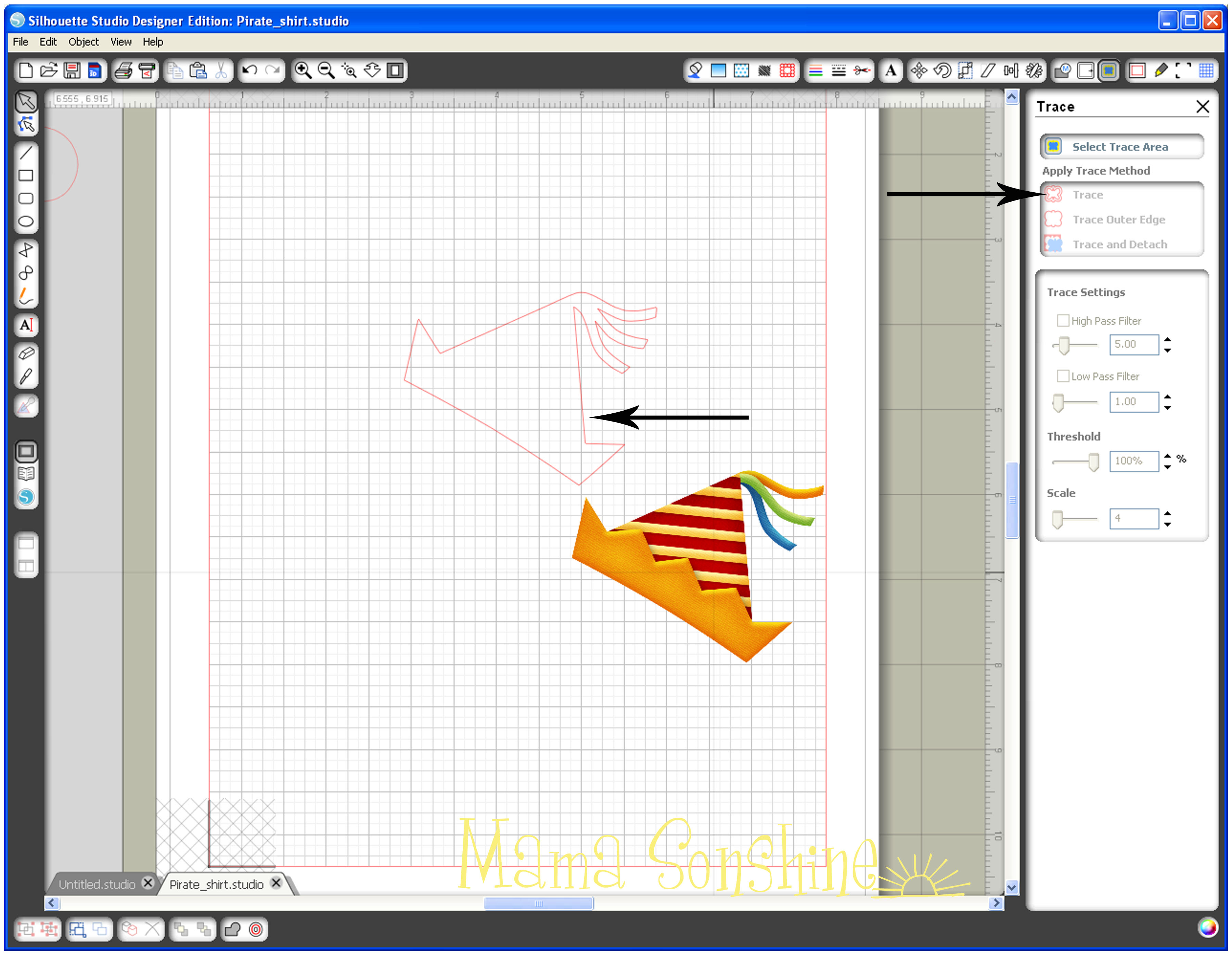
I wanted a birthday hat shape that I could fill with a pattern, using the digital papers from the YoHo Pirate kit mentioned above.  I chose a party hat .png file I had because I liked the shape.  Since I don’t want the pattern or colors that are currently I made a new cut file using the .png as a template.
MSS_PirateShirt_Tutorial13

I wanted to make the stripe portion one pattern, the yellow portion a different pattern, and I wanted to change the color of the ribbons.  The trace tool could not cleanly make these five individual elements.  Even when I selected trace instead of trace outside edge, I still only got the outside edge traced.

This slideshow requires JavaScript.

I found it more difficult to try to trace each portion than to simply make a new shape.  I selected the draw polygon tool and made a new shape for the yellow portion of the hat.  It is important not to move the picture after tracing it and drawing the shape.  You also don’t want to use the line tool, because you want an element that can be filled with a pattern.

I used the draw curve tool to make the three different ribbons on the top of the hat.  Again, the ribbons are three different shapes that sit on top of the traced hat.  After this you no longer need the picture of the hat, so you can delete it or just move it off the page.

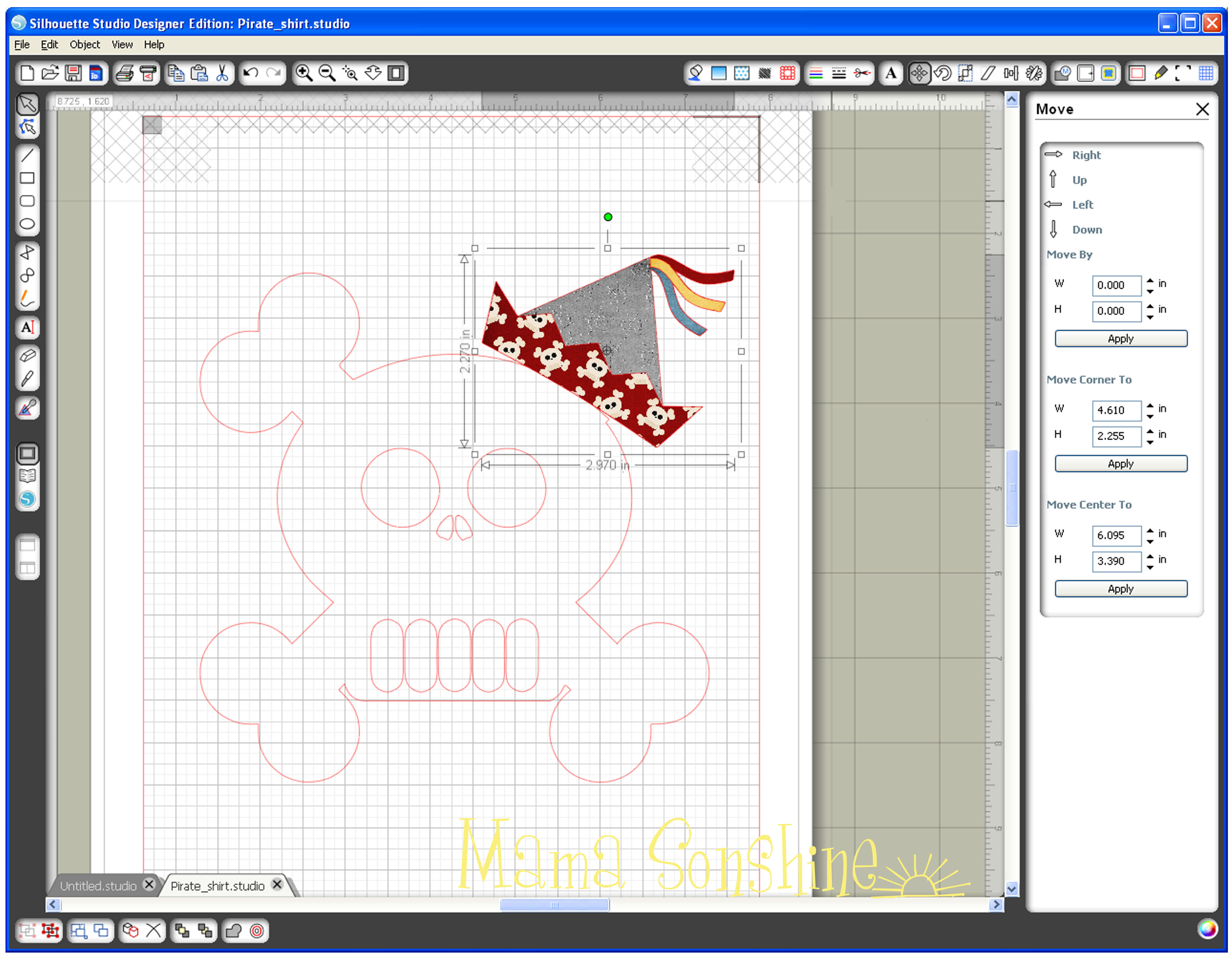
Use the fill pattern window to select the patterns for each element.  Bring back the skull & cross-bones to fit the hat on the skull.  Select all five elements of the hat, re-position and re-size the hat until you get the look you want.  Unselect all elements, then select only the bottom border of the hat, here the red portion.  Use the point edit tool to fit the hat to the shape of the skulls head.  At some point you may also need to edit the points of main hat shape.
MSS_PirateShirt_Tutorial18

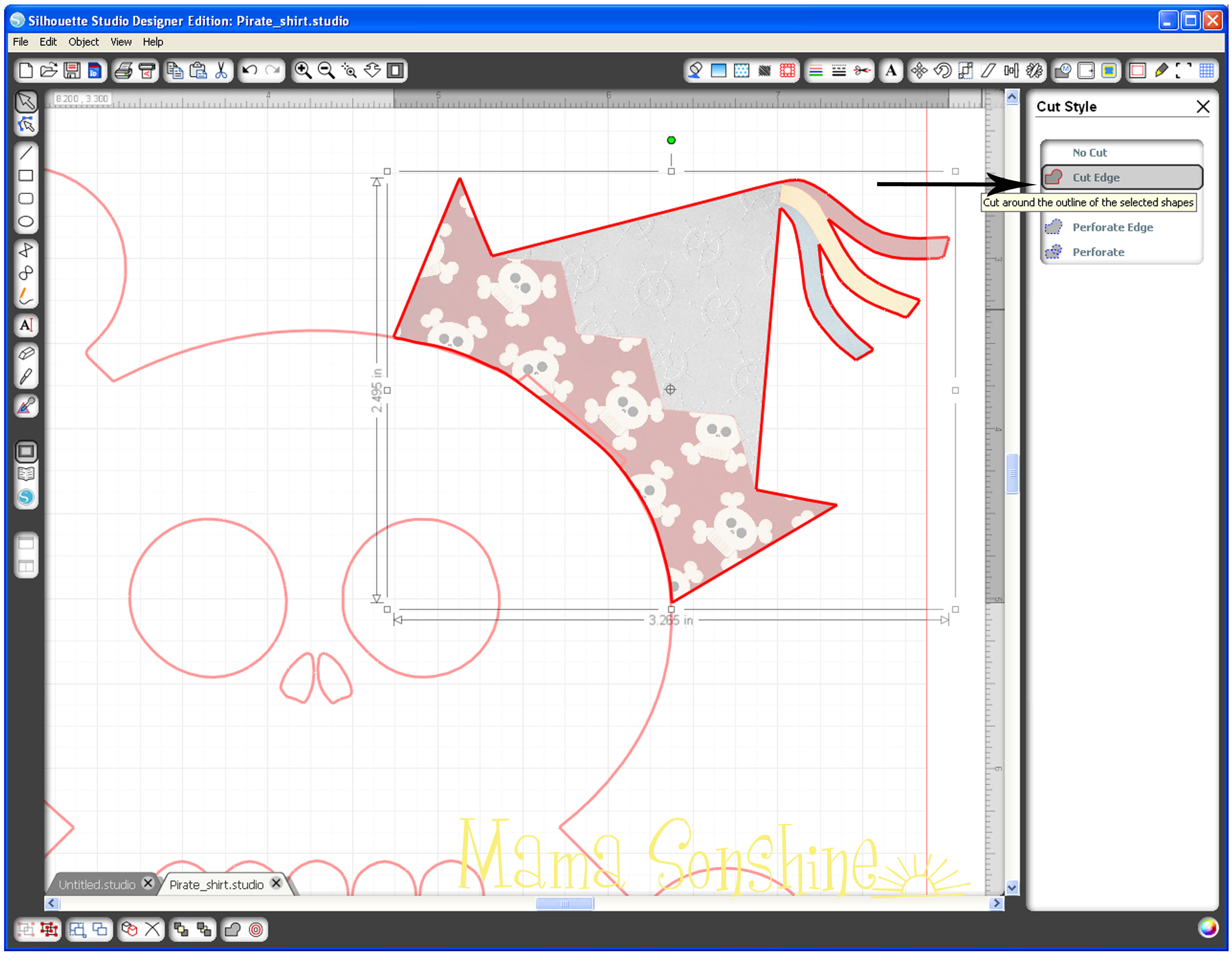
Once you have the hat fitting the shape of the head go to your cut style tool box because you don’t want the elements of the hat cut in separate pieces.  Select all the elements, and select no cut, then select only the main hat shape and select cut edge.  This ensures that you are only going to cut around the hat’s edge after printing.  Select the five elements of the hat and group them together, you don’t want any of them moved away from each other now.
MSS_PirateShirt_Tutorial19

Now for the text:

First I wanted the word birthday to be arched, I drew a circle, typed the text then dragged the text to the circle using the little circle with a cross inside.  Resize and move the text until you get it the desired results.  If the green outline and move tool go away because you had to select off the text, just double-click the text till they come back.  I had to move the skull off the page, because the text kept trying to link with it instead of the circle and move it back to fit the text to the skull size.

This slideshow requires JavaScript.

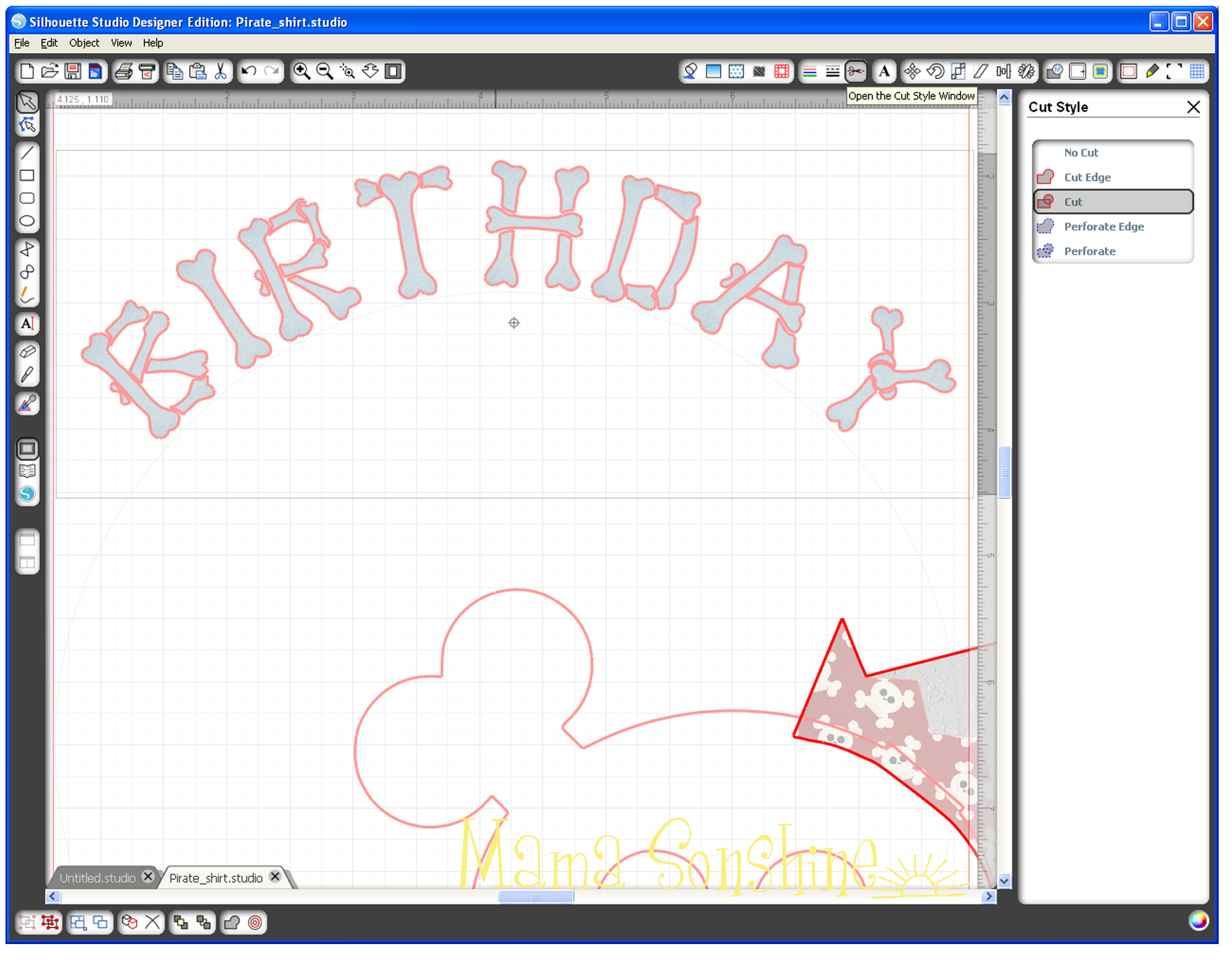
This next part is where I had the most difficulty.  I really liked this Bones font I found, the problem is that each letter has little bones that would be cut separately.  This would happen even if cut edge was selected, because the software sees each bone as a different element.  After hours of trial and error I finally figured out the simplest way to cut around the word, and not each individual letter or bone.
MSS_PirateShirt_Tutorial22

The first time I did this I took a very long route to get where I wanted.  I released compound paths, duplicated, filled patterns, made new compound paths, welded, grouped, un-grouped, made offsets, moved, re-sized, moved again, etc.  After I got the result I wanted I realized I was adding a bunch of extra steps.

This slideshow requires JavaScript.

First select your text and go to the offset tool box, create an offset and adjust size so it is just slightly bigger than your text.  If you are using the dark T-shirt transfer material your offset will show as white, so it is up to you how much white you want to show.  At this point each letter will cut out separately, which I didn’t want because I didn’t want to align them on my shirt, I wanted the whole word as one element.  So I move my text up slightly to work with my offset.  I moved each offset letter closer to each other with a very slight overlap so I could weld them together.  The offset and the text no longer match up, so you may have to ungroup your text to move each letter back to the offset, but do not release compound path.

Choose a pattern to fill the text for printing.
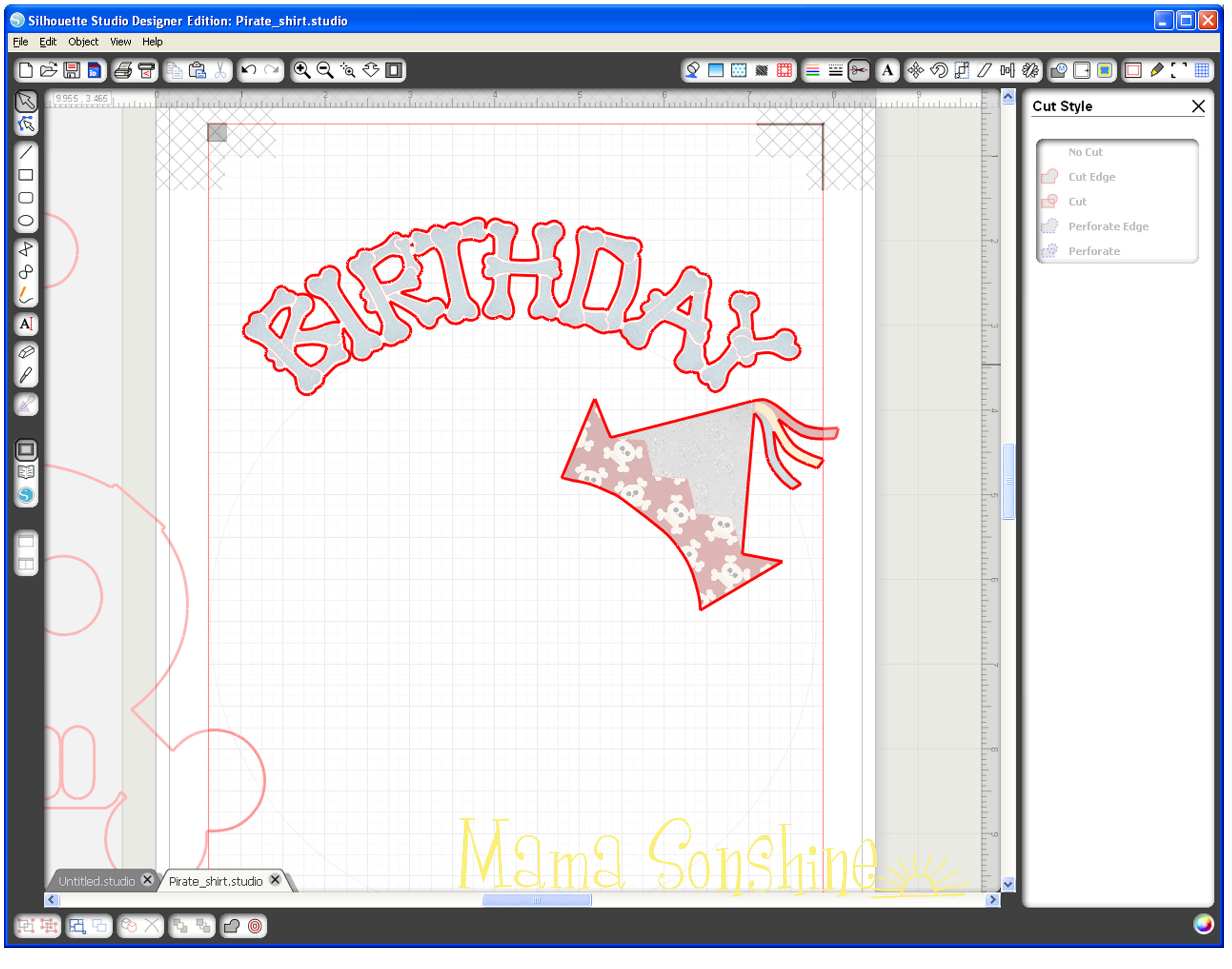
MSS_PirateShirt_Tutorial28

Go to the cut style window and select all the letters of your text, then select no cut.  Select the offset and cut edge.  You will see that your machine will now cut around the letters as one piece.

Repeat the steps for your second word and align everything, including the skull, to make sure size and proportions look good.
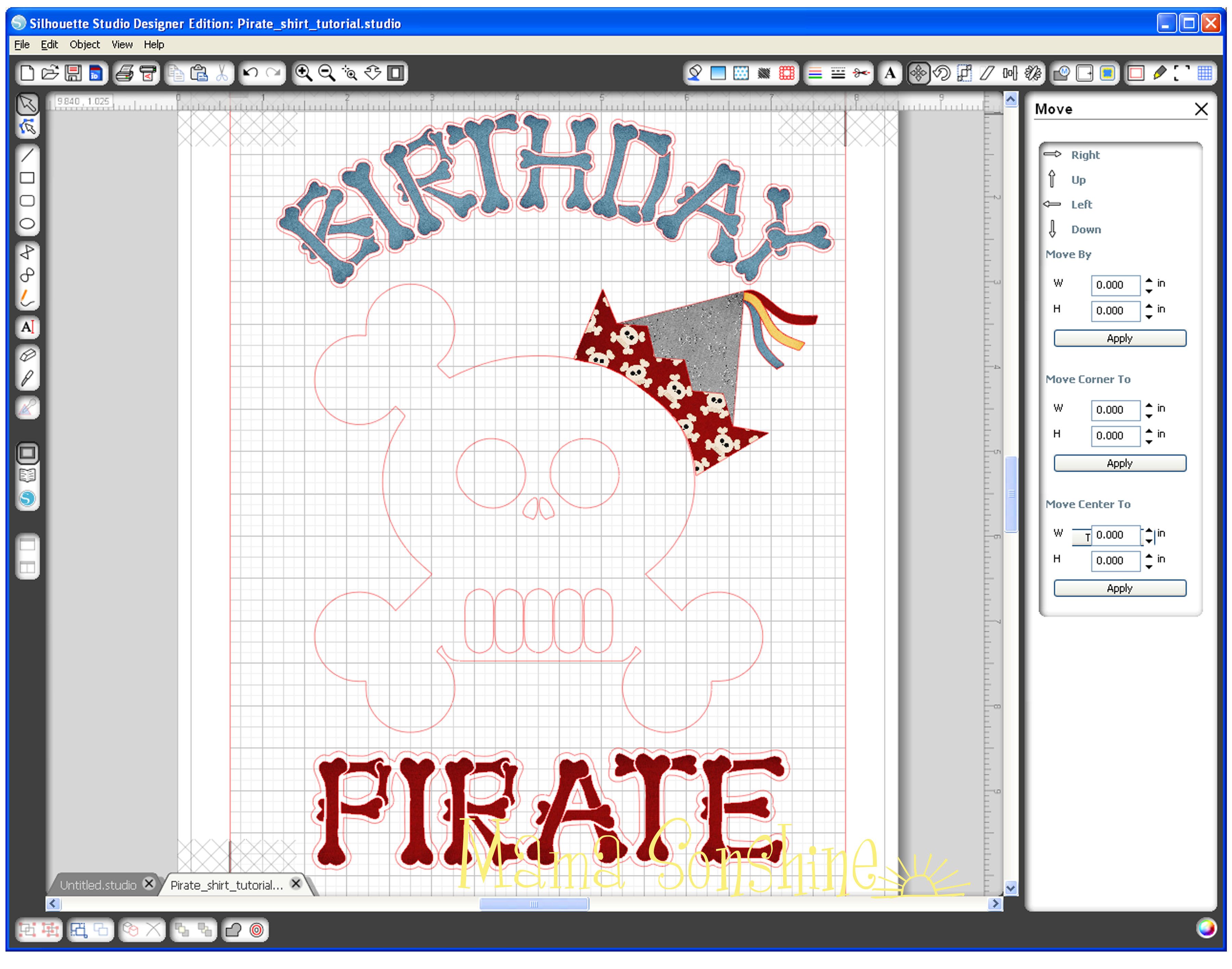
MSS_PirateShirt_Tutorial29

Since the skull is not part of the print ‘n cut, you would move it off the page.  Show registration marks and move your elements on your page for printing.  Just make sure your hat elements are grouped together and the text and offsets are grouped together.  After printing, do not move anything, it will need to be in the same location for cutting.
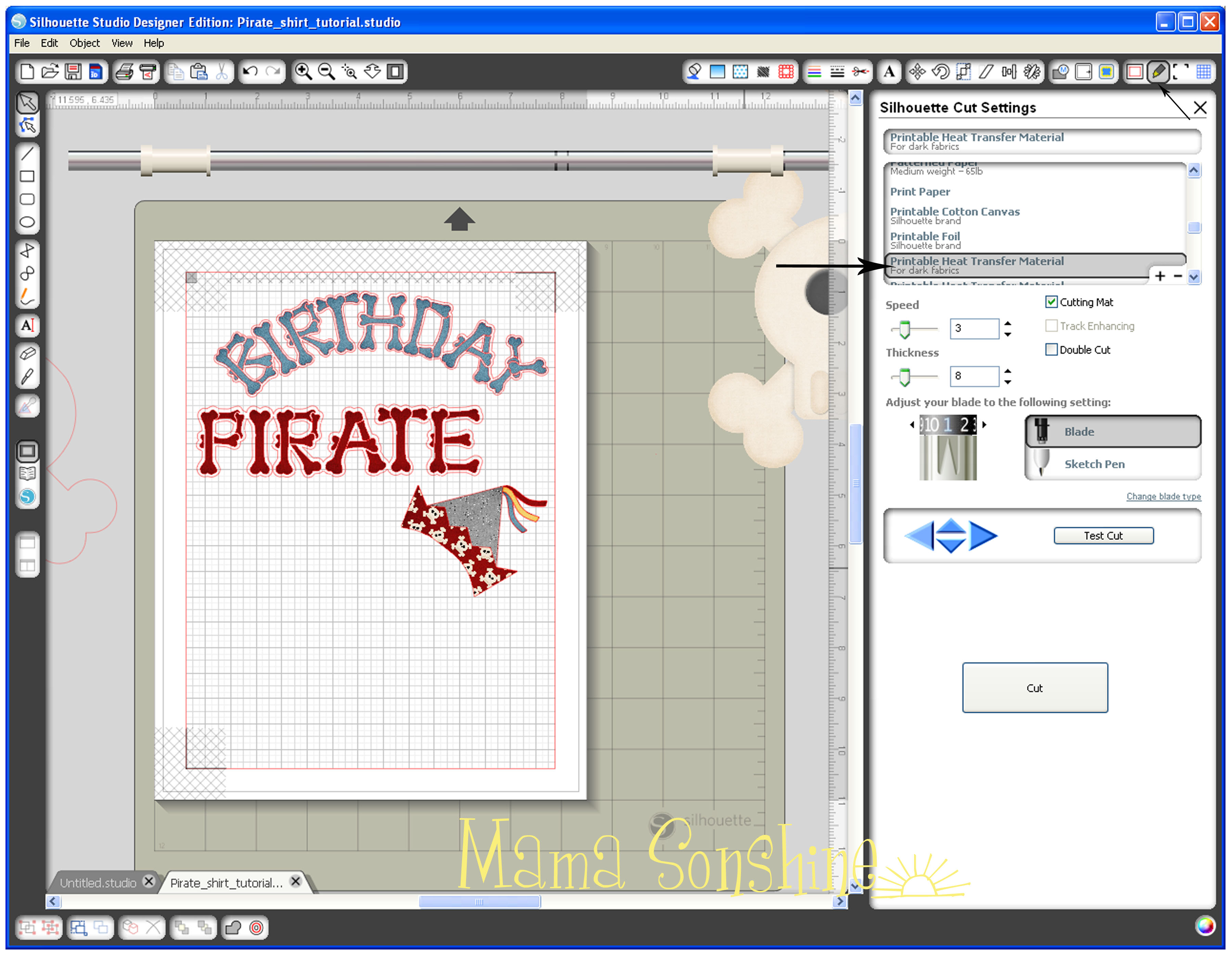
MSS_PirateShirt_Tutorial30

I found the cut settings for Silhouette Studio has for printable heat transfer-dark material worked great.

For the rest of the shirt check out Part Three.

If you want to see how I designed the skull check out Part one.

Happy Crafting

signature-black

facebook instagram pinterest parties by mamasonshine etsy bloglovin google+ email twitter Image Map

I have shared this project at
 Tip_Me_Tuesday_Button_TipJunkie-jpg


Leave a comment

Birthday Pirate Shirt ~ A Silhouette Cameo how to (Part 1)

I wanted to share with you the steps I took to make my son’s birthday shirt.

There was a few problems I had that I was able to work through.  Hopefully this will help so others won’t get stuck like I did.

In this tutorial I use my Silhouette Cameo and the Silhouette Studio DE software to make a custom shirt for my son’s birthday party.  I used graphics from Just So Scrappy‘s YoHo YoHo Pirate kit.  I used the Silhouette brand Flocked Heat Transfer Material for the skull, and Avery Dark T-Shirt Transfers for Ink Jet Printers.

Part One will be how to make the Skull & Crossbones

Part Two will be how to do the words & party hat

Part Three will be how to iron everything on with some tips

MSS_BirthdayShirt01

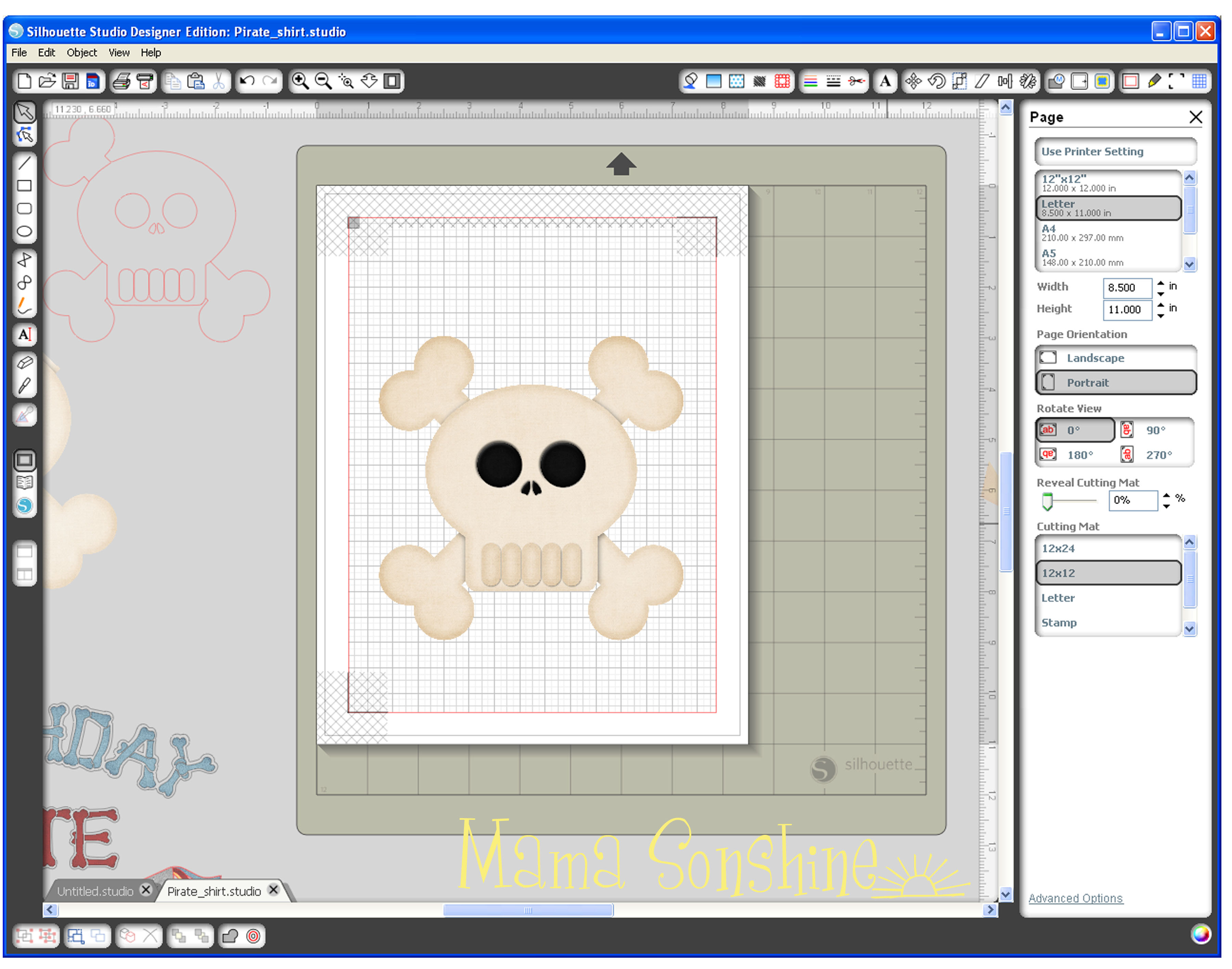
The flocked heat transfer material I had is 9″ wide, I set my paper size to normal Letter 8.5″x11″ since I will also be doing a print ‘n cut portion for his shirt.  Keeping the size the same helped me with proportions.

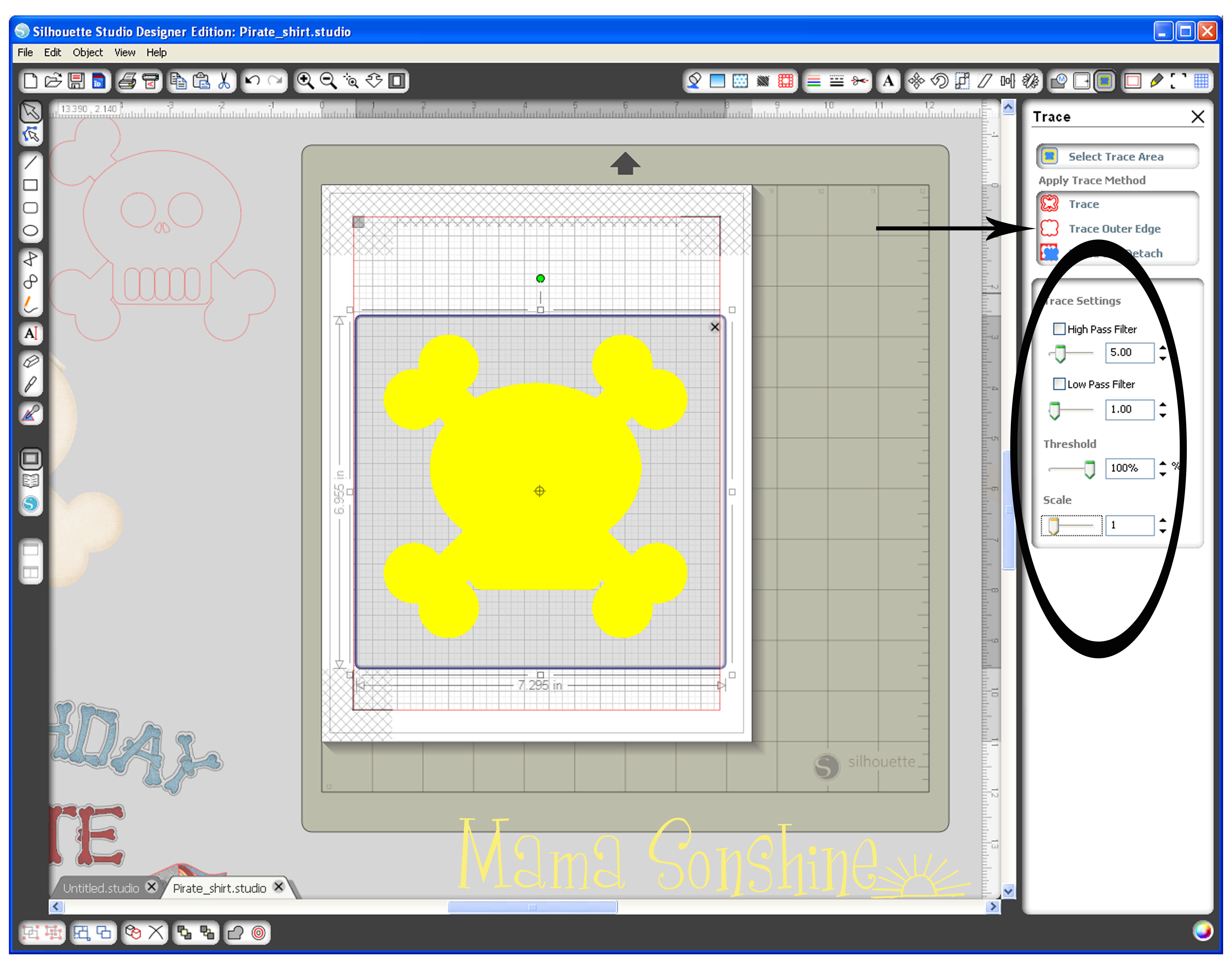
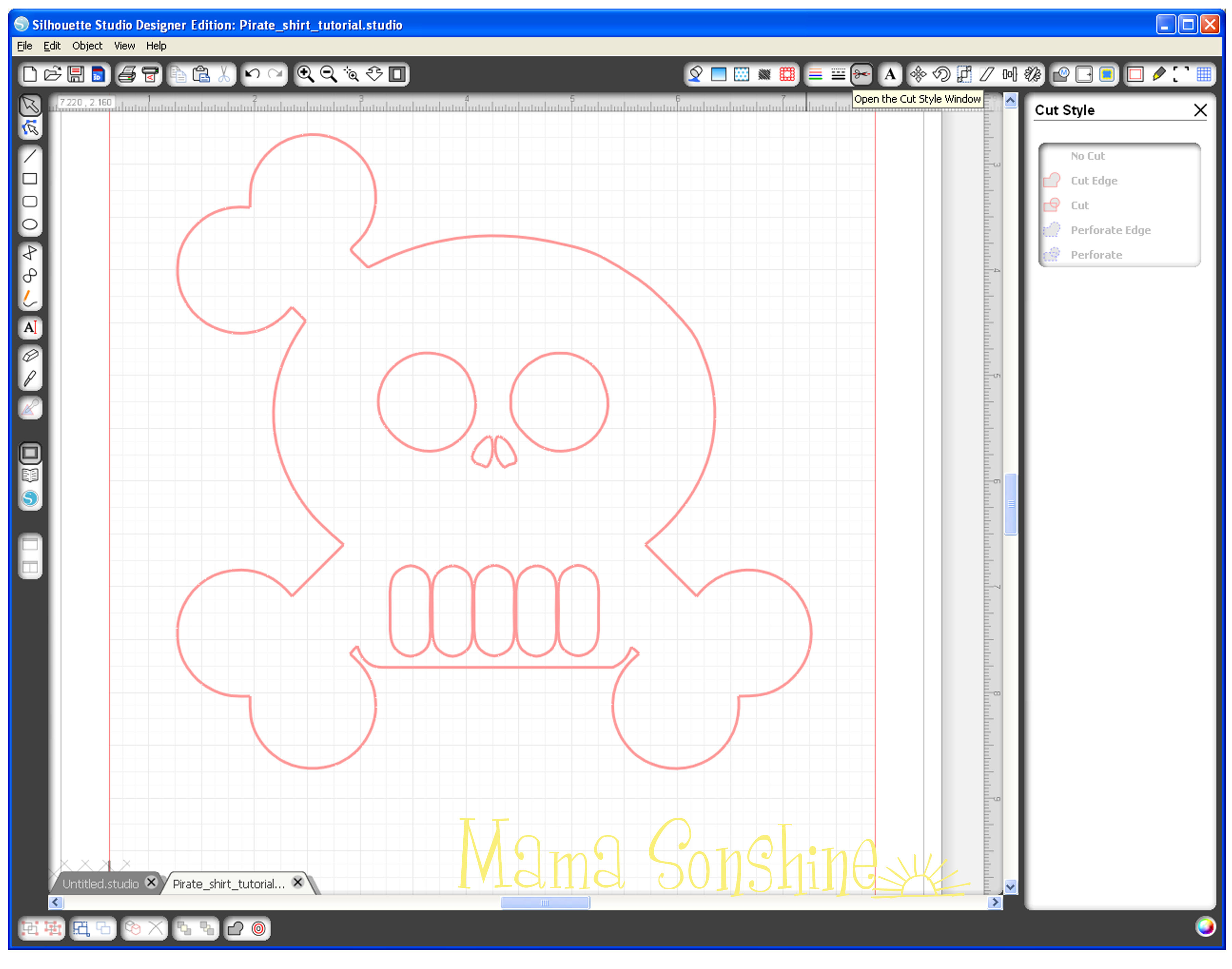
MSS_PirateShirt_Tutorial01I selected the skull and cross-bones from my library.  Since it is a .png file I had to trace the element.  I planned on cutting the skull out of the flocked heat transfer material, so I won’t need the picture after tracing it.

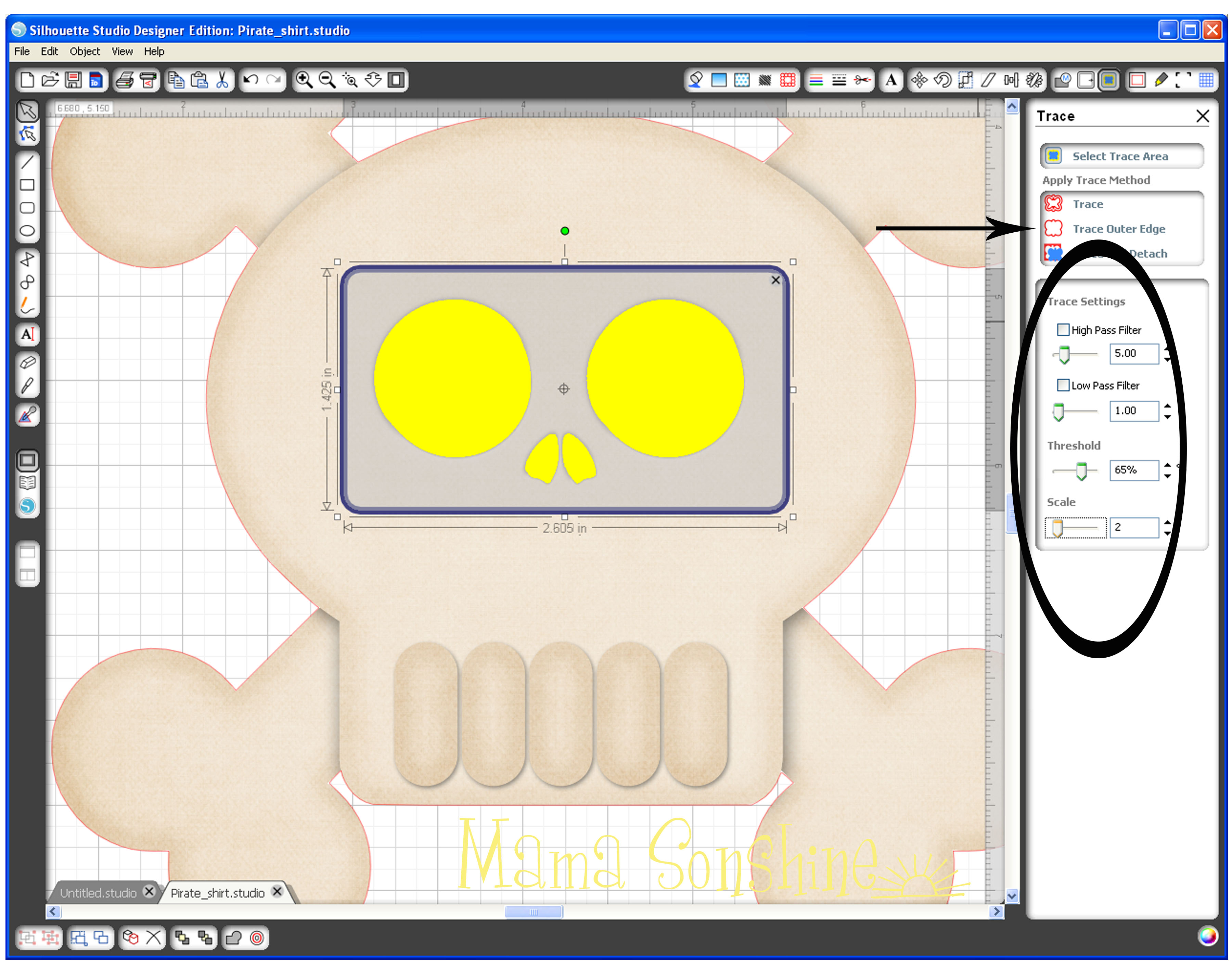
MSS_PirateShirt_Tutorial02No matter what my settings were, I could not get the eyes, nose and teeth to be traced.  This is because they are colored parts of the png, so the software couldn’t differentiate between them and the skull.  I chose to trace the outline first, then do the inside elements separate.

MSS_PirateShirt_Tutorial03

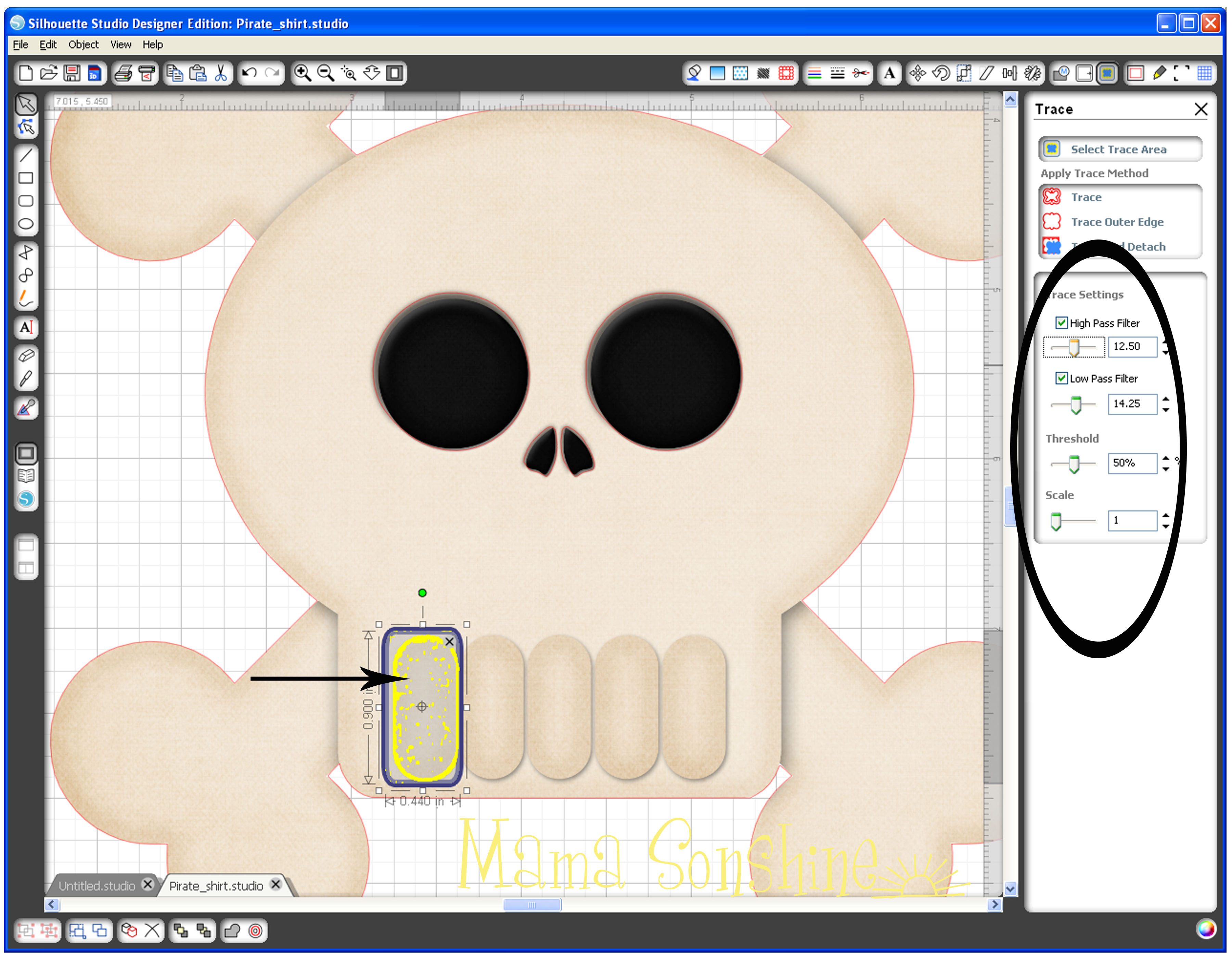
Since the teeth are basically the same color as the skull, I couldn’t get them to trace cleanly.

MSS_PirateShirt_Tutorial04

Notice all the yellow dots.  I could have gone back and deleted them all, but it is easier to just use the drawing tools.

MSS_PirateShirt_Tutorial06

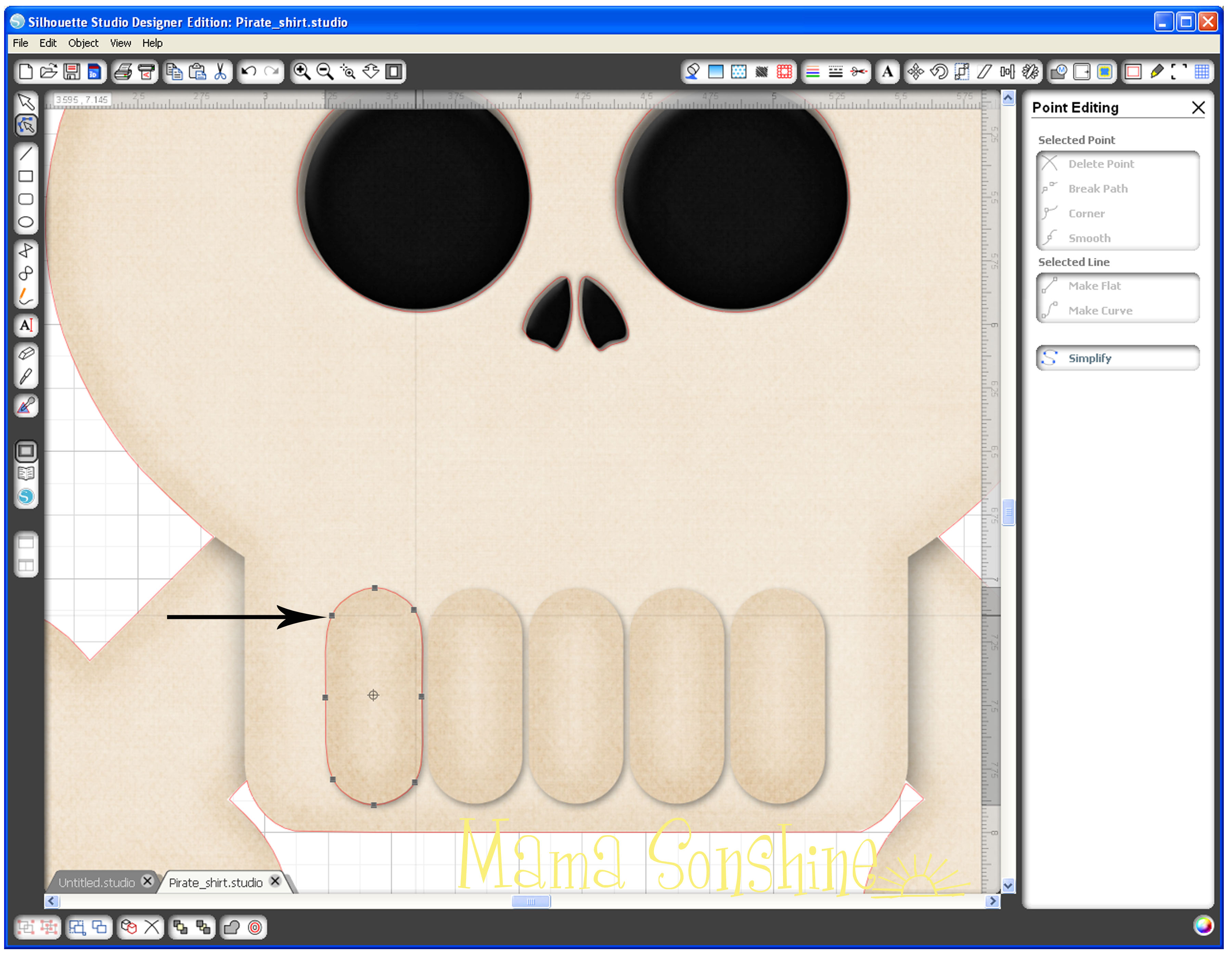
I used the circle tool to make an oval about the shape of one tooth, I then used the point editing tool to match the shape of one tooth.  Using the Replicate tool box, I made copies of the teeth and aligned them with the original picture.

MSS_PirateShirt_Tutorial07

Since I no longer need the picture, I can delete it, or just move it off the mat.  One part of the bones needs to be removed because this is where the party hat will be.

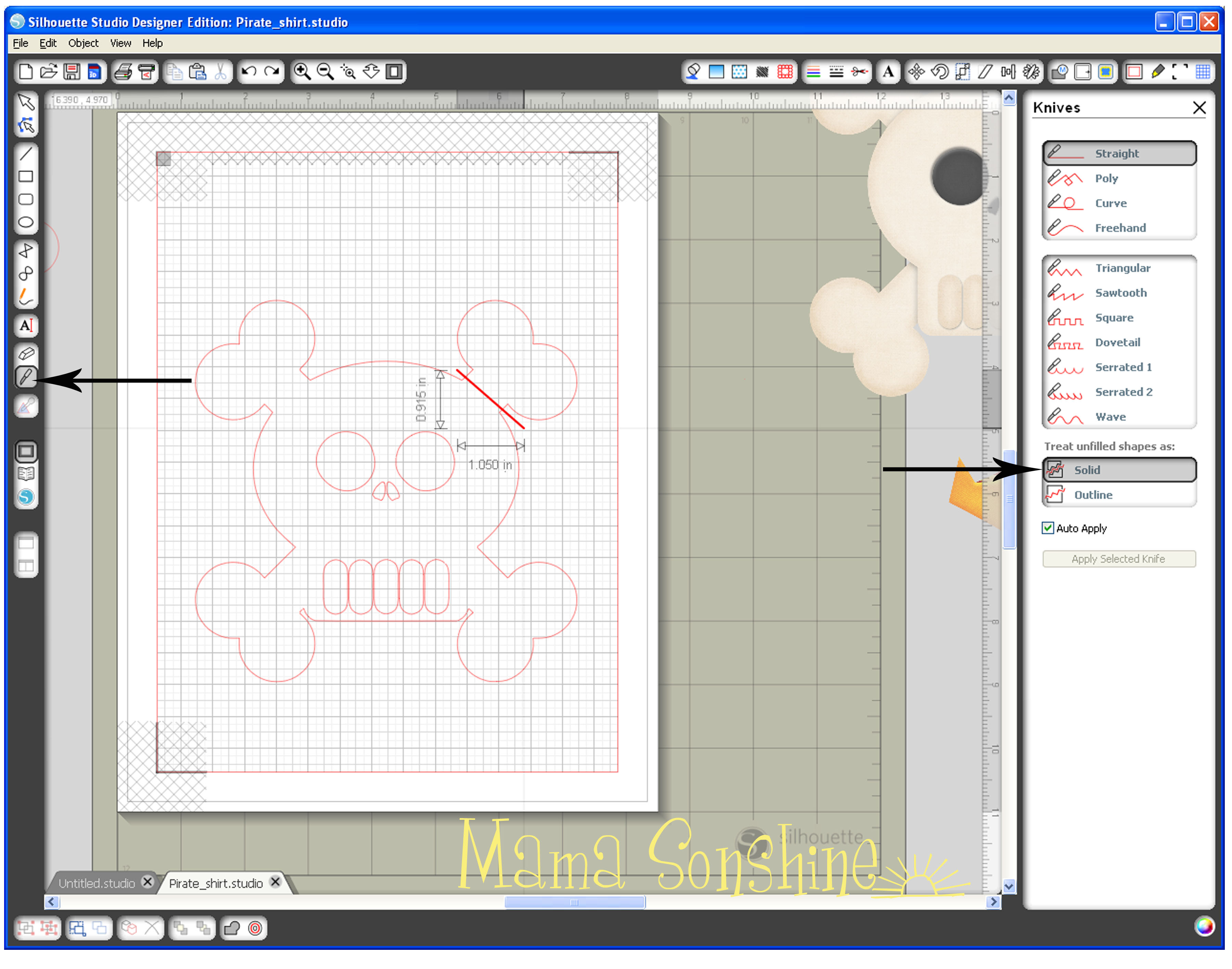
MSS_PirateShirt_Tutorial08Using the knife tool I simply drew a line through the bone, making sure that “solid” is selected in my tool box.  If you don’t have the designer edition of the software this is the default setting.

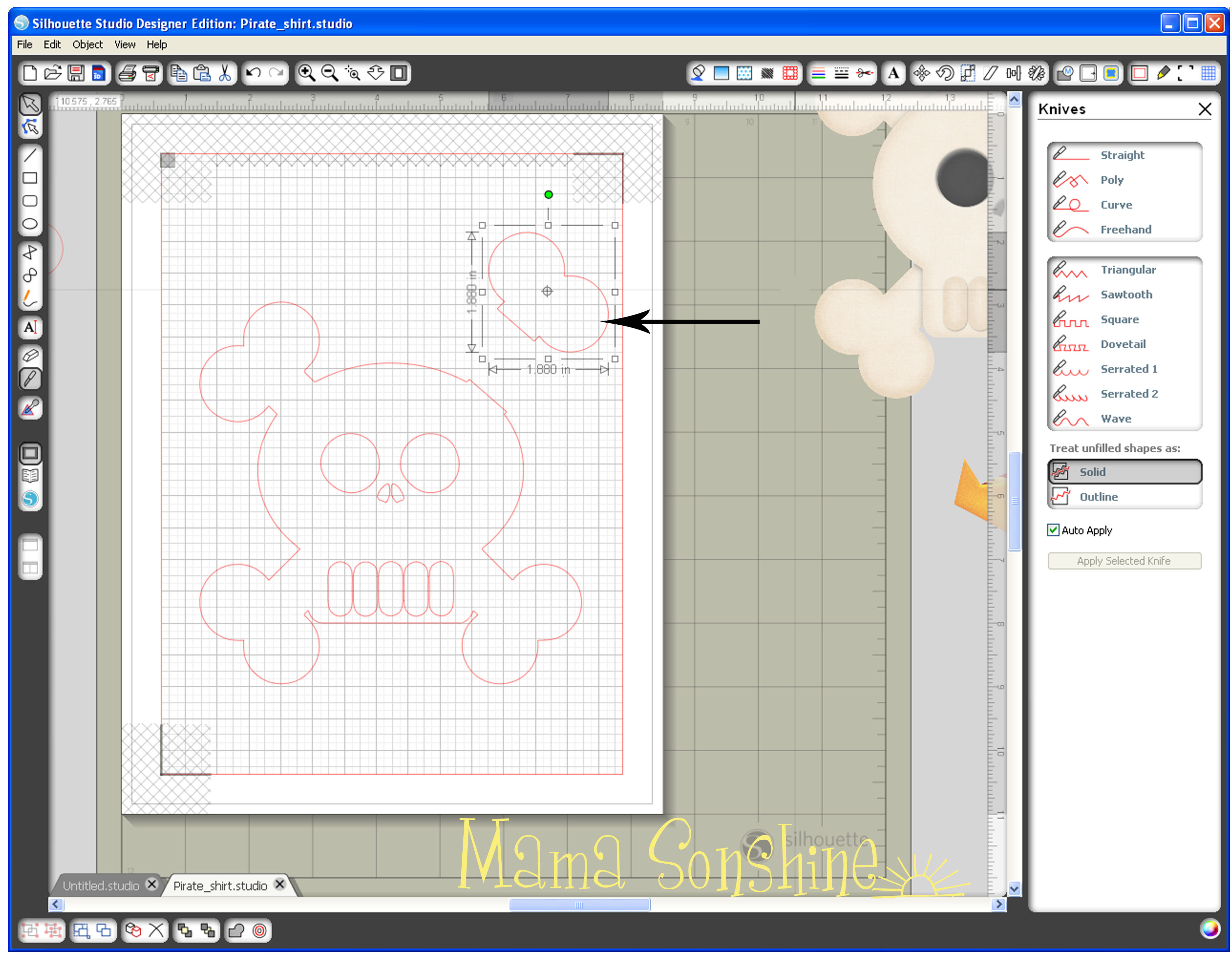
MSS_PirateShirt_Tutorial09This portion of the bone can now be deleted.  I then went back and smoothed the part of the skull where I made the cut.

MSS_PirateShirt_Tutorial10

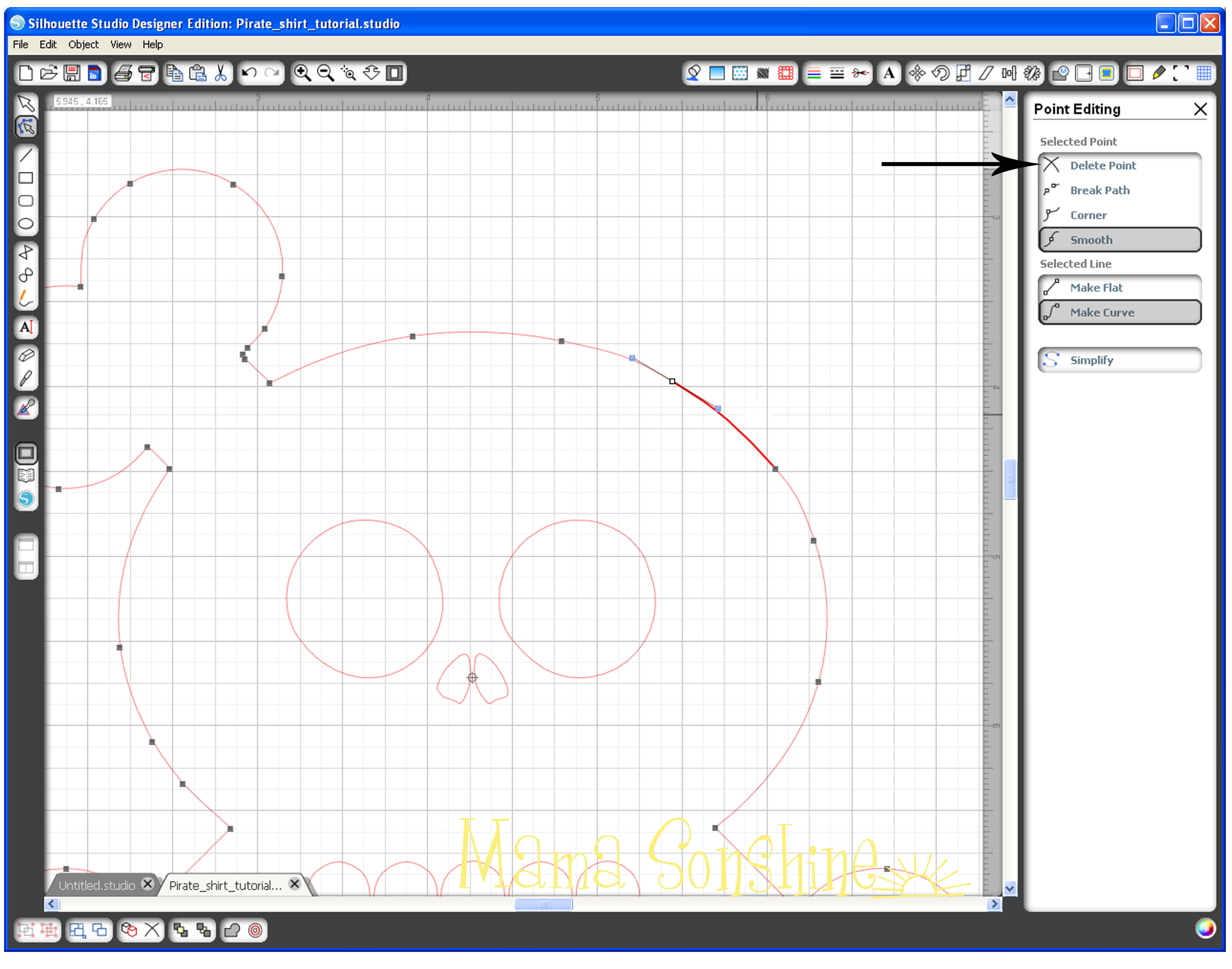
Using the point editing tool box, I deleted all points above the curve of the skull and smoothed out the remaining ones.  It is not shown in this tutorial, but I also added curved lines to separate the skull and reaming three bones.  I didn’t want the separate but I wanted a cut line there to give more depth to the finished product.

MSS_PirateShirt_Tutorial11In the cut style tool box make sure “cut” is selected so that it also cuts out the eyes, nose and teeth.  The shirt will show through on these parts.

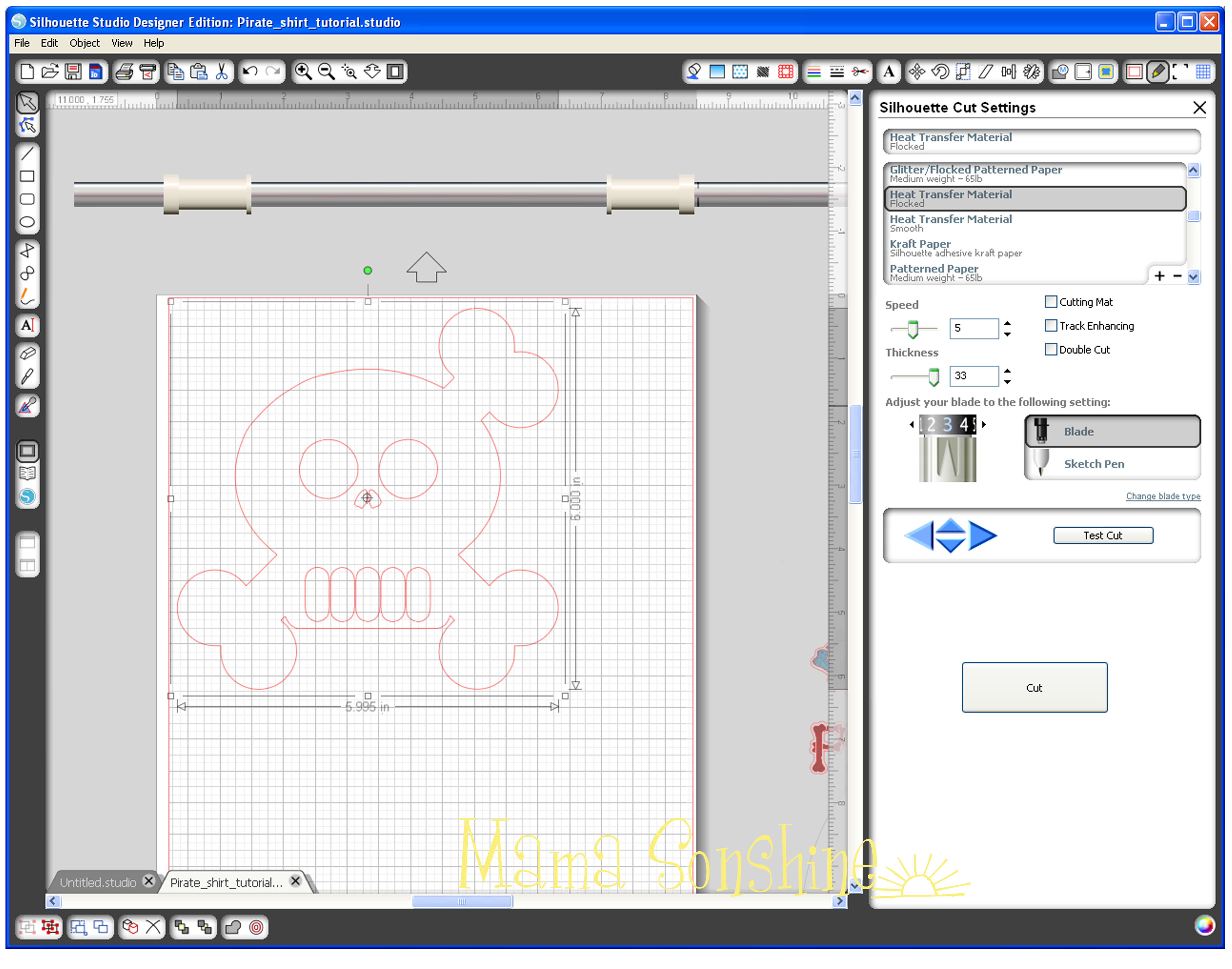
MSS_PirateShirt_Tutorial12Before you actually cut your design you want to flip it horizontally, make sure all elements are selected (ok to group them together).  You can right-click, or go to the edit menu, and select ‘flip horizontally.’  The cut settings for Heat Transfer Material Flocked worked perfect because it is a Silhouette media.  If you are unsure make a test cut first.  You don’t need a mat, so un-click that box and make sure the shiny side is down when cutting.  If unsure, follow the directions on the package.

For the rest of the shirt check out Part Two & Part Three.

Happy Crafting

signature-black

facebook instagram pinterest parties by mamasonshine etsy bloglovin google+ email twitter Image Map
Enhanced by Zemanta


2 Comments

Menu Plan Monday Feb 24

Remember last week when I said I was sick?

Well now everyone is sick.  I am better, but not entirely back to normal.

The hubster has had a fever since last Friday and I finally convinced him to go to the doctor.  Tonight.  On Monday.

Guess what? He has pneumonia.  He walked in and said “yeah, yeah. you were right.”

I wasn’t even gonna play the I-told-you-so-card.  But you know, I was right.

Ian is also sick, but he just has a virus.  But it has been hard on him the last couple days.  And tonight it seems like Baby Sid is coming down with it.

I find it very difficult to think about meal planning when nobody is eating.

So if I do cook this week, this is what I might be making.


Menu Plan 2/24-3/2

Mon: no plan.

Tue: Tomato Basil Parmesan Soup with Tortellini

Wed: Sloppy Joe’s with taters 

Thr:  Slow Cooker Zesty Italian Chicken

Fri: Leftovers

Sat: Kitchen is closed

Sun: Sunday night roast ~ probably pork


Happy Cooking

signature-black

Need something to help plan your meals?  I use the Plan to Eat online meal planner.  Try it free for 30 days

Simple Meal Planning - Plan to Eat

Find more recipes at I’m an Organizing Junkie


Top Mommy Blogs - Mom Blog Directory

Enhanced by Zemanta


Leave a comment

Menu Plan Monday Feb 17

I will admit it.  I am sick.

I have been able to avoid all colds and sickness this winter. Until now.  Due to babysitting issues & the weekend, I had to have the past four days off.  Which means I had the last four days with my kids home with me.

And I got a cold.  A miserable, my head is gonna exploded, I can’t breather, kill me now, kinda cold.  Do you think those boys would let me rest and get better?

Nope.

So it was really hard for me to think about food for this upcoming week.  But I must remember that I will get better and I will need to feed the family.

So here is the plan, but don’t hold it against me if we end up with take out once or twice this week.


Menu Plan 2/17-2/23

Mon: Cream Cheese Pesto Chicken with rice

Tue: Beef Stew in the crock pot

Wed: Sweet & Spicy Bacon Chicken with Pepperjack Bacon Mac n’ Cheese

Thr:  One Pot Baked Ziti

Fri: Leftovers

Sat: Kitchen is closed

Sun: Early Dinner at my Aunts


Happy Cooking

signature-black

Need something to help plan your meals?  I use the Plan to Eat online meal planner.  Try it free for 30 days

Simple Meal Planning - Plan to Eat

Find more recipes at I’m an Organizing Junkie


Top Mommy Blogs - Mom Blog Directory

Enhanced by Zemanta