I Tri and Craft

thoughts from a mother of boys, a marathoner, a triathlete, a crafter, a wife, and a scientist


7 Comments

Surprise at the bottom Etched Drinking Glasses

Way back in the late 90’s my sister got married and I helped her make the bridal party gifts.  She wanted to order etched beer mugs for the groomsmen and I told her we could just do it ourselves.  So we went to the craft store and bought this:

Armour Etch Starter Kit

Armour Etch Starter Kit

You see the rose wine glass?  We made those for the bridesmaids.  And the kit hasn’t changed in the almost 20 years since we bought it.

It was a pain! You tape the stencil to the glass and the etching cream bleeds through and smears and it isn’t pretty.

But guess what….I now have a Silhouette Cameo that cuts vinyl.  And vinyl makes the perfect stencil for glass etching.  They also make stencil material that has a sticky back, or you could use contact paper.

So while searching Pinterest one day I saw some glasses that state “you have just been poisoned” at the bottom of them.  I just knew I wanted to make some, and I knew the perfect machine to make a really good stencil.
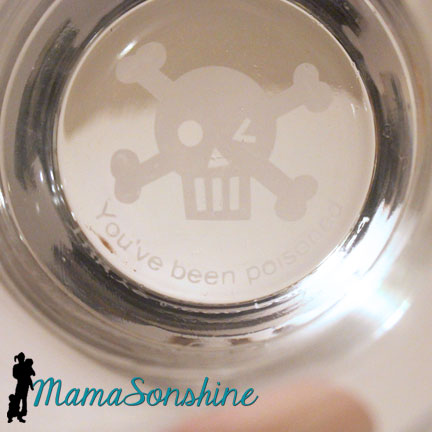
You've Been Poisoned


After getting my Silhouette Cameo for Christmas I joined a Facebook group that has allowed me to learn how to use my machine, share my projects, help others learn how to use their machine and push me to try new things.

One of the events they hosted this year was a hand-made gift exchange.  Whomever in the group wanted to participate just signed up and the coordinator matched you with another group member.  You then made each other a hand-made gift.  Sounds like fun, huh?

After chatting with my gift receiver I thought she might just be the person to appreciate this fun gift.  To the Silhouette I go!
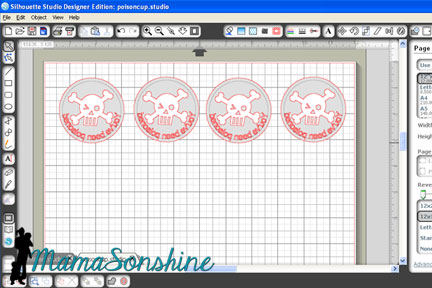
Design in Stuido

I measured the bottom of the glasses.  It is important when looking for drinking glasses that the bottom of the glass be completely flat.  Typically when etching on the outside of glass you don’t need to flip the image, but with this design it will be read through the bottom of the glass, so it needs to be flipped on the horizontal.

Cut your stencil out of vinyl, others have had success with contact paper, but I have yet to try it as a stencil.  I used the default vinyl settings and it cut perfectly.

Clean the glassware and wipe with rubbing alcohol.   When completely clean and dry apply stencil.
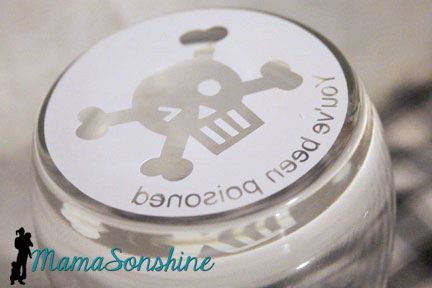
Stencil Applied

Follow the instructions on the glass etching cream you have purchased.  The etching process is pretty quick to apply it next you a running water source.  That way if you happen to get any on your skin you can quickly rinse it off.

Please remember this is a caustic substance and can eat away at your skin.  Be safe and use precaution and proper safety gear.  Gloves are highly recommended, as is a well ventilated work area next to running water.  If you do happen to get some on your skin rinse under high flowing cold water for at least 15 minutes.
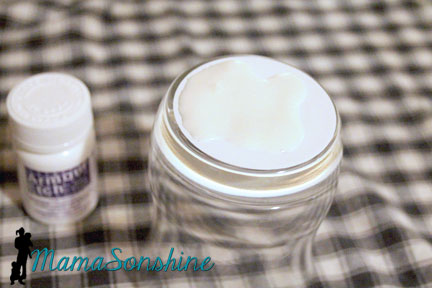
 MSS_GlassEtching03

As per instructions I used a wooden stick to pile on a helping glob of cream and let it sit for about a minute.  I then ran it under cold water until it was all rinsed off.  If you are concerned about the cream etching your pipes, don’t be, but you can run cold water down your sink for 2-3 minutes if you want to ensure you have full diluted the cream.
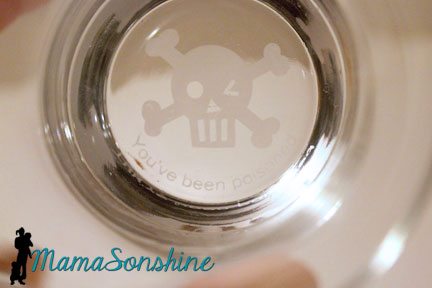
 

Etched glass


I think they turned out pretty awesome, don’t you?

Now while these are awesome drinking glasses, I also wanted to make something a little more personal for her.  My gift exchange partner is going to school to become a forensic investigator!  What an awesome degree huh?  So I decided to make her a some artwork that encompass that goal.
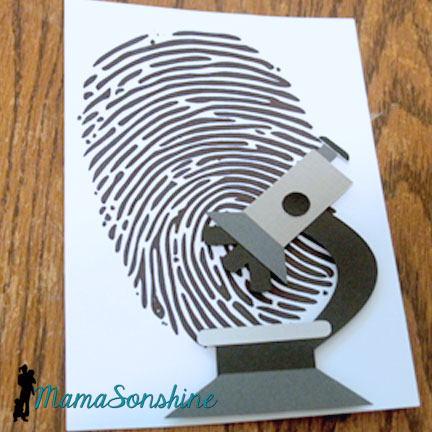
MSS_GlassEtching05

I used sketch pens to draw the finger print and cut the microscope out of card-stock.  I used dimensional tabs to lift the microscope off the paper.
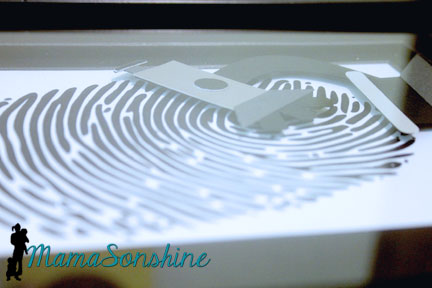
MSS_GlassEtching06


I framed it in a frame that had some depth to it so the microscope didn’t get all smooshed.
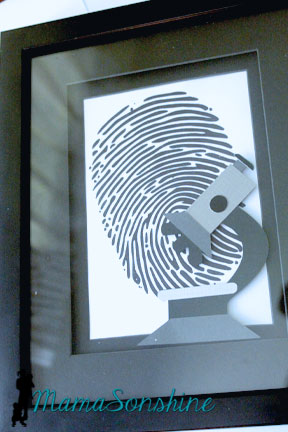
MSS_GlassEtching07


In return I also received a box of goodies from my exchange buddy.  Don’t you just love the “Talk Nerdy To Me” bag?
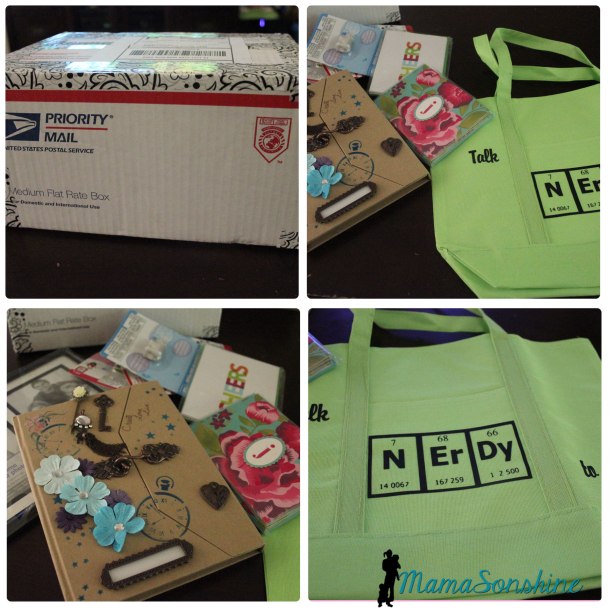
Talk Nerdy to Me Bag

This was a super fun event and I am so excited to get back into glass etching.  I can’t wait to etch my next project.


Happy Crafting

horiz_sig copy

facebook instagram pinterest parties by mamasonshine etsy bloglovin google+ email twitter Image Map

Displaying handmade.png

Check out some more projects from the talented women who participated in this event.

Displaying handmadegift exchange


10 Comments

Freezer Paper July 4th Shirts

Freezer paper is every crafters’ best friend and I can now see why.

I have made shirts for the boys before using Heat Transfer Vinyl and Printable Heat Transfer Material, but never using fabric paint.

For this month’s Silhouette Challenge the theme was patriotic.  Seriously you could go anywhere with that theme, but I decided the boys needed custom shirts to wear on the 4th of July.

I wanted to make a stencil out of freezer paper that I cut with my Silhouette Cameo.  I didn’t want the basic plain old flag, but I wanted something kinda flag related.

4th of July Shirts


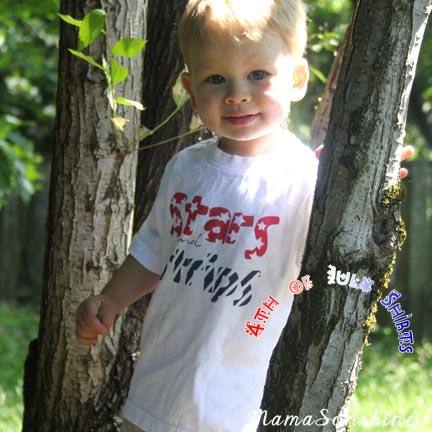
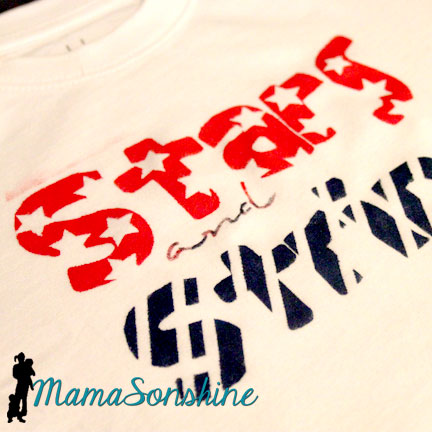
So I cam up with this shirt for Sid.  It says “Stars and Stripes” and has coordinating graphics with the words.  And it was done in Red, White, & Blue.  Tots Adorbs huh?

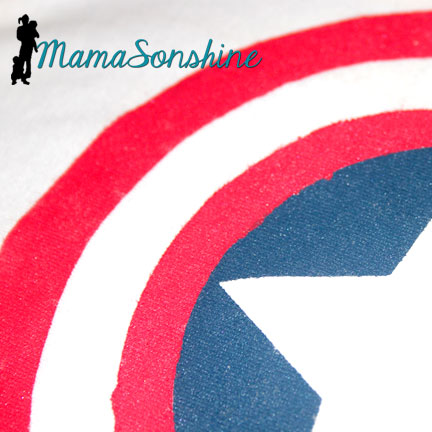
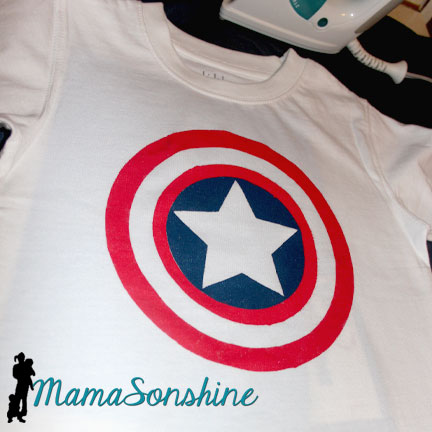
Since I didn’t actually want them to match I decided to make Ian a Capt. America shirt.  Because who is more patriotic than Capt. America?

The process

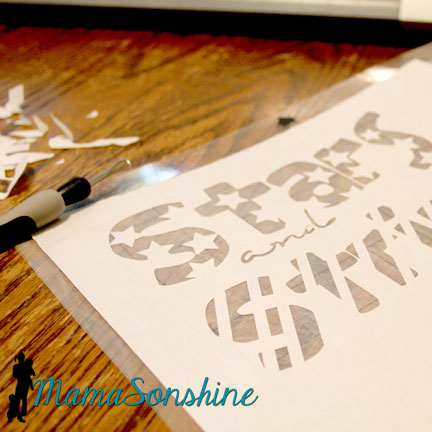
Create and cut your design, you don’t have to use a cutting machine to make a shirt out of freezer paper but it sure is helpful.


Freezer Paper Stencil

In the cutting machine the freezer paper can be cut with shiny side up or shiny side down.  However, the shiny side is the side you will iron to your fabric, so if you cut shiny side up, you will need to mirror (flip horizontally) your design.  I used a blade of 2, speed of 3 and thickness of 10.  But there has been a variety of recommended settings on-line, so make sure to do a test cut first.

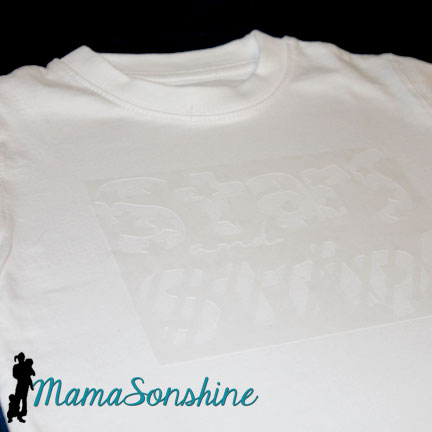
Freezer Paper Stencil Ironed on

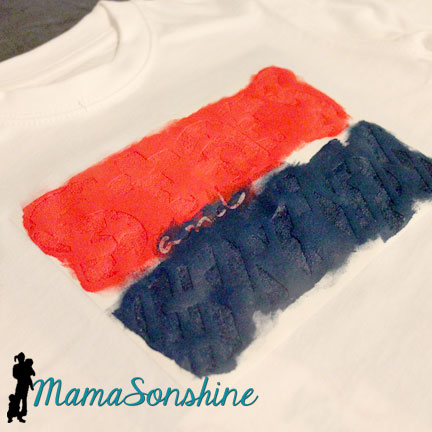
Iron on your stencil.  Put the shiny side down on your fabric and use a dry iron on the setting for your fabric.  Use lots of pressure, and pay extra special attention to the edges.  You don’t want paint to bleed under the stencil.  Freezer paper and transfer tape don’t mix, so you will have to put all those little letter innards back by hand.  I made font decisions with this in consideration.

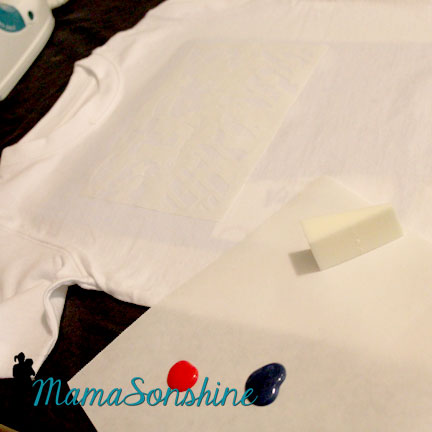
Use a sponge to paint

Here is a little confession.  I don’t paint much, so I didn’t have any paint sponges or foam brushes or anything at home.  You know what I did have though?  Make-up foam applicator, which worked just fine.

Make sure you place a piece of cardboard or a few pieces of cardstock between the layers of your shirt.  The paint can bleed through, and you don’t want it showing up on the back of your shirt.

Freezer Paper Shirt

Make sure you dab and lift, do not brush.  Brushing can lead to paint bleeding under your stencil.  The idea is have many thin layers of paint instead of  one thick one.  I decided I wanted the ‘and’ to be a mix of red and blue, because I didn’t want too much of one color.

Freezer Paper Shirt

Let your paint dry and peel up your stencil.  You may have to hold down the shirt to avoid stretching the newly painted fabric.

MSS_July4th_shirt09

Most fabric paint requires you to heat set it, running the iron over the design so the paint doesn’t wash off.  The fabric paint I bought did not have that on the instructions, but I did it anyway.  I ran the iron over the front of the shirt, with a pillowcase in between, after is had dried for a couple of days.  I turned it inside out and washed it after that.

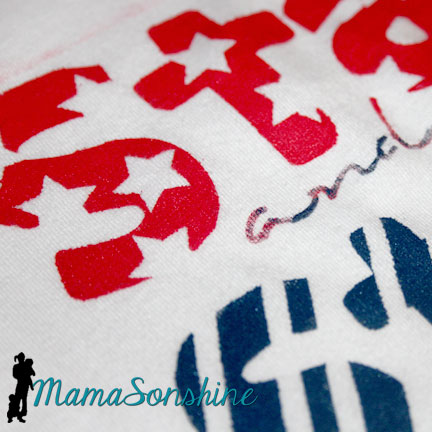
If you notice above the word “stars” you can see a little smear of red pain because the frame of my stencil was too small.  I didn’t run the iron over that part, and it was mostly gone after washing it.  So I am glad I did heat set the rest of the shirt.

Stars & Strips Shirt

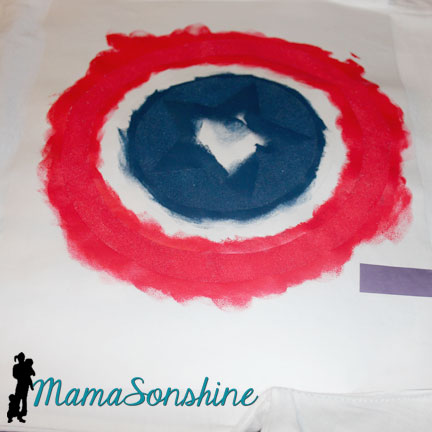
The Captain America shirt seemed like it was going to be easy, but I forgot about the fact that there is a red circle next to a blue circle with no white between.

So I had to paint it on two different days.

Freezer Paper Capt America

The stencils were different circles, so the inner white circle is actually two.  After all the above was dry, I removed the circle next to the blue, but left the one where it should be white.  I then added another circle to cover the blue center.  This one didn’t stick as well because I was afraid to mess up the paint, so I didn’t press to hard or long.

MSS_July4th_shirt05

This lead to some bleeding of the red paint in to the blue circle.

But it only looks bad close up.

MSS_July4th_shirt06

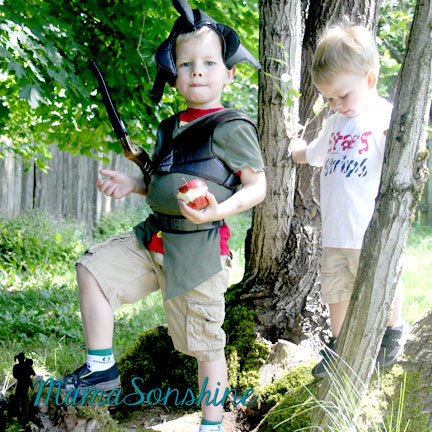
My older son then informed me he no longer likes Capt. America, so he wouldn’t wear the shirt for me.

MSS_July4th_shirt01

He did tell me he was a Mystic Forest Ranger Zombie Hunter though.

MSS_July4th_shirt14

At least Sid was cooperative.

MSS_July4th_shirt04


Happy Crafting

signature-black
facebook instagram pinterest parties by mamasonshine etsy bloglovin google+ email twitter Image Map


Want to Check Out More Silhouette Projects?

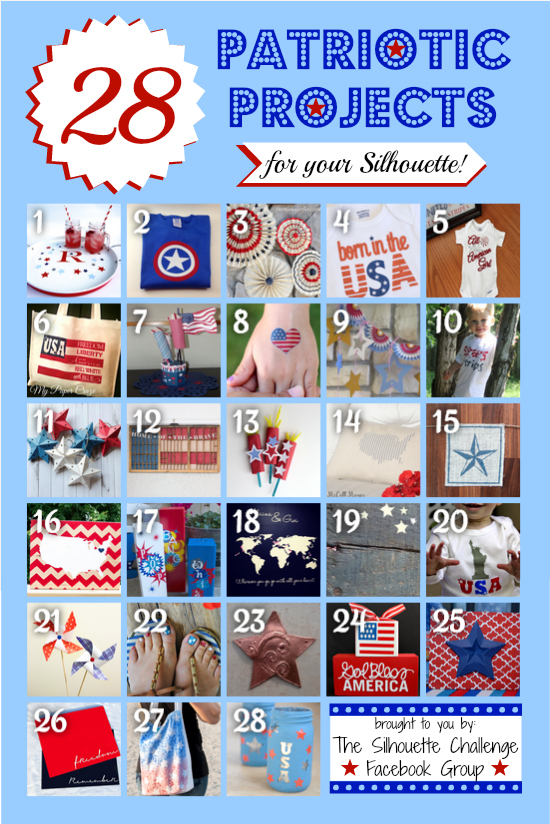
My Silhouette Challenge buddies and I are all sharing projects on our blogs today, so pursue the projects below for a wealth of Silhouette inspiration!

Monogrammed Patriotic Serving Tray Captain American Romper Patriotic Burlap Stars (Pottery Barn Knockoff) Patriotic Onesie {Plus Free Cut File} Patriotic Shirts with Layered Heat Transfer Vinyl DIY Patriotic Tote Bag Red, White & Blue - Patriotic Decorations How To Create DIY Temporary Tattoos Made in America Freezer Paper July 4th Shirts Red, White, and Blue Paper Star Lanterns Fourth of July Rustic Flag Paper Sparklers Pretty Patriotic Pillow Nautical Star Burlap Banner: Stencil Material Tutorial Patriotic Map Art Wooden Fire Crackers; July Silhouette Challenge DIY Chalkboard and Vinyl World Map Let's Talk about Red White and Blue! DIY 4th of July Baby Outfit How To Make A Pinwheel {+ Free Template} Patriotic Nail Art Star Jewelry Vinyl on Wood Blocks Land That I Love Red, White, and Blue Patriotic Placemats DIY Paint Splattered Patriotic Tote Bag Patriotic Mason Jar Candle Holders

1. Our Rosey Life // 2. My Mom Made That // 3. The Kim Six Fix // 4. Create & Babble // 5. The Frill of Life // 6. My Paper Craze // 7. Kate’s Paper Creations // 8. Simply Kelly Designs // 9. Dragonfly & Lily Pads // 10. Mama Sonshine // 11. Lil Mrs. Tori // 12. Tried & True // 13. It Happens in a Blink // 14. McCall Manor // 15. The Thinking Closet // 16. unOriginal Mom // 17. Sowdering About // 18. Weekend Craft // 19. The Outlandish Momma // 20. Adventures in All Things Food // 21. Practically Functional // 22. Silhouette School // 23. Please Excuse My Craftermath… // 24. Ginger Snap Craft // 25. Pineapples And Pinecones // 26. Black and White Obsession // 27. TitiCrafty // 28. Architecture of a Mom //

Enhanced by Zemanta


Leave a comment

Tracing PNG & JPEG in Silhouette Studio

I belong to a few Silhouette related Facebook pages.  They are a wonderful support group for beginners and experienced users.

More and more I see questions about tracing images in the Silhouette software in order to make them cut files.  This is one of the main reasons I decided to go with the Silhouette brand cutting machine.

You are able to take any image and make your own cutting file.  I make a lot of decorations and invitations in Photoshop, then cut them with my Silhouette.

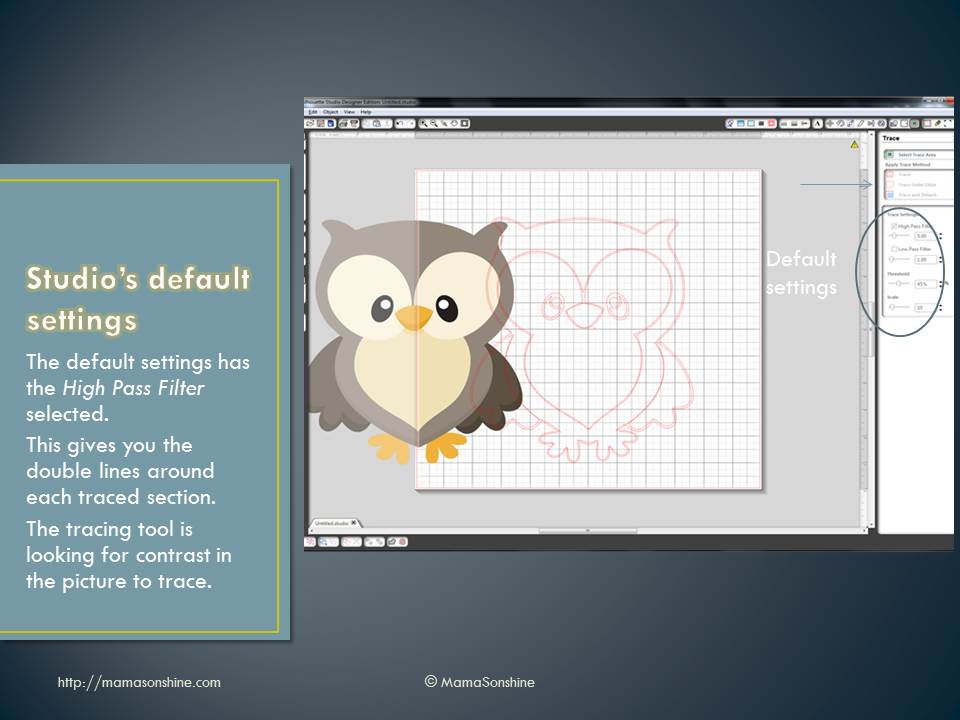
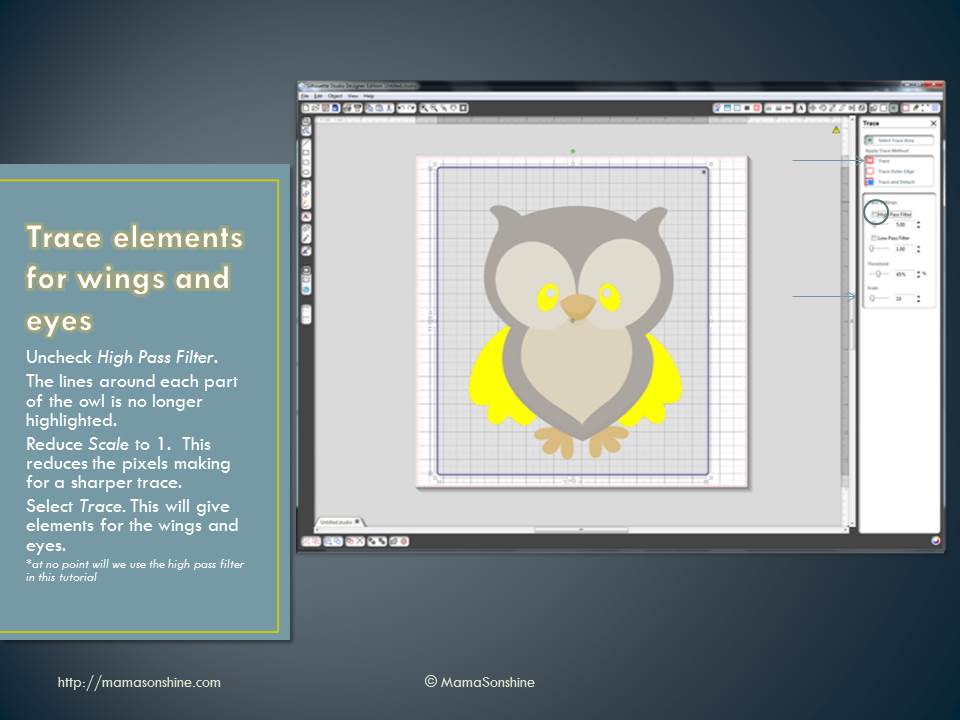
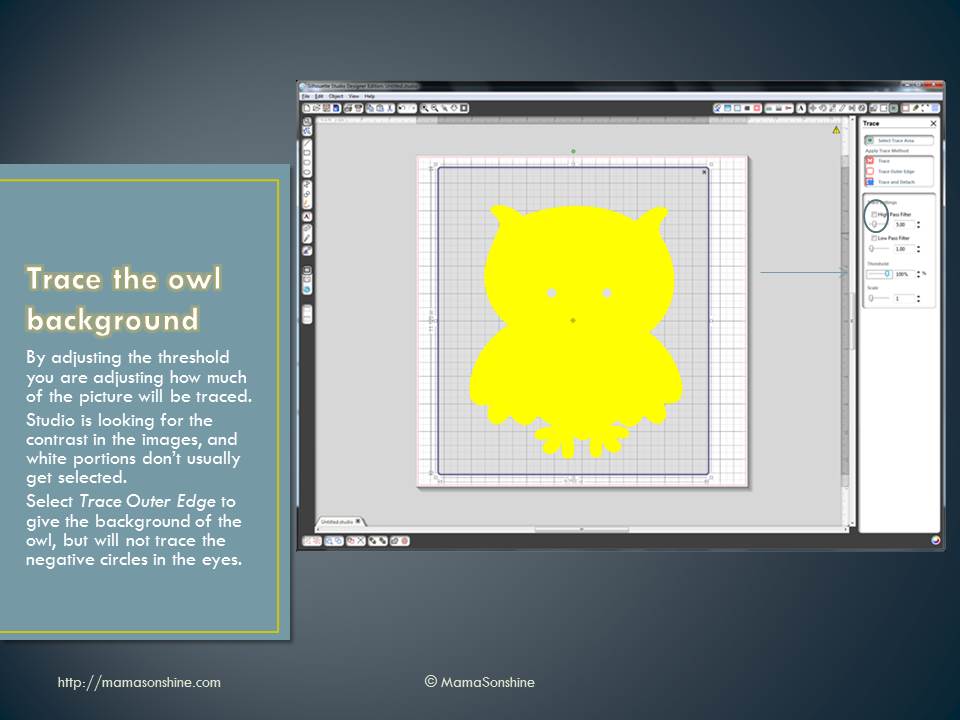
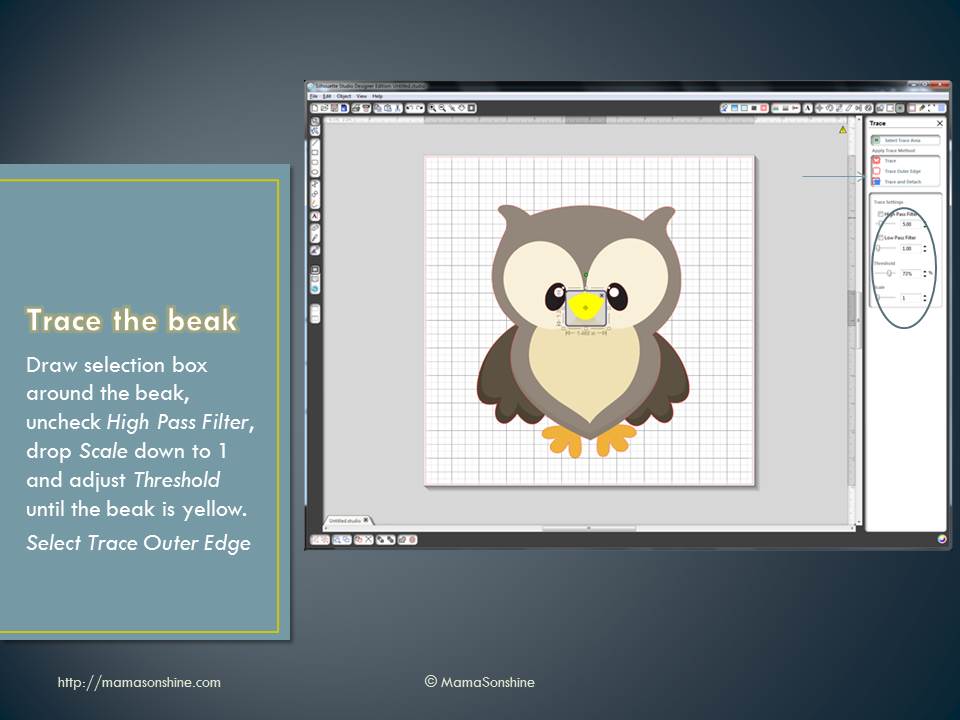
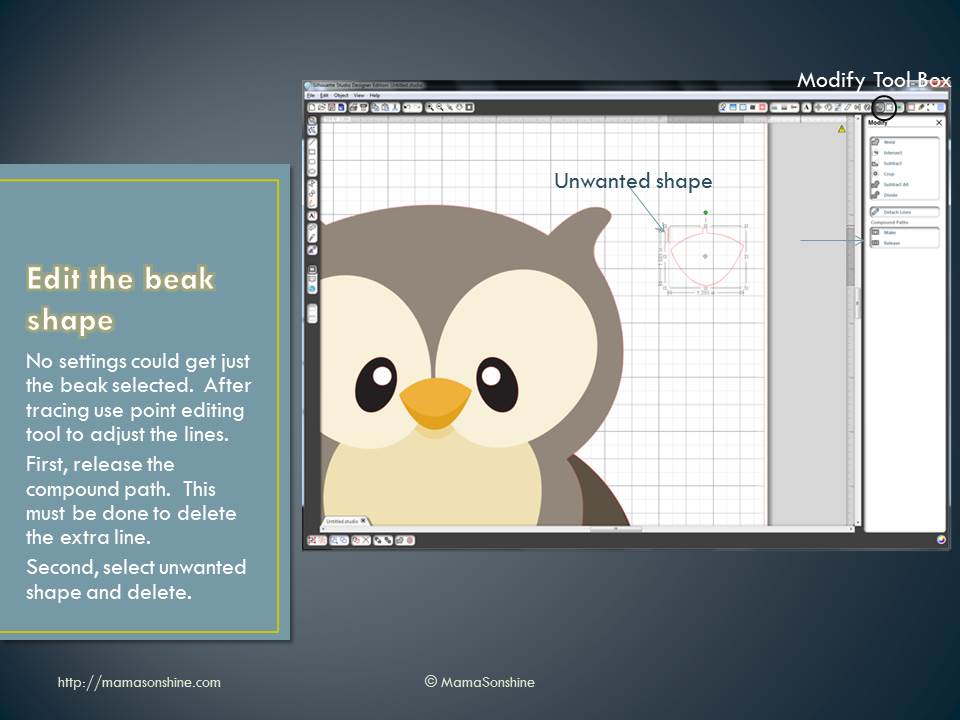
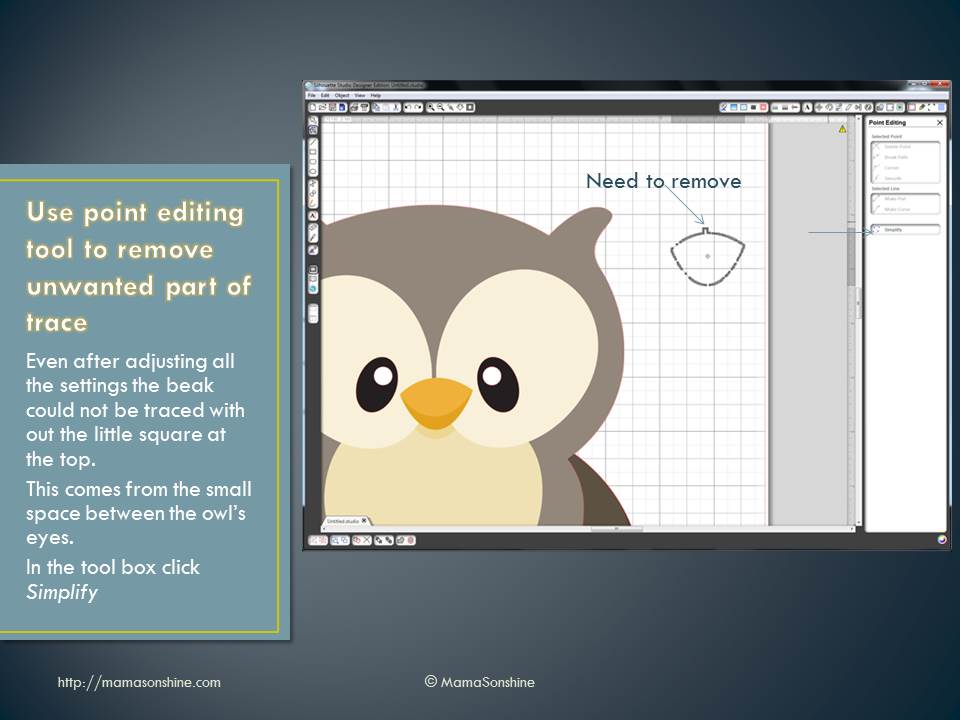
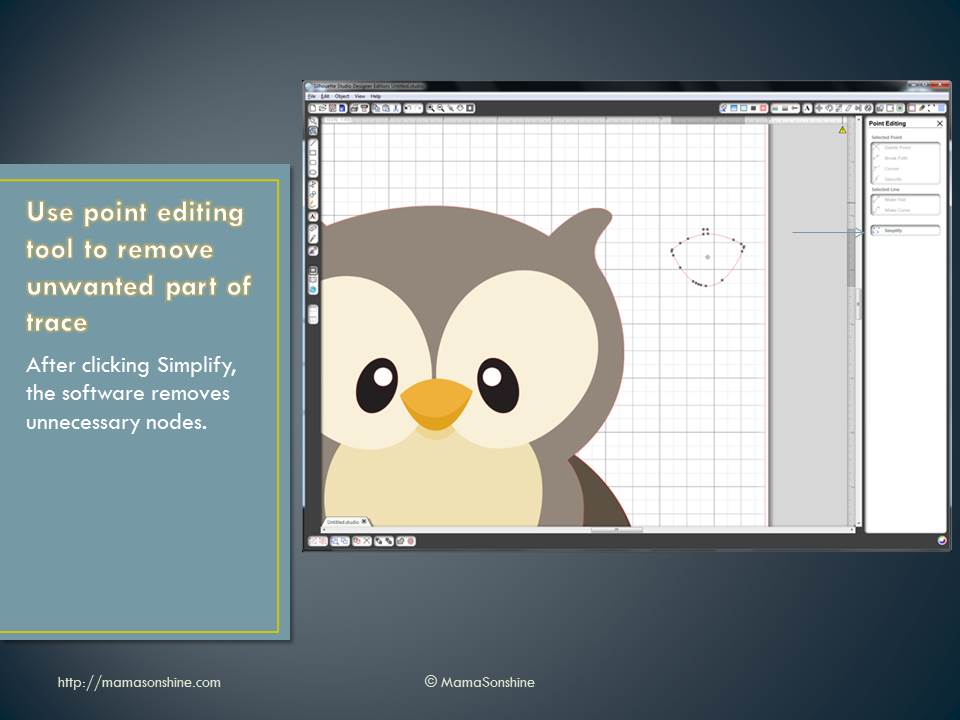
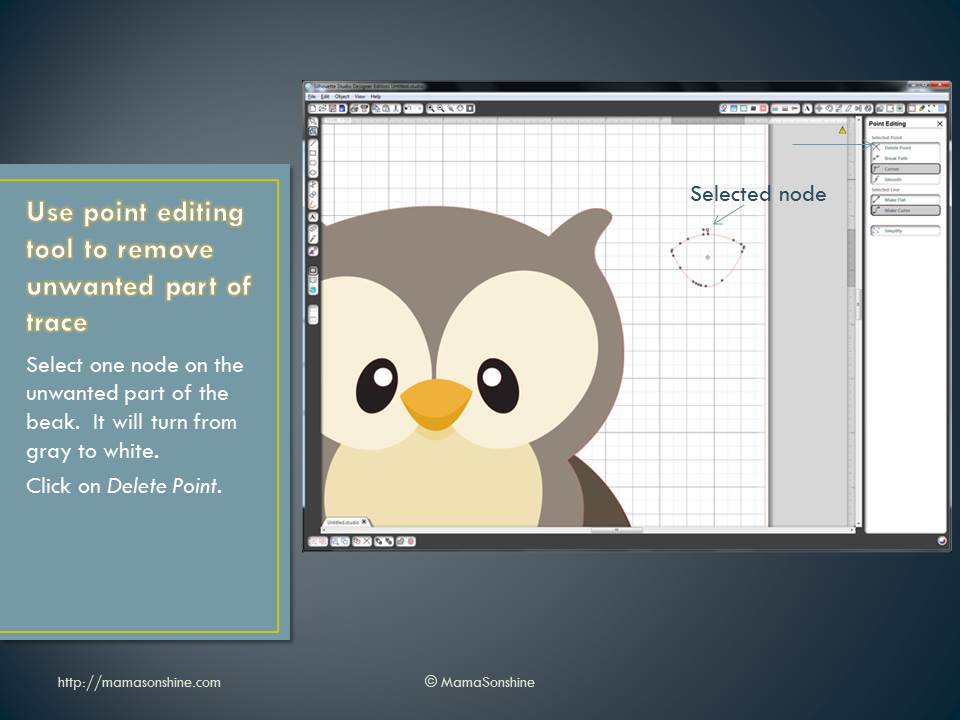
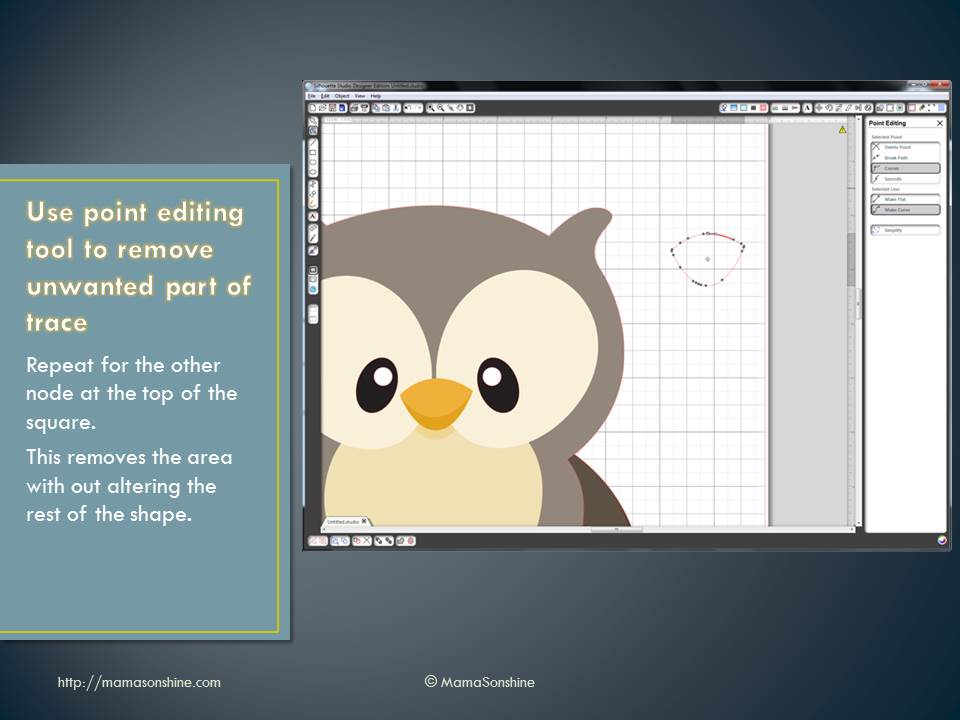
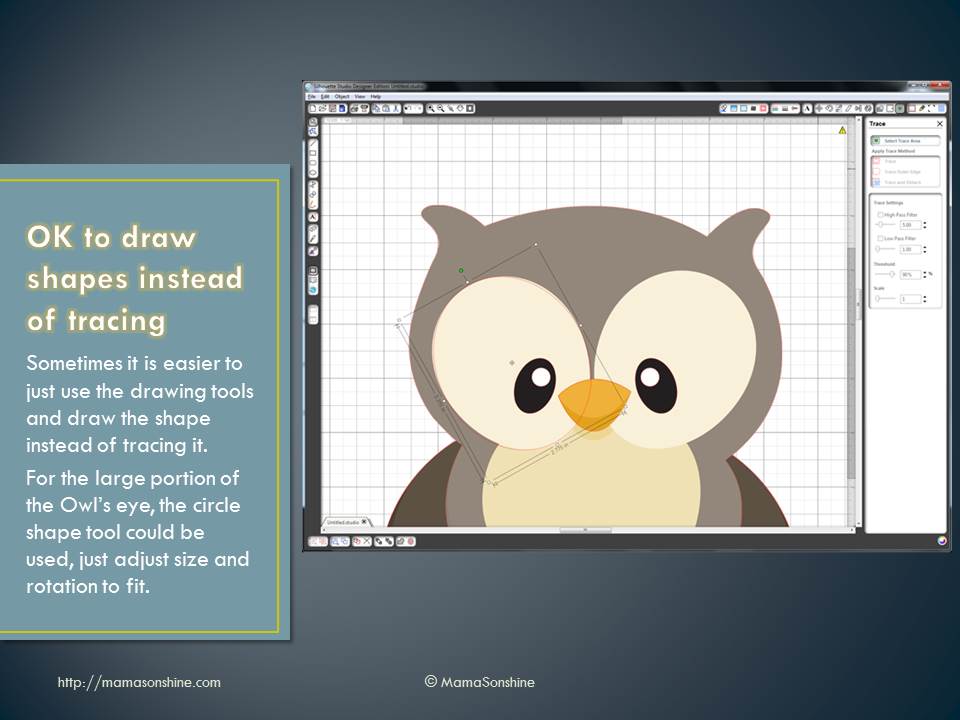
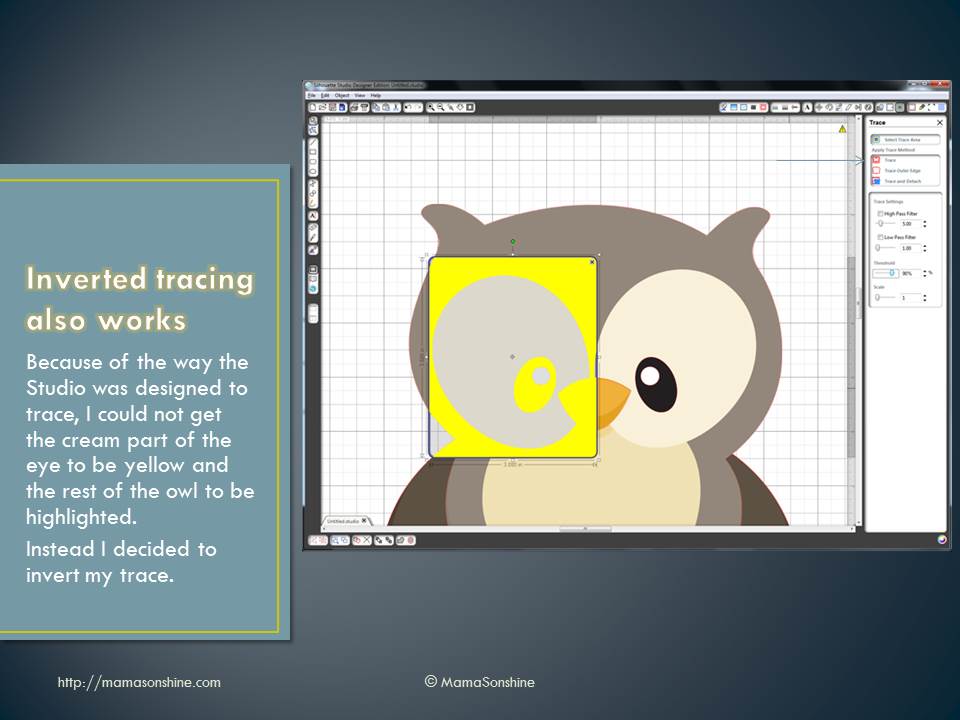
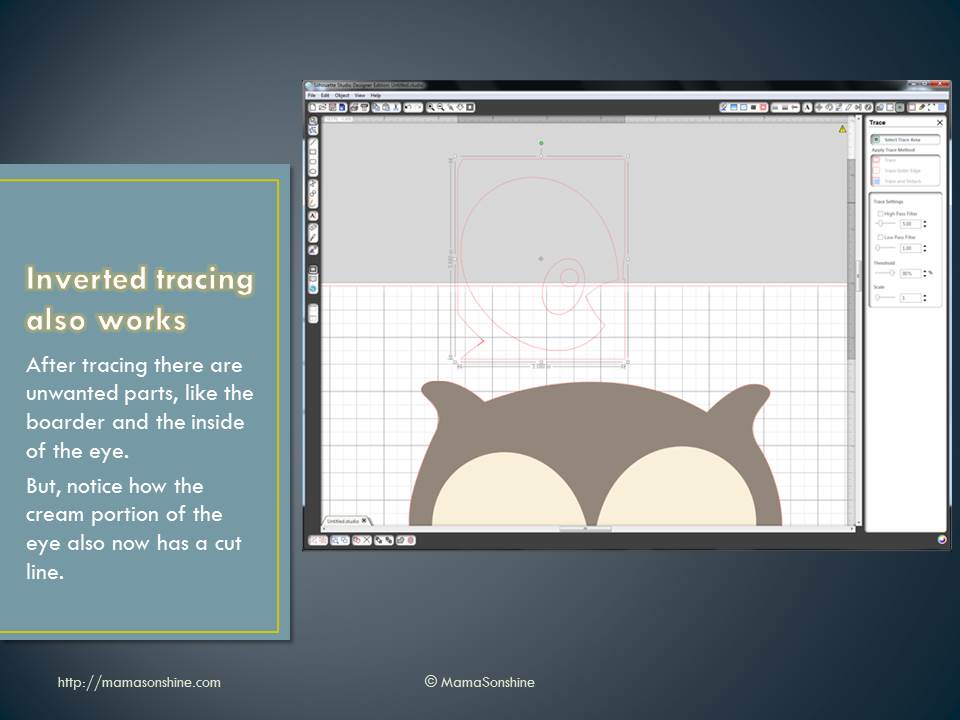
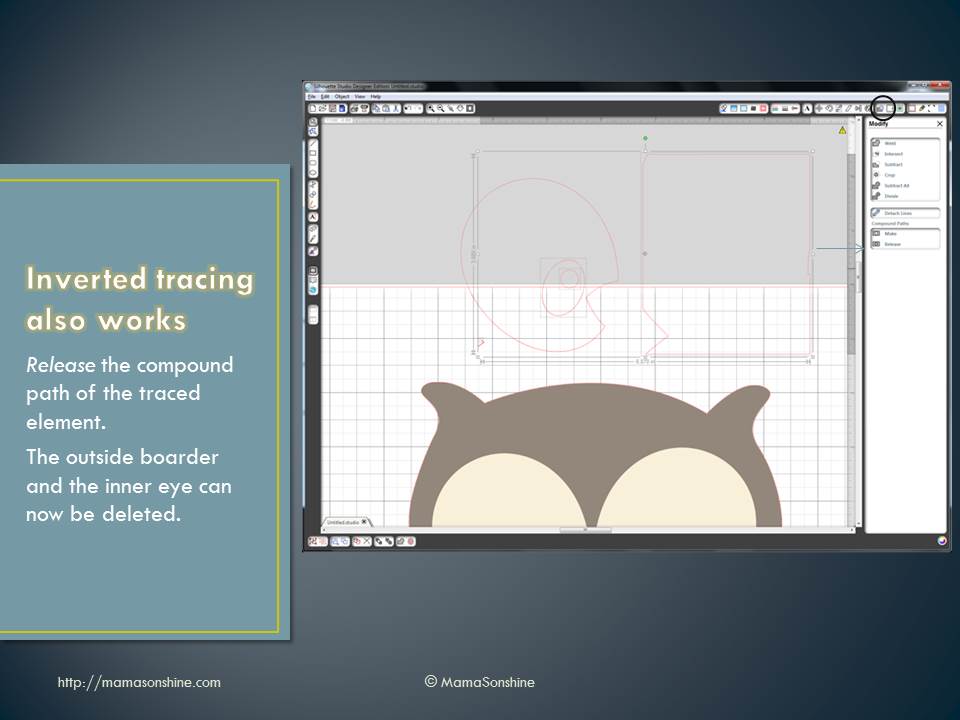
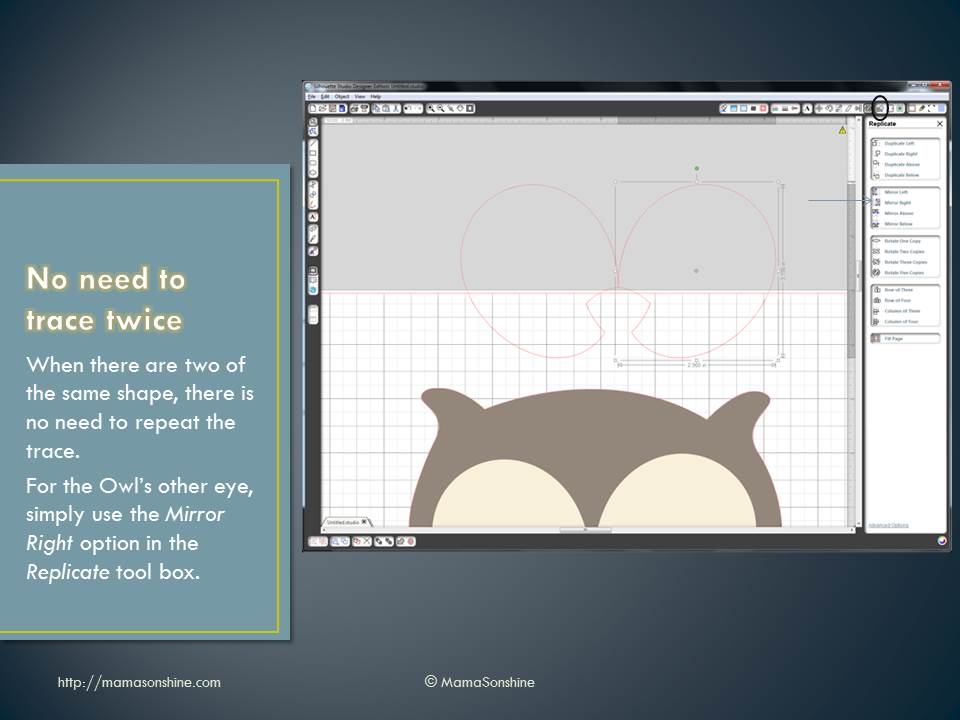
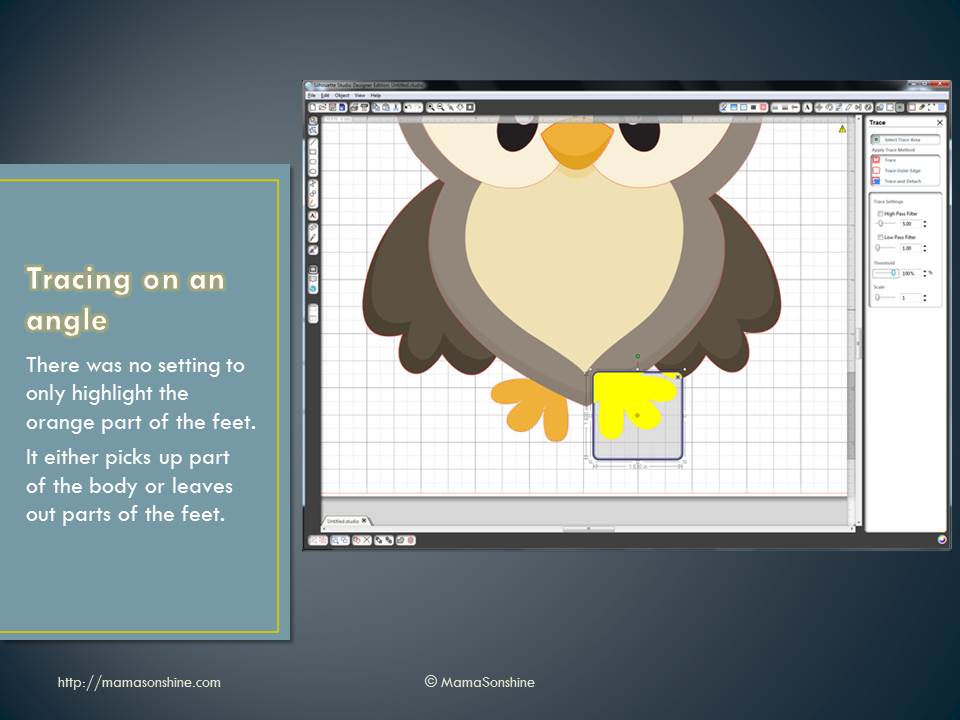
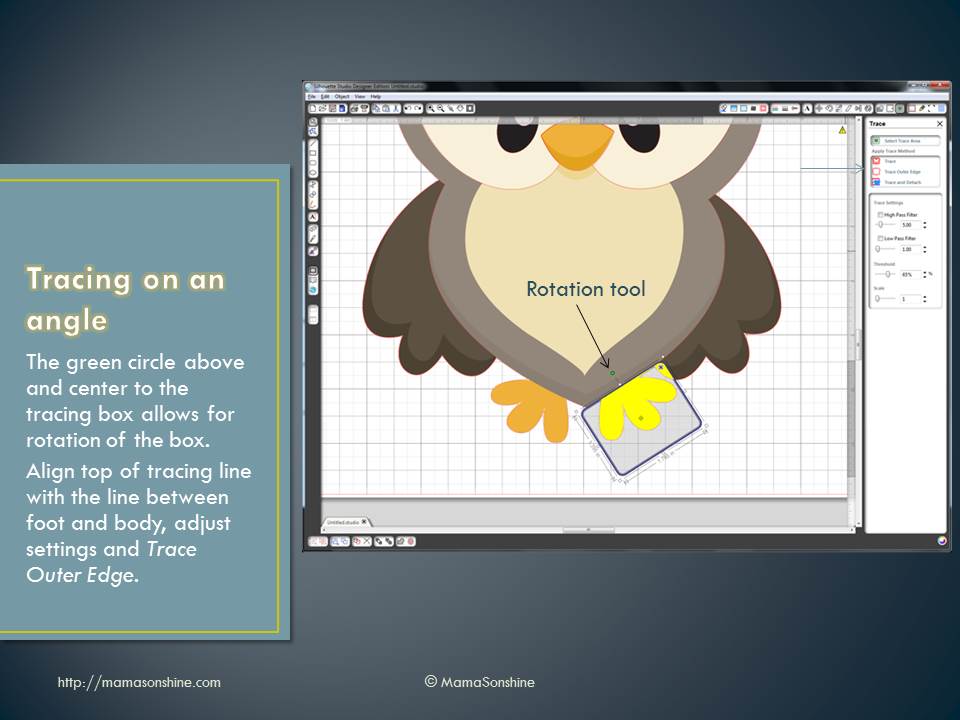
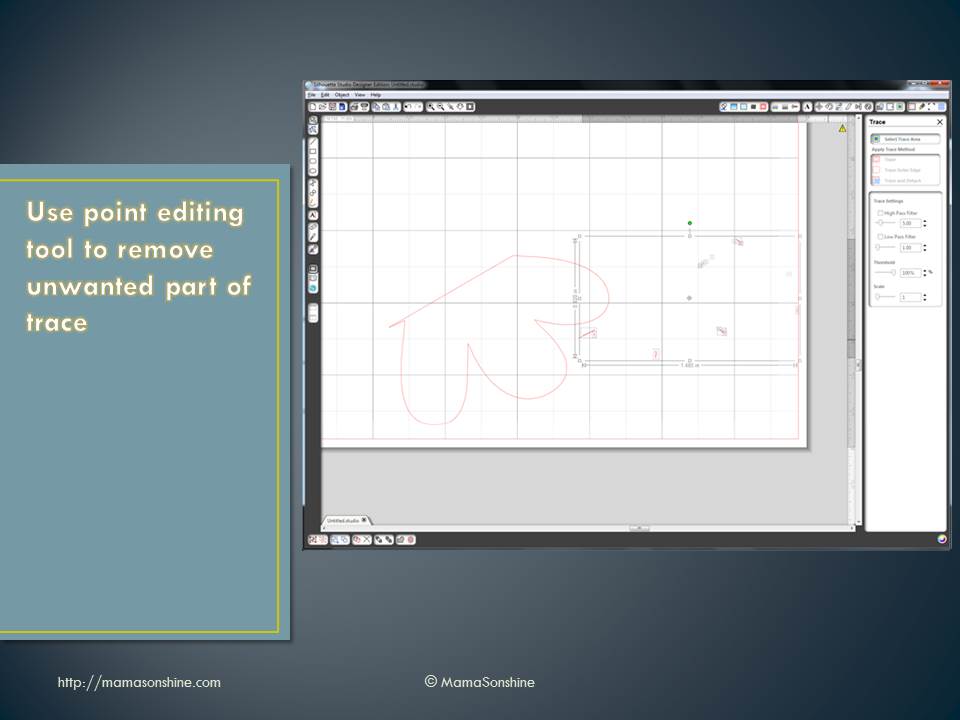
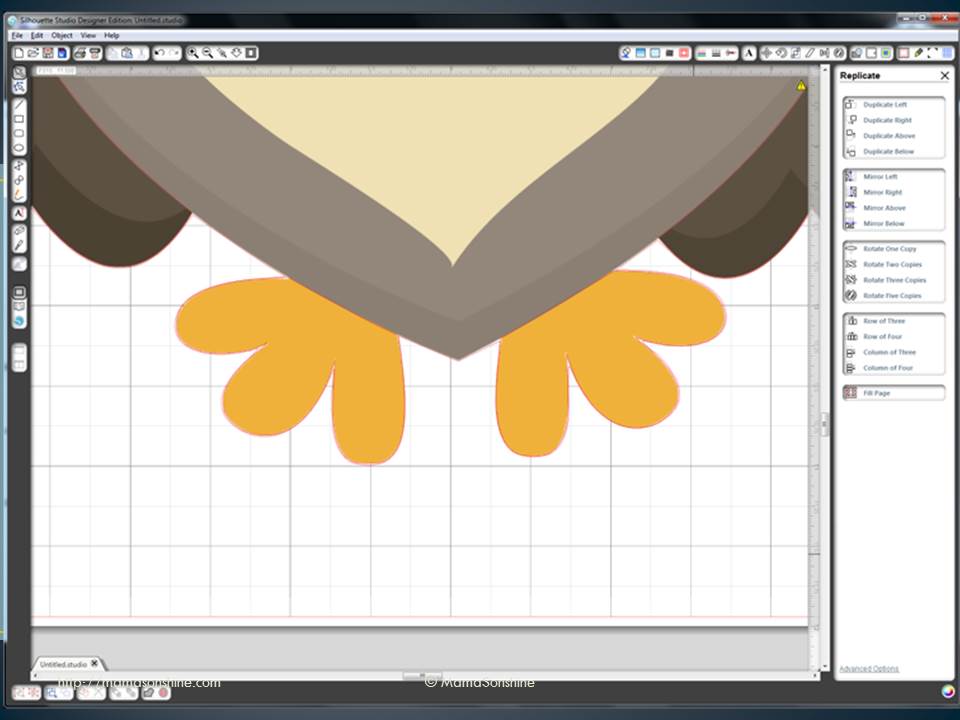
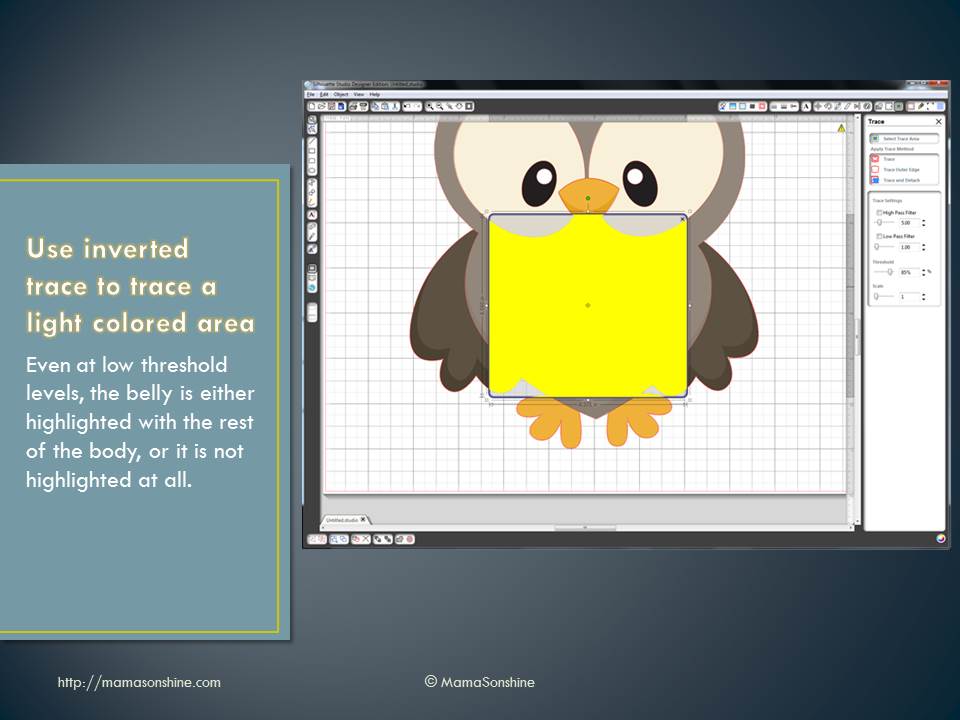
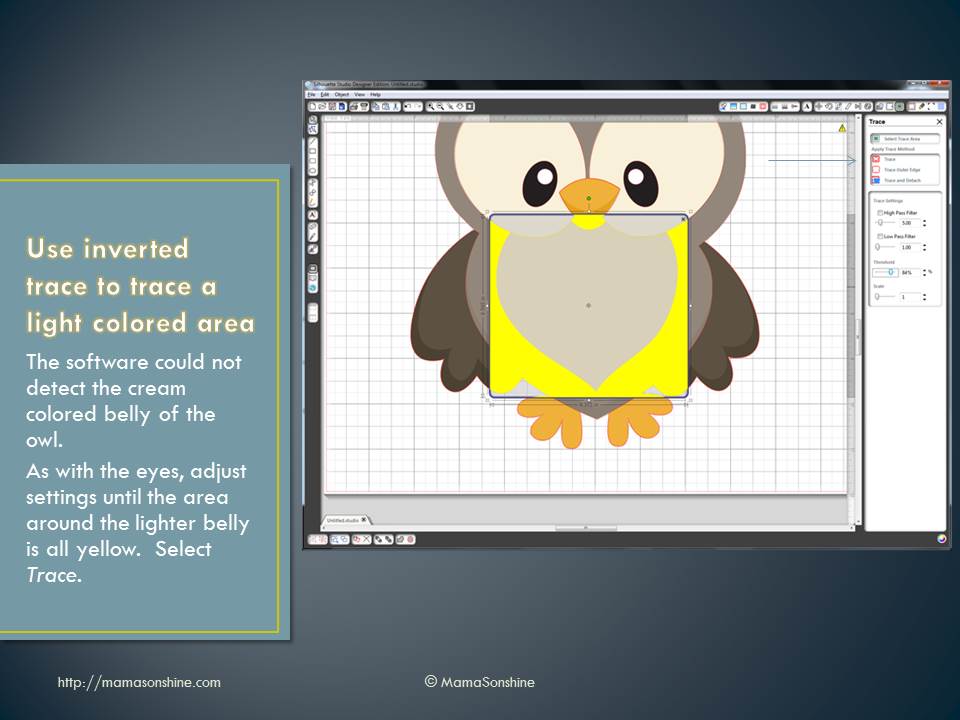
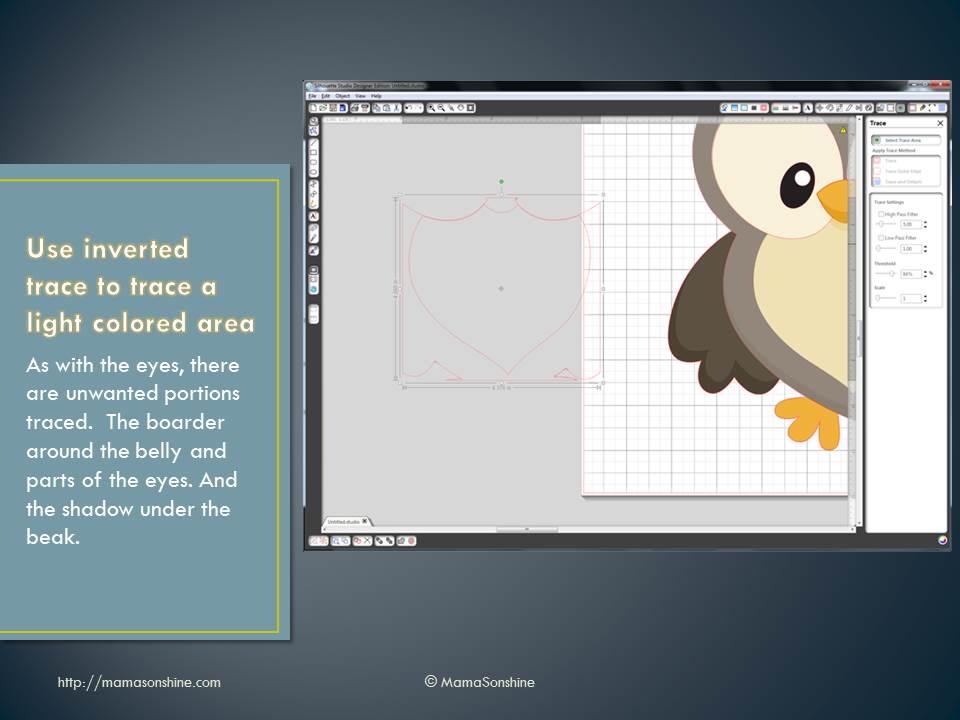
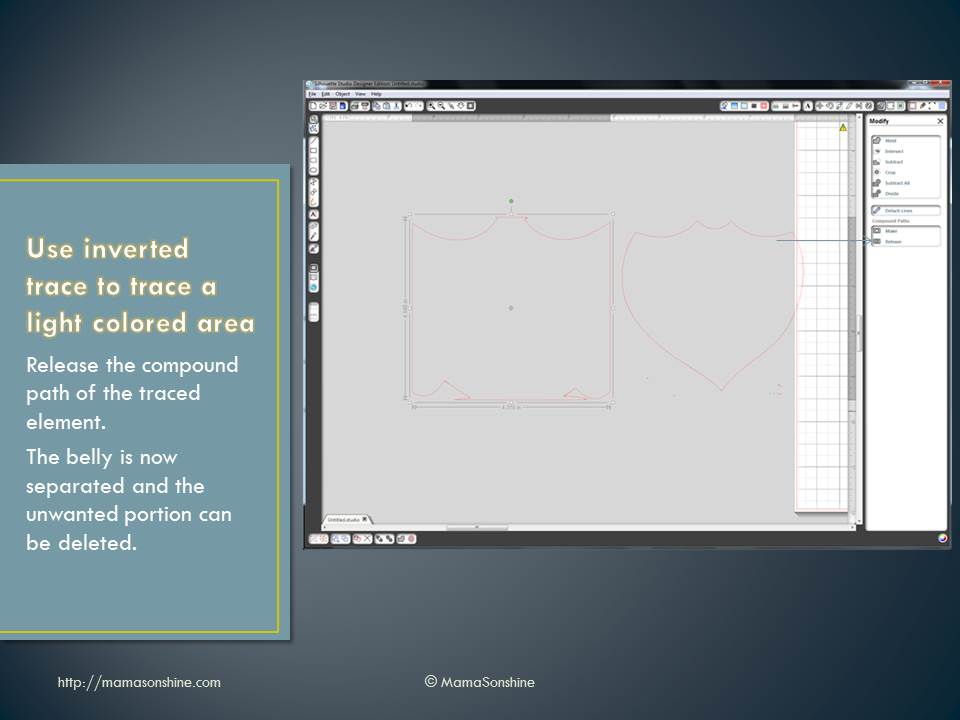
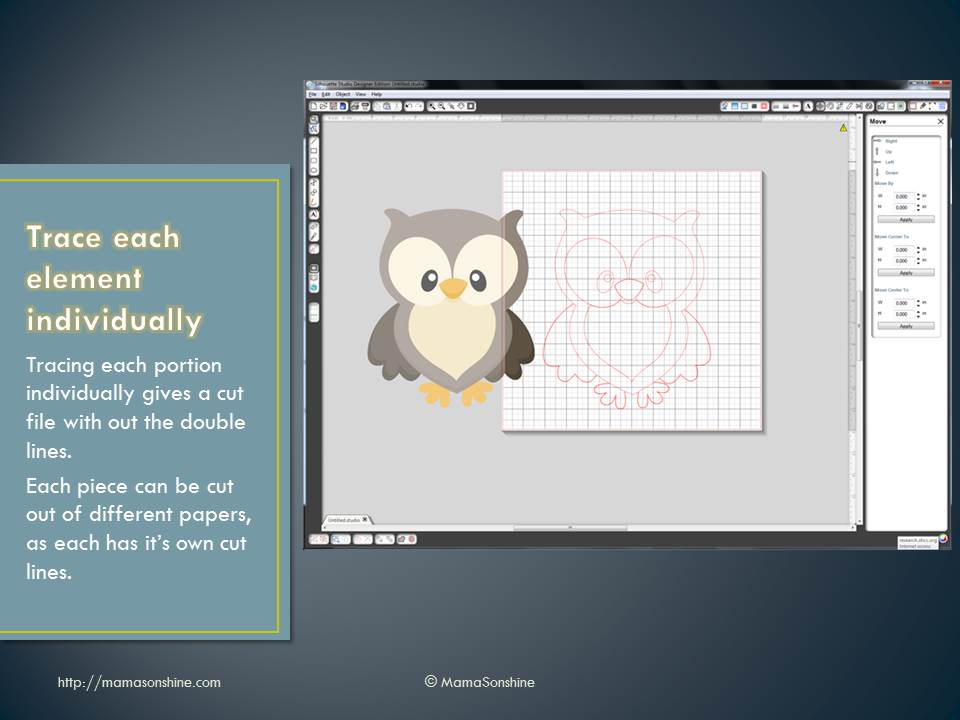
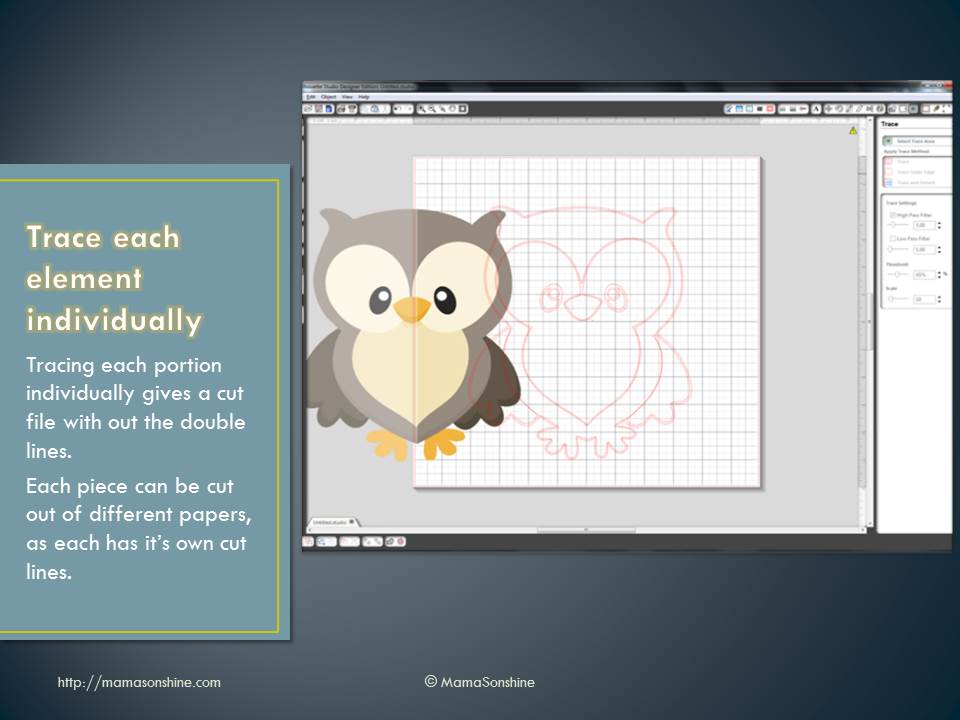
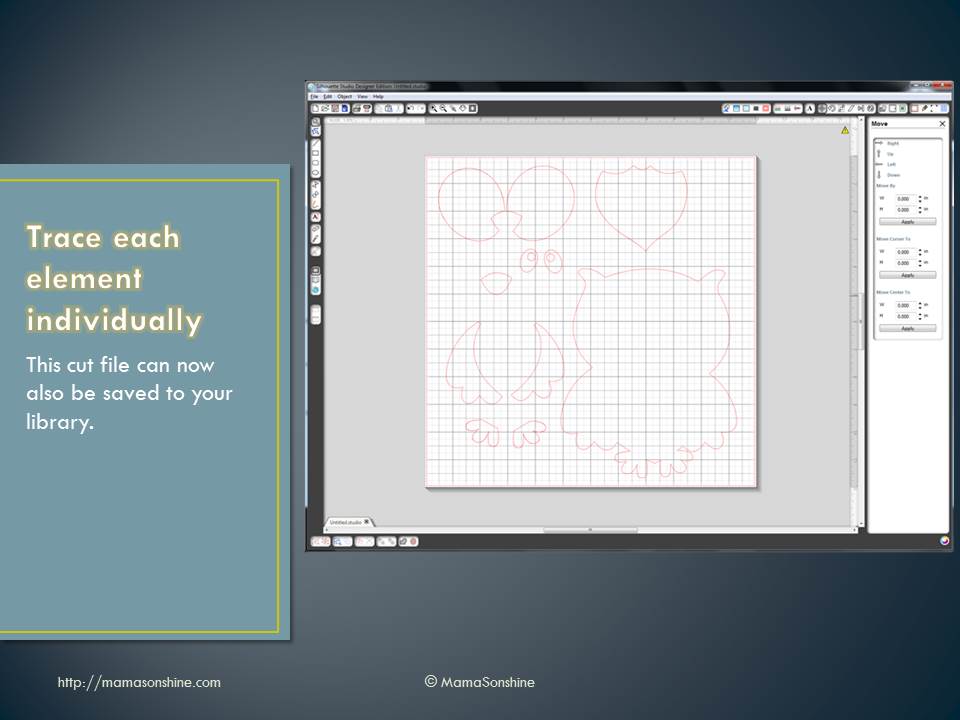
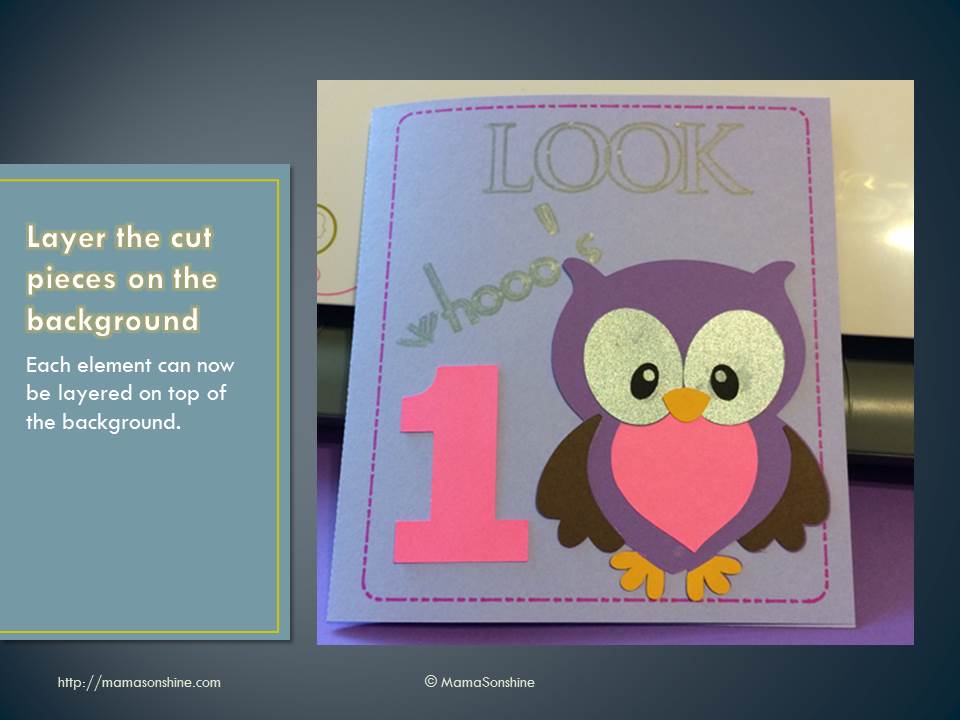
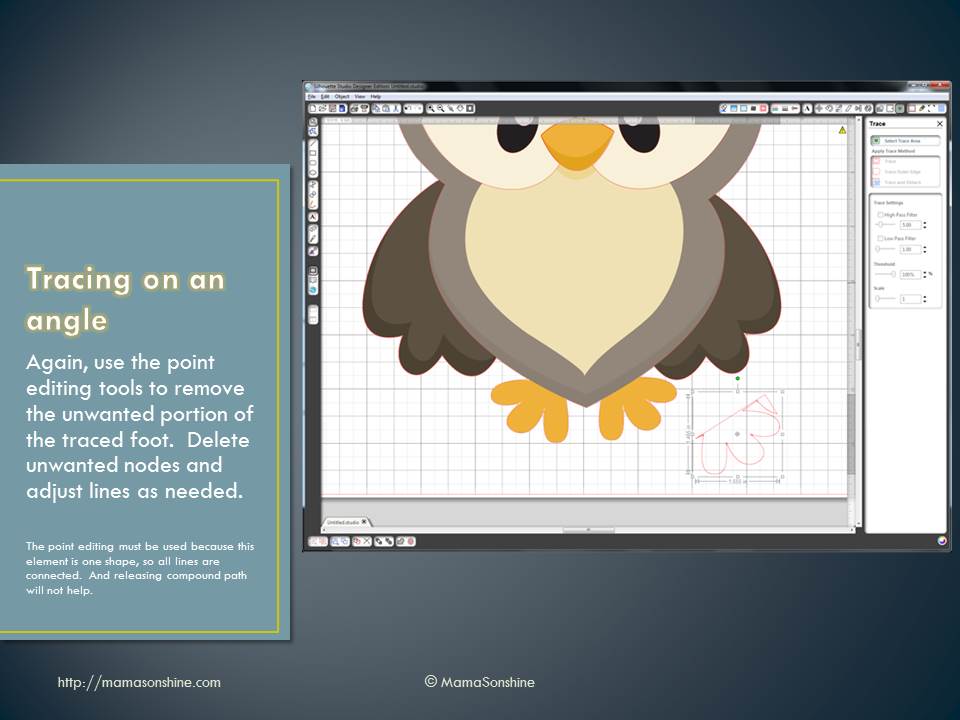
However, the tracing tool in the software is not that intuitive, so there is usually a number of questions about tracing.  I put together this power point to help someone with tracing and thought I would share it with everybody.


MSS_SilhouetteTraceing_Slide1

MSS_SilhouetteTraceing_Slide2

MSS_SilhouetteTraceing_Slide3

MSS_SilhouetteTraceing_Slide4

MSS_SilhouetteTraceing_Slide5

MSS_SilhouetteTraceing_Slide6

MSS_SilhouetteTraceing_Slide7 MSS_SilhouetteTraceing_Slide8

MSS_SilhouetteTraceing_Slide9

MSS_SilhouetteTraceing_Slide10

MSS_SilhouetteTraceing_Slide11

MSS_SilhouetteTraceing_Slide12

MSS_SilhouetteTraceing_Slide13

MSS_SilhouetteTraceing_Slide14

MSS_SilhouetteTraceing_Slide15

MSS_SilhouetteTraceing_Slide16

MSS_SilhouetteTraceing_Slide17

MSS_SilhouetteTraceing_Slide18

MSS_SilhouetteTraceing_Slide19

MSS_SilhouetteTraceing_Slide20

MSS_SilhouetteTraceing_Slide21

MSS_SilhouetteTraceing_Slide22

MSS_SilhouetteTraceing_Slide23

MSS_SilhouetteTraceing_Slide24

MSS_SilhouetteTraceing_Slide25

MSS_SilhouetteTraceing_Slide26

MSS_SilhouetteTraceing_Slide27

MSS_SilhouetteTraceing_Slide28

MSS_SilhouetteTraceing_Slide29

MSS_SilhouetteTraceing_Slide30


Please note, I have the second version of the software, as I have not taken the plunge and upgraded to the third version.  While the settings and option are the same, their location and how you do things might be different.  I also have the designer edition, but everything in the tutorial is available in the standard addition.
Happy Crafting


signature-black
facebook instagram pinterest parties by mamasonshine etsy bloglovin google+ email twitter Image Map
Enhanced by Zemanta


1 Comment

How to Sketch from a Coloring Book Page with your Silhouette

One great feature of the Silhouette machines is the Sketch feature.

You replace the blade with a pen and it draws instead of cuts.  This gives the project a hand drawn feel instead of one that came off a printer.  This feature is also usefully for writing sentiments in cards or labels.  Actually the possibilities are endless.

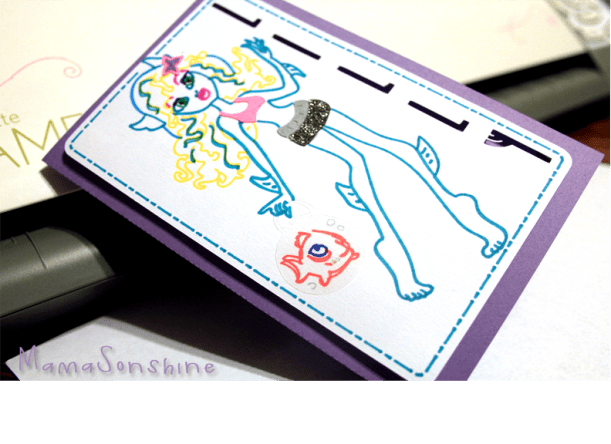
I made this card for a friend’s daughter using the sketch feature.

MSS_MH_LagoonaCard

First you need to go online and find a coloring book page that you want to sketch using your Silhouette.

Here is the one I will be using.


Lagoona Blue Coloring Page from cartoonjr.com

Click picture for source

Please remember that this is for personal use only.  I do not condone using or selling other people’s art/work without permission.

You want to find one that is at a fairly high-resolution that you can download.  The benefit of the coloring pages it that it is more easily traced than an image with coloring.

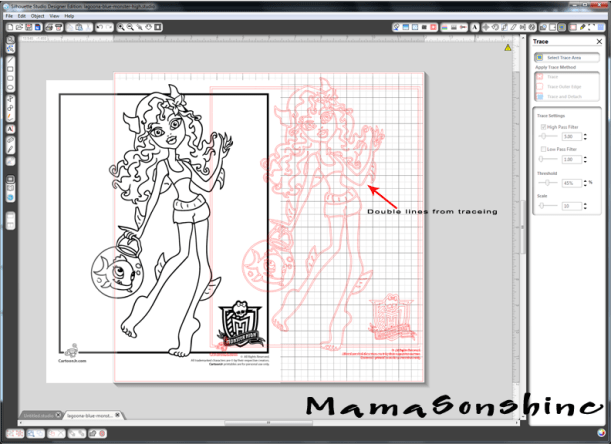
The down side of the Silhouette Studio software is that when you open the image and attempt to trace it you get this.

MSS_SilSketchTut_MH01

The software is tracing both sides of the black line.  You can work with this, by ungrouping, releasing compound paths, point editing, cutting and erasing.  All of which is really time-consuming.

There are other software programs that can do center line tracing.  I use Adobe Illustrator, but not everybody has that program.  Kristy at Please Excuse my Craftermath has three posts on center-line tracing using Illustrator, Wintopo and AutoTrace, the last two are free.  Wintopo is a freeware and AutoTrace is an online program.  I won’t go into details about how to do the trace, because Kristy does an excellent job.  What you end up with is a SVG file that you can open in Studio that has a single line.  If you do not have the Designer Edition you can save as the new files as DXF files, which should open in the regular edition.

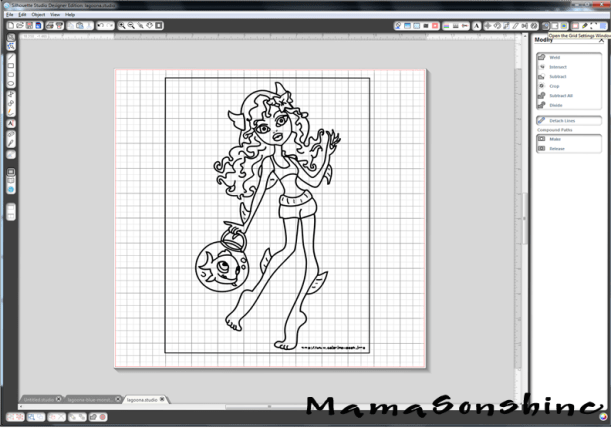
This tutorial will be about what to do now that you have a single stroke path file.  The new SVG file will have thick lines, which make it easier to see, but when you go to sketch will need to be changed (I will explain later).

MSS_SilSketchTut_MH02

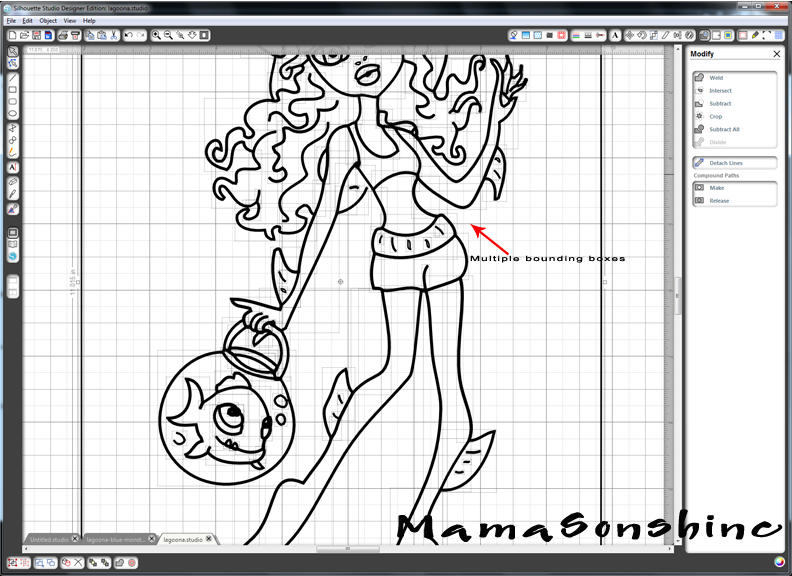
While the image looks like it is one line it is really made up of a bunch of little lines.  Which is also fine if you want to sketch in one color, but that was not look I wanted.

Fist you want to release the compound path, and ungroup until it is no longer an option.  This way you can remove the black border around your image.  You will be able to see the multiple bounding boxes around all the lines.

MSS_SilSketchTut_MH03

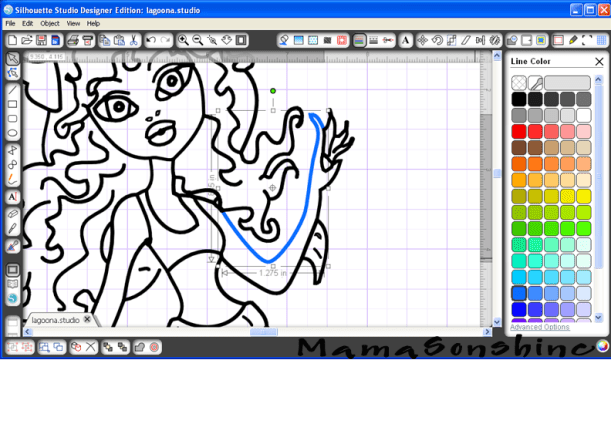
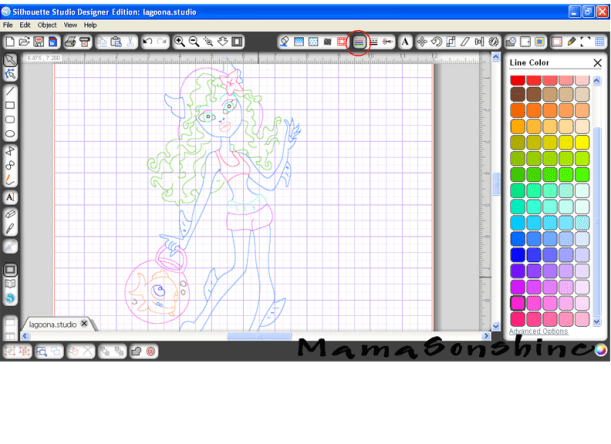
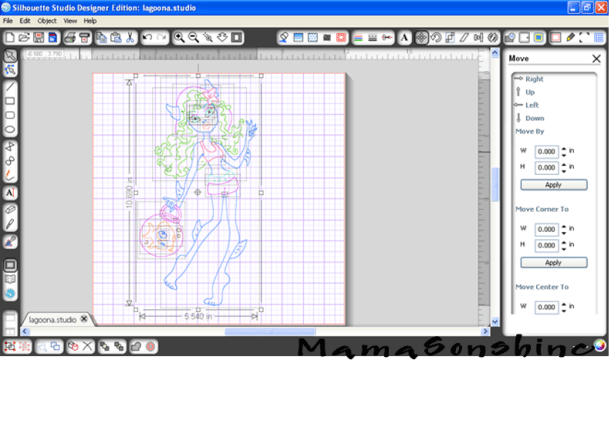
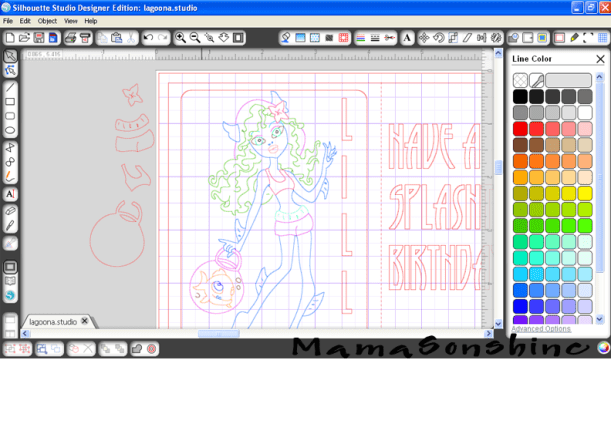
I found it was easier if I made each section a different color.  I want the outline of her extremities, face, torso, etc. one color.  Her hair a different color, her clothes different colors, and so on.

It doesn’t have to match the color I want in the end, because the final color will depend on what color pen I use.  This just helps distinguish each portion, and makes it easier when I go to select which area to sketch.

First choose one line and change the color.

MSS_SilSketchTut_MH04

While fist line is still selected hold the shift key and select another line (or multiple lines)

MSS_SilSketchTut_MH05

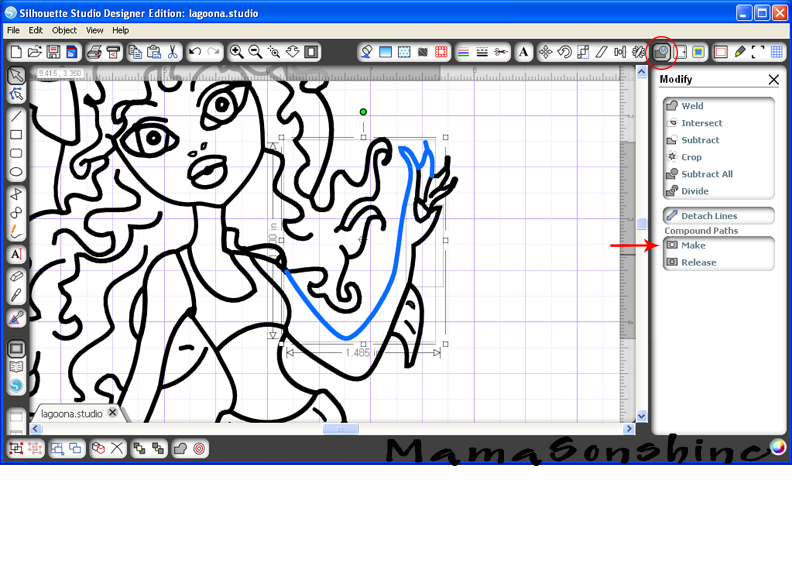
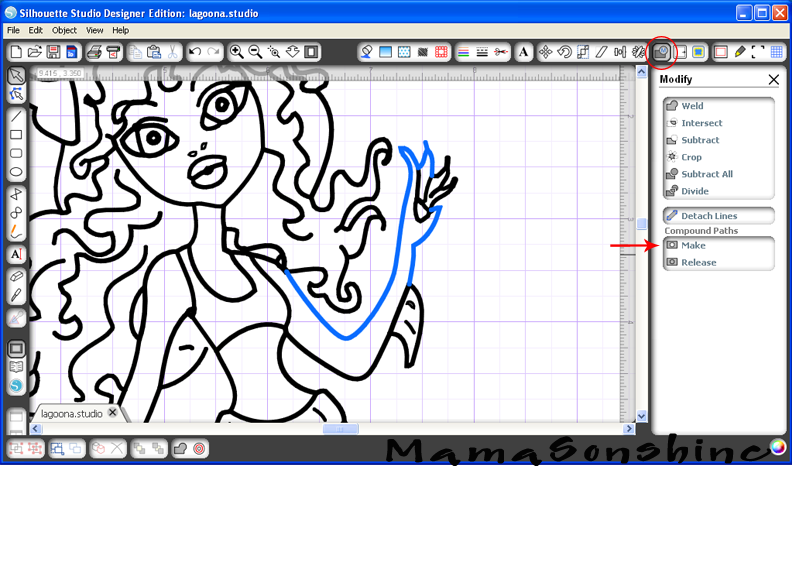
You want to make the selection a compound path, through the “modify window,” selecting object ->make compound path, or right clicking on your mouse (Sorry, I don’t have a Mac, so I don’t know the commands for it).  When it is a compound path, the new line colors will be changed to the color you selected for your first line.

MSS_SilSketchTut_MH06

Continue to do this until you have made everything you want in that color one compound path.

Repeat the steps on the next section and again until the picture is color coordinated.

MSS_SilSketchTut_MH07

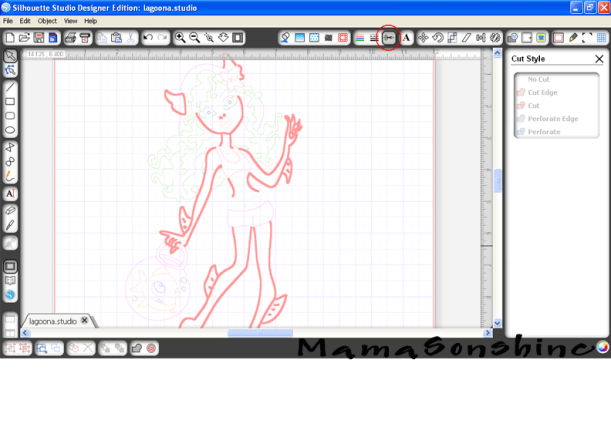
This makes it easier for me to select which portion to sketch.  I can just select the body to be sketched in one color, send to Silhouette, change the pen, got to cut style window, select a different part to be sketch, send to Silhouette and repeat.
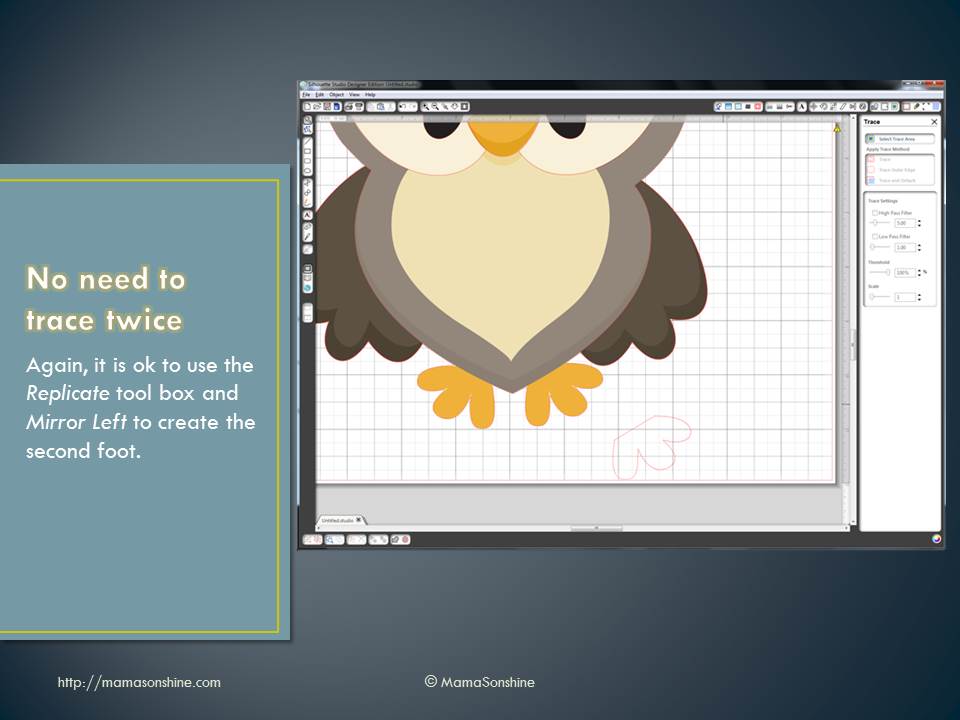
The new compound path for the body is selected, so it will all be drawn at once, and I only have to select one line.
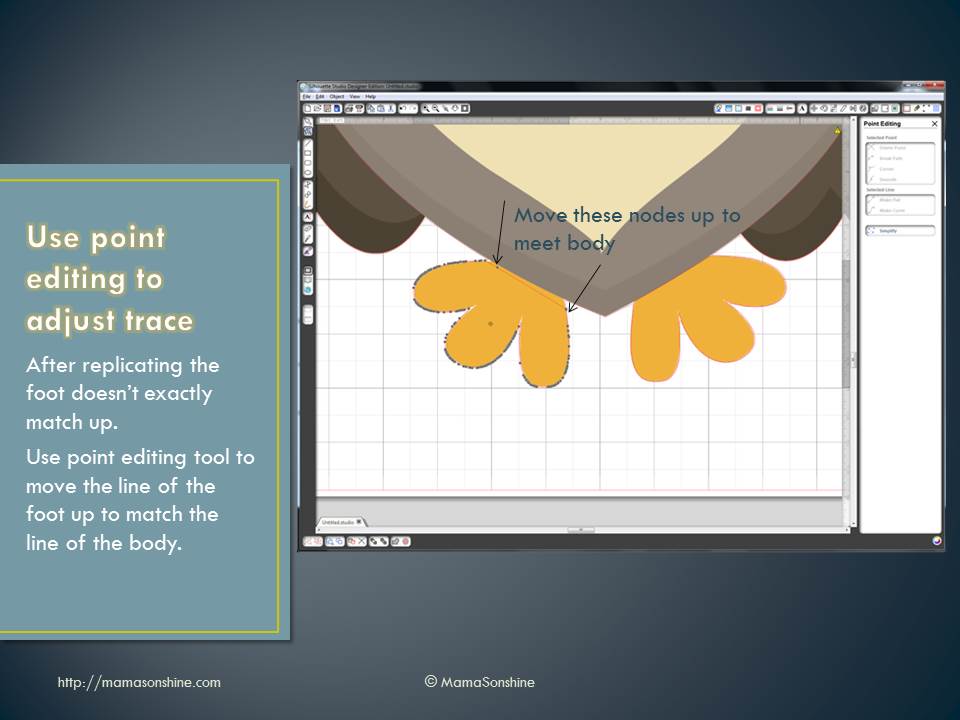
MSS_SilSketchTut_MH08

If you need to resize or move the image, you simply group the different elements together.  But you will have to ungroup them to sketch them at different times.

MSS_SilSketchTut_MH09

You will also need to change the line thickness to zero, if left as is, the Silhouette will do a ‘double cut’ or more accurately will draw two lines to get the set thickness.


Keep in mind, that while you have made the lines compound paths, they are still disconnected.  This means that they can not yet be filled with a color or pattern.

This slideshow requires JavaScript.


You will need to go back and connect the lines together using the point editing window.  Sometimes you may need to delete some points, break paths, or move things depending on how it looks.  This might also change the outcome if you try to cut, instead of draw.  I can’t attest to that, because I have not tried to cut while the lines were unconnected.

This slideshow requires JavaScript.

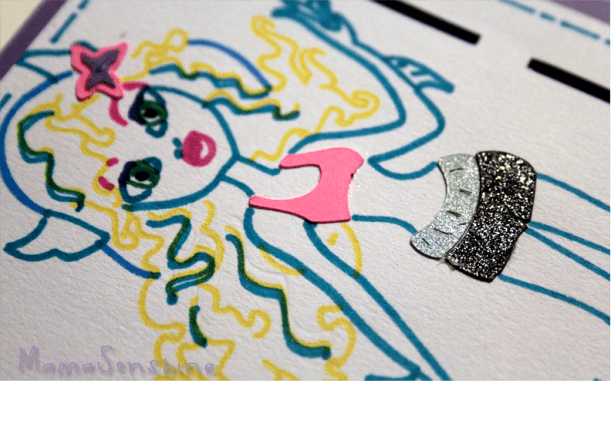
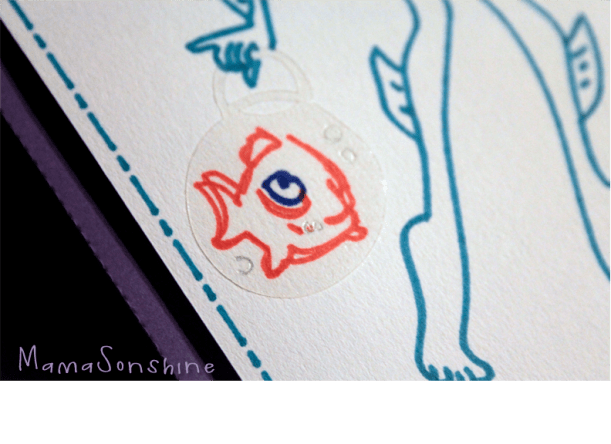
For this card I wanted to add dimension and I didn’t want her clothes to be just an outline.  So I duplicated the clothes, fishbowl and flower elements.  I connected the outside lines using the point editing tool and cut them out of colored cardstock, and clear sticker paper for the fishbowl.

MSS_SilSketchTut_MH15


MSS_MH_LagoonaCard03

MSS_MH_LagoonaCard02


I used the sketch pens to make the faux stitching around the border and write the sentiment inside the card.


This slideshow requires JavaScript.

I hope this has helped you take a black & white coloring page and turn it into a custom drawing.


Happy Crafting


signature-black
facebook instagram pinterest parties by mamasonshine etsy bloglovin google+ email twitter Image Map
Enhanced by Zemanta