I belong to a few Silhouette related Facebook pages. They are a wonderful support group for beginners and experienced users.
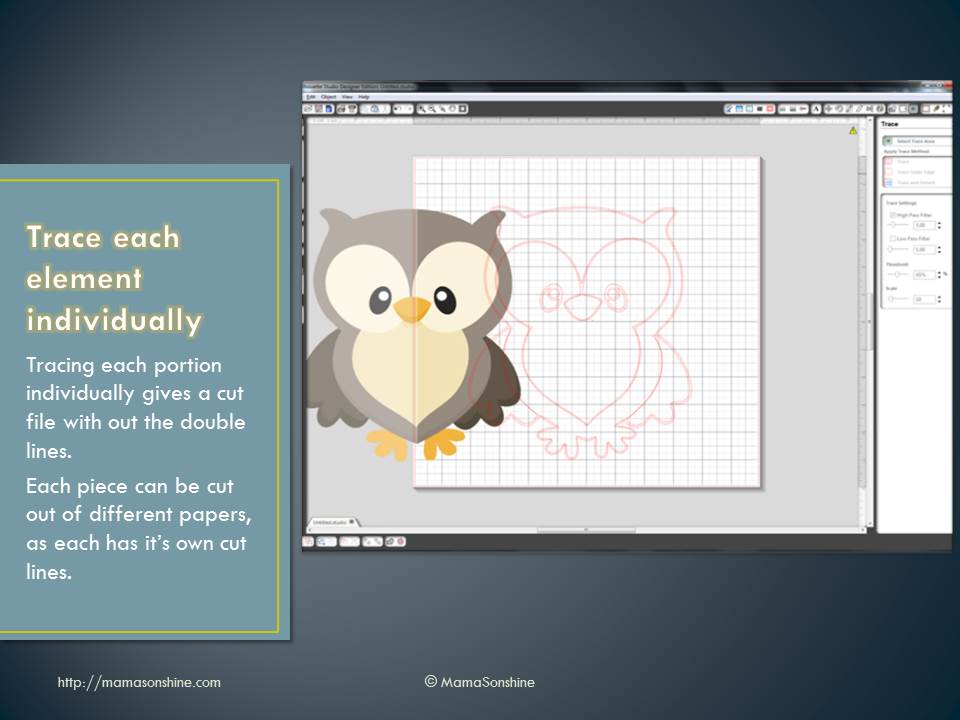
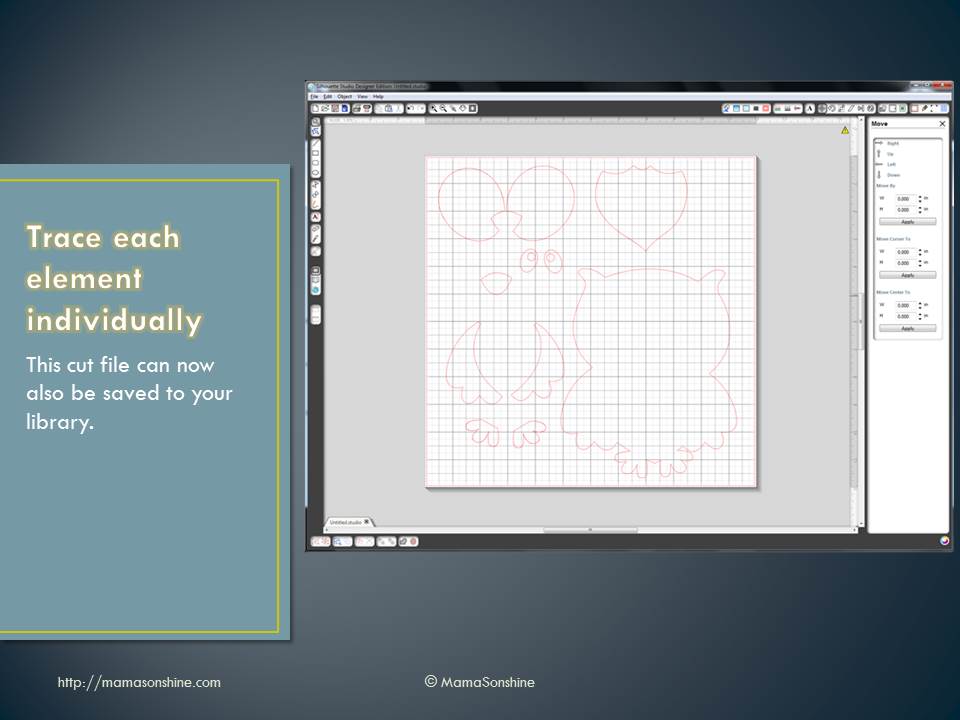
More and more I see questions about tracing images in the Silhouette software in order to make them cut files. This is one of the main reasons I decided to go with the Silhouette brand cutting machine.
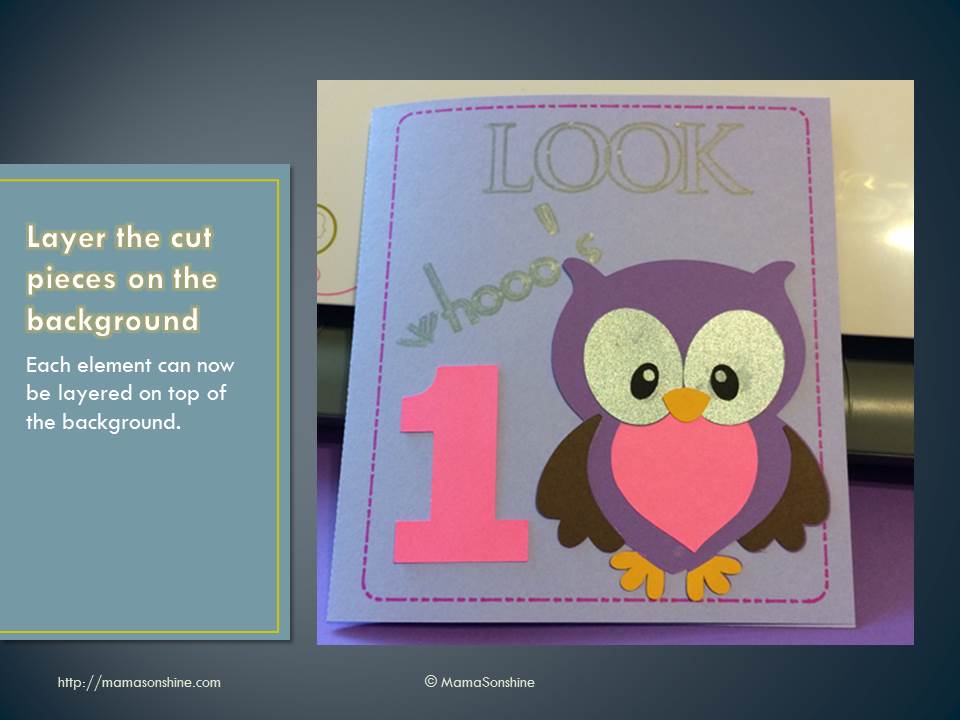
You are able to take any image and make your own cutting file. I make a lot of decorations and invitations in Photoshop, then cut them with my Silhouette.
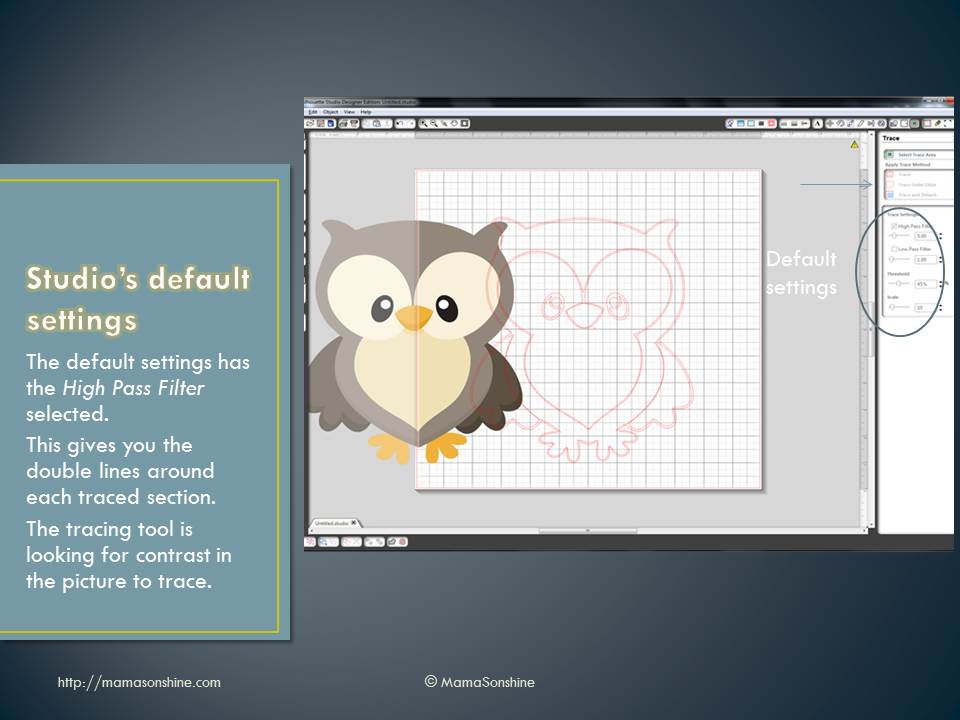
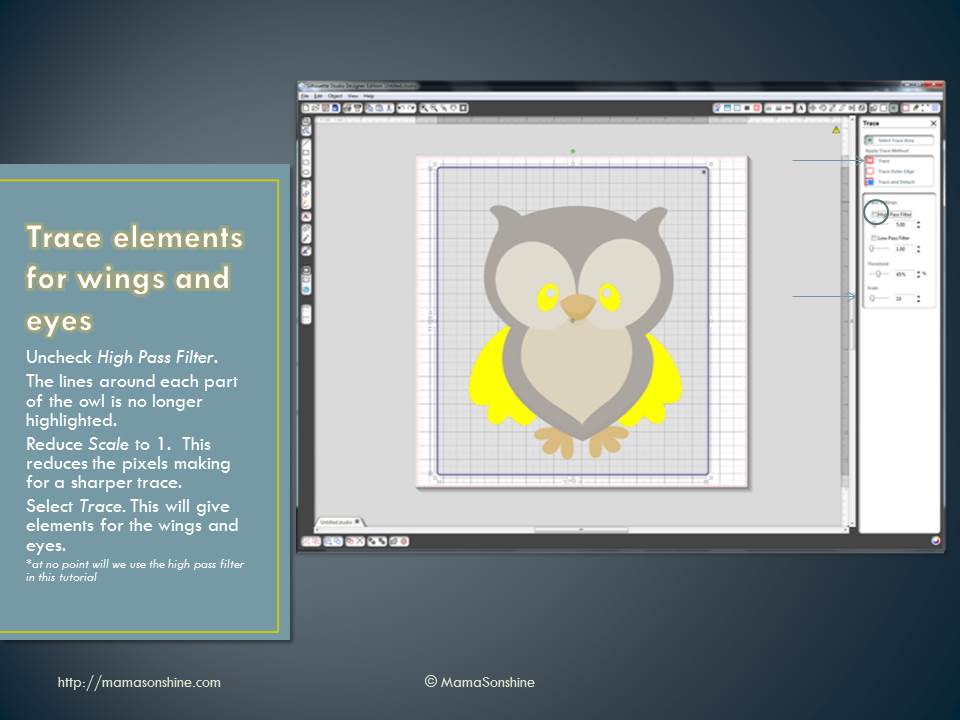
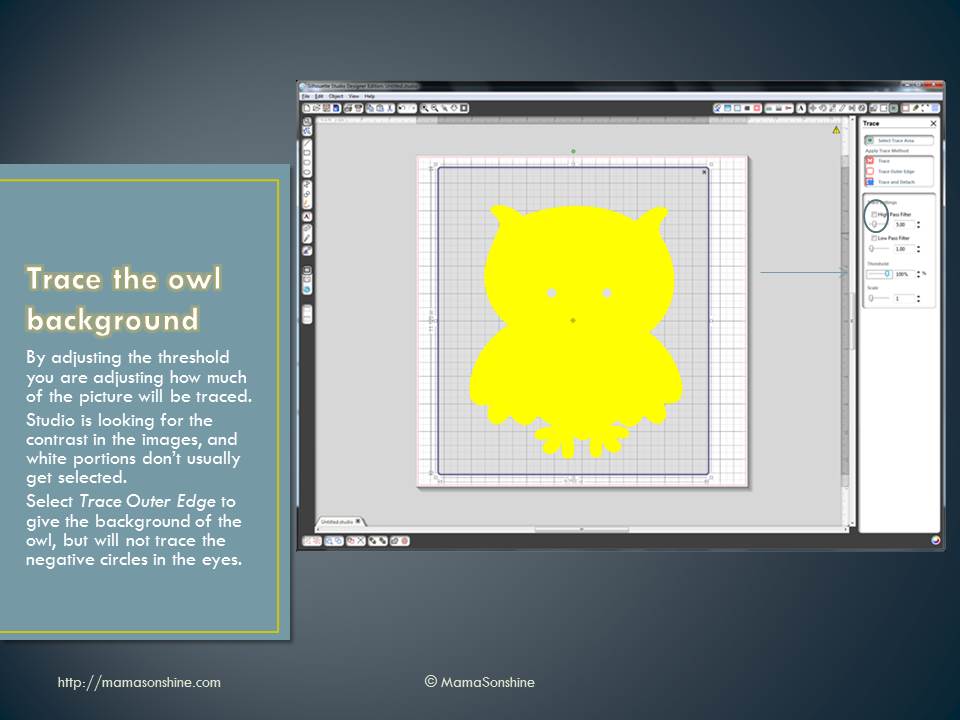
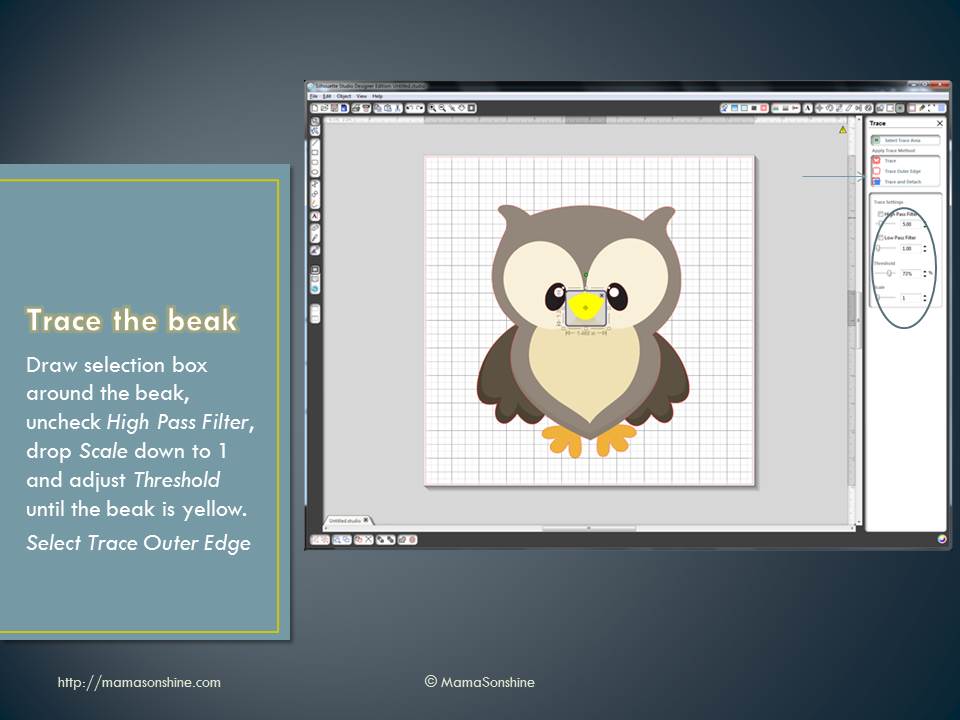
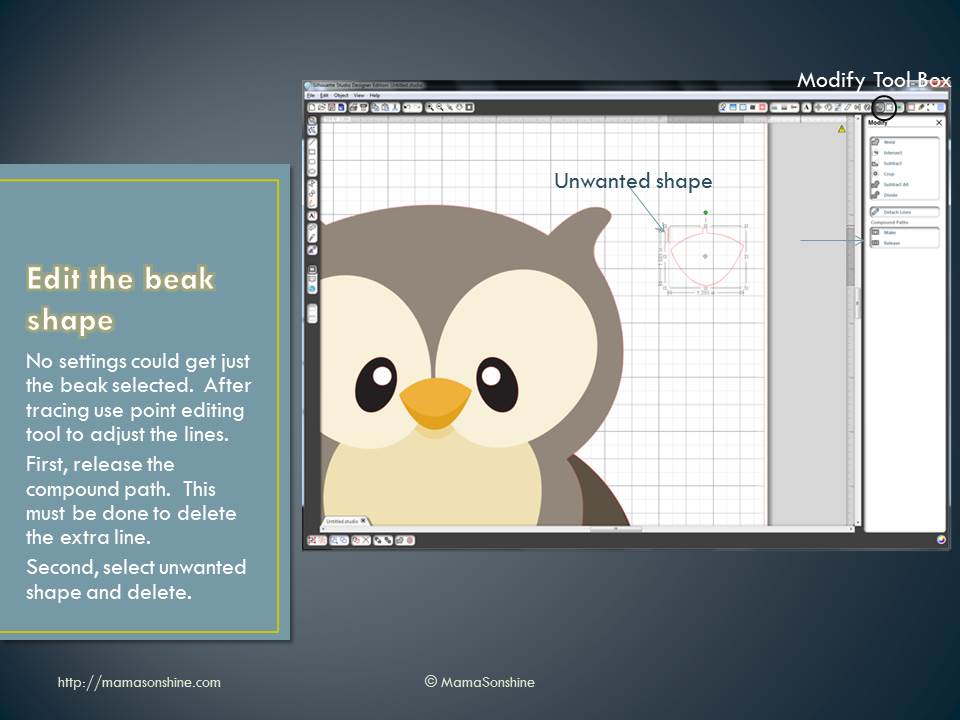
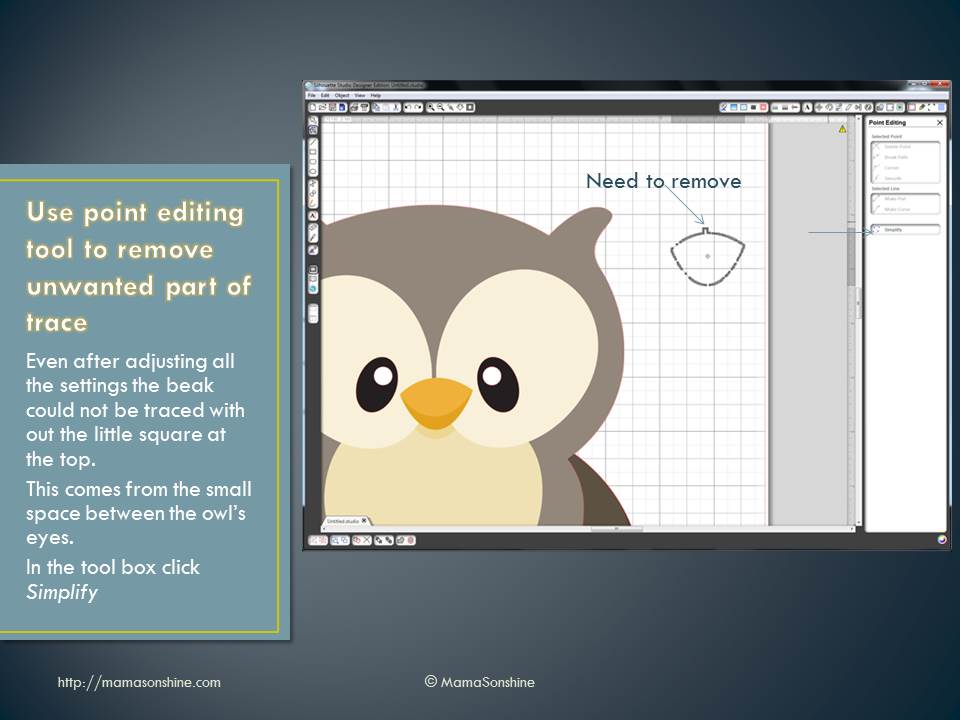
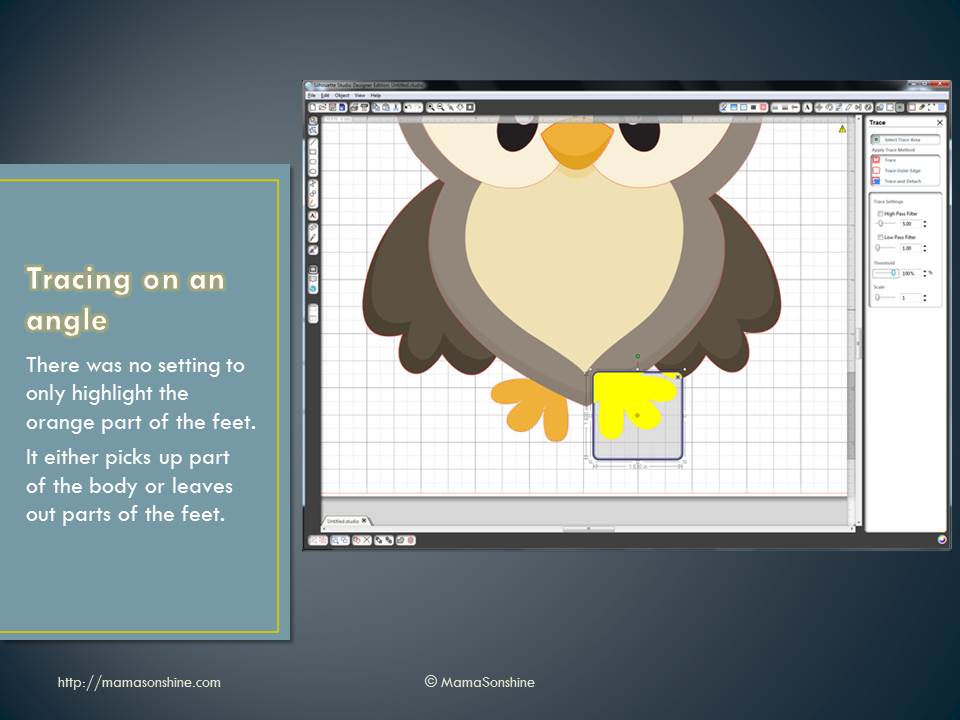
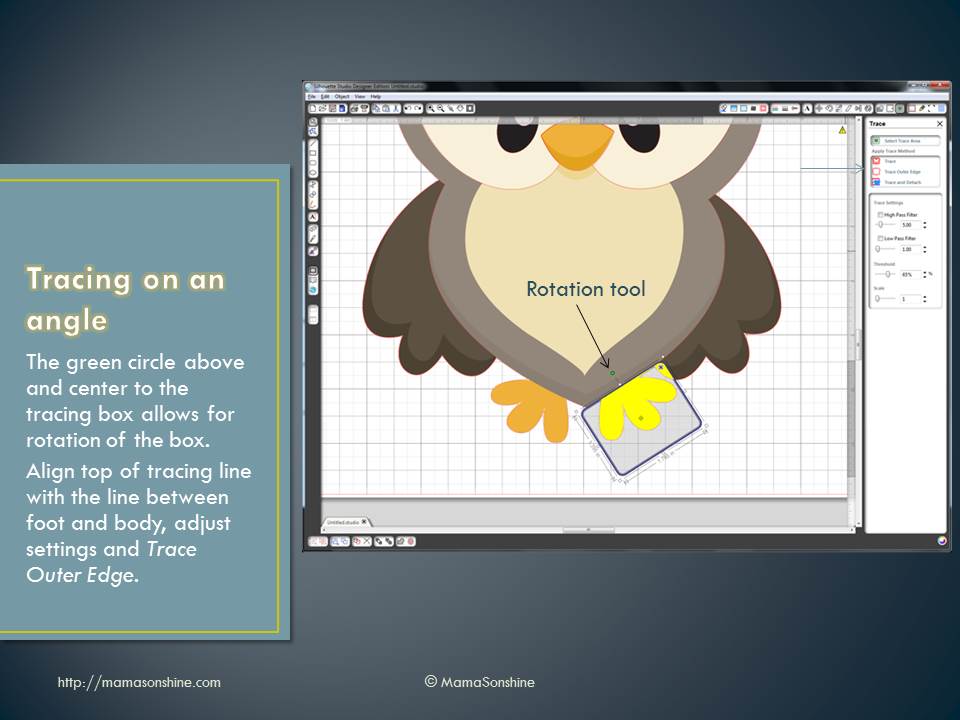
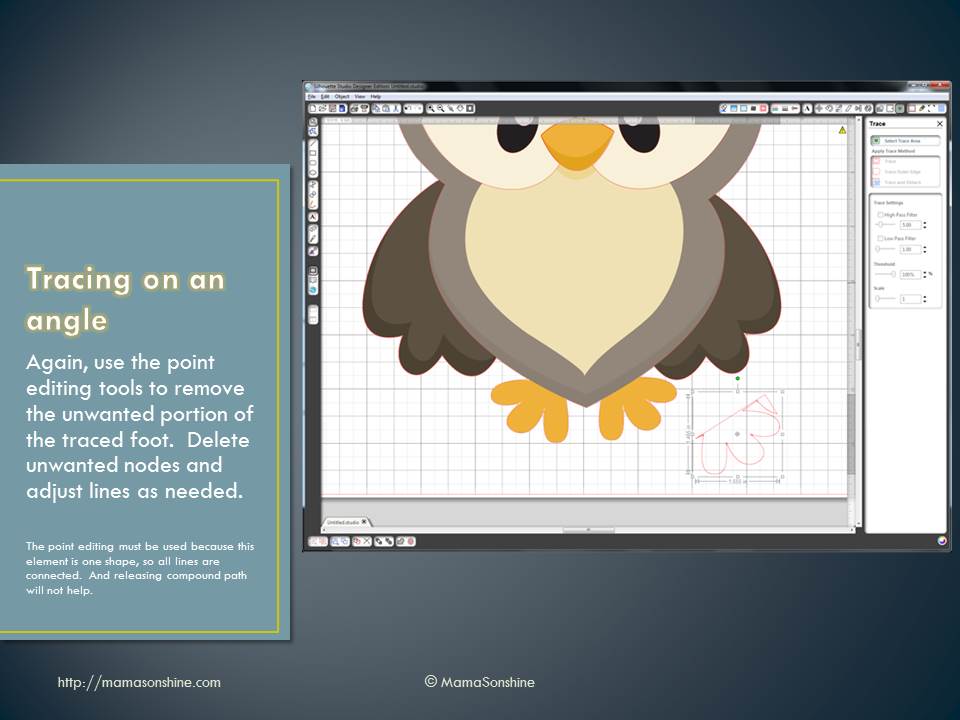
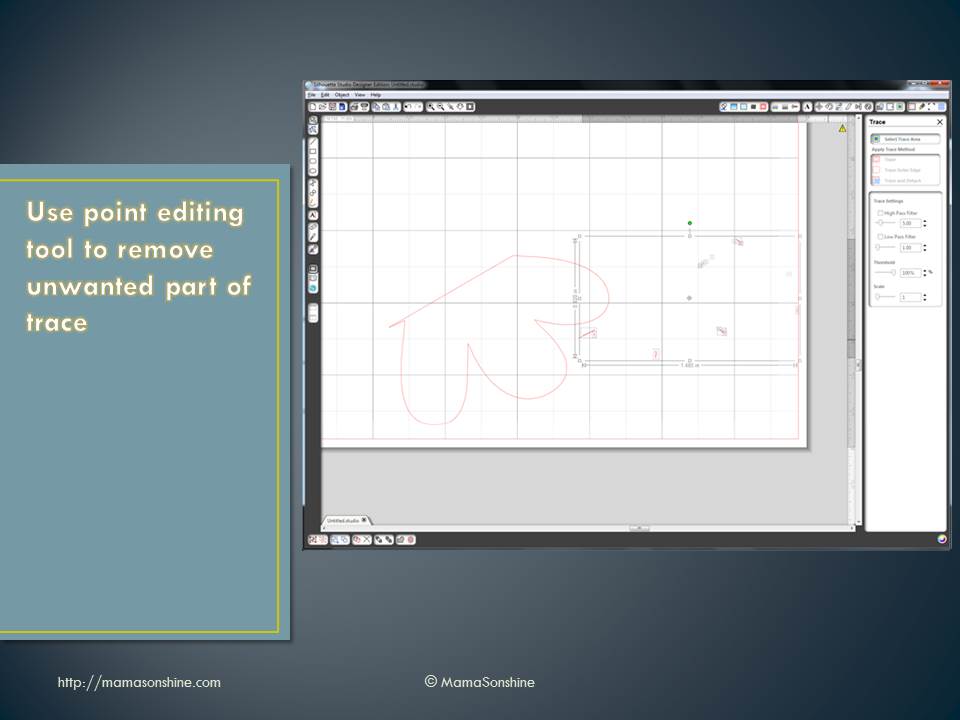
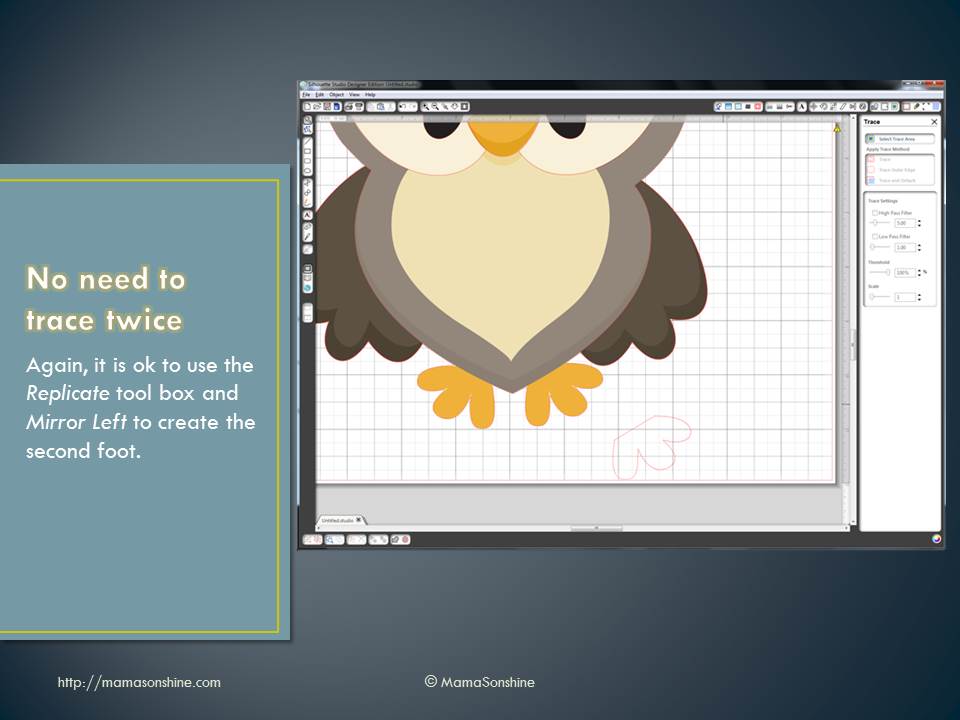
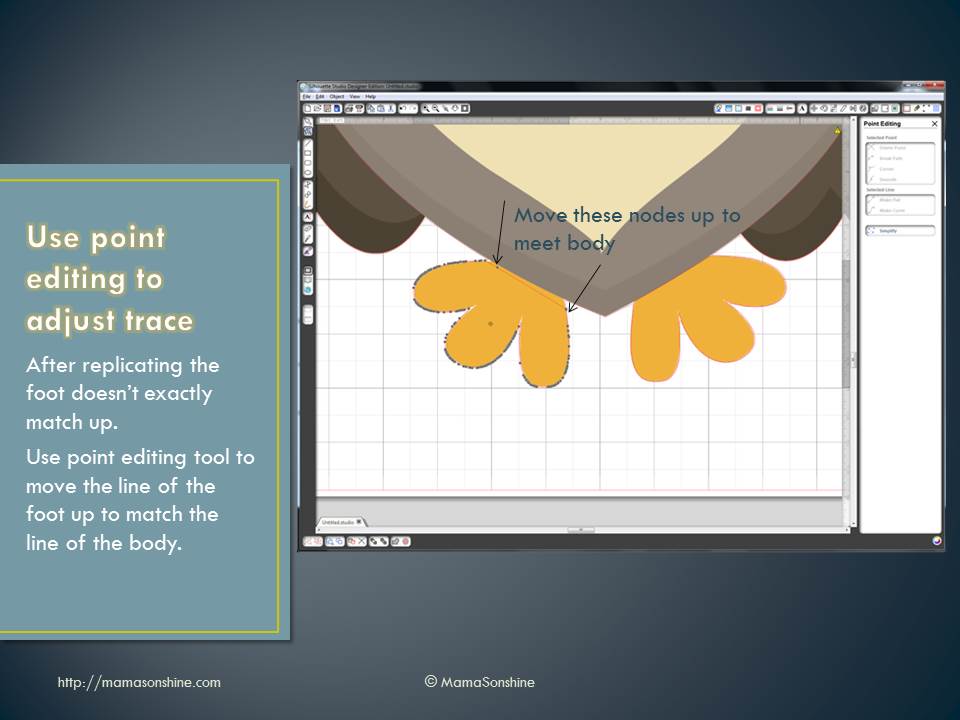
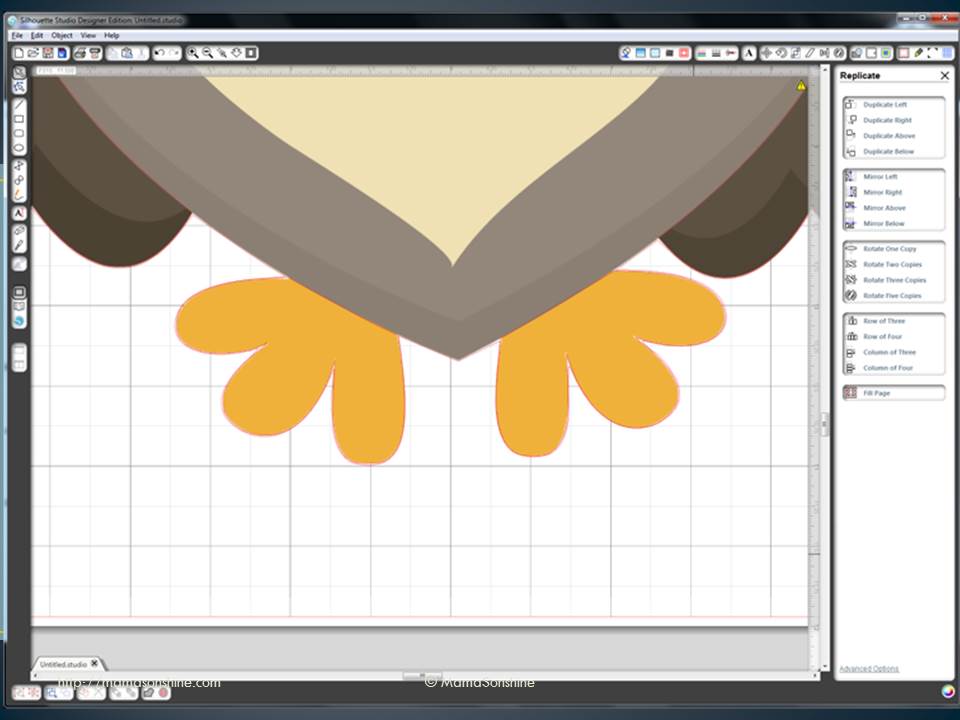
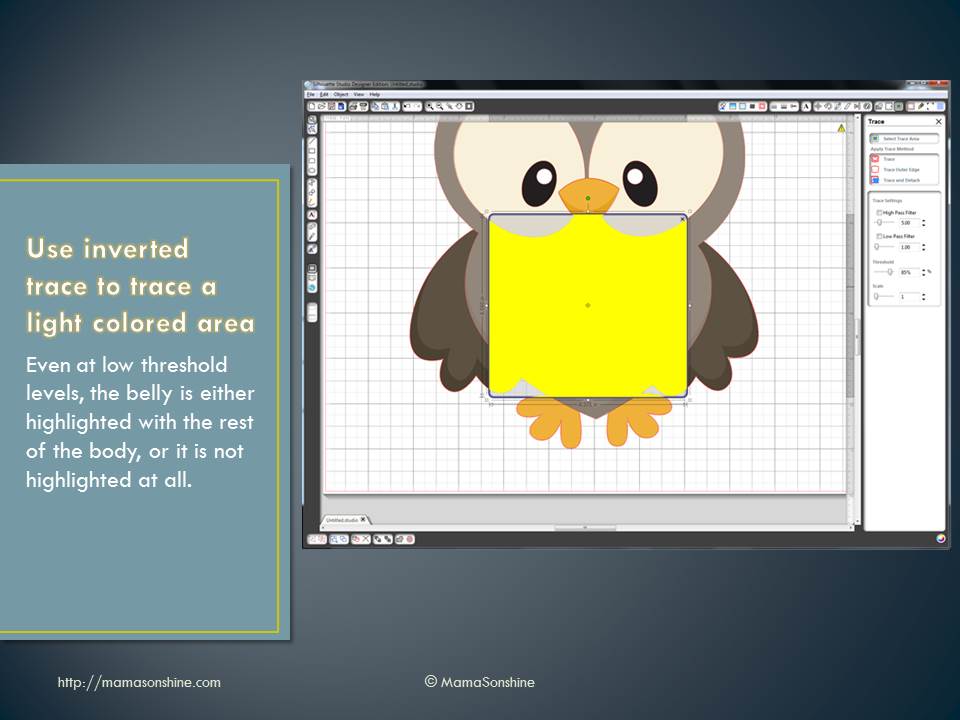
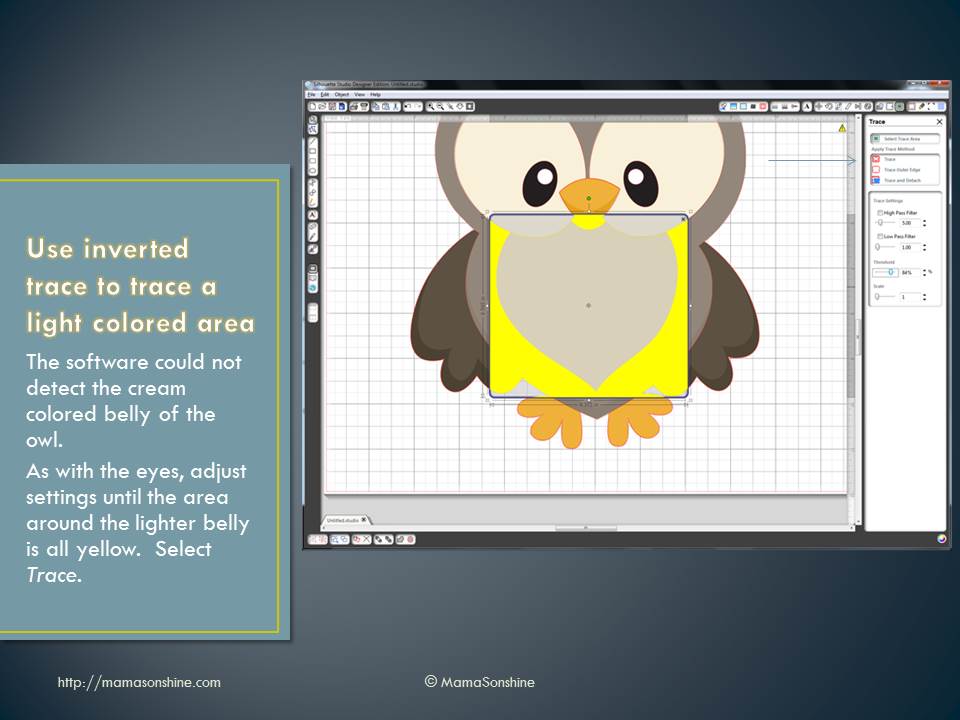
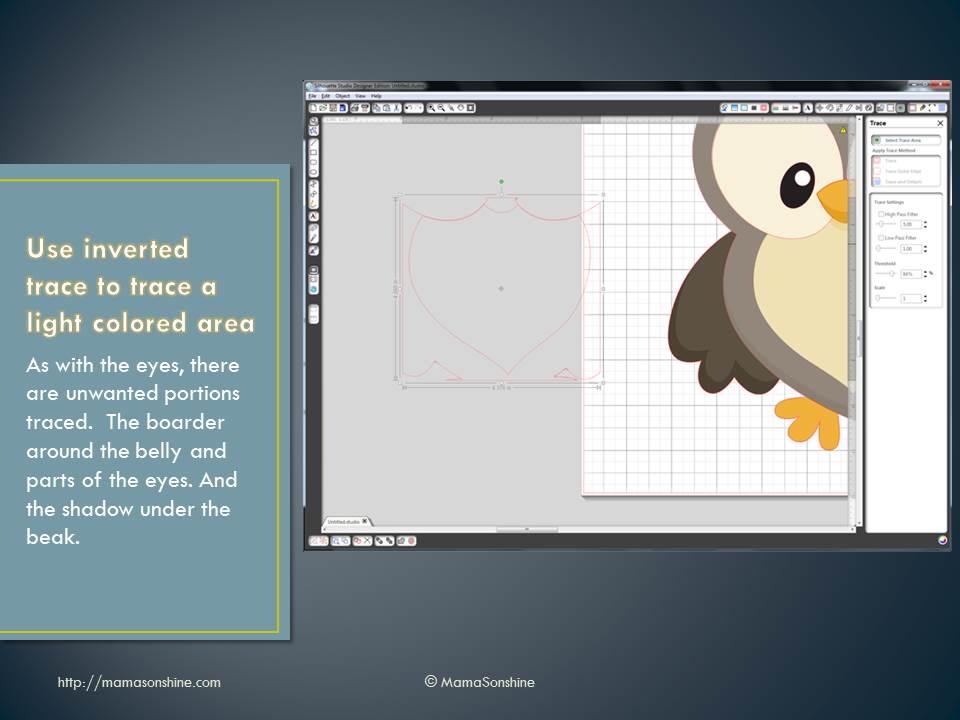
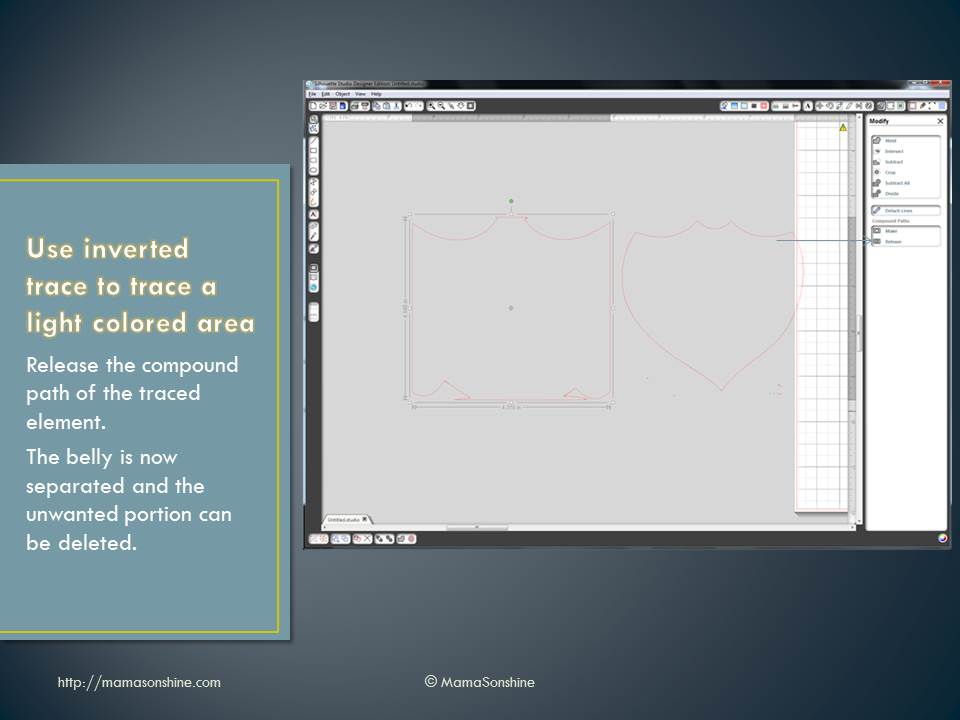
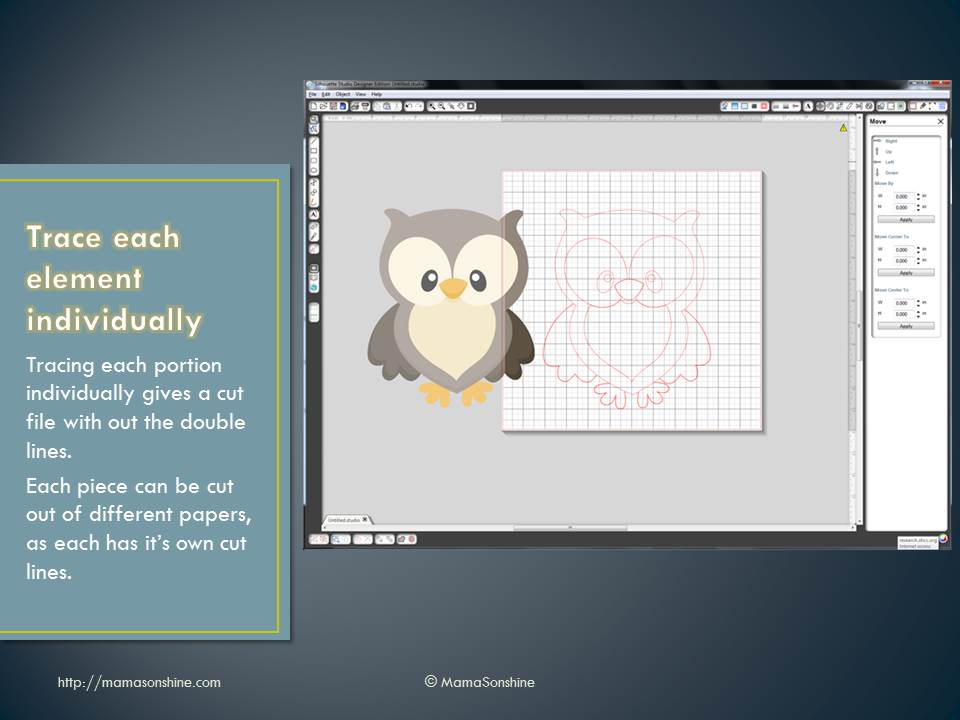
However, the tracing tool in the software is not that intuitive, so there is usually a number of questions about tracing. I put together this power point to help someone with tracing and thought I would share it with everybody.
Please note, I have the second version of the software, as I have not taken the plunge and upgraded to the third version. While the settings and option are the same, their location and how you do things might be different. I also have the designer edition, but everything in the tutorial is available in the standard addition.
One great feature of the Silhouette machines is the Sketch feature.
You replace the blade with a pen and it draws instead of cuts. This gives the project a hand drawn feel instead of one that came off a printer. This feature is also usefully for writing sentiments in cards or labels. Actually the possibilities are endless.
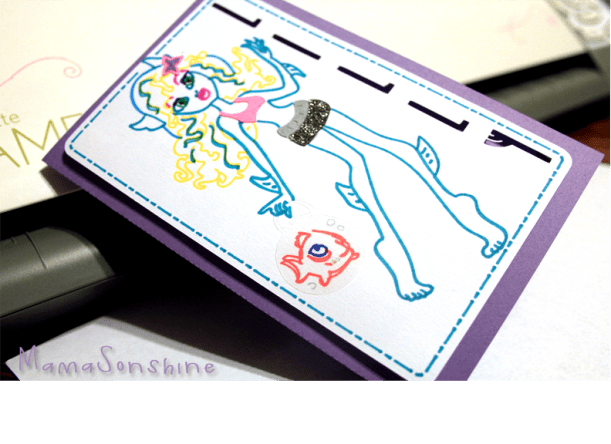
I made this card for a friend’s daughter using the sketch feature.
First you need to go online and find a coloring book page that you want to sketch using your Silhouette.
Here is the one I will be using.
Click picture for source
Please remember that this is for personal use only. I do not condone using or selling other people’s art/work without permission.
You want to find one that is at a fairly high-resolution that you can download. The benefit of the coloring pages it that it is more easily traced than an image with coloring.
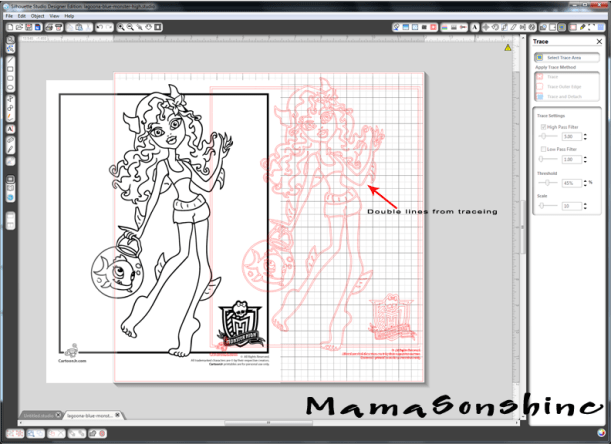
The down side of the Silhouette Studio software is that when you open the image and attempt to trace it you get this.
The software is tracing both sides of the black line. You can work with this, by ungrouping, releasing compound paths, point editing, cutting and erasing. All of which is really time-consuming.
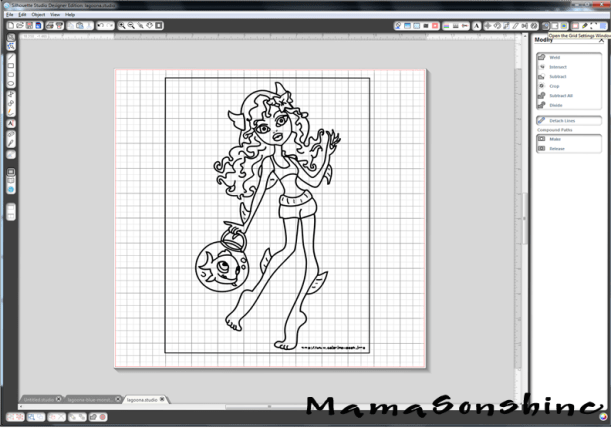
There are other software programs that can do center line tracing. I use Adobe Illustrator, but not everybody has that program. Kristy at Please Excuse my Craftermath has three posts on center-line tracing using Illustrator, Wintopo and AutoTrace, the last two are free. Wintopo is a freeware and AutoTrace is an online program. I won’t go into details about how to do the trace, because Kristy does an excellent job. What you end up with is a SVG file that you can open in Studio that has a single line. If you do not have the Designer Edition you can save as the new files as DXF files, which should open in the regular edition.
This tutorial will be about what to do now that you have a single stroke path file. The new SVG file will have thick lines, which make it easier to see, but when you go to sketch will need to be changed (I will explain later).
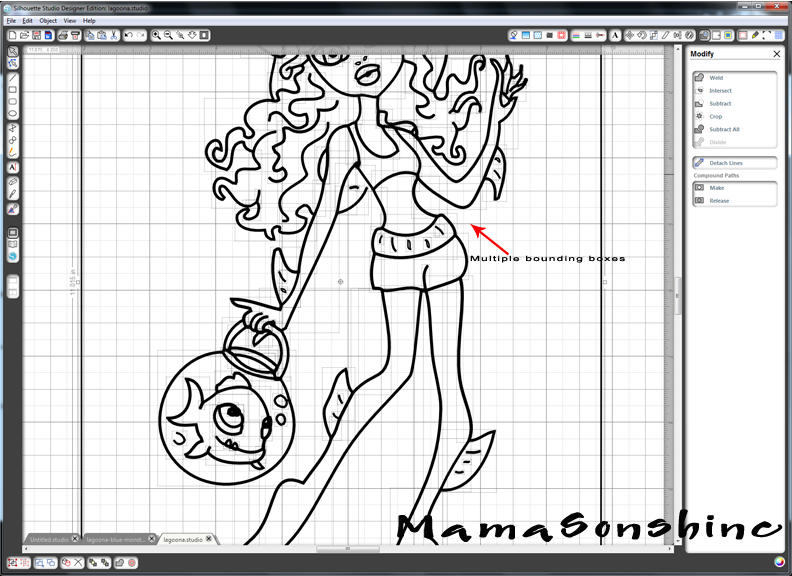
While the image looks like it is one line it is really made up of a bunch of little lines. Which is also fine if you want to sketch in one color, but that was not look I wanted.
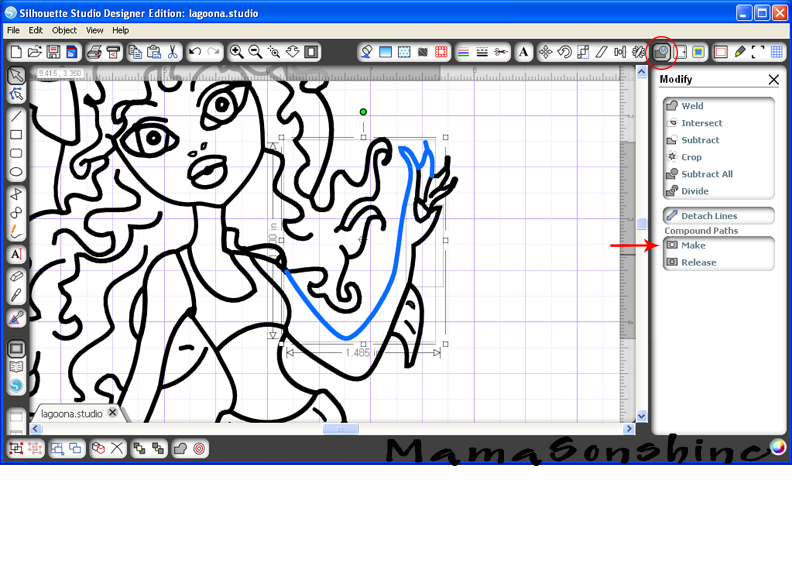
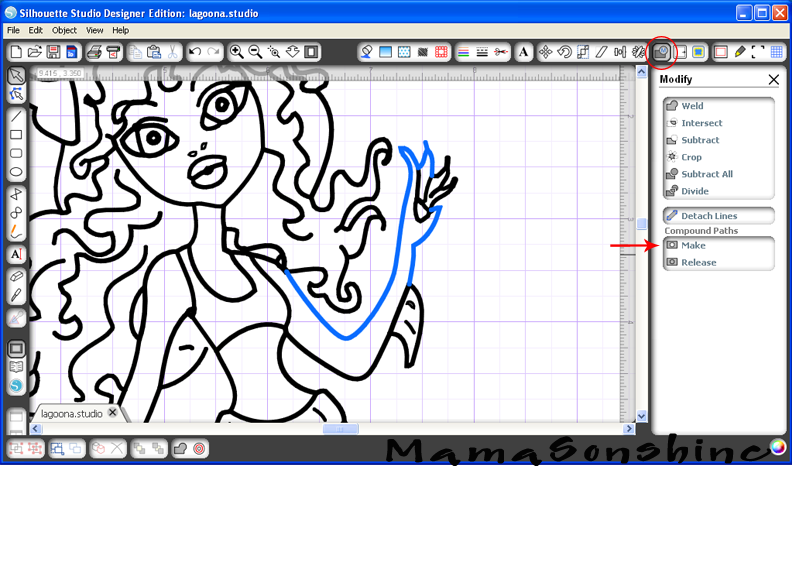
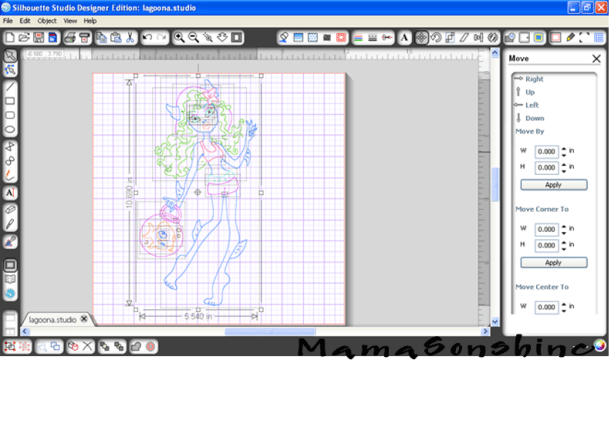
Fist you want to release the compound path, and ungroup until it is no longer an option. This way you can remove the black border around your image. You will be able to see the multiple bounding boxes around all the lines.
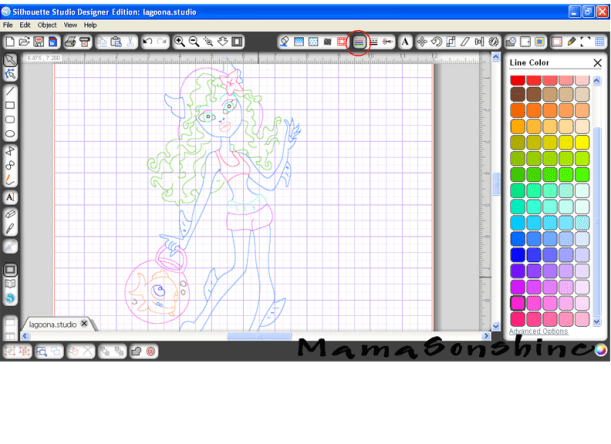
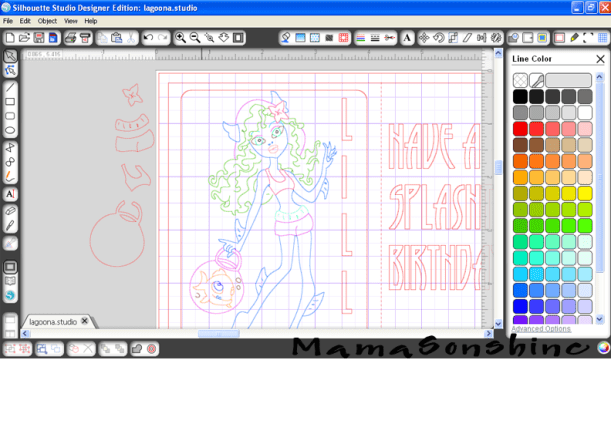
I found it was easier if I made each section a different color. I want the outline of her extremities, face, torso, etc. one color. Her hair a different color, her clothes different colors, and so on.
It doesn’t have to match the color I want in the end, because the final color will depend on what color pen I use. This just helps distinguish each portion, and makes it easier when I go to select which area to sketch.
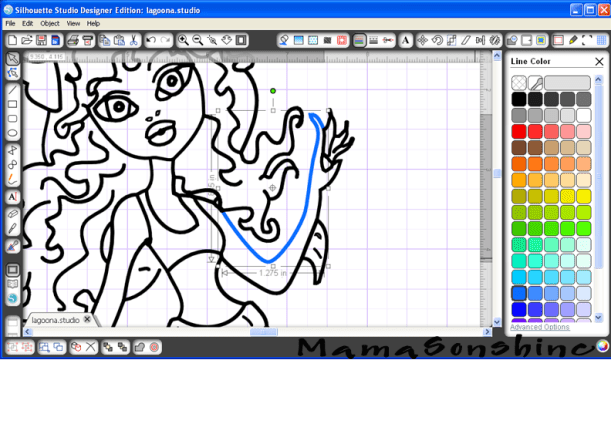
First choose one line and change the color.
While fist line is still selected hold the shift key and select another line (or multiple lines)
You want to make the selection a compound path, through the “modify window,” selecting object ->make compound path, or right clicking on your mouse (Sorry, I don’t have a Mac, so I don’t know the commands for it). When it is a compound path, the new line colors will be changed to the color you selected for your first line.
Continue to do this until you have made everything you want in that color one compound path.
Repeat the steps on the next section and again until the picture is color coordinated.
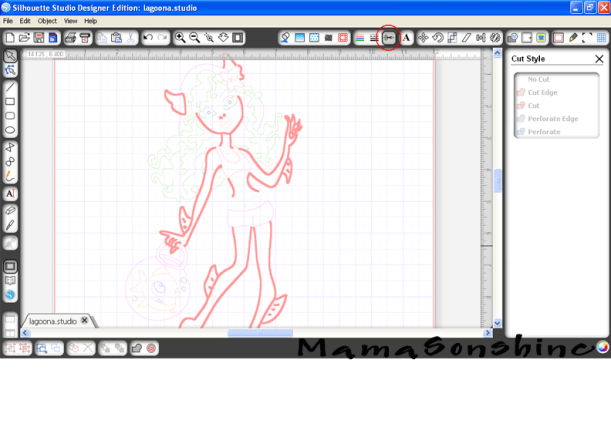
This makes it easier for me to select which portion to sketch. I can just select the body to be sketched in one color, send to Silhouette, change the pen, got to cut style window, select a different part to be sketch, send to Silhouette and repeat.
The new compound path for the body is selected, so it will all be drawn at once, and I only have to select one line.
If you need to resize or move the image, you simply group the different elements together. But you will have to ungroup them to sketch them at different times.
You will also need to change the line thickness to zero, if left as is, the Silhouette will do a ‘double cut’ or more accurately will draw two lines to get the set thickness.
Keep in mind, that while you have made the lines compound paths, they are still disconnected. This means that they can not yet be filled with a color or pattern.
This slideshow requires JavaScript.
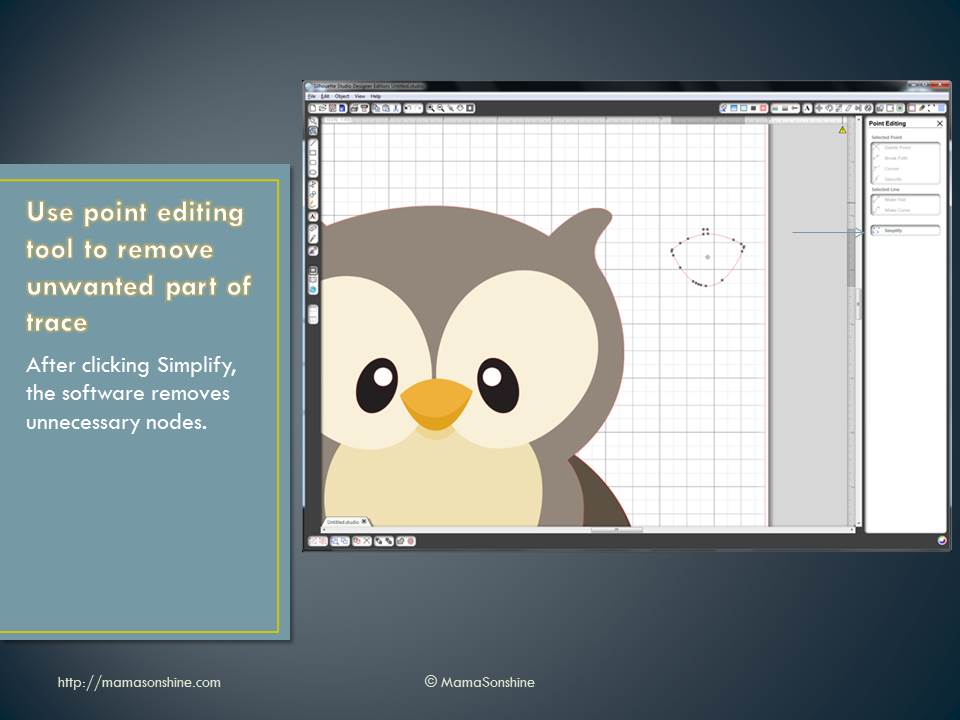
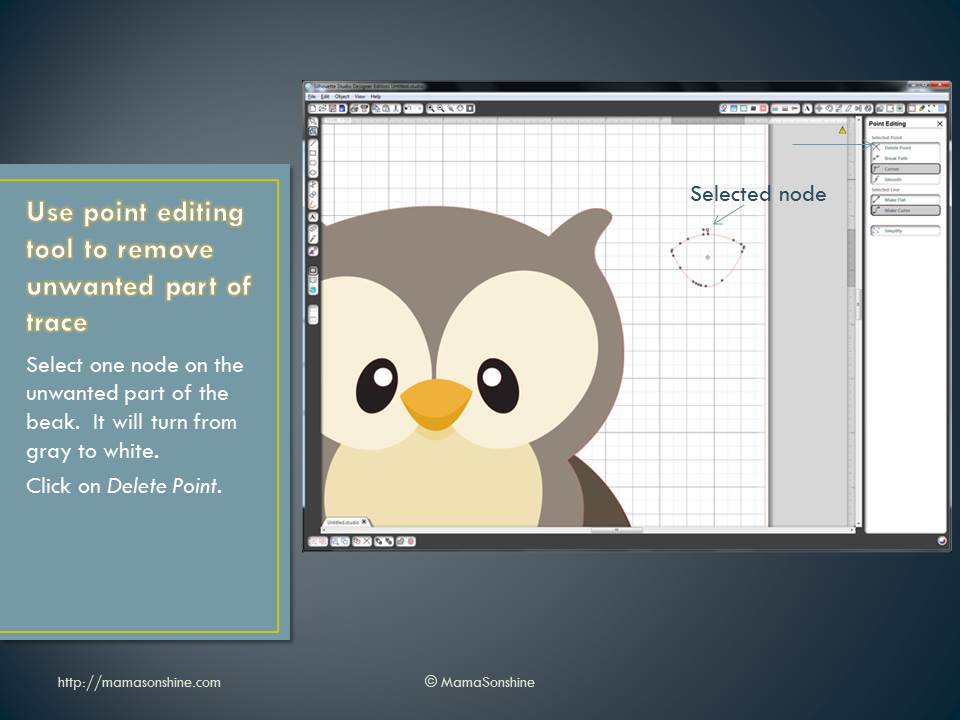
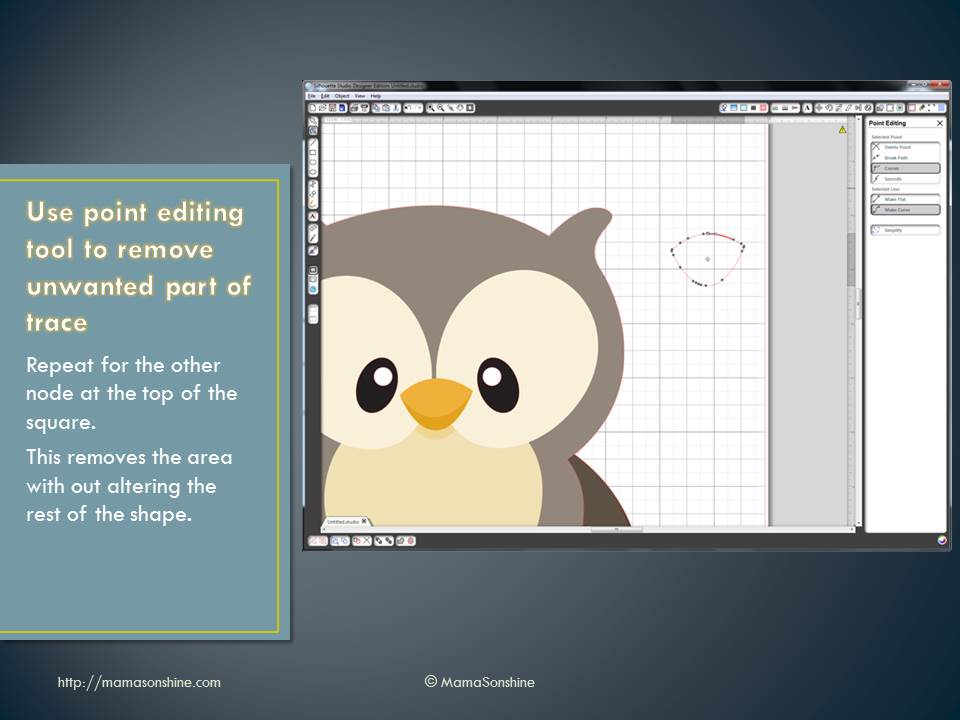
You will need to go back and connect the lines together using the point editing window. Sometimes you may need to delete some points, break paths, or move things depending on how it looks. This might also change the outcome if you try to cut, instead of draw. I can’t attest to that, because I have not tried to cut while the lines were unconnected.
This slideshow requires JavaScript.
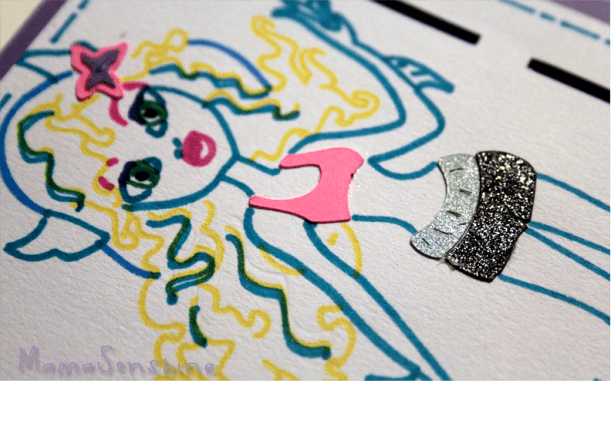
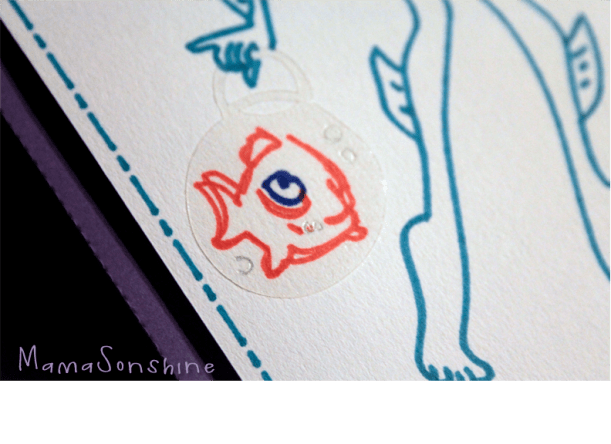
For this card I wanted to add dimension and I didn’t want her clothes to be just an outline. So I duplicated the clothes, fishbowl and flower elements. I connected the outside lines using the point editing tool and cut them out of colored cardstock, and clear sticker paper for the fishbowl.
I used the sketch pens to make the faux stitching around the border and write the sentiment inside the card.
This slideshow requires JavaScript.
I hope this has helped you take a black & white coloring page and turn it into a custom drawing.
I have been loving the sketch feature that my Silhouette Cameo has.
Being able to draw with it gives me more options than just print n’ cut.
This weekend we will be attending a birthday party for a little girl who is turning six and just loves Monster High. Since her favorite character is Lagoona Blue I made her a personalized birthday card.
Lagoona Blue Birthday Card
I will be providing a tutorial on how to make this card, so tune in next week for the details.
Lagoona Blue
I think my favorite thing about the card is the fish bowl purse. I used clear sticker paper to give the appearance of glass.
This month my cousin’s daughter turned four. And of course she loooovvvveees Frozen. She is a princess through and through, this child.
For her birthday I decided I wanted to make her a card with images from the movie. I also decided to make my first shaker card. I thought it would be great to have some ‘snow’ to shake around.
I used Silhouette’s print and cut feature to make the card.
I used foam pads to pop out the characters. I made two copies of the background and cut a square out of one.
However, I neglected to place a spacer between the levels, so the stuff inside doesn’t really ‘shake’.
But, it was my first shaker card, and I didn’t actually read any directions on how to make one…
The Birthday Girl loved the card, so it was a win in my book!
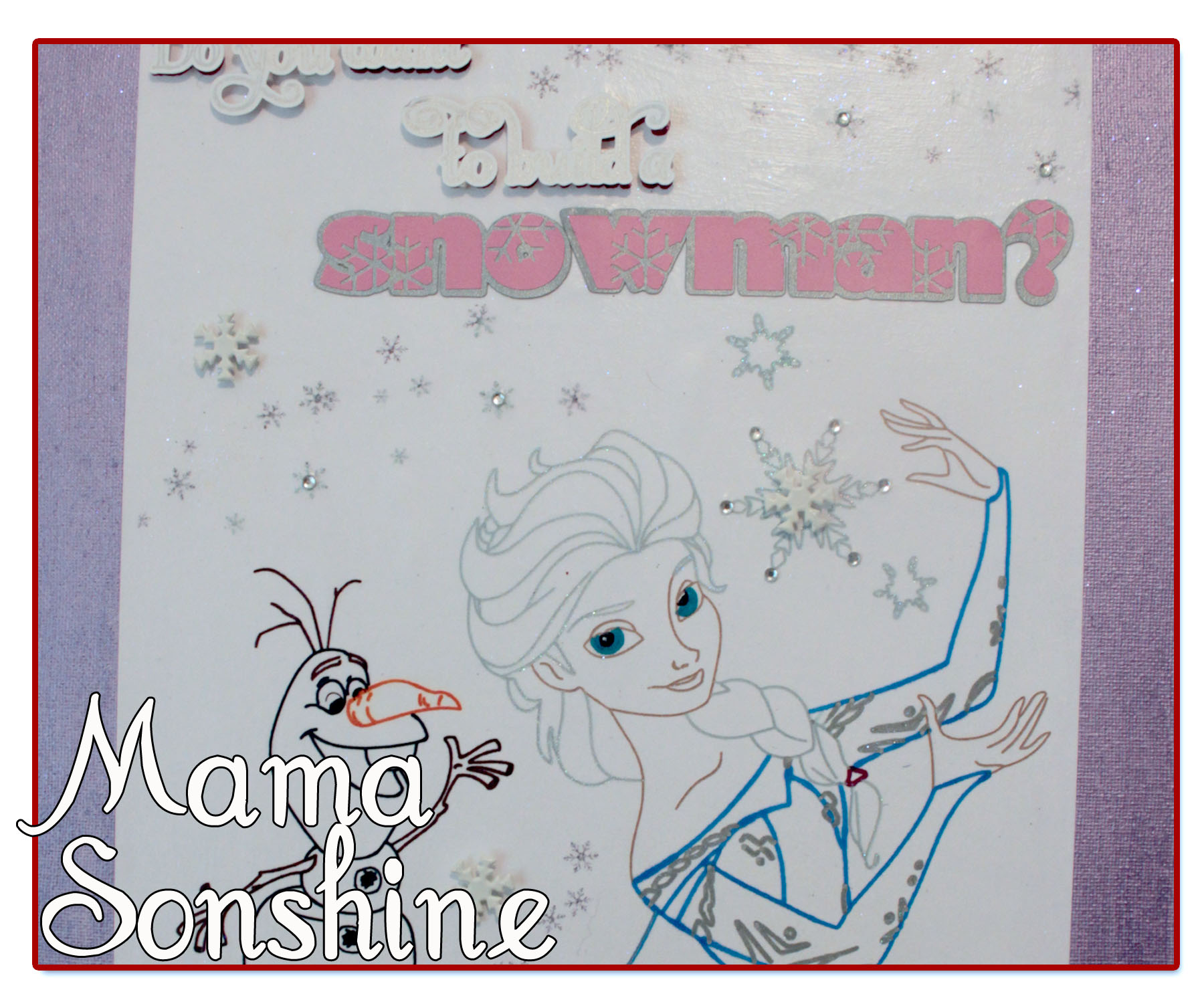
I also wanted to make something using the sketch feature.
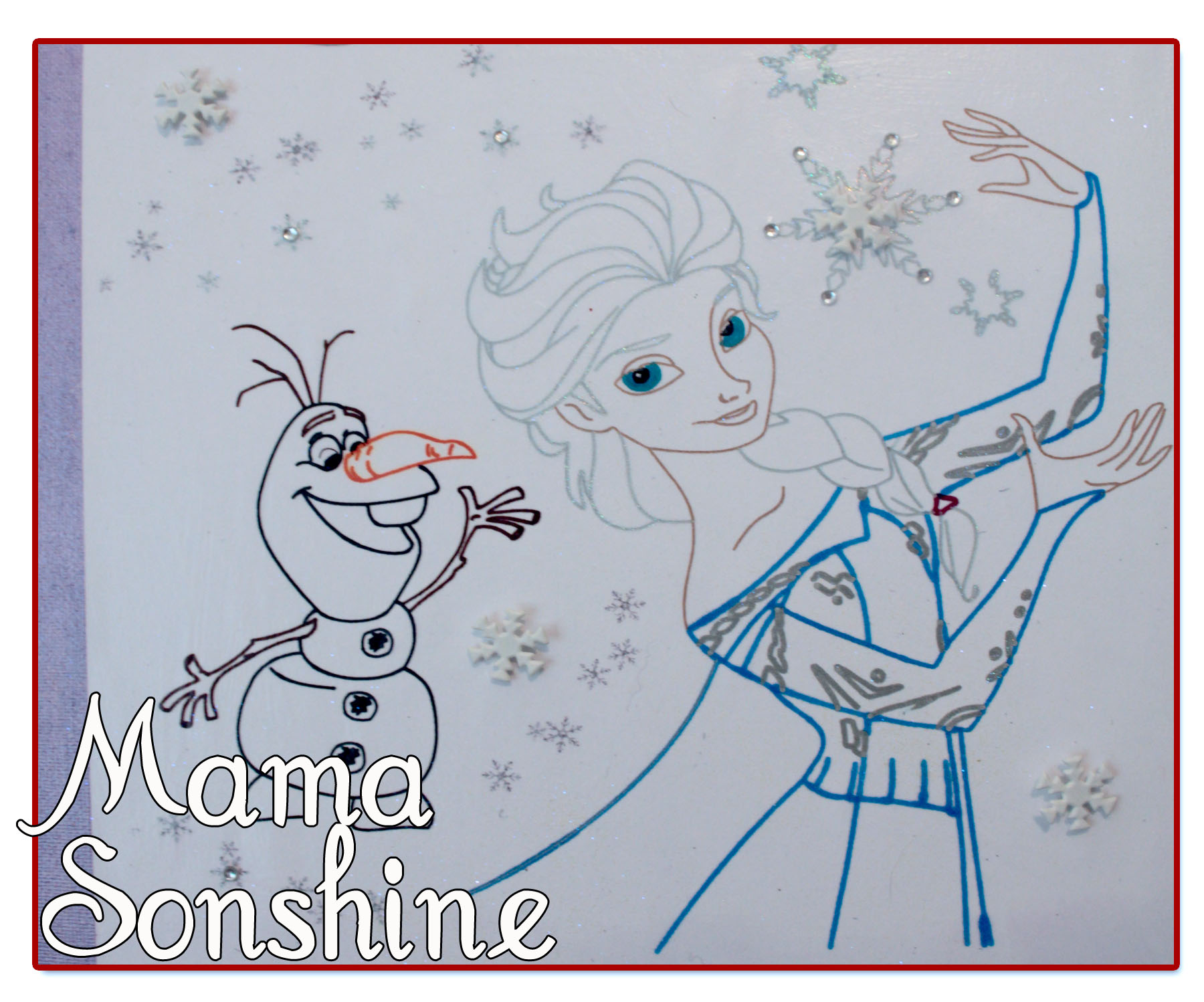
So I made her this picture and mounted it on canvas for her room.
I didn’t like the way the words at the top looked just sketched out, so I gave them more dimension and added some layers.
I added some snowflake brads and some adhesive jewels. I printed out the small snowflakes on the paper before beginning the sketching process.
I also used my embossing ink pen in the Silhouette and went over the sketch lines for the large snowflakes, her hair and the silver in her dress. I then used a transparent opal embossing powder, because glitter makes everything better.
I used a combination of pen types; Sharpies, Silhouette Sketch Pens, and Bic Mark-It ink pens.
It took a few passes to get everything right, and I had the hardest time figuring out how I wanted the eyes.
This project was really fun and I can’t wait to find something else to sketch!
If you want to learn how to turn a coloring book page into a sketch check out my tutorial here.







 I Tri and Craft